After downloading, please run the setup file, then follow the wizard to complete installation.
Set your password for the account of Gilisoft File Lock Pro when you run at the first time.
Note: Make sure to remember your password or keep it in a safe place, because you can not run this program without it
How to uninstall GiliSoft File Lock Pro?
Go to "Start" in Windows, and find out "Gilisoft", then select the "Uninstall Gilisoft File Lock Pro". The following picture is showing you detailed information.
Input your password for Gilisoft File Lock Pro' account to continue uninstalling. (No need enter password if it is not registered version)
How to hide files, folders, and disk drives?
1) How to hide folders and files on local disk.
Run Gilisoft File Lock Pro, and then click on the "Local Disk " module.
You can select "Hiding File" under the module of "Local Disk ".
Click on the "Hide File(s)", "Hide Folder", "Hide Drive" button to select the file/folder/drive you want to hide. Then they will be add to the list. You can add files as many as you want.
2) How to hide folders and files on external hard disk.
Run Gilisoft File Lock Pro, and then click on the "External Disk" module.
You can select "Hiding File" under the module of "External Disk".
Click on the "Hide File(s)", "Hide Folder" button to select the file/folder you want to hide. Then they will be add to the list. You can add files as many as you want.
How to lock files, folders, and drives with password?
1) How to password protect files, folders, and drives on local disk.
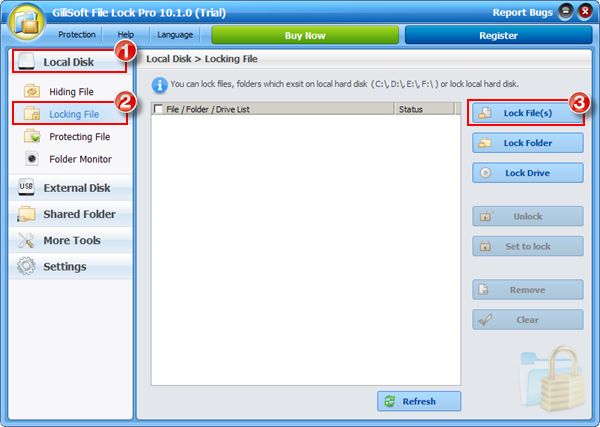
Run Gilisoft File Lock Pro, and then click on the "Local Disk " module.
Select "Locking File" under the module of "Local Disk".
Click on the "Lock File(s)", "Lock Folder", "Lock Drive" button to select the file you want to password lock.
2) How to password protect files, folders on external disk.
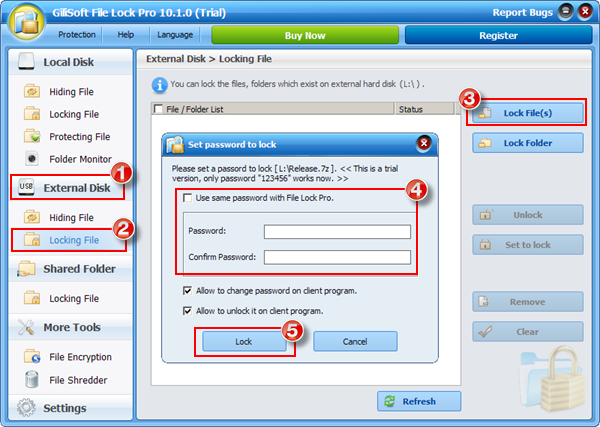
Run Gilisoft File Lock Pro, and then click on the "External Disk " module.
Select "Locking File" under the module of "External Disk".
Click on the "Lock Files" button to select the file you want to password protect.
Set the password and Click "Lock" button to complete. (You can use the master password or set a new password to lock.)
3) How to password protect shared network folder.
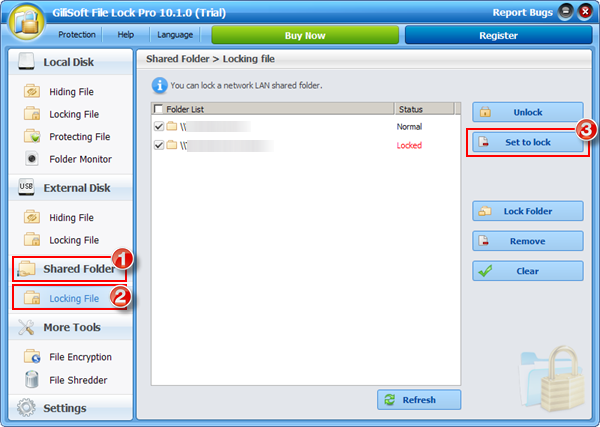
Run Gilisoft File Lock Pro, and then click on the "Shared Folder" module.
Select "Lock Files" under the module of "Shared Folder".
If the shared folder appears in the folder list, please click on the "Set to lock " button to lock. If you have not found the shared folder, please click "Lock Folder" to lock the shared folder you want to password protect.
Run Gilisoft File Lock Pro, and then click on the "Local Disk" module.
Select "Protecting File" under the module of "Local Disk".
Click on the "Protect File(s)", "Protect Folder", "Protect Drive" button to select the file/folder/drive you want to write protect.
How to encrypt files, folders to password-protected executable file
Run Gilisoft File Lock Pro, and then click on the "More Tools" module.
Select "File Encryption " under the module of "More Tools".
Click "Add Files" to add the file you want to encrypt.
Click on the "Encrypt to exe " button to start file encryption.
How to monitor file and folder changes?
Run Gilisoft File Lock Pro, and then click on the "Local Disk" module.
Select "Folder Monitor" under the module of "Local Disk ".
Click "Add" to add the folder you want to monitor. You can add folders as many as you want.
How to safely delete sensitive files, folder?
Run Gilisoft File Lock Pro, and then click on the "More Tools" module.
You can select "File Shredder " under the module of "More Tools".
Click on the "Add File(s)" button to select the file you want to safe delete.
Click on the "Safe Delete" button to delete.
How to find back your lost password?
Run Gilisoft File Lock Pro, and then click on the "Retrieve Password". (To find back password successfully, please must set an Email account before.)
How to hide this software from desktop, start menu and right menu?
Run Gilisoft File Lock Pro, and then click on the "Settings" module.
You can select "Self Protect " under the module of "Settings".
Check "Hide itself from the desktop ", "Hide itself from the start menu", "Hide itself from quick link ", "Disable shell menu " checkbox to run Gilisoft File Lock Pro in Invisable Mode.
“GiliSoft File Lock Pro is a useful piece of software for people looking to protect important or sensitive information from prying eyes...”- www.softpedia.com
“Gili File Lock has an attractive interface that is simple to operate. The program guides users through the entire process with a few simple onscreen instructions...”- www.softpedia.com

 How to use File Lock Pro for Windows





 Password protect files, folders and disk drives.