
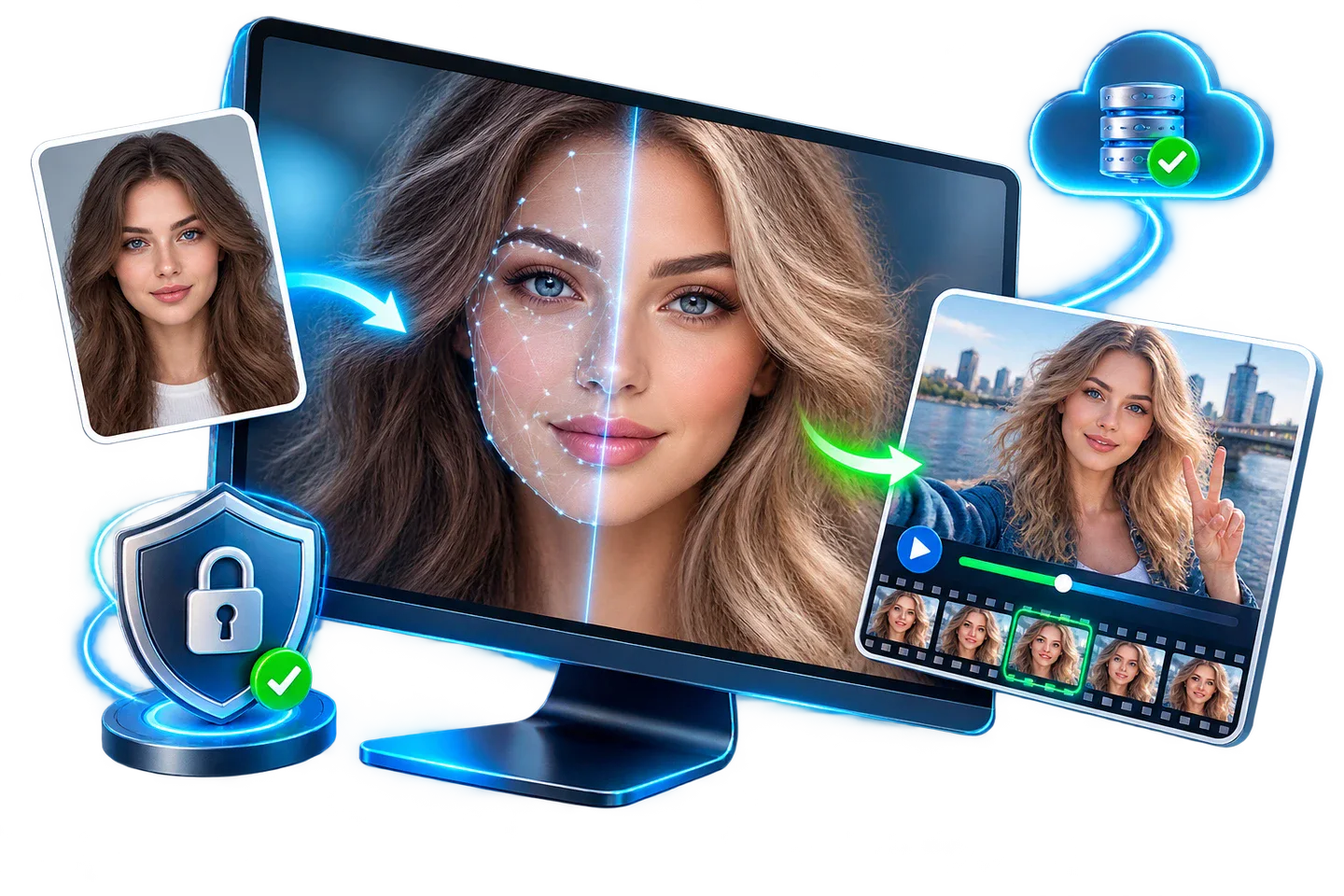
AI Face Swap for Videos on Windows
A video face swap can look acceptable on a paused frame yet fail during head turns, blinking, or occlusion. Short test clips help reveal those problems before a full export.
Quick answer
Use a clear target clip and compatible source portrait. Run a short test in GiliSoft Face Swap using the permitted cloud mode or licensed offline mode, then inspect playback and individual frames before exporting the full clip.
Before You Start
- Confirm rights and consent for faces, footage, and final distribution.
- Check clip length, resolution, frame rate, camera motion, and how often the face is obscured.
- Keep an untouched copy and choose cloud or offline mode based on privacy and licensing needs.
Choose the Right Approach
| Situation | Approach | Check |
|---|---|---|
| Short, frontal talking-head clip | Test a short representative segment | Eyes, mouth, and edges remain stable |
| Fast head turns or occlusion | Use a more suitable clip or source face | No flicker or identity drift |
| Confidential footage | Offline FaceSwap Master | No upload-based processing for the task |
AI Face Swap for Videos on Windows: Step by Step
- Choose a representative clip
Include the hardest pose, lighting change, or scene transition in the test segment.
- Add a compatible source face
Use adequate resolution and a similar viewing angle.
- Process a short test
Select the authorized cloud or offline workflow and inspect the result before committing a long job.
- Check motion and sound
Review beginning, middle, and end frames, occlusions, lip area, frame pacing, and audio synchronization.
- Export a separate copy
Keep the original and play the result in a normal video player.
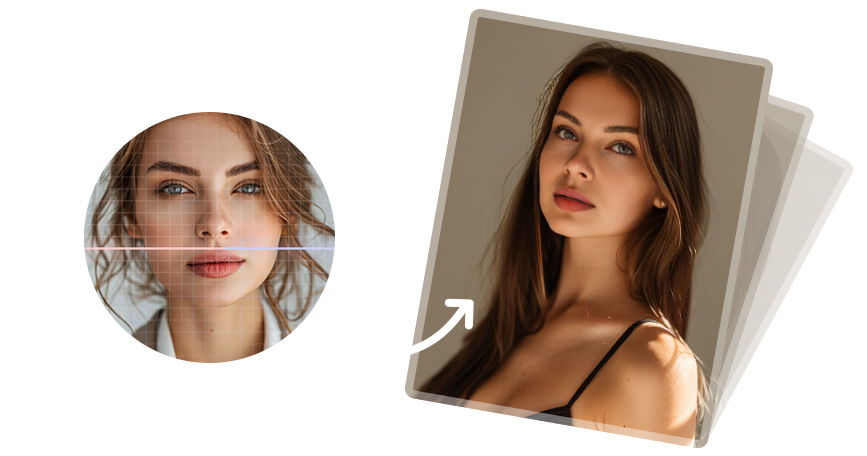
Review the Result
- Look for flicker at the hairline and jaw as the head moves.
- Check whether another person or background face was changed.
- Verify the audio track, duration, and framing survived export.
Limits and Common Mistakes
Video quality depends on source clarity, pose range, motion, and the selected processing mode. A still-image result does not prove frame-to-frame stability.
Frequently Asked Questions
Why does the face flicker?
Pose shifts, blur, occlusion, and source mismatch can break tracking; test a cleaner clip or source portrait.
Can I process video offline?
Offline FaceSwap Master is the local option; do not assume cloud mode is private.
Does the tool change the voice?
A face swap is a visual task. Review the original audio separately and do not imply voice replacement.