

Can a RAM Disk Speed Up Internet Explorer? Legacy Guidance
Internet Explorer 11 is retired on supported consumer Windows versions, so moving its cache to RAM is not a sensible modern performance strategy. Organizations with legacy sites should use Microsoft Edge IE mode and manage compatibility through supported policy.
Quick answer
Do not deploy a RAM disk to revive Internet Explorer. Move normal browsing to Microsoft Edge. Use GiliSoft RAMDisk only for suitable, recreatable temporary data in supported applications, and expect no increase in network bandwidth or server speed.
Separate Browser Support from Storage Speed
| Situation | Recommended approach | Check carefully |
|---|---|---|
| Ordinary web browsing | Use a supported modern browser | Updates, extensions, and site compatibility |
| Managed legacy web application | Use Microsoft Edge IE mode where required | Enterprise site list and application testing |
| Cache-heavy supported application | Consider a RAM disk for recreatable cache | Available memory, data loss, and documented path settings |
Step-by-Step Workflow
- Retire standalone Internet Explorer use
Identify bookmarks and required legacy sites, then move normal browsing to Microsoft Edge or another supported browser.
- Handle legacy sites through supported policy
For an organization that still requires IE technology, configure and test Microsoft Edge IE mode rather than relying on the retired desktop application.
- Identify a valid RAM-disk workload
Choose only cache, scratch, build, or temporary files that the application can safely recreate and officially allows you to relocate.
- Create and monitor the RAM disk
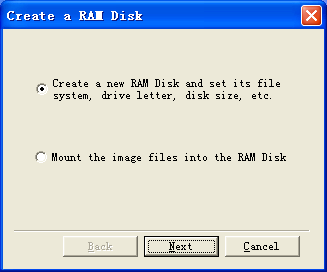
In GiliSoft RAMDisk, allocate conservative memory, choose temporary or image-backed behavior, point the supported application path to it, and monitor Windows memory pressure.
For every product control and supporting task, see the RAMDisk user guide.
GiliSoft RAMDisk Interface
These real product screenshots connect the advice above to the Windows workflow.

Review Before You Finish
- Keep the untouched source or a verified backup before changing protected data or media.
- Test the finished result in the real destination, recipient, or restart workflow.
- Document passwords, recovery material, ownership, and exceptions in an appropriate controlled location.
- Do not treat one product control as a replacement for authorization, backups, endpoint security, and policy.
Frequently Asked Questions
Is Internet Explorer still supported for normal browsing?
The IE11 desktop application is retired on affected Windows versions. Microsoft directs legacy application needs to Internet Explorer mode in Microsoft Edge.
Will a RAM disk increase download speed?
No. Download speed is mainly constrained by the network, remote server, protocol, and system load rather than the cache drive alone.