
What Actually Makes a Video File Smaller?
Video size is driven mainly by duration and the combined video and audio bitrate. Resolution, frame rate, codec efficiency, visual complexity, and the selected quality mode determine how much data the encoder needs.
There is no single compression setting that suits every source. A talking-head lesson, fast sports clip, screen recording with small text, and 4K phone video need different settings even when their running time is the same.
A Dedicated Video Compression Workspace
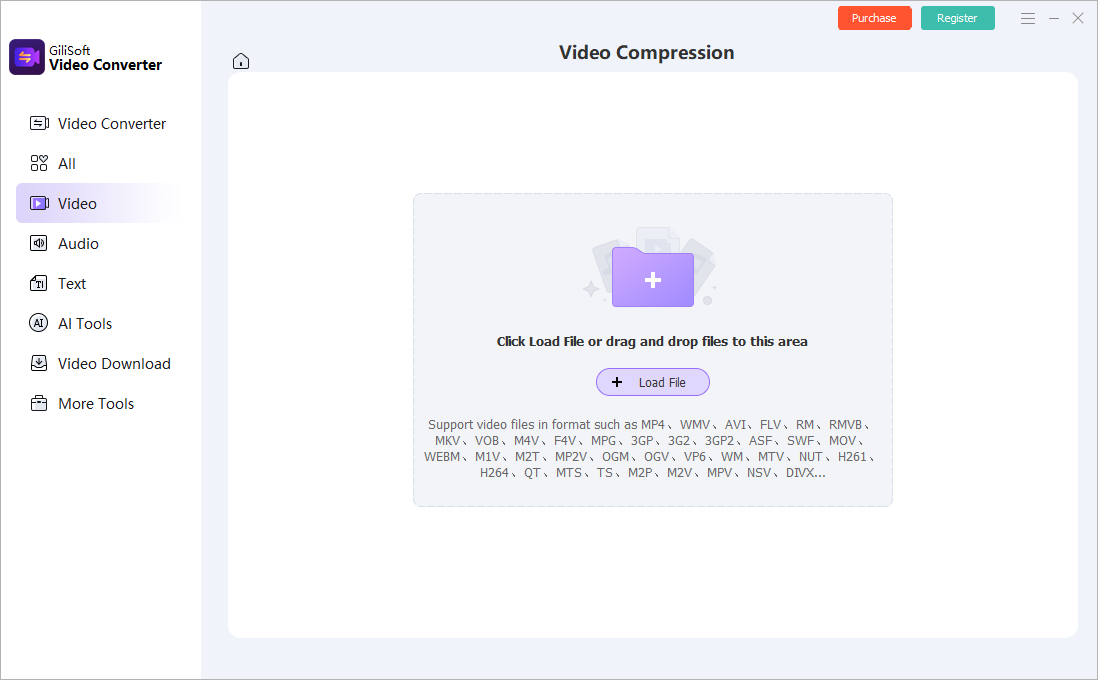
Video Compression is a separate tool inside GiliSoft Video Converter. It opens a focused workspace for reducing file size, so users do not need to enter the general converter first or search through unrelated editing tools.
Load one file or a batch
Click Load File, drag files into the import area, or add several compatible videos for the same compression job.
Broad source-format input
The module accepts common video sources including MP4, WMV, AVI, FLV, MOV, MKV, WEBM, MPEG, MTS, M2TS, VOB, and other supported formats shown in the application.
Choose a Compression Strategy
| Goal | Best starting adjustment | Tradeoff to inspect |
|---|---|---|
| Keep the picture close to the source | Use an efficient codec and a constant-quality style target | Final size varies with motion and detail. |
| Meet a strict upload limit | Use a target bitrate based on duration | Quality varies because the size target is fixed. |
| Create a review copy | Reduce resolution and quality while retaining the master | Fine detail and small text can soften. |
| Compress a long recording | Trim pauses, duplicate takes, and unused sections first | Editing changes duration but avoids wasting data. |
| Target modern devices | Consider H.265 where supported | Compatibility can be lower than H.264. |
How to Compress Video with GiliSoft
- Add the original video.
Inspect its duration, resolution, frame rate, format, and audio before changing anything. - Remove footage that should not be delivered.
Trim silent openings, repeated takes, long pauses, and unused endings. - Choose the destination format and codec.
MP4 with H.264 and AAC is a practical compatibility starting point. Use H.265 after confirming destination support. - Select the output resolution.
Keep 1080p for detailed presentations when needed; use 720p for many sharing jobs; use 480p mainly for drafts or strict limits. - Set video quality or bitrate and audio.
Make one representative test, then inspect motion, faces, text, gradients, audio clarity, and file size. - Run the batch and verify the output.
Keep sources, save compressed copies separately, and test playback on the actual destination.
Which Resolution Should You Use?
480p for drafts
Useful when size matters more than detail. Avoid it when the video contains small interface text.
720p for everyday sharing
A practical compromise for social media, messaging, mobile viewing, and lightweight review copies.
1080p for presentations
Retains more detail for tutorials, demos, training, and common HD delivery.
4K only when required
Keeping 4K limits size reduction. Create a separate 1080p copy when viewers do not need the 4K master.
Microsoft similarly positions 480p for drafts, 720p for social media, 1080p for streaming and presentations, and 4K for genuine 4K media. The right choice still depends on your footage and destination.
Estimate Bitrate for a File-Size Limit
When a portal or attachment has a hard limit, estimate the total bitrate from duration:
Subtract the planned audio bitrate to estimate the available video bitrate, then leave margin for container overhead and encoder variation.
A 100 MB limit for a 10-minute video gives roughly 1,333 kbps total. With 128 kbps audio, the video budget is about 1,205 kbps before safety margin. This may suit simple slides, but detailed 1080p footage may need a lower resolution or larger limit.
Avoid Unnecessary Quality Damage
- Return to the original: repeated compression compounds artifacts.
- Preserve aspect ratio: do not stretch portrait, square, 4:3, or widescreen footage.
- Keep the recorded frame rate: lowering it can reduce size but makes motion less smooth.
- Check difficult scenes: inspect fast movement, foliage, water, gradients, faces, and small text.
- Keep audio sensible: spoken lessons rarely need music-master audio settings, but aggressive compression can harm clarity.
- Retain the master: compressed delivery copies should not replace the only high-quality source.
Common Windows Compression Jobs
Compress video for email
Trim the clip, calculate the attachment target, reduce resolution if needed, and leave margin for the mail system limit.
Prepare an upload
Follow the platform's codec, resolution, frame-rate, and bitrate guidance instead of producing the smallest possible file.
Create client review copies
Keep the master and export smaller MP4 copies that transfer quickly but preserve required detail.
Compress a video library
Group sources by resolution and destination, test one file, then use GiliSoft's batch workflow.
GiliSoft Video Converter is useful when compression sits beside format conversion, trimming, batch processing, subtitles, audio, rotation, and other media work. Download the trial and compare a compressed copy with your original.
Fix Common Compression Problems
| Problem | Likely cause | Practical fix |
|---|---|---|
| Compressed file is larger | Output bitrate, resolution, frame rate, codec, or audio exceeds the source | Inspect source properties and choose settings for the delivery target. |
| Picture is blocky | Bitrate or quality is too low for the motion and detail | Increase quality, reduce resolution less, or use a more efficient supported codec. |
| Text is difficult to read | Resolution or bitrate is too low | Keep a higher resolution and test detailed screen sections. |
| Video is stretched | Aspect ratio changed during resizing | Preserve aspect ratio and separate portrait and landscape batches. |
| Upload still fails | Wrong codec, size, duration, frame rate, or platform requirement | Check the destination specification; size is not the only rule. |
| Compression is slow | High resolution, filters, slow storage, or unsupported hardware path | Use local storage, remove unnecessary processing, and test GPU settings. |
Video Compressor FAQ
How can I compress a video without obvious quality loss?
Start from the original, remove unused footage, preserve frame rate and aspect ratio, use an efficient codec and a sensible quality target, then inspect detailed and high-motion sections.
What reduces file size the most?
Shorter duration, lower resolution, lower video bitrate, a more efficient codec, lower frame rate, and lower audio bitrate all help. Duration and video bitrate usually have the largest direct effect.
Is H.265 always better?
H.265 can be efficient, but the receiving player must support it. H.264 remains a safer choice for many general delivery jobs.
Can GiliSoft compress multiple videos?
Yes. Add compatible sources, choose shared settings, test one representative file, and process the remaining queue as a batch.
Why is final size hard to predict?
Constant-quality encoding uses more data for complex scenes and less for simple scenes. Use target bitrate when a strict limit matters.
Research Sources
- HandBrake: Constant Quality vs Average Bit Rate explains predictable quality versus predictable size.
- HandBrake official presets documents general, web, social, and production choices.
- YouTube upload encoding settings covers codec, frame rate, resolution, audio, and bitrate.
- Microsoft Clipchamp export guidance describes practical uses for 480p, 720p, 1080p, and 4K.
Compress Videos on Windows with GiliSoft
Trim unnecessary footage, choose the required resolution and codec, adjust quality and audio, process multiple videos, and verify smaller copies without replacing the originals.