
What Is Batch Video Conversion?
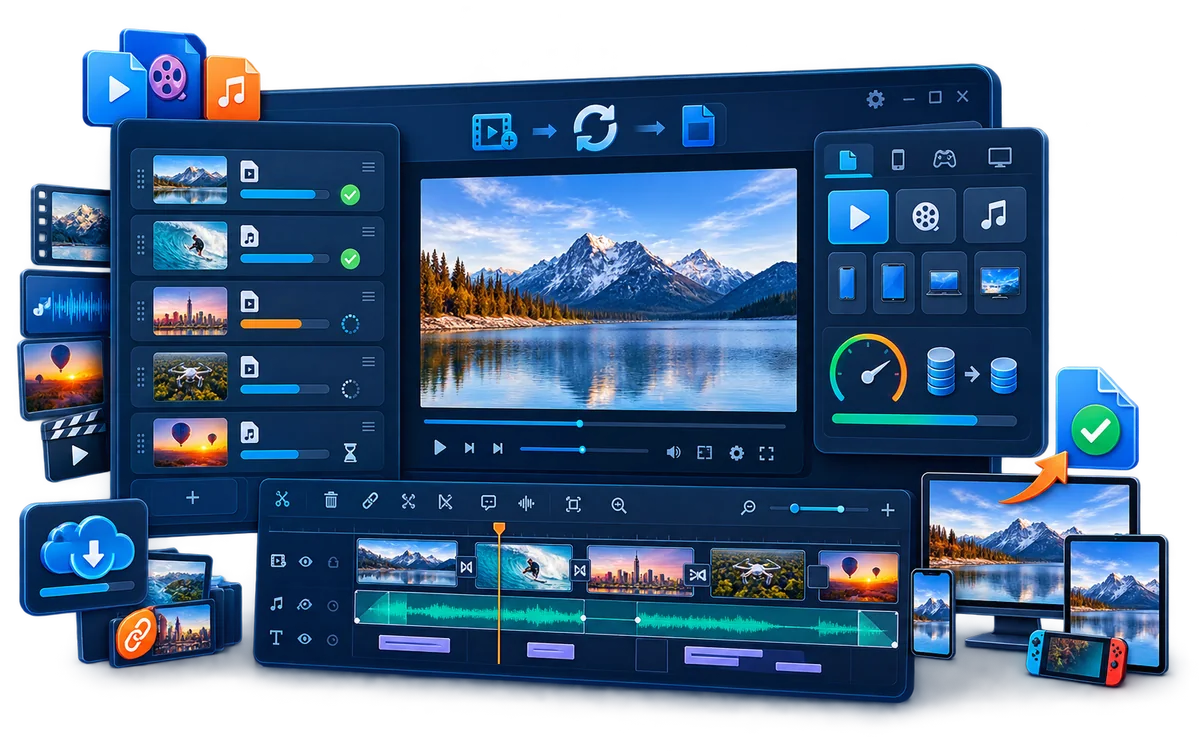
Batch conversion means preparing several video or audio jobs before the conversion starts, then letting the application process the list without making you reopen the converter for every file.
A good batch is more than a long file list. The files should share a sensible output goal: for example, turning mixed camera clips into MP4 for a company portal, creating smaller review copies, extracting audio from a folder of recordings, or standardizing archived videos for a known player.
Plan the Batch Before You Convert
| Check | Keep in one batch when... | Split into another batch when... |
|---|---|---|
| Destination | Every file is going to the same website, device, archive, or client. | Some files are for web delivery while others are masters or mobile copies. |
| Resolution and frame rate | A common limit is appropriate for every source. | Portrait, landscape, SD, HD, and 4K sources need different treatment. |
| Audio | The same codec and channel layout work for all files. | Some sources need stereo while others must preserve different audio tracks. |
| Subtitles | Subtitle handling is consistent across the set. | Some files need embedded captions, selectable tracks, or no subtitle output. |
| Quality | One bitrate or quality target suits the entire delivery set. | High-motion footage, screen recordings, and small review clips need different targets. |
This planning avoids the common mistake of forcing every source through one convenient preset and discovering later that portrait footage was cropped, subtitles disappeared, audio changed, or small files became unnecessarily large.
How to Batch Convert Videos with GiliSoft
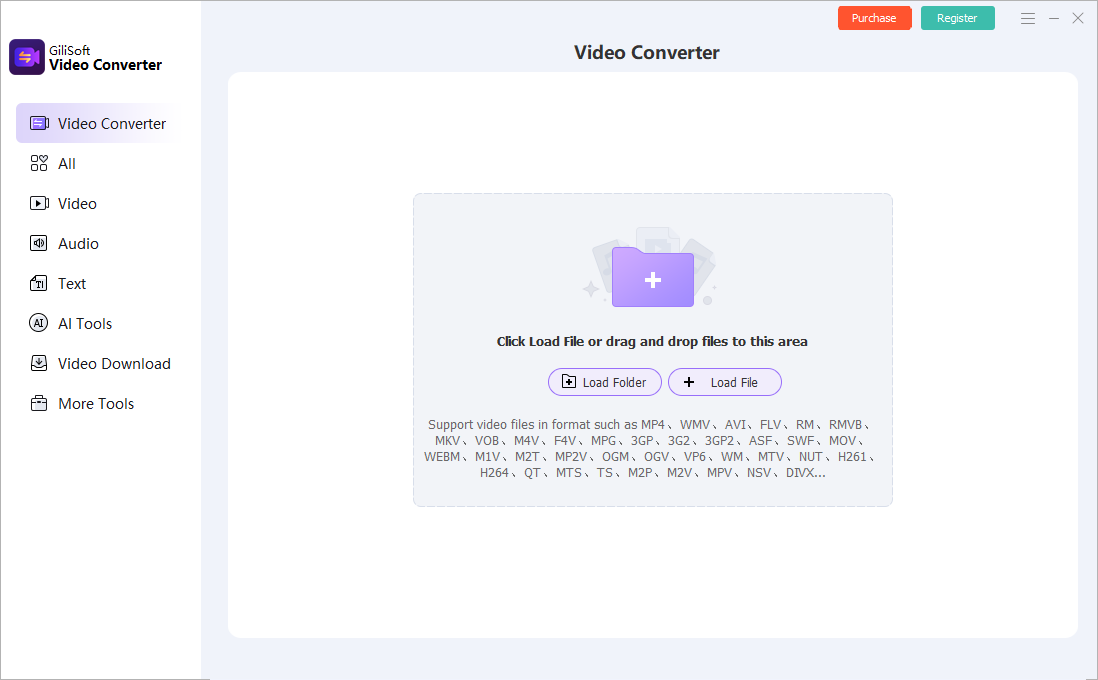
- Open GiliSoft Video Converter and add the sources.
Use Add Files or add a source folder. Review the file names, duration, dimensions, and source types before applying output settings. - Remove files that do not belong in this batch.
Separate sources whose destination, aspect ratio, subtitle requirements, or audio layout differs from the rest. - Choose the output format and profile.
Select the codec, container, resolution, frame rate, quality or bitrate, and audio settings required by the actual player or delivery channel. - Configure subtitles, audio, compression, or other required processing.
GiliSoft also provides cutting, joining, crop and rotation, subtitle tools, audio extraction and adjustment, compression, visible watermarking, and related media functions alongside conversion. - Run one representative test.
Convert a file that contains typical motion, audio, subtitles, and dimensions. Check it before committing the complete queue. - Start the batch and review its progress.
Keep the destination drive available and confirm there is enough free space for every output. - Verify the completed files.
Check playback, duration, resolution, audio sync, subtitles, file size, naming, and compatibility on the intended player or device.
Choose Settings That Stay Consistent
Container and codec
MP4 is commonly selected for broad delivery, but a container name alone does not guarantee compatibility. The video codec, audio codec, profile, resolution, and target player still matter. Choose the destination first, then the format.
Resolution and aspect ratio
Avoid blindly resizing portrait, widescreen, square, and older 4:3 sources to one frame shape. Group files by layout, or preserve each source aspect ratio when the delivery platform allows it.
Frame rate
Keep the source frame rate unless the destination has a specific requirement. Converting every file to a higher frame rate does not recreate motion information that the source never contained.
Audio and subtitles
Confirm whether audio should remain stereo or preserve another channel layout. Decide whether captions should be embedded into the picture, retained as a selectable track, or delivered separately. Test both speech and sync before running the full batch.
Naming and destination folders
Use a separate output folder and predictable names. Never overwrite the only copy of the originals. If several sources share the same base name, confirm how the converter handles duplicate output names.
Useful Batch Conversion Jobs
Mixed recordings to one delivery format
Standardize phone clips, camera footage, and screen recordings for a known Windows player, portal, or presentation PC.
Smaller review copies
Create lower-resolution or compressed copies for email, review, upload, or internal approval while preserving the original media.
Training and tutorial libraries
Prepare recurring lessons with consistent video, audio, subtitle, and file-naming rules before publishing.
Audio extraction from many videos
Process a folder of interviews, webinars, or recordings when the required deliverable is an audio file rather than video.
For users who regularly receive many sources, GiliSoft Video Converter keeps conversion, compression, subtitles, audio handling, and practical media tools in the same Windows product. You can download the trial and test a representative batch with your own files before purchasing.
Speed Up a Large Batch Without Guessing
Hardware encoding can reduce conversion time, but total throughput still depends on decoding, filters, scaling, storage speed, the selected codec, and the source files. GiliSoft supports NVIDIA NVENC encoding on compatible hardware and supported output settings.
- Use local storage: copying sources from a slow network share or removable drive can keep the encoder waiting.
- Avoid unnecessary processing: resizing, noise processing, subtitle rendering, and visual effects add work even when hardware encoding is enabled.
- Test the chosen profile: a fast result is not useful if the target player rejects it or the bitrate is too low.
- Judge total batch time: compare the time needed to finish the whole set, not just the speed of one easy file.
Fix Common Batch Conversion Problems
| Problem | Likely reason | Practical fix |
|---|---|---|
| Some files fail while others finish | Damaged source, unsupported stream, unusual codec, or inaccessible file | Open the failed source separately, move it to local storage, and test it in its own batch. |
| Output sizes vary unexpectedly | Different duration, motion, resolution, or variable quality behavior | Compare bitrate, dimensions, duration, and quality settings rather than file size alone. |
| Portrait video is stretched or cropped | One landscape profile was forced onto mixed aspect ratios | Preserve aspect ratio or create a separate portrait batch. |
| Subtitles or audio are missing | The selected profile did not include the required stream or handling mode | Inspect the source tracks and test subtitle and audio output before restarting the batch. |
| Conversion becomes slow | Heavy filters, slow storage, unsupported hardware path, or thermal limits | Test a simpler profile, use local storage, verify GPU support, and compare one file with and without added processing. |
| Completed file will not play | Destination does not support the codec, profile, resolution, or audio format | Select a device-ready profile or a broadly supported output such as an appropriate H.264/AAC MP4. |
Batch Video Converter FAQ
Can GiliSoft Video Converter convert multiple videos at once?
Yes. Add multiple video or audio sources, configure the required output, and process them as a managed batch on Windows.
Should I use one output profile for every source?
Only when the files share the same delivery target. Split portrait and landscape sources, different subtitle requirements, or master and review outputs into separate batches when necessary.
Can I batch-convert video and extract audio?
Yes. GiliSoft Video Converter includes video and audio conversion plus audio extraction and other sound-processing tools. Keep audio-only jobs in a clearly named batch and destination folder.
Does batch conversion support GPU acceleration?
It supports NVIDIA NVENC on compatible Windows hardware for supported codecs and settings. The GPU, driver, source decode, processing tools, and storage can all affect the final speed.
Will batch conversion reduce quality?
Re-encoding can change quality. Results depend on codec, bitrate or quality target, resolution, frame rate, and processing settings. Test a representative high-motion or detailed file before starting the full set.
Research Sources
The workflow guidance above was checked against official documentation for established encoding tools and hardware:
- HandBrake documentation: queues, presets, preview, quality, subtitles, and batch-oriented transcoding concepts.
- HandBrake official presets: how one preset can enforce resolution, frame-rate, and audio decisions across different sources.
- Adobe Media Encoder queue documentation: adding, removing, reordering, monitoring, and applying presets to queued media.
- NVIDIA Video Codec SDK: dedicated hardware encoding and decoding, supported codecs, and the limits imposed by hardware and settings.
Convert Multiple Videos in One Windows Batch
Use GiliSoft Video Converter to organize mixed sources, apply consistent output settings, process video or audio batches, and keep compression, subtitles, audio, and media tools close to the conversion job.