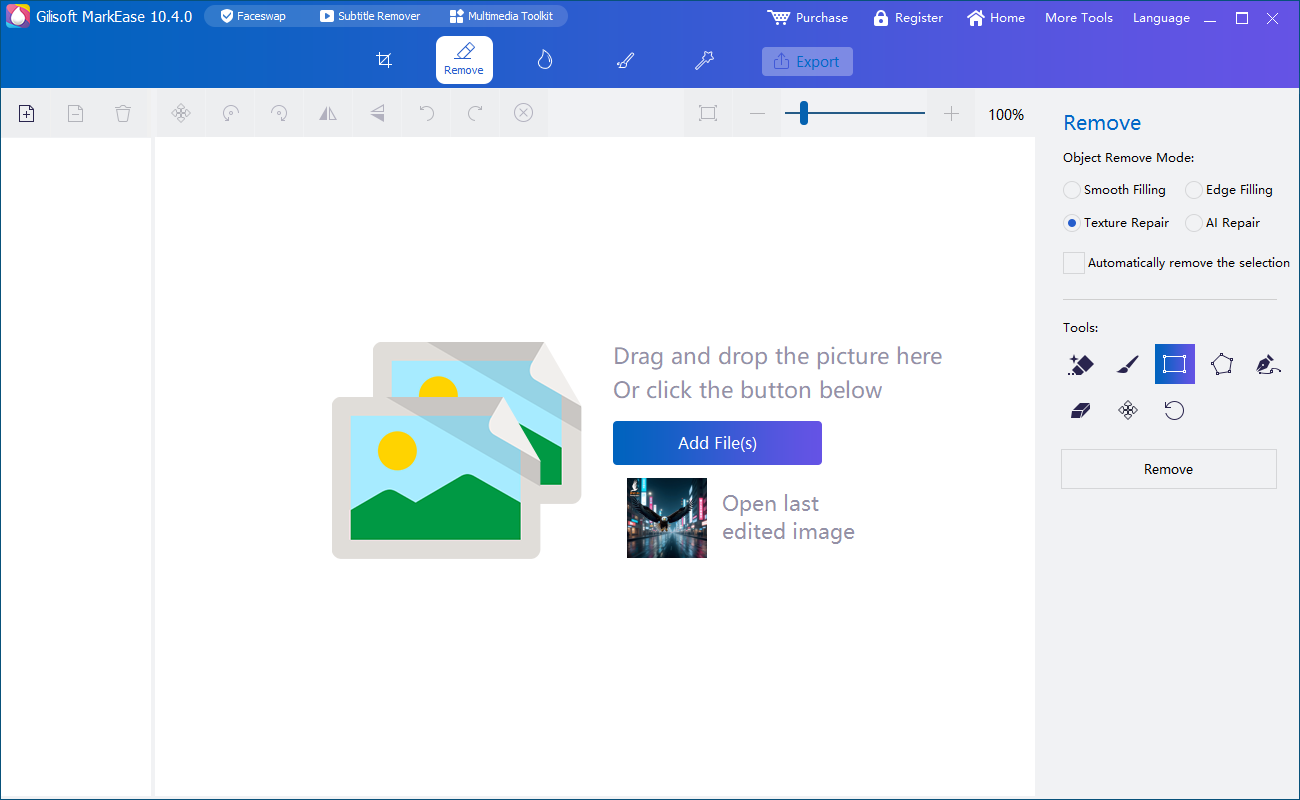
Open the photo
Use Add File(s) or drag the image into MarkEase. Zoom in and identify the complete stamp, logo, text, or object to remove.

Remove date stamps, watermarks, logos, and distracting objects from your photos. Refine the selected area, crop the result, and add your own text or logo before saving the finished image on Windows.
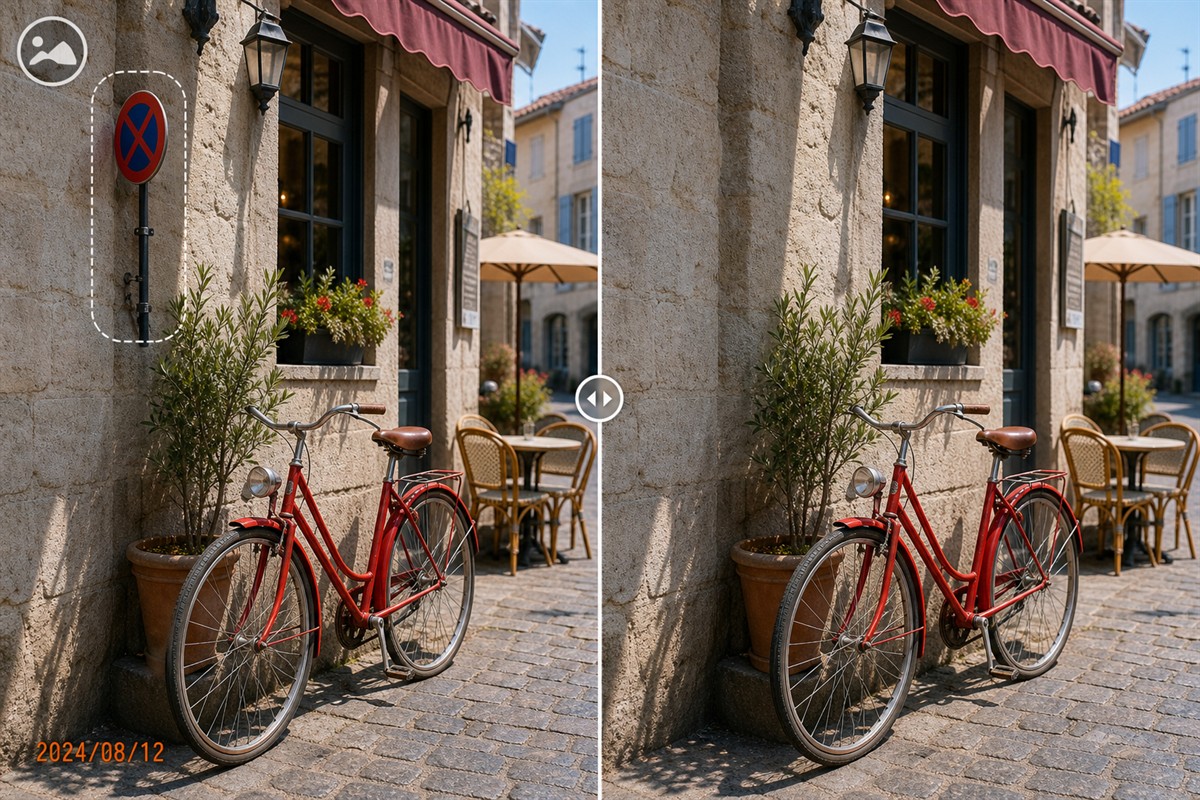
GiliSoft MarkEase cleans up photo date stamps, logos, text overlays, labels, and small unwanted objects on Windows. Prepare family photographs, product listings, property photos, scanned images, screenshots, and presentation visuals without leaving distracting marks in the finished picture.
Select the part of the image that needs repair, then compare Smooth Filling, Edge Filling, Texture Repair, and AI Repair. Brush, rectangle, and polygon tools help keep the selection close to the unwanted detail. Zoom in to review the result, undo a change when needed, and refine difficult edges in smaller passes.
Finish the photo in the same workspace. Crop to the required dimensions and aspect ratio, add a new text or logo watermark, draw arrows and shape callouts, or preview filters and Magic Enhance. Watermark controls include font, color, transparency, position, offsets, rotation, tiling, and text effects.
Add one image or a set of photos, review the edited result, and export a separate finished file. The MarkEase user guide covers selection, cleanup, cropping, watermarking, shapes, filters, and export. Download the free trial to evaluate the desktop workflow before choosing a license.

Select a corner date stamp, logo, label, or text overlay and repair the marked region. Keep the photo's composition when cropping away the mark would remove part of the subject.
Clean signs, cables, litter, background distractions, or other compact objects when enough surrounding texture exists for a natural repair.
Choose Smooth Filling, Edge Filling, Texture Repair, or AI Repair in the Remove workspace. Compare the repaired area on the current photo and use the mode that best fits its background and edges.
Use brush, rectangle, or polygon selections to cover the unwanted element. Zoom in, correct the mask, and use undo when another selection or repair pass produces a better result.
Add multiple files to the image list and move between photos in the same workspace. Prepare repeated cleanup jobs while reviewing differences in stamp position, image size, and background.
Set the crop area, enter a new width and height, and use the aspect-ratio controls to reframe the picture for a listing, presentation, document, or social image.
Add a name, copyright line, date, or label. Set the font, color, transparency, position, offsets, and angle, with optional tiling, Shadow, Glow, and Stroke effects.
Use Logo to place your brand mark on the finished photo. Review its size and placement against the subject, then apply consistent branding across related product or campaign images.
Add lines, curves, rectangles, ellipses, and arrows to explain a screenshot or highlight a photo detail. Choose the line thickness and color in the Shapes workspace.
Compare filter looks or use Magic Enhance for the finishing stage. Review the subject, product colors, and fine detail before exporting the final image.

I use MarkEase for old scanned photos with date stamps in the corner. Being able to clean the mark and inspect the repaired area before export keeps the job straightforward.
For product images, it is faster than opening a large photo editor when I only need to remove a small label, sign, or background distraction.
I can clean an image, crop it, and add our current logo in the same workspace instead of moving a simple listing-photo task between several programs.
Preview the MarkEase workspace for local photo cleanup: remove watermarks and objects, add text or logo watermarks, draw shape callouts, crop images, apply filters, and export finished photos.
Open images in the MarkEase workspace and choose the cleanup or editing task that matches the photo job.
Work from the original photo and clean one clearly defined area at a time. The quality of the result depends on the size of the selection and how much usable texture surrounds it.
Use Add File(s) or drag the image into MarkEase. Zoom in and identify the complete stamp, logo, text, or object to remove.
Cover the complete stamp or object without selecting more background than necessary. Use smaller passes around faces, hair, products, and detailed edges.
Compare Smooth Filling, Edge Filling, Texture Repair, or AI Repair. Inspect at full size and refine the selection when the result needs another pass.
Choose the required format and destination. Keep the source unchanged, then compare dimensions, transparency, detail, and the repaired area.
Clean a label, date stamp, or background distraction from a product photo, then crop the frame and add the current business logo for a listing or catalog.
Move between related images in one workspace, compare repair modes, and prepare consistent watermarks and filters for a campaign or client photo set.
Remove an outdated label from an image, crop to the relevant area, and add arrows, rectangles, text, or a logo for instructions and presentations.
Clean corner dates, small marks, and unwanted background objects from family photographs or scans. Review the repaired area at full size and keep the original photo.
Try this option on a compact mark over a relatively even background. Review the transition into the surrounding photo so the repaired patch does not stand out.
Compare this mode when the selected area is close to an outline or boundary. Inspect the nearby lines and corners to decide whether the repair fits the image.
Compare the result on textured backgrounds such as fabric, pavement, or a patterned surface. Watch for repeated details and refine the selection when needed.
Use the additional AI Repair option to compare another treatment for the selected area. Inspect the subject and surrounding details instead of judging only the smaller preview.
Choose the guide for a watermark, logo, or corner date stamp.
Remove watermark from photo | Remove logo from photo | Remove date stamp from photo
Remove a distracting element from one image or use a repeatable workflow for a larger photo collection.
Remove object from photo | Batch photo cleanup | Offline photo cleanup
Finish the cleaned picture with a name, business logo, or visual instruction.
Add a text watermark | Add a logo watermark | Add arrows and shapes
Prepare a repeatable desktop workflow for client images and private photo collections.
Local photo watermark removal | Private-image cleanup | Client-photo cleanup
Need instructions for text removal, screenshots, private client photos, portrait cleanup, or adding new watermarks?Browse all MarkEase tasks and guides
This page offers a free trial of GiliSoft MarkEase, not a permanently free full version. Paid licenses are available for continued use of the full product. Check the trial and activation screens for the restrictions that apply to the installed build.
Yes. Open Remove, select the date stamp, choose a repair mode, and inspect the result at full size. The cleanup changes the selected area while keeping the composition. It estimates a replacement for the covered detail rather than recovering the exact original pixels hidden beneath the stamp.
Yes. Select a distracting sign, cable, small background object, or other unwanted element and apply cleanup. Compact objects over a simple background are easier to repair than large objects crossing faces, hair, patterns, or strong edges. Work in smaller selections and compare repair modes when the result needs refinement.
The Remove workspace provides Smooth Filling, Edge Filling, Texture Repair, and AI Repair. Choose a mode for the selected area and compare the result on the current photo. Keep the original available so you can undo or repeat the selection when another mode produces a better repair.
The standard photo cleanup and editing workflow runs in the Windows desktop application. Do not assume every separate AI option has identical connectivity or processing requirements; check the selected feature before using it for confidential material.
The selection may cover more background than necessary, or the mark may cross a detailed texture or edge. Tighten the selection, clean separate parts in smaller passes, and compare the available repair modes. Inspect at 100% zoom rather than judging only a reduced preview.
Yes. Add multiple images to the workspace and prepare repeated cleanup and export tasks. Review a representative finished photo first. Check each image when the mark position, dimensions, or background changes instead of assuming one selection fits every photo.
Yes. Open Watermark and choose Text or Logo. For text, set the font, color, transparency, position, offsets, and rotation; tiling and Shadow, Glow, and Stroke controls are also available. Preview the new mark at its intended display size before exporting the finished photo.
Look for blur, repeated texture, color seams, missing edges, and any remaining part of the original date, logo, or object.
Confirm that faces, product details, transparency, dimensions, and image orientation were not changed unintentionally.
Export to a new filename and retain the untouched original until the repaired photo has been reviewed and delivered.
Remove a date stamp, logo, text overlay, or small unwanted object, then crop and finish the image with your own branding.


Enter your email address to get our latest newsletter
MarkEase
Watermark Remover
ClipMark
Photo Cleanup Software
Offline Photo Cleanup Software
Private Photo Cleanup Software
Photo Cleanup Without Uploading
Local Photo Watermark Remover
Secure Photo Cleanup Tool
Photo Cleanup for Private Images
Keep Photo Cleanup on Your PC
Local Image Cleanup for Confidential Photos
Clean Up Client Photos Locally
Add Text Watermark to Photo
Add Logo Watermark to Photo
Batch Add Watermark to Photos
Remove Watermark from Photo
Remove Logo from Photo
Remove Date Stamp from Photo
Batch Photo Cleanup Software
Remove Text from Photo
Remove Object from Photo
Remove Acne from Photo
Remove Blemishes from Photo
Remove Pimples from Photo
Portrait Cleanup Software
Local Portrait Cleanup Software
Beautify Photo on Windows
Remove Photobomber from Photo
Remove Background Object from Photo
Remove Logo from Screenshot