Remove Watermarks from Video
Select a logo, channel label, timestamp, or fixed overlay and clean the affected region without cropping the whole frame. Prepare older recordings, lessons, demos, and campaign clips for a new edit.

Remove distracting logos, timestamps, and overlays, then put your own branding on the finished video. Add text or image watermarks, create picture-in-picture layouts, and generate captions on Windows.

GiliSoft ClipMark brings video watermark removal and visible branding into one Windows application. Clean up logos, timestamps, channel labels, and other overlays by selecting the affected regions instead of cropping away the frame. Use fast cleanup for straightforward marks or credit-based AI cleanup for more demanding backgrounds.
Put your own identity on the finished video. Add text, image or logo, shape, and video watermarks; position them in the preview; and decide when they appear. Font, transparency, and display-range controls help keep a creator name, business logo, campaign label, or tutorial note clear without covering the main subject.
Build a presenter window or demonstration overlay with Picture In Picture, and turn speech into captions with Auto Captions. Prepare lessons, product walkthroughs, social clips, customer previews, and marketing videos with branding and readable captions in the same toolset.
Work on one video or prepare a repeated set, preview the marked areas and time ranges, and export the edited result. The ClipMark user guide covers removal, watermarking, picture-in-picture, captions, and export. AI video cleanup uses credits separately from the desktop software license.

Select a logo, channel label, timestamp, or fixed overlay and clean the affected region without cropping the whole frame. Prepare older recordings, lessons, demos, and campaign clips for a new edit.
Choose the standard cleanup treatment for the selected area, adjust Level, and compare the Preview. Use Delogo for region-based cleanup or Mosaic and Gaussian Blur when obscuring the area is the preferred result.
Set the start and end of the active range when a mark only appears in part of the video. Limit the work to the affected section rather than applying the same region to every scene.
Prepare repeated cleanup or branding jobs across a video set. Review the first exported result, then check the remaining clips for changes in frame size, watermark position, and timing.
Create separate regions for marks in different corners or different parts of a recording. Give each region the time range it needs and review the points where the marks appear or disappear.
Check the edited picture and timeline before export. Save the result to the chosen output destination and review the finished file for playback, sound, visible marks, and caption timing.
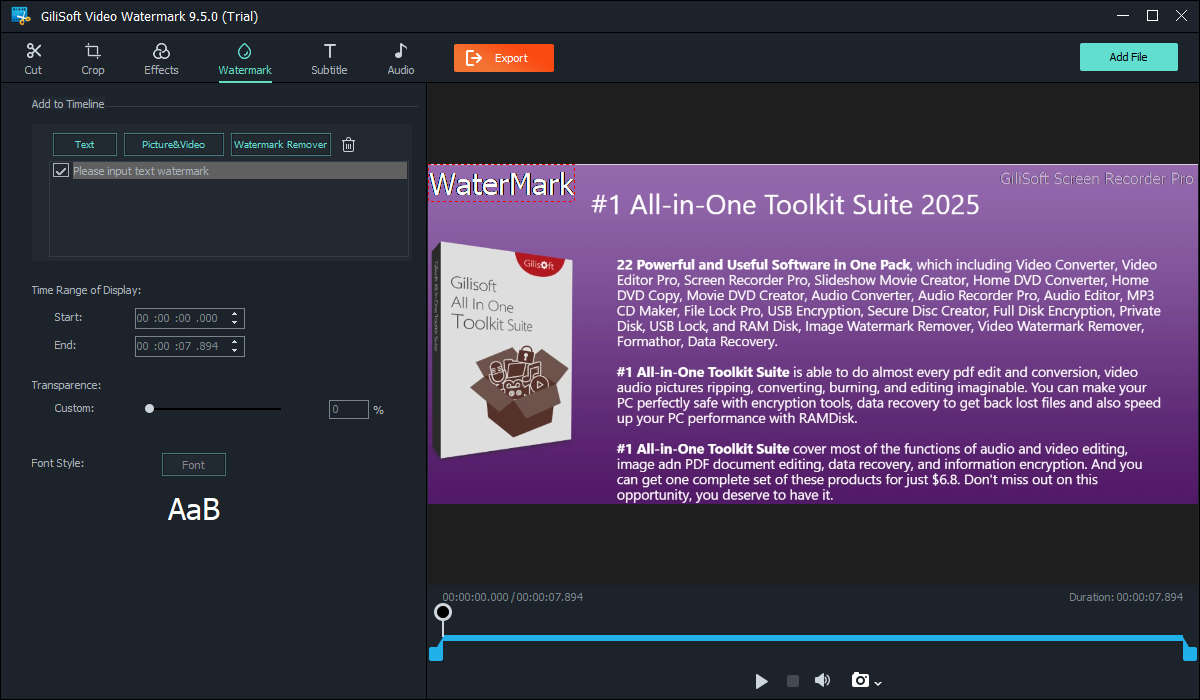
Add a creator name, copyright line, project title, or short label. Adjust the font and transparency, position the text, and set its Time Range of Display for the full clip or a selected section.
Import a business logo, campaign badge, or other image and place it over the video. Adjust its size, position, transparency, and timing to keep the branding visible without hiding important content.
Place a second video over the main picture for a presenter window, commentary, demonstration, or supporting example. Resize and position the overlay, then set its active section on the timeline.
Add shape marks to highlight an interface area, product, or detail in a tutorial or demonstration. Position the callout and limit its appearance to the section where it is useful.
Open Auto Captions from the Watermark or AI Tools workspace to create captions from spoken content. Review the wording and timing before publishing lessons, demos, interviews, or social videos.
Use the AI cleanup option for marks over detailed textures or changing backgrounds. Review the job's credit requirement and compare a representative section before processing the full recording.

ClipMark helped us remove channel logos and timestamps from archived clips before re-editing for new campaigns.
Batch processing saved a lot of time when we cleaned watermark-heavy footage from older projects.
The timeline range controls are useful when overlays only appear in specific segments of long videos.
Output quality remains stable after cleanup, which makes delivery to social and training platforms easier.
Our team uses it to remove visible logos and timestamps from source videos before republishing.
The interface is simple for non-editors but still gives enough control for practical cleanup jobs.
Preview the main video watermark workflow: add visible marks, remove logos or overlays, prepare text and video watermark assets, and manage repeated cleanup tasks.
Mark an unwanted logo or overlay, choose the active time range, preview the cleanup, and export the finished video.
Remove an obsolete logo or fixed label, add updated branding, and prepare a picture-in-picture presentation or captioned clip for a new project.
Clean timestamps, channel marks, and outdated overlays in archive footage. Use separate regions and time ranges when the mark changes between scenes.
Add a presenter window, text labels, shape callouts, and captions to lessons, onboarding videos, technical demos, and product walkthroughs.
Place a business logo, campaign message, or branded video layer across customer previews and social clips. Keep size, transparency, and display timing consistent across a series.
Choose Remove Watermark, Add Watermark, Picture In Picture, or Auto Captions from the Watermark workspace, then load the video for that task.
Mark the cleanup region or position the new watermark. Adjust the available appearance controls and set the start and end time for the selected item.
Check moving scenes and the entry and exit of each edit. Export the result, then open the finished video to review the picture, audio, branding, and captions.
Set a cleanup region, limit its active range, and review difficult frames before export.
Choose a text, image, shape, or video mark and control its placement and timing.
Place a presenter or supporting video over the main picture and set its active section.
Turn video speech into a caption draft, then review words, timing, and readability.
Yes. Select the logo, timestamp, or overlay region and apply cleanup rather than cutting away the edge of the frame. This keeps the composition, but the selected area is altered. Results depend on the mark, background, and motion; cleanup does not recover the exact original pixels hidden by a burned-in watermark.
Fast cleanup offers standard treatments such as Delogo, Mosaic, and Gaussian Blur, with level and preview controls. AI-assisted cleanup is another option for more detailed or changing backgrounds and uses AI credits. Compare a short representative section before processing a long video; no method guarantees an invisible result in every scene.
Use separate cleanup regions and start/end ranges for marks that appear in different places or at different times. If a mark moves, changes size, or disappears, divide the work into the relevant intervals and review the transitions. Do not assume one fixed region will follow it automatically.
Yes. Add Watermark supports text, image or logo, shape, and video layers. Position the mark, adjust its size and available appearance controls, and set when it should appear. The text-watermark workspace includes font, transparency, and Time Range of Display controls.
Yes. Open Picture In Picture or the video-overlay task, load the main and overlay videos, then position and size the smaller video. Set its time range and preview the beginning and ending. This works for presenter windows, demonstrations, commentary, and supporting video examples.
Yes. Open Auto Captions from the Watermark or AI Tools workspace and generate captions from the video's speech. Review names, numbers, punctuation, and timing before export. Generating captions is a separate task from removing existing burned-in text.
ClipMark supports repeated and batch video work. Prepare the regions, timing, or branding for the first video and check an exported result before applying the setup to more files. Review files with different resolutions or layouts separately because the same placement may cover a different area.
The desktop software license and AI cleanup credits are separate. Standard cleanup uses the regular tools, while AI video cleanup consumes credits. Review the credit requirement shown for the AI job before starting it; a lifetime desktop license should not be read as unlimited AI processing.

 Editors highlighted efficient watermark-region selection and timeline controls for video watermark tasks. Coverage noted a practical balance between quick operation and manual precision.
Review summaries describe ClipMark as a focused video cleanup tool for logos, timestamps, and repeated overlays in reusable footage.

Reviewers praised stable output quality across social, learning, and marketing formats. Lab observations mentioned predictable rendering with common codecs and aspect ratios.
Independent notes framed ClipMark as a practical option when the main need is clean video overlay removal rather than full nonlinear editing.

Independent write-ups described the cleanup process as efficient for repeated editing cycles. Commentary emphasized predictable results across repeated export operations.
Media summaries consistently position ClipMark as a specialist for logo, timestamp, and overlay cleanup in video-first publishing.
Remove unwanted marks, add your own logo or text, create a picture-in-picture layout, and prepare captions on Windows.


Enter your email address to get our latest newsletter
ClipMark
Watermark Remover
Subtitle Remover
MarkEase
AIKit
AI Video Watermark Remover
Fast Video Watermark Removal
Why Can't I Remove Watermark from Video
Why Video Watermark Removal Failed
Why Watermark Comes Back After Export
Why Blurring Watermark Looks Bad
Why Can't I Remove Logo from Video
Add and Remove Video Watermarks
Add Logo to Video
Add Text Watermark to Video
Add Logo Watermark to Video
Video Watermarking Software for Windows
Video Overlay Software for Windows
Remove Video Watermark without Cropping
Video Watermark Cleanup Software
Batch Video Branding Process
Brand Training Videos with Watermarks
Prepare Branded Demos for Delivery
Create Branded Videos for Publishing
Picture-in-Picture Video Overlay
Video Subtitle Generator for Windows
Smart Subtitle Process for Videos