
Insert the source disc or prepare the DVD folder, ISO image, BIN image, or audio image file.
Home DVD Copy User Guide
How to Copy DVDs to ISO, DVD Folder, or Blank Disc
Choose the DVD source and destination, copy a disc to an ISO image or DVD folder, duplicate it to blank media, restore an ISO or folder to disc, and handle common audio CD and data-disc backup tasks on Windows.
DVD source›Copy task›Backup
ISO ImageDVD FolderBlank Disc
Before you start a Home DVD Copy task
Start by deciding whether the result should be an archive file, an accessible DVD folder, or a physical disc. The selected destination determines the controls shown in the copy workspace.
Select a blank disc, ISO image, DVD folder, BIN/APE image, or another supported destination.
Check hard-drive capacity for image files and folder output, or insert suitable blank media for disc output.
Other burning, mounting, or playback software should not be using the source or destination drive.
This guide focuses on Home DVD Copy tasks and uses the product’s current name throughout. Choose the task by the result you need rather than by older DVD terminology.
1. Copy a video DVD to an ISO image
Create one archive file from a DVD disc
- Open Home DVD Copy and enter the DVD Copy section.
- Insert the source DVD and select its DVD drive.
- Choose Image File as the destination.
- Select ISO as the image type and choose the save location.
- Click Start and wait for the ISO image to finish.
- Check that the ISO appears in the selected folder.
ISO is useful when you want the DVD structure kept in one file for storage, transfer, mounting, or later disc creation.
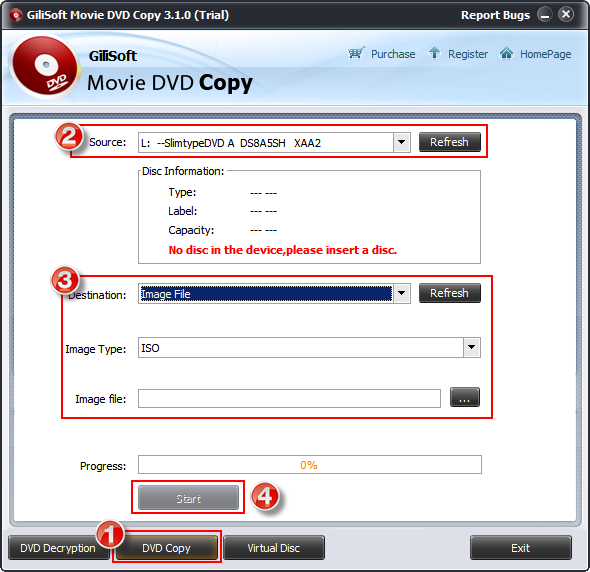 Select the DVD source and save the result as an ISO image
2. Copy a video DVD to a blank DVD
Duplicate a DVD directly to compatible blank media
- Open the DVD Copy section.
- Insert the source DVD and choose the source drive.
- Insert a suitable blank DVD and choose the destination writer.
- Set the volume label and number of copies when required.
- Click Start to begin the disc copy.
- Allow the drive to finalize the disc before removing it.
When only one optical drive is available, follow the on-screen request to replace the source disc with blank media at the appropriate stage.
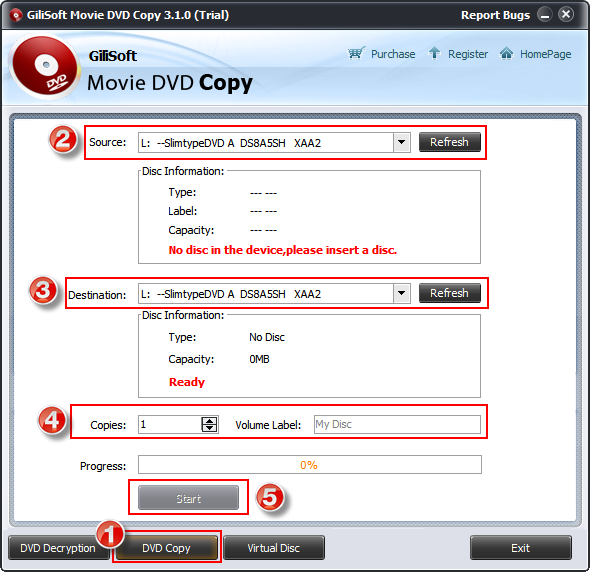 Choose the source drive, destination writer, label, and copy count
3. Write a DVD folder, ISO, or BIN image to a blank disc
Use an existing disc archive as the source when you need to produce physical media without reading the original DVD again.
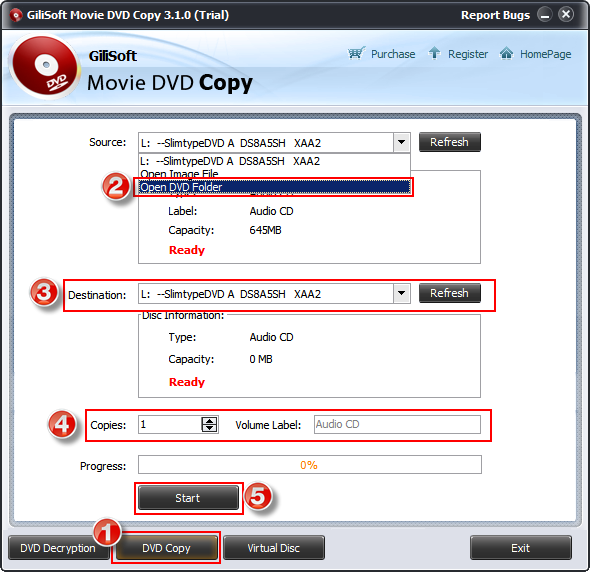 DVD Folder to blank disc
ISO or BIN image to disc
- Open DVD Copy.
- Choose the ISO or BIN image as the source.
- Select the destination CD/DVD writer.
- Insert suitable blank media.
- Set the label and copy count, then click Start.
Confirm the source type and blank-media capacity before starting. Keep the computer powered and do not eject the destination disc while it is being written or finalized.
4. Convert a DVD folder to an ISO image
Package an existing DVD folder as one ISO file
- Open the DVD Copy section.
- Choose DVD Folder as the source.
- Select the folder containing the DVD structure.
- Choose Image File as the destination and ISO as the image type.
- Select the output path and click Start.
- Mount or open the completed ISO to verify the structure.
This is useful when a VIDEO_TS-style folder needs to become one easier-to-store image file.
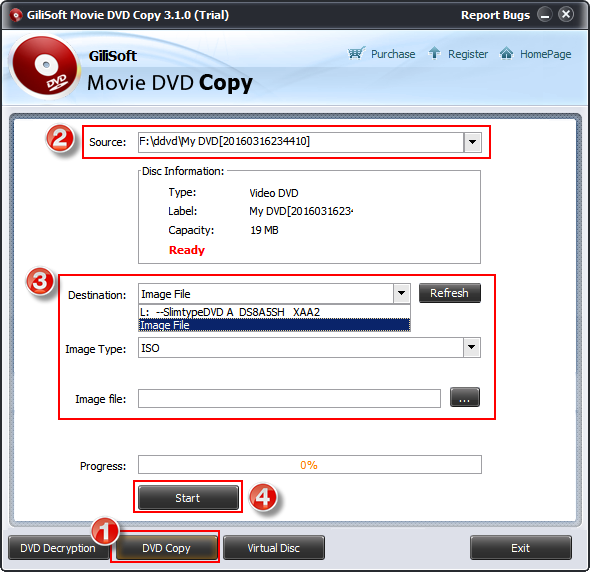 Select a DVD folder and save it as one ISO image
More CD, DVD, and image-file tasks
These secondary tools are useful when the source is an audio CD, data disc, BIN/APE image, or an ISO file that should be mounted as a virtual drive.
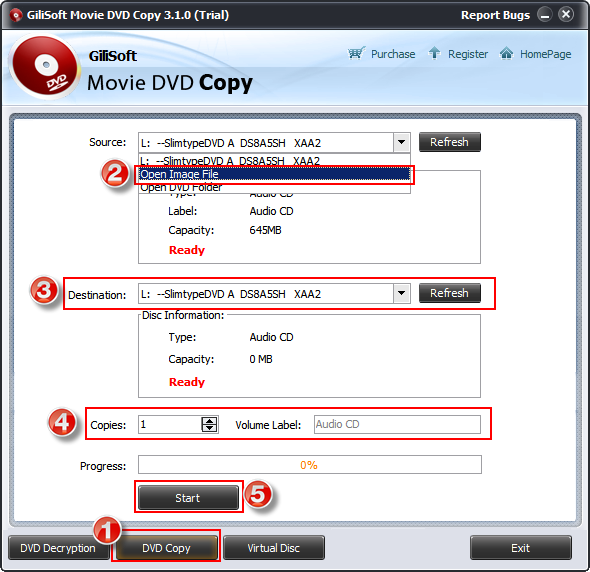
APE image to audio CD
Choose the APE image as the source, select a compatible CD writer and blank disc, then start the audio-disc creation task.
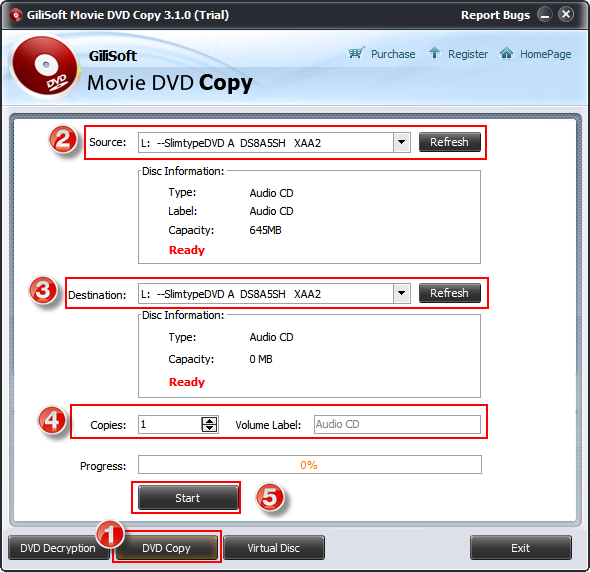
Audio CD to blank CD
Select the source audio CD, choose the destination writer, set the copy count and label, then start the duplication.
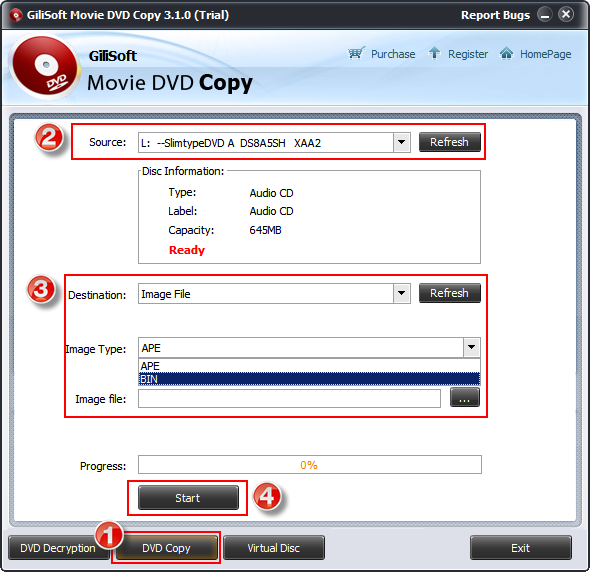
Audio CD to BIN or APE
Choose Image File as the destination, select BIN or APE, set the save location, and create the audio-disc image.
Copy a data CD/DVD to blank media
Select the data disc as the source and a compatible blank CD/DVD as the destination, then set the label and start the copy.
For data and bootable disc duplicationSave a data CD/DVD as ISO
Select the source drive, choose Image File and ISO as the destination, then choose the archive path and start.
For one-file data-disc archivesMount an ISO as a virtual drive
Choose the ISO image in Virtual Disc and click Mount. On supported Windows versions, ISO files can also be mounted directly from File Explorer.
Open an ISO without inserting a discFinal copy checklist
SourceThe correct drive, folder, ISO, BIN, or APE source is selected.
DestinationThe output file path or destination writer is correct.
CapacityThe hard drive or blank media has enough available space.
LabelThe disc or image label is clear and correctly entered.
CompletionThe process completed and the disc was finalized before removal.
VerificationThe ISO, folder, virtual drive, or physical disc opens as expected.
Home DVD Copy troubleshooting and FAQ
Why is the source drive not listed?
Insert the disc, click Refresh, and close other software that may be using the optical drive. Reconnect an external USB writer if it is still missing.
Should I choose ISO or DVD Folder?
Choose ISO when you want one archive image. Choose DVD Folder when direct access to the DVD file structure is more useful.
Why is the blank disc rejected?
Check the disc type, capacity, writer compatibility, and whether the media is already finalized or contains data.
What should I do when only one DVD drive is available?
Start the copy task with the source disc and follow the on-screen request to insert blank media when the source has been read.
Why did the copy stop before completion?
Check the source disc condition, destination capacity, available hard-drive space, and whether another program interrupted access to the optical drive.
How do I check an ISO backup?
Mount the ISO with the Virtual Disc tool or Windows File Explorer, then confirm that the expected folders and files can be opened.
Back up and reproduce DVD, CD, and disc-image content
Use GiliSoft Home DVD Copy to create ISO and folder backups, duplicate discs, restore image files to compatible media, and mount ISO archives when needed.


