
 How to Use Gilisoft Privacy Protector


Gilisoft Privacy Protector can lock files/folders on local disk or lock disk to help users protect privacy, if you need lock files on USB disks, please use GiliSoft File Lock Pro.


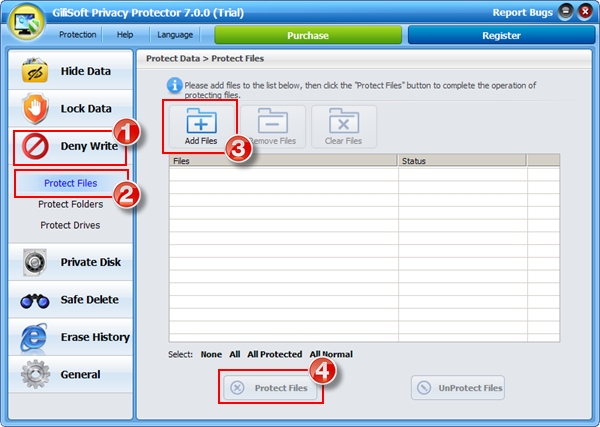


To retrieve the password, you can click "Retrieve Password" button, the password will be sent into your e-mail box.


[Tip] After open the locked data, please close the explorer window after read it. As you know, the data will be protected again automatically with Privacy Protector.
Using the Safe Delete options you can select and securely delete any of files on your PC.
- British HMG IS5 (Baseline) (1 pass) Your data is overwritten with zeroes with verification.
- Russian GOST P50739-95 (2 passes)
GOST P50739-95 wipe standard calls for a single pass of zeroes followed by a single pass of random byte.
- British HMG IS5 (Enhanced) (3 passes)
British HMG IS5 (Enhanced) is a three pass overwriting algorithm: first pass - with zeroes, second pass
- with ones and the last pass with random bytes (last pass is verified).
- US Army AR380-19 (3 passes)
AR380-19 is a data wipe standard specified and published by the U.S. Army. AR380-19 is a three pass overwriting algorithm: first pass
- with random bytes, second and third passes with certain bytes and with its compliment (with last pass verification).
- US Department of Defense DoD 5220.22-M (3 passes)
DoD 5220.22-M is a three pass overwriting wipe algorithm: first pass - with zeroes, second pass - with ones and the last pass with random bytes. With all passes verification.
- the US Department of Defense DoD 5220.22-M (E) (3 passes)
DoD 5220.22-M (E) is a three pass overwriting wipe algorithm: first pass - with certain bytes, second pass - with its complement and the last pass - with random bytes.
- NAVSO P-5239-26 (RLL)
NAVSO P-5239-26 (RLL) is a three pass overwriting wipe algorithm with last pass verification.
- NAVSO P-5239-26 (MFM)
NAVSO P-5239-26 (MFM) is a three pass overwriting wipe algorithm with last pass verification.
- the US Department of Defense DoD 5220.22-M(ECE) (7 passes)
DoD 5220.22-M(ECE) is a seven pass overwriting wipe standard: first and second passes
- with certain bytes and with its compliment, then two passes with random character, then two passes with character and its complement and the last pass - with random character.
- Canadian RCMP TSSIT OPS-II (7 passes)
RCMP TSSIT OPS-II is a seven pass overwriting wipe standard with three alternating patterns of zeroes and ones and the last pass - with random character (with last pass verification).
- German VSITR (7 passes)
The German wipe standard calls for each sector to be overwritten with three alternating patterns of zeroes and ones and in the last pass with character.
- Bruce Schneier (7 passes)
The Bruce Schneier wiping standard has seven passes: first pass - with ones, the second pass - with zeroes and then five times with random characters.
- Peter Gutmann (35 passes)
Peter Gutmann wiping algorithms has 35 passes.


Using the Safe Delete->Wipe disks->Clean Free Space function, you can safely delete the free space on your disk.

We suggest you save your personal information on the Private Disk to protect your privacy.
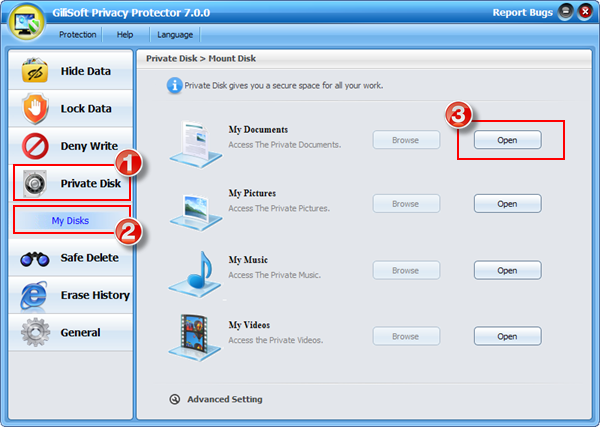
[Tip] If you want to uninstall GiliSoft Privacy Protector, please backup the data on private disk into your safe place.
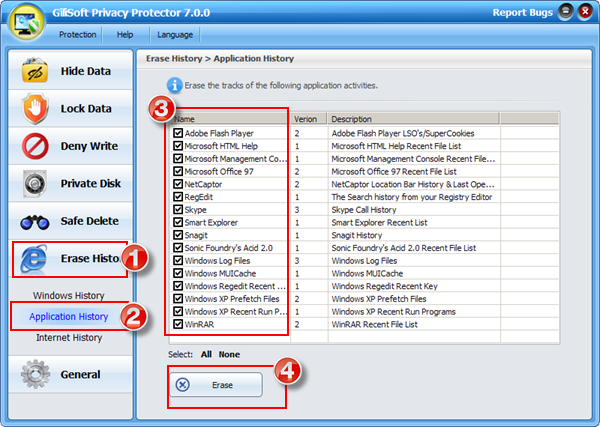
We suggest you use the Erase History options you can clean up all traces of your computer activity.


 The Best and Easiest to Use Privacy Protecting Software



Enter your email address to get our latest newsletter