

How to Fade In and Fade Out Audio on Windows
A fade in raises the opening from silence; a fade out lowers the ending toward silence. They can make a clipped recording feel less abrupt, but the length of the selected range matters as much as the effect itself.
Quick answer
Open the file in GiliSoft Audio Editor. Select a short range at the start and apply Fade In. Select a short range at the end and apply Fade Out. Play each transition, adjust the ranges if necessary, then export a new file.
Choose Where the Fades Belong
| Problem | What to select | Effect |
|---|---|---|
| Opening starts too suddenly | A short range from the first audible sound | Fade In |
| Ending stops too sharply | A short range through the final sound | Fade Out |
| Cut between two sections clicks | Inspect the cut point first | Move the cut or use a brief fade where needed |
Do not fade a whole sentence when only a short boundary needs smoothing. For removing an unwanted beginning or ending first, see how to trim audio on Windows.
Add Fade In and Fade Out in Audio Editor
- Open and listen to the audio
Open the file in the waveform editor and play its opening and ending. Keep a copy of the original so you can compare the result.
- Select the opening range
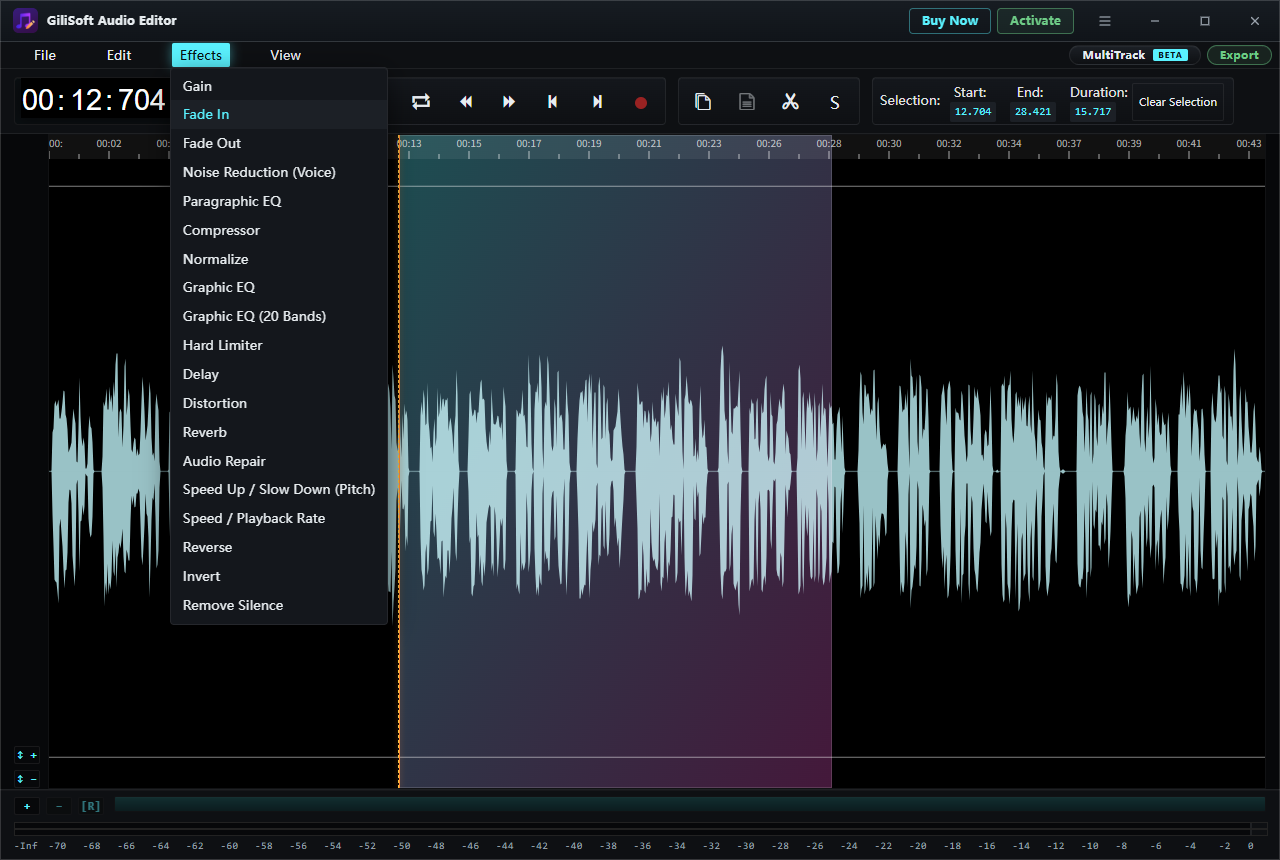
Drag across a short section at the beginning of the waveform. Check the selection Start, End, and Duration fields before applying an effect.
- Apply Fade In
With the opening range selected, choose Effects > Fade In. Play across the opening to hear the transition.
- Select the ending range
Highlight a short section ending with the last sound. Avoid fading out the final word or note too early.
- Apply Fade Out
Choose Effects > Fade Out for that range and play across the ending. If it disappears too early, undo the effect and shorten or move the selection.
- Export and verify
Use Export at the upper right and save a new file. Open it outside the editor and listen to the first and last few seconds.
Check the Result Before Sharing
- Compare the processed opening and ending with the original recording.
- Check that the voice, music, or final note is not fading before it should.
- Listen with the speakers or headphones your audience is likely to use.
- Verify the exported file itself, not only the preview inside the editor.
Frequently Asked Questions
Can I fade an MP3 file?
Yes. Import the supported MP3, select the opening or ending range, apply the effect, and export the finished file. Listen to the result after export.
How long should a fade be?
There is no single duration for every recording. Start with a short range, preview it, then make it longer or shorter according to the sound and pacing.
Will a fade fix a bad cut in the middle?
Not always. First move the cut away from a word or transient. Use a brief fade only when it improves the transition without hiding important audio.
Does applying a fade change the source file?
Save the finished result under a new name and keep the original recording until you have checked the export.