

Free Windows System Cleaner: Find and Remove the Right Files
A useful system cleaner explains where storage went and lets you review results. It should not treat every large, old, duplicate, or cached file as disposable.
Quick answer
Start with Settings > System > Storage and review Temporary files. If space is still missing, identify large files, duplicate groups, unwanted applications, and startup programs before removing anything. GiliSoft Total Repair combines these reviewed cleanup and analysis tasks, but its download is a trial.
Find what is using storage before cleaning
| Storage source | Best first tool | Risk to avoid |
|---|---|---|
| Temporary Windows and app files | Storage settings or Junk Clean | Removing active caches during important work |
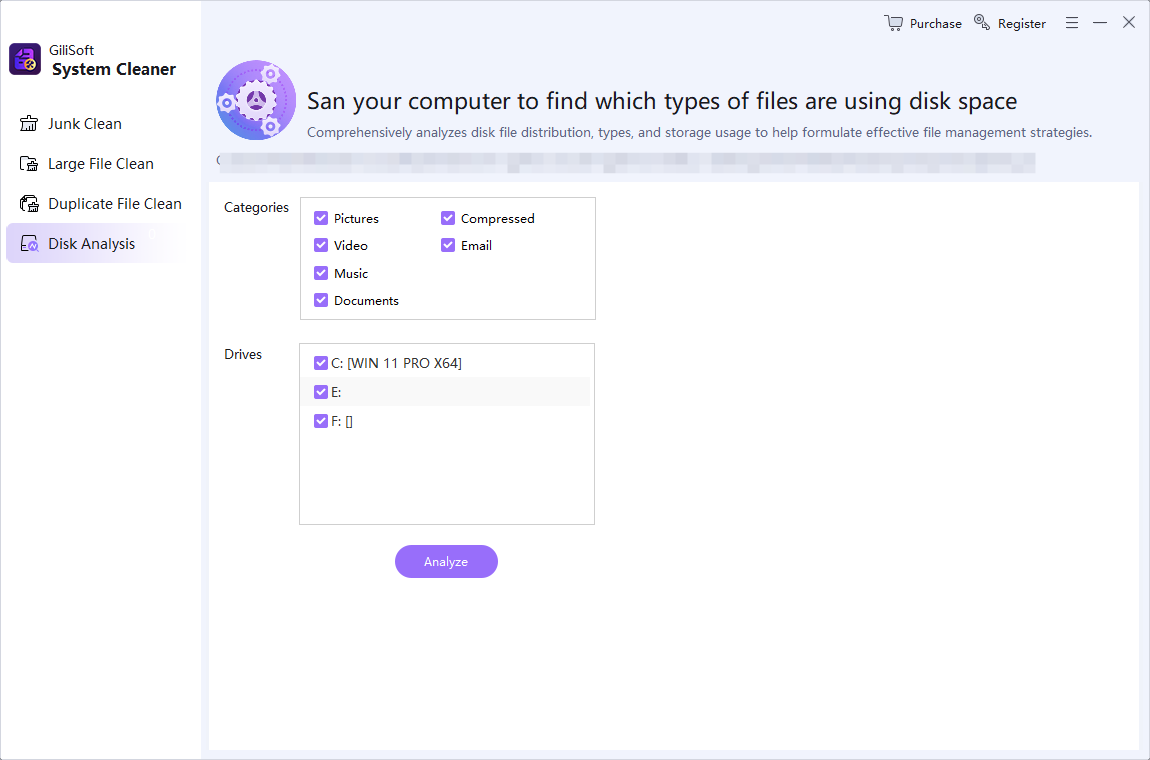
| Large personal files | Disk Analysis or Large File Clean | Deleting projects or backups based only on size |
| Duplicate files | Duplicate File Clean | Removing every copy without checking location |
| Unused applications | Installed apps or Software Uninstall | Deleting program folders manually |
| Slow startup | Startup Manager | Disabling unknown services or security tools |
Clean Windows safely
- Back up important files.
Cleanup does not replace a current independent backup.
- Measure free space.
Record the before value so the result can be verified.
- Scan one category at a time.
Separate temporary files from large personal files and duplicates.
- Review paths and ownership.
Keep files tied to current projects, applications, sync, or backups.
- Clean the reviewed selection.
Avoid broad deletion based only on age, size, or extension.
- Restart and test.
Confirm important software and files still work and check the actual recovered space.

What a system cleaner cannot fix
A cleaner cannot repair failing storage, remove every malware infection, fix all Windows corruption, or safely decide which personal files are disposable. Use system repair only when the evidence identifies a repair problem, and use hardware diagnostics when drives disappear, report SMART warnings, or repeatedly corrupt data.
Frequently asked questions
Can Windows clean junk files for free?
Yes. Windows Storage settings can remove selected temporary files. Review each category before deletion.
Will a system cleaner make every PC faster?
No. Cleanup helps when storage pressure or unnecessary startup work is the cause. It cannot repair failing hardware or every software problem.
Should I delete every duplicate file?
No. Review each duplicate group, path, project, and backup role before removing any copy.
Is registry cleanup the same as junk-file cleanup?
No. Registry changes affect Windows and application configuration and require greater caution than removing reviewed temporary files.
Is Total Repair free?
The download is a trial. Windows provides free cleanup tools, while the complete Total Repair tool set requires a license after evaluation.