

How to Trim Audio on Windows
Trimming keeps the part you need and removes unwanted audio before or after it. In the current Audio Editor waveform window, cut the unwanted opening and ending, listen around both edges, and export the edited result as a new file.
Quick answer
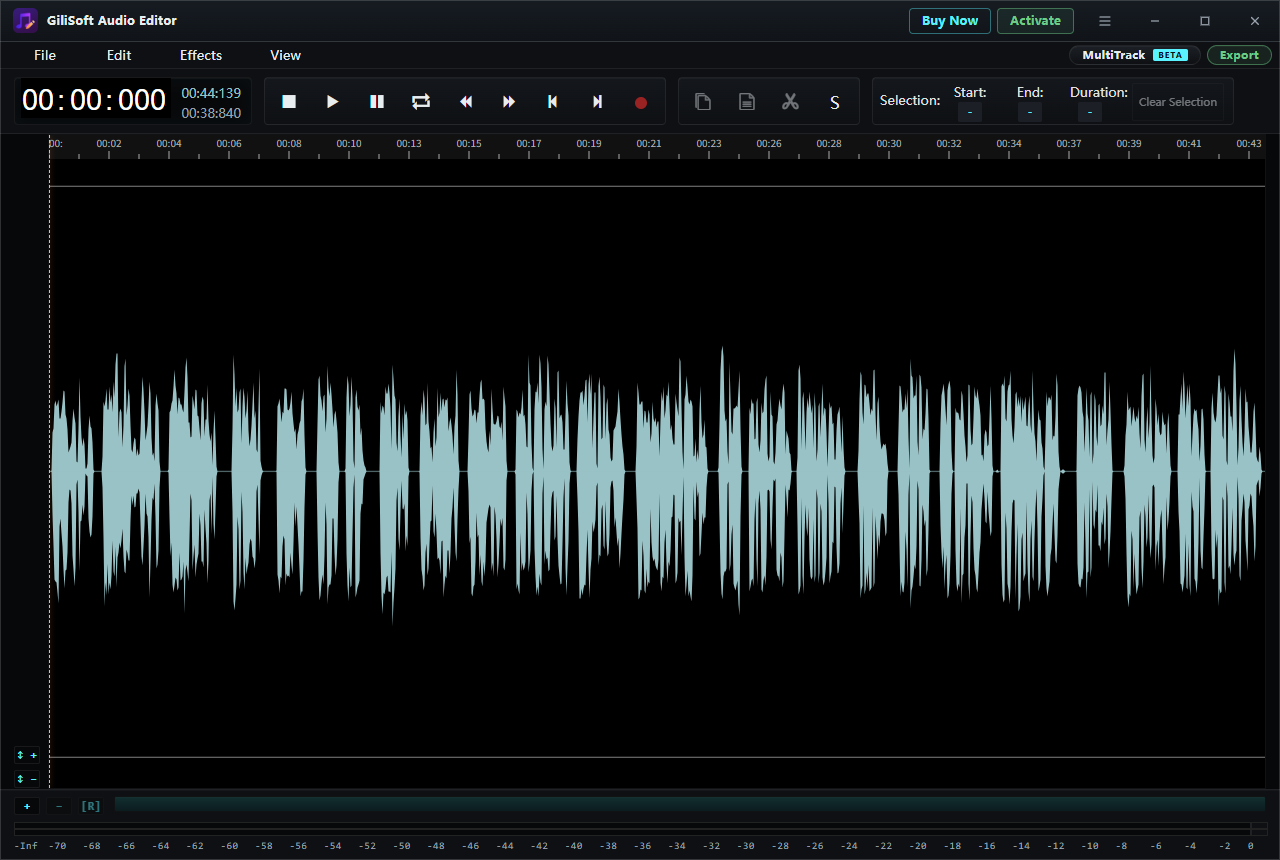
Open the file in GiliSoft Audio Editor. Select the unwanted opening on the waveform and use the scissors Cut control; repeat for the unwanted ending. Preview the remaining clip, click Export at the upper right, and check the saved file. Keep an untouched source copy.
Trim, Cut, or Split: Which Action Do You Need?
| Your goal | Action | What to check |
|---|---|---|
| Keep one excerpt | Cut the unwanted opening and ending | Both edges include the full word or note |
| Remove a mistake in the middle | Select and cut the unwanted range | The remaining audio joins naturally |
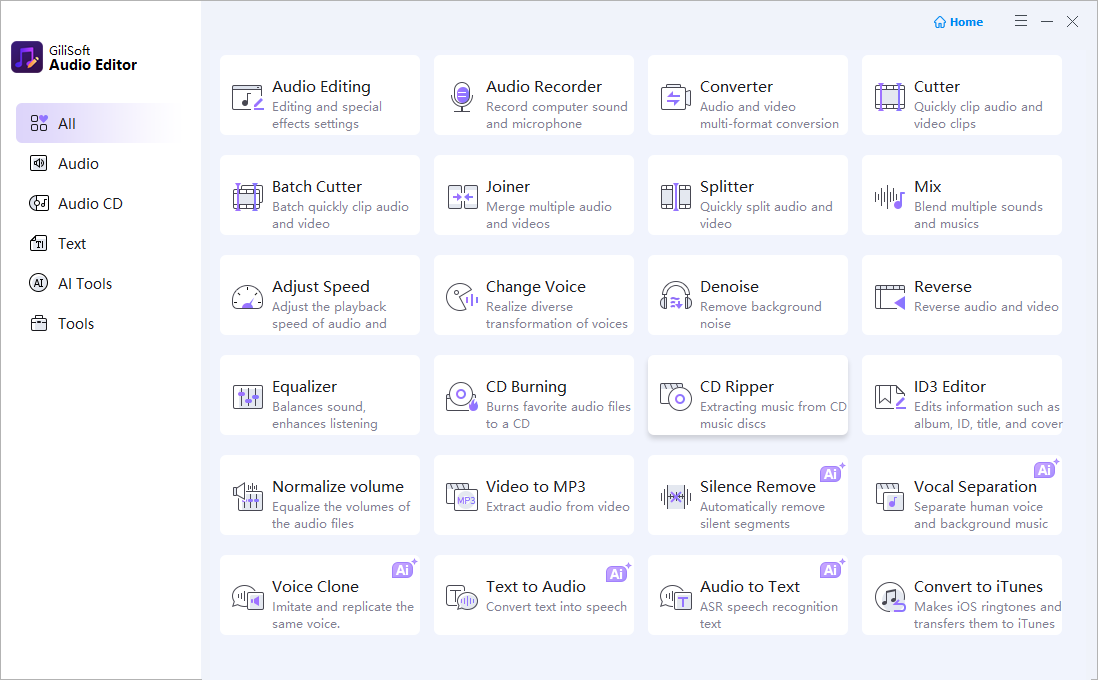
| Make several separate clips | Open the Cutter tool from the task hub | File names and order are clear |
| Join separate recordings | Open the Joiner tool from the task hub | Clips play in the intended sequence |
For cutting, joining, mixing, and recording in one workflow, see the Audio Editor overview.
Prepare the Source
- Keep an untouched copy of the original, especially for an interview or irreplaceable recording.
- Listen once and note approximately where the clip should start and finish.
- Zoom into the waveform near a word boundary or quiet point when the edit must be precise.
Trim an Audio File in GiliSoft Audio Editor
- Open the editing window
Choose Audio Editing from the task hub, open the file, and play through the passage you want to keep.
- Remove the unwanted opening
Select the opening range on the waveform. Check the Start, End, and Duration values, then use the scissors Cut control.
- Remove the unwanted ending
Select the audio after the last word or note you want to keep and cut it. Work from a source copy so the original remains available.
- Preview both edges
Play the first and last seconds of the remaining audio. Undo and adjust a cut if a word, beat, or breath is clipped.
- Export the result
Click Export at the upper right. Review the available output options and save the edited file under a new name.
- Verify the new file
Open it outside the editor. Check its duration, first and last seconds, and complete playback.
Make the Cut Sound Natural
If the new clip starts or ends abruptly, move the boundary to a quieter point or apply a short fade to the selected edge. Do not cut through a consonant, drum hit, or sentence ending just to hit an exact duration.
When the file will be edited again, keep a working copy before making repeated compressed exports. Use the final export settings only after the excerpt sounds right.
Frequently Asked Questions
Can I trim an MP3 on Windows?
Yes. Open the MP3, cut the unwanted beginning and ending in the waveform editor, then export and listen to the new clip.
Will the original file remain available?
Work from a copy and export the result under a new name. Verify the output before removing any source file.
How do I remove only a mistake in the middle?
Select the unwanted range and cut it, then preview the resulting join before exporting.
What if the clip starts too suddenly?
Undo the cut and move its boundary, or try a short fade on the opening range. Preview the result again.