Flexible Screen and Webcam Capture
Record the full screen, a selected region, a single application window, webcam video, streaming video, or screen and webcam together.

Capture tutorials, meetings, webinars, product demos, training videos, and software walkthroughs with region capture, window recording, webcam overlay, zoom, cursor effects, scheduling, watermarks, snapshots, and clean export.
Screen Recorder Pro is screen recording software for Windows that captures desktop activity, webcam video, system sound, and microphone input together. It is built for tutorial recording, webinar capture, meeting archives, product demos, software walkthroughs, and internal training videos without complex setup.
Screen Recorder Pro records full screen, selected regions, and application windows, including High DPI displays, then saves compressed video files in real time. It includes all features of Screen Recorder Standard Version.
Built-in editing and export tools help you trim, join, and polish recordings after capture, but the core strength of this page is reliable screen, webcam, and audio recording on Windows.
For Android users, go to Screen Recorder for Android
Record the full screen, a selected region, a single application window, webcam video, streaming video, or screen and webcam together.
Capture video with system sound, microphone input, or both at the same time, keeping voice and on-screen action aligned.
Record conference calls with both speaker and microphone audio, ideal for meeting archives, training, and internal documentation.
Magnify the cursor area up to 4x and adjust the recording region during capture to keep key actions clear.
Use hardware-accelerated H.264 encoding, including NVIDIA CUDA/NVENC support, to reduce render time and keep smooth output.
Export recordings in MP4, AVI, WMV, FLV, and H.264 formats. The built-in toolbox also supports broad format conversion, including HEVC/H.265.
Add text or image watermarks (JPG/PNG/GIF) during recording to brand content and discourage unauthorized reuse.
Create photo snapshots with png, jpg and bmp format at any time when recording video.
Use hotkeys to start, pause, stop, and capture screenshots. Highlight cursor movement and click effects to improve instructional clarity.
Schedule recordings with defined start and stop times, and automatically open specific URLs for timed capture tasks.
Combine clips with optional transitions, trim unwanted parts, and keep only the sections needed for final delivery.
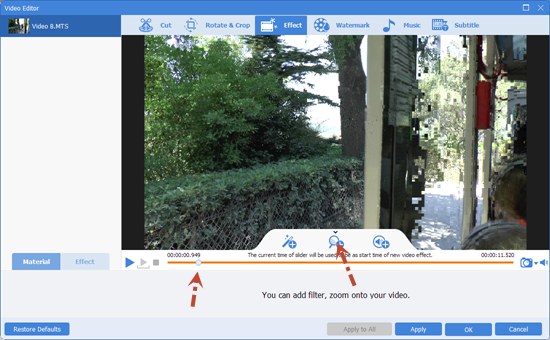
Adjust speed, brightness, saturation, contrast, aspect ratio, and volume. Crop, rotate, add picture-in-picture, subtitles, music, and watermarks, or remove unwanted marks.
Switch quickly between full-screen, fixed region, and selected window capture to match tutorials, product demos, or meeting recaps.
Overlay webcam footage on top of screen capture to create picture-in-picture teaching videos and software walkthroughs with face presence.
Export lightweight files that stay clear for uploads, LMS platforms, internal knowledge bases, and customer support documentation.
Record, trim, annotate, and export in one tool so tutorial, demo, and meeting videos are easier to prepare.

We record weekly onboarding sessions in 1080p with webcam and screen at the same time, and sync stays stable through long takes.
The region capture and window capture modes save setup time when we prepare short product tutorials for release notes.
Recording system audio plus microphone in one pass removed our post-sync work and made meeting recap videos much faster to publish.
Scheduled recording is reliable for recurring webinars, so our team no longer has to manually start every session.
Zoom and click effects make troubleshooting demos easier to follow, especially for new users watching on smaller screens.
GPU-accelerated export helped us cut turnaround time on large recordings while still keeping clean text and UI detail.

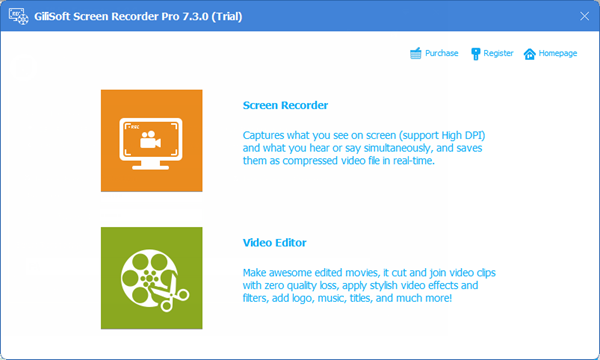
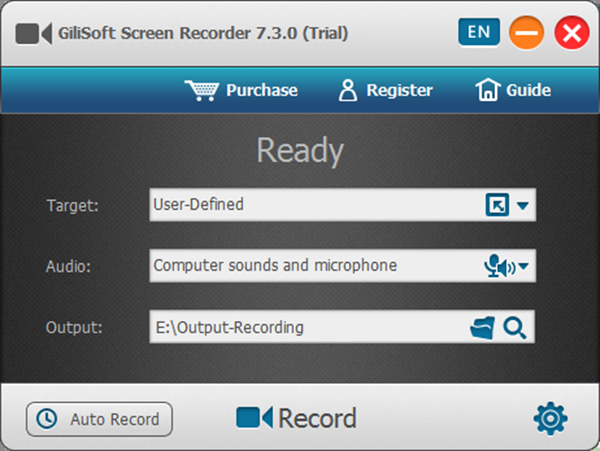
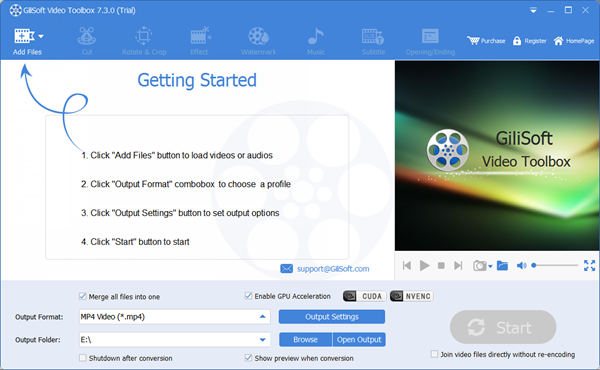
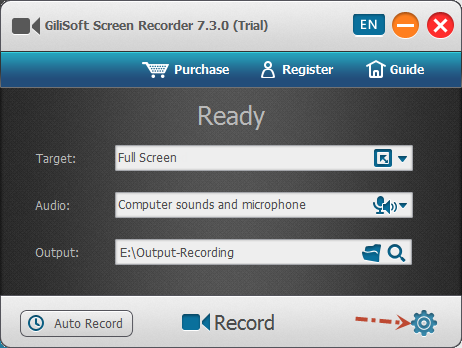
Create training videos, product walkthroughs, and internal how-to content with screen, webcam, and audio captured in sync.
Record conference calls, webinars, and recurring sessions with scheduled capture and both system sound and microphone input.
Capture a selected window or custom area, zoom in during recording, and add cursor effects to make software demos easier to follow.
Record slide explanations, software lessons, webcam narration, and voice guidance for online classes or internal training libraries.
Capture screen motion, system sound, microphone commentary, snapshots, and lightweight edits for shareable video clips.
Choose this page when recording is the main goal and you also want light trim, merge, watermark, and export tools after capture.
Use Screen Recorder Pro when you need more than simple screen capture and want webcam overlay, microphone input, and system audio handled together.
Choose this page if you record webinars, meetings, or timed demos and want scheduled capture instead of manual starts every time.
This product is stronger for screen recording than full editing suites because it keeps capture, audio sync, cursor clarity, and export at the center.
It fits users who need practical recording controls such as zoom, hotkeys, click effects, watermarks, and lightweight post-capture cleanup.
Capture on-screen steps together with microphone input for software training, onboarding, and customer education.
Screen recorder for tutorial videos | Tutorial recording software for Windows | Screen recorder for training videos | Record screen with microphone
Use picture-in-picture capture when face presence helps explain tutorials, lessons, and product walkthroughs more clearly.
Record screen and webcam | Picture in picture screen recorder | Screen recorder with webcam and audio
Schedule recordings and keep both system sound and voice commentary aligned for later review or internal documentation.
Scheduled screen recorder | Record video conferences on Windows | Record webinars on Windows | Screen recorder for webinars
Record specific windows or selected regions, zoom in on key actions, and export lightweight videos ready to share.
Screen recorder for product demos | Screen recorder for software walkthroughs | Screen recorder with audio | Record screen and system audio
Build reusable onboarding videos for employees, contractors, and partners with screen capture, narration, and optional webcam overlay.
Screen recorder for onboarding videos | Screen recorder for team training | Screen recorder for LMS content | Record SOP videos for internal teams | Record compliance training videos
Record app steps, spoken guidance, and selected screen areas for help-center videos, ticket replies, and customer troubleshooting flows.
Screen recorder for customer support videos | Screen recorder for software walkthroughs | Screen recorder for knowledge base videos | Record bug reproduction videos | Record internal audit walkthroughs
Yes. It supports picture-in-picture capture so you can record screen activity and webcam video together for tutorials and presentation videos.
Why is my screen recording not working? | Why can't I record screen on Windows 11? | Why is my screen recording black? | Record screen and webcam | Screen recorder with webcam and audio | Record screen on Windows 11
Yes. You can record system audio, microphone input, or both in sync with the video capture.
Why screen recording has no sound | Why screen recorder is not recording audio | Screen recorder with audio | Record system audio and microphone | Record screen with microphone
Yes. The recorder supports scheduled start and stop times for recurring webinars, meetings, and timed recording tasks.
Yes. Editing tools are included, but the main focus of this page is Windows screen recording, webcam capture, and synchronized audio recording.
Screen recording software vs video editor | Screen recorder vs screen capture software
Yes. It fits onboarding recordings, software lessons, and repeatable internal walkthroughs where screen actions and spoken guidance need to stay aligned.
Screen recorder for onboarding videos | Screen recorder for LMS content | Tutorial recording software for Windows
Yes. It works well for product support videos, software walkthroughs, and guided troubleshooting content that needs zoom, cursor emphasis, and voice narration.
Screen recorder for customer support videos | Screen recorder for software walkthroughs | Screen recorder for knowledge base videos

 Editors highlighted smooth capture performance for tutorials, meetings, and product demos. Coverage noted practical presets that reduce setup time before recording.
Review coverage emphasized dependable desktop capture, clear audio handling, and quick output preparation for daily publishing.

Reviewers praised stable audio-video sync in longer sessions and higher resolutions. Lab notes cited reliable behavior when recording multi-window desktop activity.
Independent testing highlighted stable recording of custom regions, full-screen sessions, and multi-window desktop activity.

Independent articles described the recorder as production-ready for daily content teams. Commentary emphasized fast export and low friction from capture to publish.
Editorial summaries described Screen Recorder Pro as a practical choice for guides, internal training videos, gameplay capture, and demo publishing.


Enter your email address to get our latest newsletter