

Free RAM Disk for Windows: When It Helps and When It Does Not
A RAM disk can provide fast temporary storage, but it consumes existing memory and is normally volatile. Use it only where the data can be rebuilt or separately protected.
Quick answer
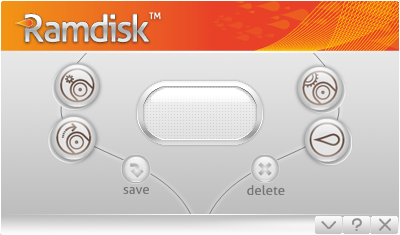
A free RAM disk can help with rebuildable cache, temporary files, scratch data, or testing, but it uses existing memory and normally loses contents when power ends. Choose GiliSoft RAMDisk when you need a managed Windows RAM drive with configurable capacity and options. Its download is a trial.
Decide whether a RAM disk fits the workload
| Good candidate | Poor candidate | Why |
|---|---|---|
| Browser or application cache | Only copy of documents | Cache can be rebuilt; documents cannot |
| Temporary build files | Backups and archives | Temporary output is disposable |
| Image or video scratch space | Data needed after a crash | RAM contents are volatile |
| Repeatable test data | Systems already short on memory | The RAM disk reduces memory available to apps |
Choose a safe RAM disk size
Measure normal memory use under the heaviest expected workload. Reserve enough RAM for Windows, active applications, and peaks before assigning the remainder. A larger RAM disk is not automatically faster if it causes paging or application instability.
Create and test a RAM disk
- Choose rebuildable test data.
Do not begin with important documents or the only copy of any file.
- Select a conservative capacity.
Leave memory headroom for Windows and the target application.
- Create and format the drive.
Choose a drive letter and file system compatible with the application.
- Redirect one cache or temporary path.
Change a single workload before moving additional data.
- Measure the complete task.
Check speed, memory pressure, stability, and cleanup rather than a synthetic result alone.
- Test restart behavior.
Confirm what disappears and whether any persistence option works as expected.

RAM disk safety rules
- Assume data can disappear after power loss or a crash.
- Keep important data on persistent storage with a separate backup.
- Do not allocate so much RAM that Windows begins paging heavily.
- Use application-supported cache and temporary paths.
- Measure whether the real workflow improves before keeping the change.
Frequently asked questions
Can I create a RAM disk for free?
Free tools and trial editions may create a basic RAM disk, but capacity, persistence, startup mounting, and support vary.
Does a RAM disk keep files after shutdown?
Not by default. RAM is volatile. Persistence requires a tested image save and load workflow, and it still does not replace backup.
Will a RAM disk add more physical memory?
No. It reserves part of existing RAM as storage, leaving less memory available to Windows and applications.
Is a RAM disk good for important documents?
No. Use it for rebuildable cache, temporary, scratch, or test data unless a separately verified persistence and backup design exists.
Is GiliSoft RAMDisk free?
The download is a trial. Test capacity, mounting, application paths, and shutdown behavior before purchasing.