AI Text to Speech
Type or import a script, choose a target voice, adjust speaking speed, select an output folder, and generate spoken audio.

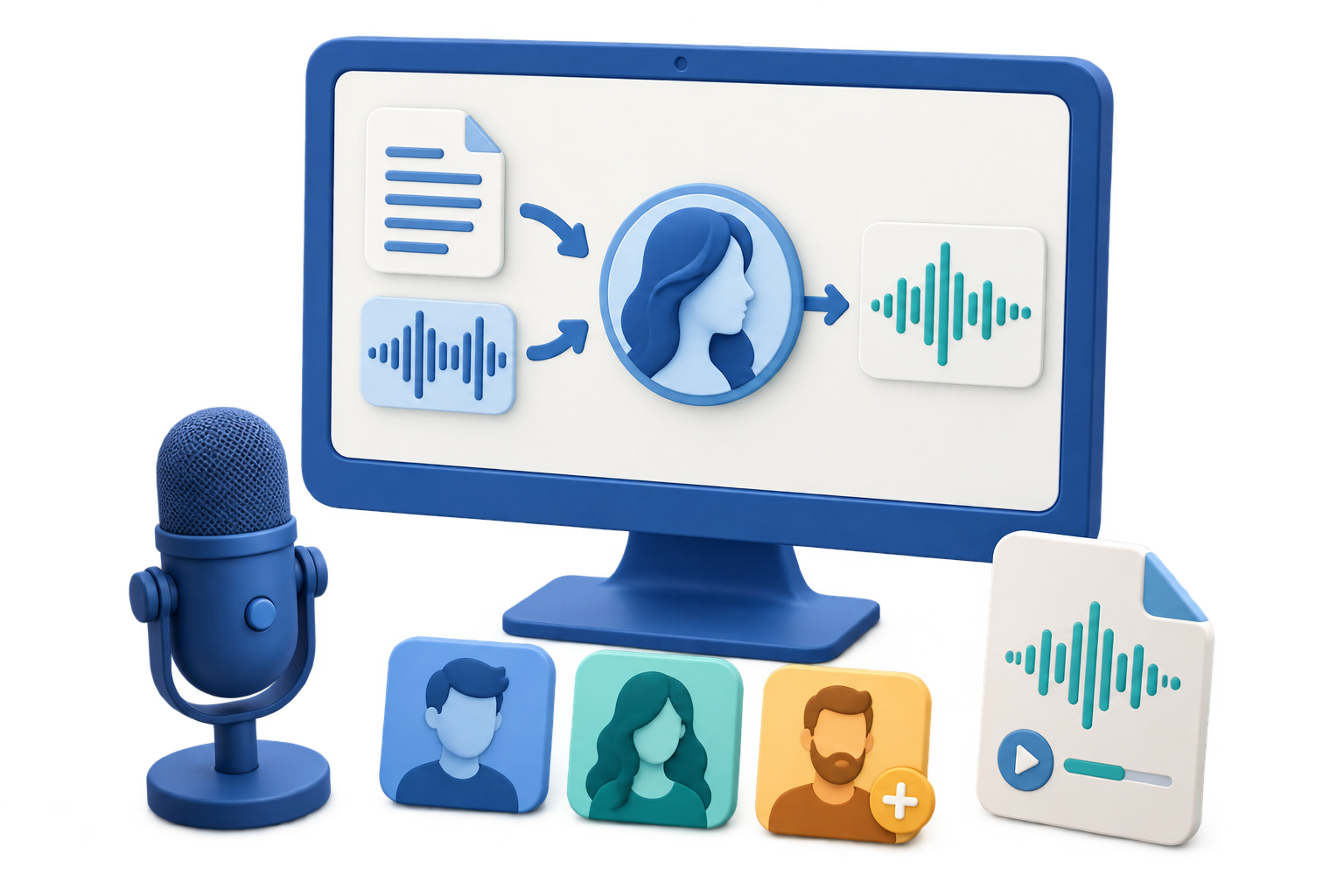
GiliSoft VoiceLab is built around three connected jobs. Use Text to Speech when a script needs a natural voice, Voice Conversion when an existing recording should be spoken by another selected voice, and Custom Voice when you need to create and reuse an authorized voice identity.
You can search the voice library, filter voices by language or category, preview samples, save favorites, and return to your own custom voices. The task list keeps generated files, point use, status, details, and retry actions visible after processing.
VoiceLab is a focused AI voice product. It is different from the basic Text to Speech tool inside Audio Toolkit because it also covers voice conversion, custom voice cloning, a broader target-voice library, and reusable voice management.
Prepare text or recorded speech, choose a target voice, create authorized custom voices, and keep generated work organized in one Windows application.
Type or import a script, choose a target voice, adjust speaking speed, select an output folder, and generate spoken audio.
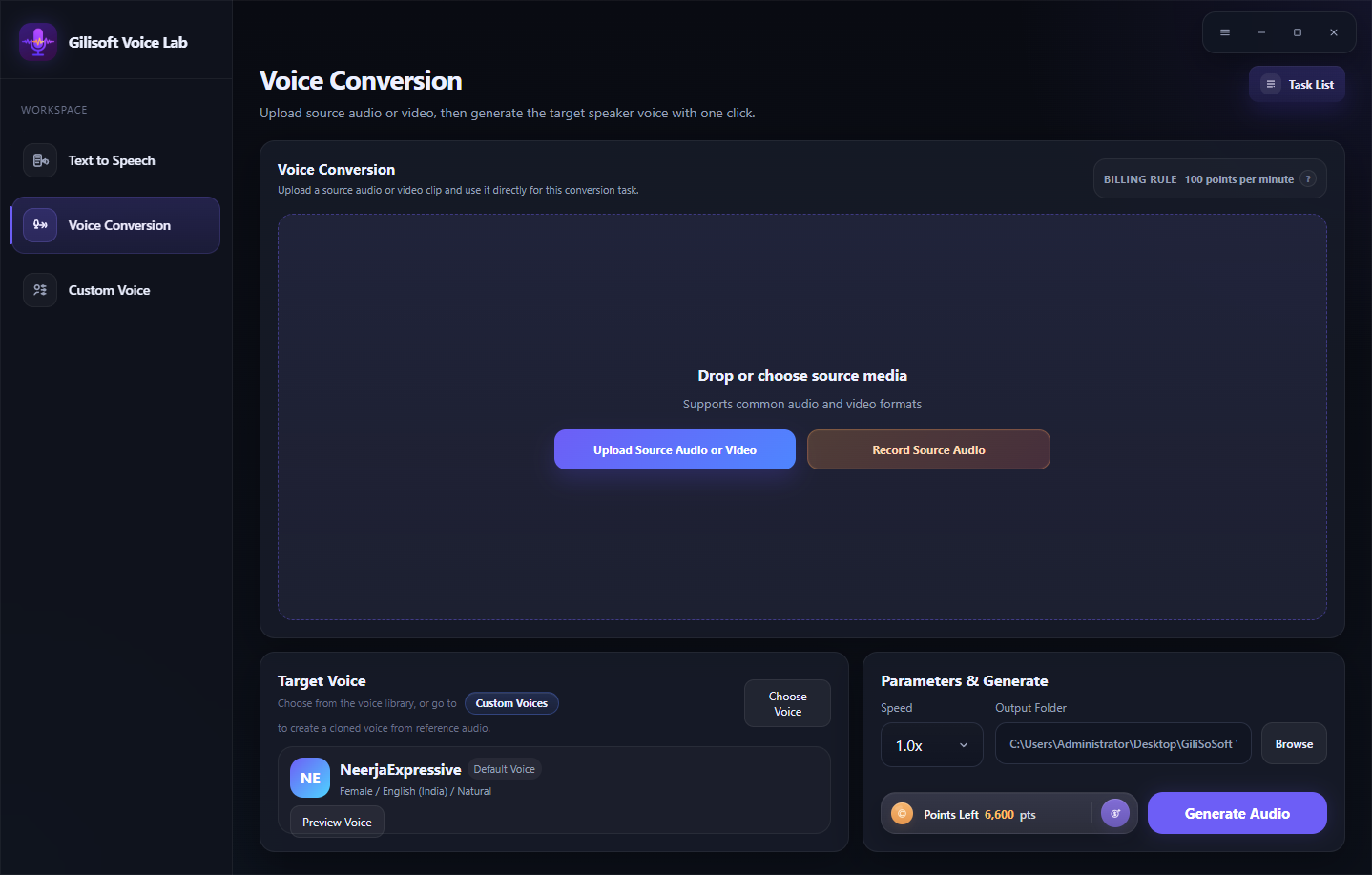
Upload recorded audio or video, or record from a microphone, then convert the spoken content to a selected target voice.
Create a reusable voice from an authorized reference recording, then add a name, language, and tags for later use.
Browse voices across supported languages and categories for narration, localization, and alternate spoken versions.
Search and filter the collection, listen to previews, and save useful voices before starting a generation task.
Return to saved custom voices to preview, select, rename, favorite, or remove voices associated with your account.
Review source files, task type, selected voice, processing status, results, details, and retry actions.
Check the available balance and displayed point requirement before processing AI voice and custom-voice tasks.
Choose a task below to inspect the full interface. Click the large screenshot to open a larger preview.
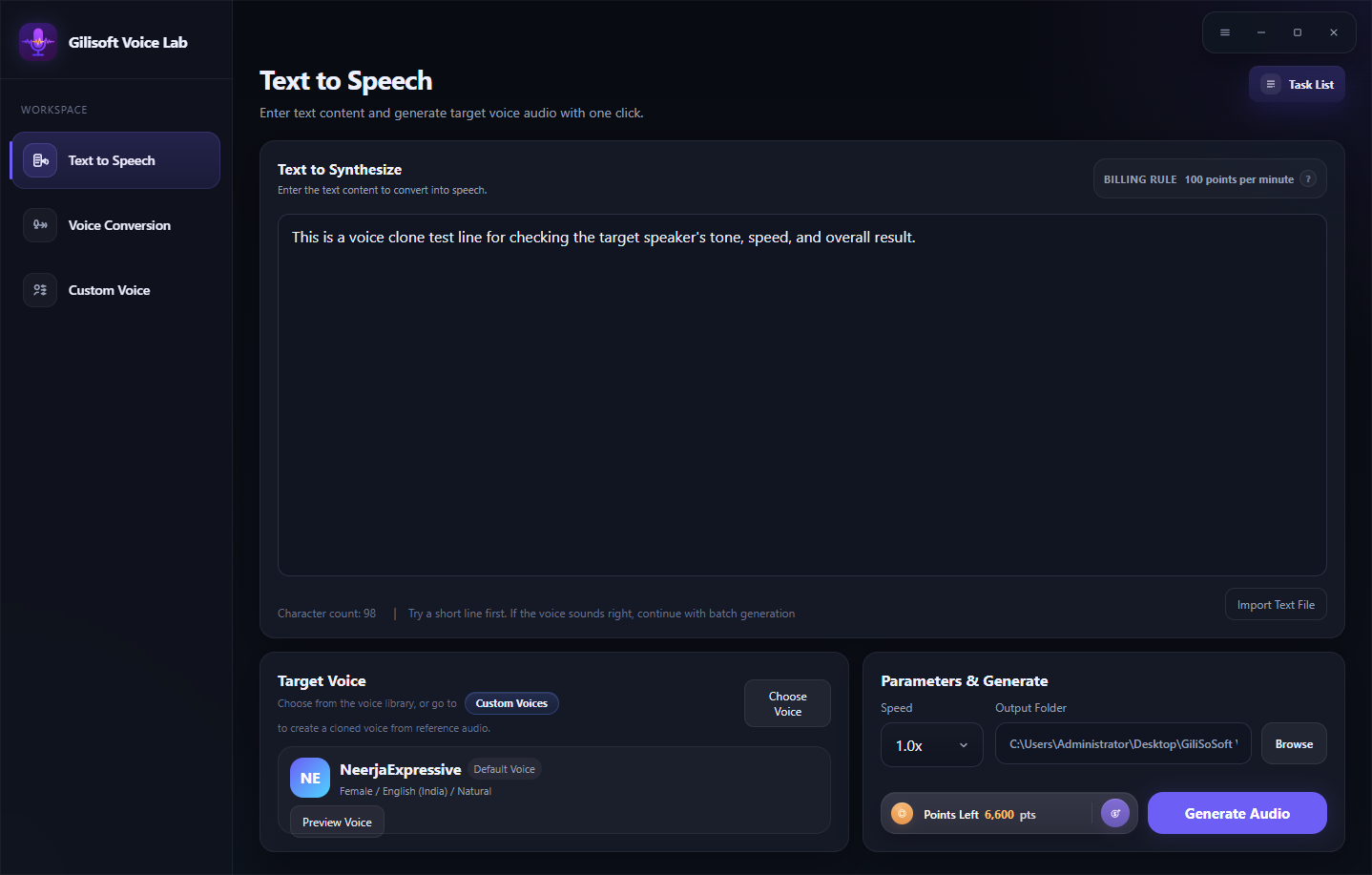
Enter or import text, choose a voice, adjust speed, choose an output folder, and review the displayed point rule before generating audio.
Generate narration drafts, convert an existing recording to a selected voice, and keep reusable voices organized for lessons, demos, explainers, and training material.
Search voices by language, preview options, save favorites, and prepare alternate spoken versions without rebuilding the project around a separate voice tool.
Use a written script, uploaded recording, video source, or direct microphone recording as the starting point for a generated voice task.
Create and label a reusable voice from approved reference material, then return to My Voices when the same identity is needed for another project.
“VoiceLab lets our team turn revised lesson scripts into clear narration without recording every update again.”
- Olivia M., E-Learning Producer
“Search, previews, and favorites make it much faster to compare voices before preparing localized video versions.”
- Kevin T., Localization Manager
“We can organize an authorized custom voice and return to it when product demos need a consistent spoken identity.”
- Rachel P., Content Operations Lead
It combines text-to-speech generation, audio and video voice conversion, custom voice cloning, voice-library browsing, and generation task management in one Windows application.
Yes. Create Voice Clone accepts an authorized reference audio or video file or a short recording, then lets you name and organize the resulting custom voice.
Yes. Voice Conversion accepts uploaded audio or video and direct microphone recording, then generates the result with the selected target voice.
The voice library shown in the product supports language and category filters, search, preview, favorites, and direct voice selection.
Points are used when generating AI voice results and creating custom voices. VoiceLab displays the available balance and relevant point information before processing.
Use a clear recording you own or are authorized to use. The built-in recording screen shown in VoiceLab supports a short reference capture and provides fields for the voice name, language, and tags.
Start with text, an existing audio or video recording, or an authorized reference voice, then use GiliSoft Points when you are ready to generate the result.


Enter your email address to get our latest newsletter
USB Encryption
USB Locker
File & Folder Locker
Photo to Video Maker
Screen Recording Software
Video Editor
Video DRM Protect
Copy Protect
Data Recovery Software
PDF Editing Software
PDF Converter
FaceSwap
Watermark Remover
Voice Cloning Software
AI Voice Generator for Windows
AI Voice Cloning Tool
Clone a Voice on Windows
OCR Software for Windows
Screenshot OCR
Batch Image OCR
Turn Screenshots into Step-by-Step Notes
Turn Text into Voiceover Draft
Restore Old Photo and Read Text
Meeting Recordings to Written Notes
Receipt and Form OCR
Voiceover Drafts from Articles
Read Text from Document Photos
Support Screenshots to Help Notes
Training Voiceover from Notes
Whiteboard Photos to Text
Scanned Notes to Editable Text
Product Demo Voiceover Drafts
Audio Transcription Software
Audio to Text
Text to Audio
AI Tools for Creators
AI Tools for Voice and Images
AIKit