GiliSoft File Lock Pro

Folder lock software for Windows to password protect files, folders, USB drives, and LAN shared folders.

Built for users who need fast folder privacy, USB file protection, shared-folder access control, and portable encryption without changing their whole disk setup.

Windows 2000/XP/7/10/11 (32 bits &64 bits)

Download TrialVersion: 13.5BUY NOW$39.95 $49.95

Password Protect Files, Folders, USB Drives, and Shared Folders on Windows

GiliSoft File Lock Pro is folder lock software for Windows users who need direct control over selected files, folders, USB drives, and shared folders. It helps you password protect folders, hide private data, make files read-only, encrypt portable packages, monitor file activity, and securely delete sensitive data when recovery should not be possible.
It is designed for personal documents, office files, portable drives, and small-team folders where full-disk encryption or complex Windows permissions may be more than the job needs. Instead of protecting an entire PC, you can apply focused privacy and access-control rules to the files and folders that matter most.
For macOS users, go to File Lock Pro macOS.

Hide

Use hiding when private files, folders, or drives should disappear from ordinary browsing and Windows search on shared PCs.

Lock

Use locking when selected files, folders, USB drives, or shared folders should remain controlled by a password before access.

Protect

Use protection when files can stay visible but should not be renamed, modified, moved, or deleted without permission.

Core File Protection Features

Hide Files, Folders, and Drives

Hide private files, folders, and whole local disk areas so sensitive content does not appear in normal browsing or standard Windows search. This is useful for shared family PCs, office computers, and personal files that should not be casually discovered.

Lock Files, Folders, and Drives

Password protect selected files, folders, local drives, and removable drives. Use this when content may stay visible in Windows, but opening, unlocking, or changing it should require the correct password.

Protect Against Change or Deletion

Apply protection rules when files should remain usable but must not be renamed, modified, moved, copied over, or deleted without permission. It is practical for templates, contracts, records, and shared reference folders.

Monitor Folder Activity

Watch selected folders and subfolders for operations such as writing, changing, deleting, and renaming. Program logs help users review what happened to important files on shared workstations.

Lock LAN Shared Folders

Add password-based control to shared folders on a local network. This helps small teams protect project folders, templates, and internal documents without rebuilding every Windows account or network permission rule.

Encrypt Files for Portable Delivery

Encrypt files and folders into protected GFL or EXE packages with AES encryption. Portable encrypted packages can be sent to another Windows PC and opened with the correct password.

Shred Files and Wipe Free Space

Permanently delete sensitive files and folders when normal deletion is not enough. The disk wiper can also clean unused disk space to reduce the chance of recovering previously deleted private data. Learn how to shred files on Windows 10/11.

Self-Protection, Logs, and Exclude Lists

Use stealth mode, password recovery email, exclude lists, and program logs to manage protection more safely. Exclude lists help avoid locking important system locations, while logs and wrong-password alerts improve visibility on shared PCs.

Additional File Utilities

Compression and Extraction

Compress files or folders into common archive formats and decompress packaged files when protected content also needs basic organization. This is an additional utility, not the main reason to choose File Lock Pro.

File Repair Utilities

Use the included repair utility for common damaged or unreadable files when a quick repair attempt is needed. It is best presented as a supporting tool alongside the main lock, hide, protect, encrypt, and shred features.

Testimonials

We needed one tool to lock project folders on office PCs and USB drives, and File Lock Pro handled both without confusing setup.

- Olivia M., IT Security Lead

The hide mode is useful for HR documents because hidden folders do not show in normal browsing or search results.

- Kevin T., Systems Administrator

Read-only protection stopped accidental edits in our template library while still allowing staff to open and use files.

- Rachel P., Compliance Manager

Shared-folder password control helped us protect LAN resources for small teams without changing our existing network layout.

- Daniel K., IT Administrator

USB folder protection is helpful when our staff carry files between office PCs and client locations.

- Brian C., Support Engineer

Portable EXE encryption gives us a simple way to send protected files to outside partners with a password.

- Megan S., Operations Manager

Activity logs make it easier to understand who tried to access or change protected folders on shared workstations.

- Laura D., Compliance Analyst

The wrong-password alert feature gives our team extra visibility when someone repeatedly tries to open private folders.

- Ethan W., Digital Asset Manager

GiliSoft File Lock Pro Interface

Preview the updated File Lock Pro screens for hiding, locking, protecting, shared-folder control, external-drive protection, monitoring, encryption, shredding, and security settings. Click the large screenshot to inspect it in detail.

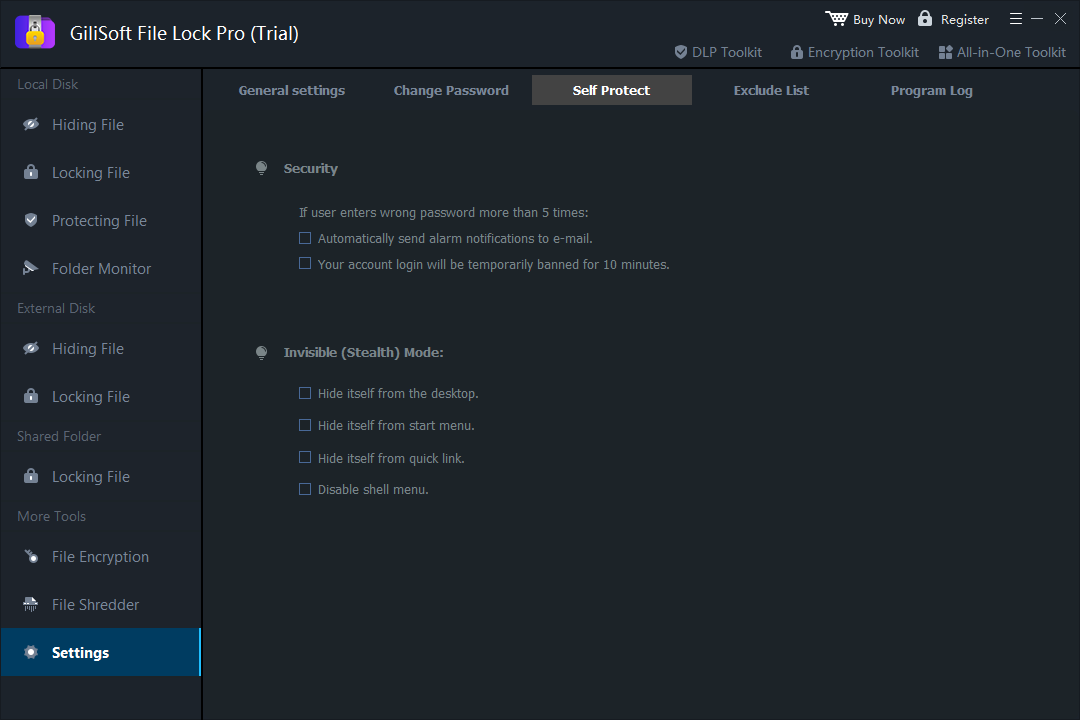
GiliSoft File Lock Pro security settings interface

Self protection and stealth mode

Control wrong-password behavior, email alerts, temporary bans, and invisible mode settings for the File Lock Pro interface.

Popular Folder Lock Guides

Who Is This For?

File Lock Pro is for users who need practical file and folder protection without encrypting every drive or rebuilding Windows account permissions.

Shared Windows PC users

Keep sensitive folders private from family members, coworkers, students, or other users on the same computer.

Small teams and office users

Protect office documents, HR files, project folders, and shared folders used across workstations, USB drives, and LAN environments.

Users who need focused access control

Lock, hide, encrypt, monitor, and securely delete selected files or folders without encrypting every drive on the system.

USB drive and portable storage users

Protect folders on flash drives, external disks, and memory cards before files are carried between computers.

Document-heavy departments

Protect finance records, HR files, legal drafts, customer documents, and project archives that should not be casually opened or changed.

Users who share files outside the office

Create protected encrypted packages when sensitive files need to be delivered to partners, clients, or remote team members.

Why Not Just Use Windows Permissions, BitLocker, or EFS?

Windows includes several security features, but File Lock Pro is designed for repeatable file and folder protection tasks that everyday users can apply quickly.

File Lock Pro

Best when selected files, folders, USB folders, and LAN shared folders need password locking, hide mode, read-only protection, encryption, or secure deletion.

Windows permissions

Useful for managed Windows accounts and NTFS rules, but less convenient when users want quick password-based privacy on selected folders.

BitLocker vs file lock software | EFS vs file lock software

BitLocker

Best for full-drive encryption on entire disks or removable volumes. It protects the drive, not individual folders that need separate access rules.

Folder lock software vs BitLocker | Free BitLocker alternatives

EFS

Useful for Windows account-tied file encryption, but different from password-based folder locking that can be applied directly to selected content.

Built-in folder encryption greyed out fixes

Common File Security Use Cases

File Lock Pro is useful when selected files or folders need stronger privacy, access control, or change prevention without changing the whole Windows storage setup.

Password protect folders on Windows 11 and Windows 10

Lock customer files, HR files, finance records, legal drafts, and personal documents so unauthorized users cannot open, modify, rename, or delete them.

Password protect a folder in Windows 11 | Create a password protected folder | Password protect folders/files in Windows 7/8/11

Hide private files from normal browsing and search

Keep private folders, drives, and files out of casual view on shared PCs, family computers, office workstations, and classroom devices.

Hide files or folders on Windows 10 and Mac | Hide files and folders on Windows 11 | Invisible secret folder on Windows 11 desktop | Hide a folder from Windows search

Hide whole drive partitions seamlessly

Use Hide Disk when an entire local, external, or removable drive partition should vanish from normal Windows 11 browsing instead of only protecting one folder.

Hide local disk drive in Windows 11/10/8/7 | Hide a whole drive partition on Windows 11 | How to hide a drive

Protect folders locally without cloud syncing

Lock, hide, protect, and manage private files on the Windows PC or storage device you control, without moving sensitive data into a cloud-sync workflow.

Folder lock software without cloud syncing | Easy VeraCrypt alternative

Lock folders and files on USB drives

Protect portable folders on USB flash drives, external disks, memory cards, and thumb drives before carrying files between computers.

Lock a folder on a USB drive | Lock Micro SD card or camera memory card
Folder lock for external drive | Password protect external drive without encryption

Control access to network and shared folders

Apply password protection and access restrictions to LAN shared folders used for projects, templates, financial records, and internal documents.

Password protect a shared folder | Shared folder protection on Windows 11

Prevent accidental or unwanted file changes

Use read-only and protection rules when project folders should be visible but not renamed, overwritten, moved, or deleted.

Prevent a file or folder from being renamed or deleted | Prevent a folder from being renamed | Make a folder read-only but accessible

Encrypt files for partner or client delivery

Create protected packages when sensitive documents need to leave the office but should still require the correct password before opening.

Lock files and folders on Windows

Protect private folders on shared computers

Use folder locking and hide mode when several people use the same Windows PC but personal, HR, finance, or client files should stay private.

Lock a folder on a shared computer | Hide files from other users

Choose file locking instead of whole-drive encryption

Use folder-level protection when only selected content needs password control and full-disk encryption would be broader than necessary.

Lock a folder without BitLocker | BitLocker vs file lock software | PC encryption software

File Lock Pro FAQ

How do I password protect a folder on Windows?

Choose the folder you want to secure, assign a password, and apply lock protection. After that, unauthorized users cannot access or modify the protected content without the correct password.

Can I hide files and folders from search results?

Yes. File Lock Pro includes hide mode for files, folders, and drives so protected items stay invisible in normal browsing and are not shown in standard Windows search results.

Is File Lock Pro useful for USB drives and portable storage?

Yes. You can lock, hide, encrypt, and protect data on removable media including USB drives, thumb drives, and memory cards.

What is the difference between locking and encrypting files?

Locking blocks access with password protection and access-control rules, while encryption converts the file or folder into protected encrypted data. File Lock Pro supports both approaches.

Can File Lock Pro protect folders shared across a local network?

Yes. It can apply password-based access control to shared folders on a LAN, which is useful for office documents, team templates, and internal project directories.

Does File Lock Pro replace BitLocker?

No. BitLocker is best for full-drive encryption. File Lock Pro is better when you want to protect selected files, folders, USB folders, or shared folders with folder-level controls.

Can I make a folder read-only but still visible?

Yes. File Lock Pro can keep a folder visible while preventing unwanted rename, delete, move, or write operations without the correct password.

Can I protect files on an external hard drive?

Yes. You can apply file and folder protection to external drives and removable storage when selected content needs password-based access control.

Choose the Right GiliSoft Tool

Choose the product based on the protection target: selected files and folders, USB devices, encrypted removable storage, or application access.

Protect selected files and folders

Use File Lock Pro for folder privacy, hide mode, password-based access control, USB folder locking, and LAN shared-folder protection.

View File Lock Pro

Control USB ports and devices

Use USB Lock when the main need is managing USB ports, removable-device access, and endpoint USB policy.

View USB Lock

Encrypt the USB drive itself

Use USB Encryption when the removable drive should contain a password-protected encrypted area.

View USB Encryption

Need a lighter file locker? Review GiliSoft File Lock. Need to block selected applications? Review GiliSoft EXE Lock. Need several protection layers together? Compare GiliSoft Encryption Toolkit.

Review Notes

  Editors highlighted the product's practical mix of file locking, hiding, and encryption for daily Windows privacy protection.
    Coverage also noted that first-time users can deploy protection policies quickly with minimal training.

Review notes frequently mention the clean controls for securing sensitive folders on local and removable drives.

  Reviewers praised granular controls such as read-only mode, shared-folder password rules, and operation logs.
    Test feedback described consistent performance when applying and removing protection in repeated sessions.


Analysts described File Lock Pro as a feature-rich Windows data protection utility for file and folder access control.

  Independent write-ups described the product as dependable for endpoint privacy, especially for USB folders and shared office computers.
    Commentary emphasized straightforward administration and reliable access recovery with master-password controls.


Senior editors highlighted the balance between strong protection options and day-to-day usability for office teams.