Create AES-256 Encrypted Lockers
Keep confidential files in password-protected .gpd containers. Create separate lockers for personal documents, client records, or project archives.


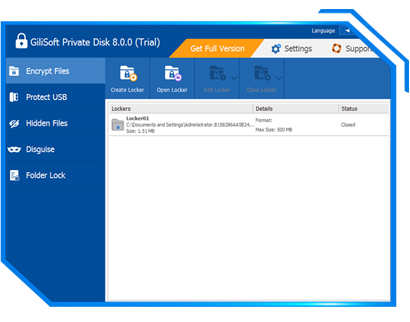
GiliSoft Private Disk creates an encrypted virtual disk for the files you want to keep private. Store documents, spreadsheets, PDFs, photos, videos, and entire project folders inside an AES-256 encrypted locker protected by your password.
Open the locker and use it like a normal Windows drive. Read documents, edit spreadsheets, organize folders, and save changes with your usual applications while Private Disk handles the encryption. Close the locker when you finish to remove access to the private drive and keep its contents protected in a .gpd container.
Create separate lockers for personal records, client work, financial documents, or long-term archives. Keep them on your PC, carry protected lockers on USB or external storage, and back up the closed containers as complete files.
Private Disk also includes tools to prepare protected CD/DVD media and password-protected email attachments, hide files, disguise folders, and store account information in Password Wallets. It gives home users, independent professionals, and business users one place to manage private storage and everyday file privacy.

Keep confidential files in password-protected .gpd containers. Create separate lockers for personal documents, client records, or project archives.
Open a locker with its password and work in the private drive using your usual Windows applications. Read, edit, and save files while Private Disk handles encryption.
Use Protect USB to copy lockers to a USB or external drive and prepare portable access. Keep private documents protected when moving them between Windows PCs.
Burn protected lockers to CD/DVD media, or use Protect Attachment to password-protect and compress files for email.
Hide selected files or folders from normal browsing when you need a quick privacy layer on a shared Windows computer.
Use folder disguise mode to make sensitive folders less obvious in day-to-day browsing, adding privacy beyond ordinary folder names.
Use Close Locker when you finish working. The mounted private drive is removed, and your files remain inside the encrypted container for the next session.
Create password wallets for account notes, license keys, private records, and other sensitive reference information that should not stay in plain text.
Create separate lockers for personal files, business documents, archives, portable transfer, or department-specific storage.
Close a locker and copy its complete container to backup storage. Keep tax records, contracts, scans, and completed projects together in protected archives.
Store a closed locker in your cloud backup folder so the uploaded file contains encrypted data. Let synchronization finish before opening the container on another PC.
Set the container name, storage location, and maximum size when creating a locker. Organize private storage to suit your files and the free space on the host drive.

We keep HR and finance files in separate encrypted lockers, and mount them only during approved processing windows.
AES-256 locker protection has been stable in daily use, and our team adopted it without changing file organization habits.
Using encrypted containers inside cloud sync folders reduced policy exceptions for confidential project documents.
Portable USB lockers helped us move sensitive files between offices without exposing plain documents on removable drives.
Hidden disk mode is useful on shared workstations because private folders disappear completely after unmounting.
Mounting multiple lockers lets us separate legal archives from day-to-day operations, which made access audits easier.
Preview the main Private Disk workflow: create and open encrypted lockers, protect files for USB or external delivery, hide private files, disguise sensitive folders, and keep account records in password wallets.
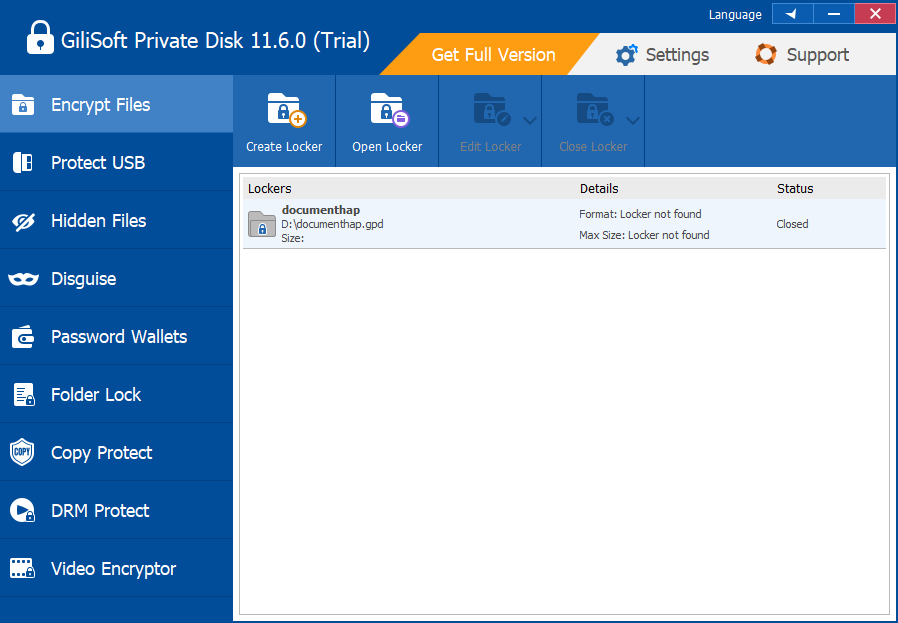
Create .gpd private disk lockers, open them with a password, edit existing lockers, and close them when private work is finished.
Keep ID scans, financial records, photos, and personal documents together in a private drive. Open the locker when you need it and close it before leaving the PC.
Organize client documents, contracts, payroll records, and project files in separate encrypted lockers with their own passwords and storage locations.
Take protected lockers on USB storage or keep encrypted copies of completed projects and personal records on backup drives.
Open Encrypt Files and click Create Locker. Choose a name, container location, maximum size, and password for your private disk.
Choose Open Locker and enter the password. Copy files into the private drive, then open, edit, and save them with your usual applications.
Close files and applications using the drive, click Close Locker, and check that its status is Closed. The complete container can then be backed up or moved.
It is private storage saved inside an encrypted container file. GiliSoft Private Disk uses .gpd lockers: enter the password to open a locker as a virtual drive, work with the files inside, and close it when you finish. You can create separate lockers for personal, business, or archive files.
Open GiliSoft Private Disk, select Encrypt Files, click Open Locker, and choose the .gpd container. Enter its password to access the private drive. If the locker is listed as not found, reconnect its storage device or select the container from its current location.
Store documents, spreadsheets, PDFs, photos, videos, audio files, archives, and project folders inside the private drive. Once the locker is open, use your usual Windows applications to read, edit, and save those files.
No. Closing the locker removes access to the mounted private drive, while the encrypted .gpd container stays in its saved location. Keep that file: it holds your protected data. Close Locker in Private Disk after finishing; closing a File Explorer window alone does not close the locker.
Yes. You can store a closed .gpd locker on USB or external storage and open it with Private Disk on a Windows PC. The Protect USB workspace also provides a portable locker option for USB and external drives. Close the locker and safely remove the device before unplugging it.
Yes. Close the locker, then copy the complete .gpd container to your backup or cloud storage location. Wait for the copy or synchronization to finish before opening it elsewhere. Treat it as a container backup rather than a live shared document, and avoid editing the same locker on multiple computers at once.
Hidden Files and Disguise change how selected files or folders appear during ordinary browsing. Encrypt Files creates a password-protected encrypted locker for the data stored inside it. Choose an encrypted locker when you need encryption for confidential documents and archives.

 Editors highlighted practical encrypted-disk workflows for protecting confidential files on Windows PCs.
Coverage noted clear setup steps for teams needing quick data isolation controls.
Conveniently, any protection on files or folders remains active,
even if the protected items are transferred from PC to USB or another PC ...

Reviewers praised mount/unmount controls and encrypted container behavior in daily operational use.
Lab observations mentioned stable access control during repeated lock and unlock cycles.
Snoopers can't find or access the files you protect using Private Disk,
even in DOS or under other operating systems...

Independent write-ups described Private Disk as a focused tool for encrypted virtual storage and privacy control.
Commentary emphasized low management overhead and reliable protection behavior.
Protect your sensitive files and folders with Private Disk - unique
encryption software with an abundance of security options...


Enter your email address to get our latest newsletter
Private Disk Software
Encrypted Virtual Disk
Hidden Encrypted Disk
Password-Protected Virtual Disk
Portable Private Disk USB
Create Encrypted Virtual Disk
Encrypted Disk Container
Encrypted Storage for Confidential Files
Protect Confidential Files on Shared PC
Private Disk Guide
Disk Hide Software
Data Encryption
File Encryption
Folder Protection
File Lock Pro
USB Encryption
USB Lock
DRM Protection
Copy Protection
AI Agent Lock
Total Repair