
How to Change Audio Speed on Windows
Want to shorten a slow voice note or give listeners more time to follow a fast explanation? GiliSoft Audio Editor has speed controls in its current Effects menu. The useful result is a new audio file at the pace you chose, not just faster playback in one player.
Quick answer
Open GiliSoft Audio Editor, enter Audio Editing, and use File > Load from computer to open your recording. Drag across the passage to change, or choose Edit > Select All for the whole file. Open Effects > Speed / Playback Rate, review the controls in your installed version, and make a small adjustment. Preview the result, check its duration and pitch, then use File > Export to save a separate copy.
Which Speed Control Should You Open?
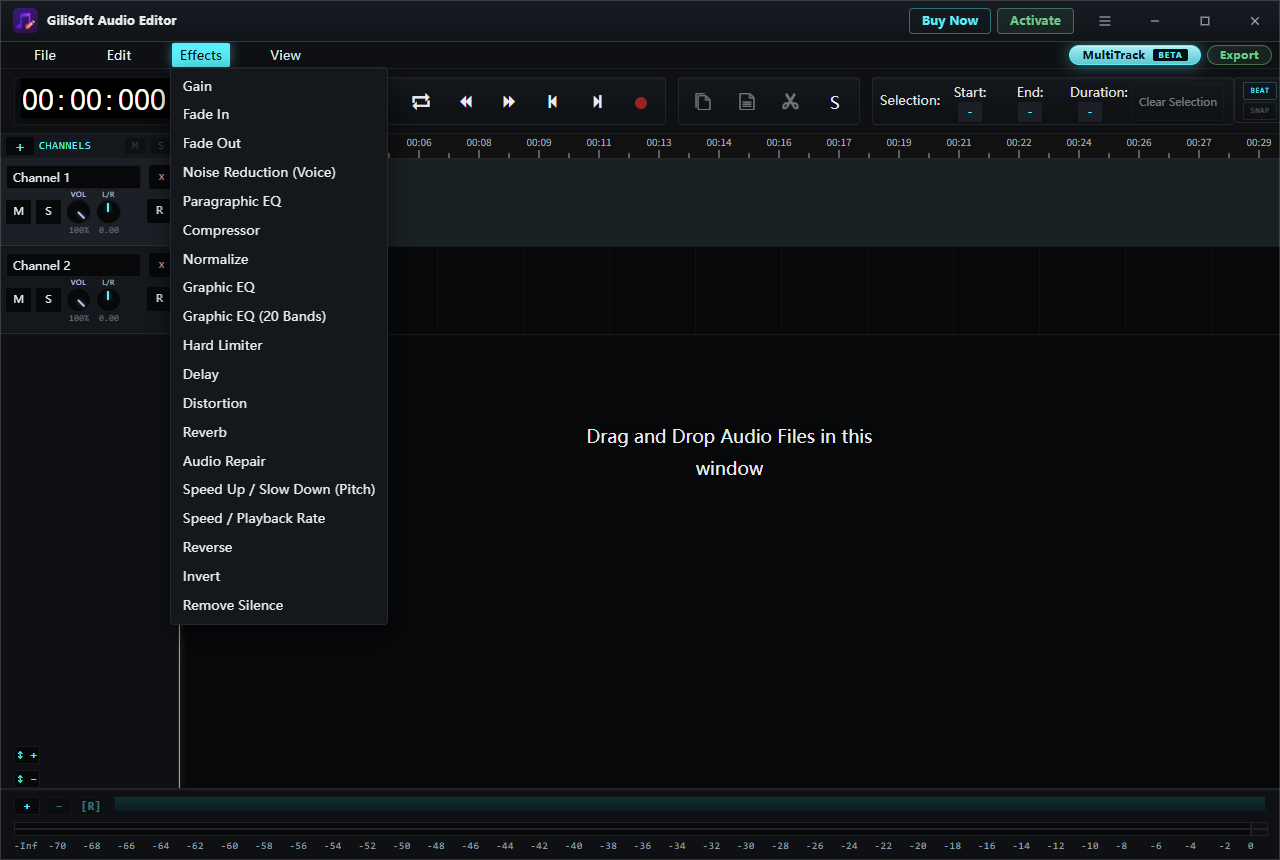
The current Effects menu shows two separate entries: Speed / Playback Rate and Speed Up / Slow Down (Pitch). Their names alone do not establish exactly how each export will sound. Open the control that matches your task, inspect the options displayed, and test a short selection first. Compare both playback time and voice pitch before you commit to the full recording.
| Goal | First check | Verify after preview |
|---|---|---|
| Make a saved file play faster or slower | Effects > Speed / Playback Rate | New duration, clarity, and pitch |
| Explore a pitch-related speed change | Effects > Speed Up / Slow Down (Pitch) | Whether the voice tone matches your intention |
| Listen faster without editing the file | Your player's playback-speed control | The original file remains unchanged |
If keeping the original pitch is essential, do not infer that either menu item will do so from its label. Confirm the available controls and audition an exported test clip.
Change Speed in GiliSoft Audio Editor
- Keep the original recording
Start with a copy. This makes it easy to compare the edited voice with the source and try a different approach if needed.
- Load the audio
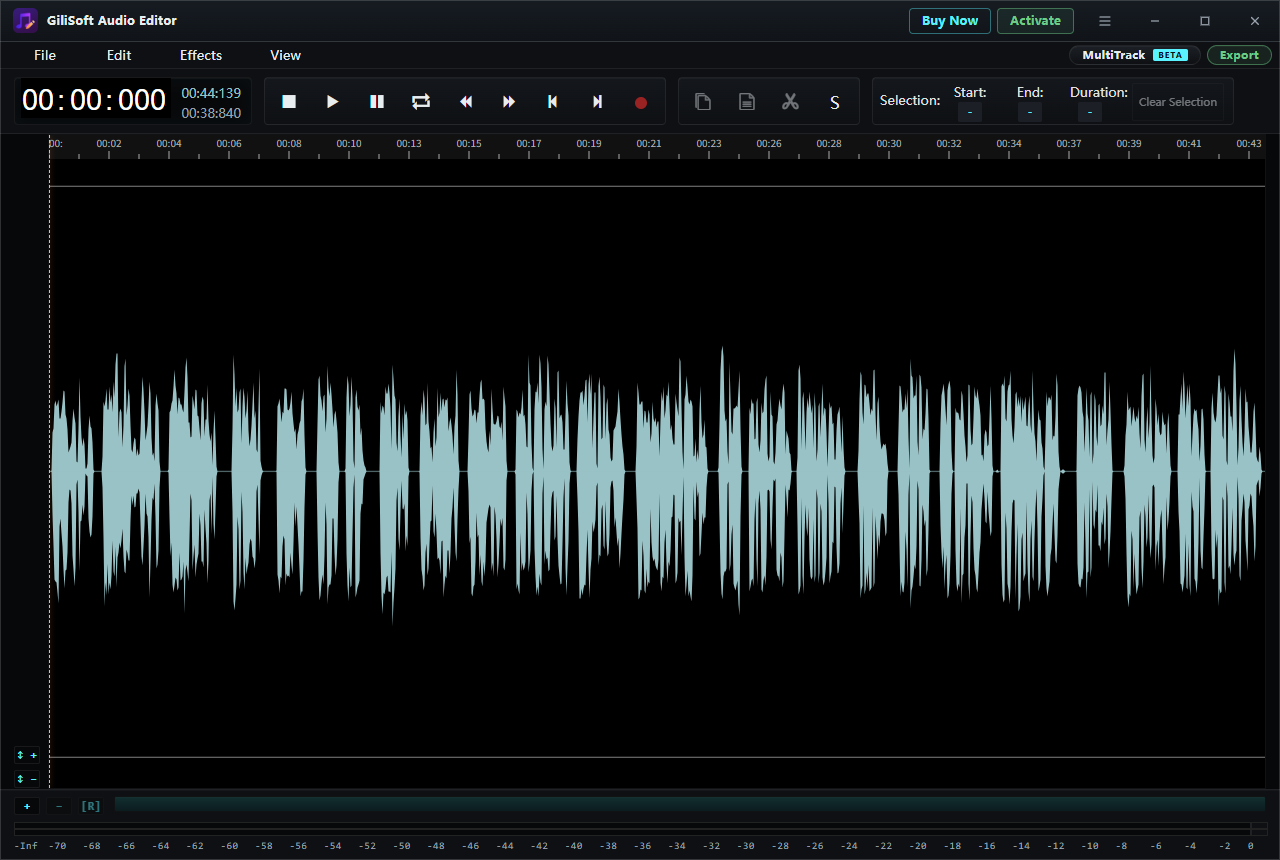
Open Audio Editing from the task hub. Choose File > Load from computer, then play the recording to find a representative section.
- Set the range
Drag across the waveform for one passage, or use Edit > Select All for the whole file. Check the visible Start, End, and Duration values so the intended range is selected.
- Try a speed control
Open Effects > Speed / Playback Rate. Inspect the options shown in your version and begin with a modest change. The same menu also lists Speed Up / Slow Down (Pitch) for a separate test when pitch behavior matters.
- Listen and compare
Play the edited section at a fixed player speed. Check whether words remain clear, the voice sounds natural, and the new duration suits the project. Undo and try a smaller change if it sounds rushed or stretched.
- Export and verify
Use File > Export or the upper-right Export button. Save a new file, reopen it outside the editor, and confirm that the speed change is present in the delivered copy.
Example: Shorten a Spoken Lesson
Suppose a five-minute explanation contains long pauses and a slow closing summary. Test a short section of the summary first. If a speed change makes the words harder to understand, use a gentler setting or trim unnecessary pauses instead. A faster file is only better when listeners can still follow it.
When just one passage changes speed, listen across its beginning and ending. A sudden switch in pace can be distracting even if each section sounds fine on its own. Export a test copy and compare its duration with the source.
What to Check Before Sharing
- Duration: A changed file should have the expected running time; do not rely on the timeline display alone.
- Pitch: Listen to speech and music after the change. The two Effects entries should not be treated as interchangeable without a test.
- Clarity: Fast consonants and slow sustained sounds are useful places to hear artifacts.
- Range: If only one passage was selected, verify the rest of the file still plays as intended.
- Delivery: Reopen the exported file in another player to confirm the change was saved, rather than applied only to preview playback.
Frequently Asked Questions
How do I speed up an entire audio file?
Choose Edit > Select All in Audio Editing before opening a speed control in Effects. Preview the complete result and export a new file.
Can I slow down only one sentence?
Yes, select that sentence in the waveform before opening the effect. Check the Start, End, and Duration values, then listen across both boundaries after the change.
Will changing speed also change pitch?
The current menu offers Speed / Playback Rate and Speed Up / Slow Down (Pitch), but the labels do not by themselves prove the outcome of a given setting. Test a short passage and inspect the options in your installed version before exporting the whole file.
Why does the exported file play at the original speed?
Make sure you applied an editing effect to the selected audio and exported a new copy. A playback-speed setting in an external player changes listening speed there, not the saved file.