
How to EQ Voice Recordings on Windows
A voice can sound muddy, thin, or sharp even when its volume is adequate. EQ changes the balance of frequencies in the recording; it does not replace a good microphone take or remove every kind of background noise. Use the current GiliSoft Audio Editor to make a restrained change, then listen at the same playback volume as the original.
Quick answer
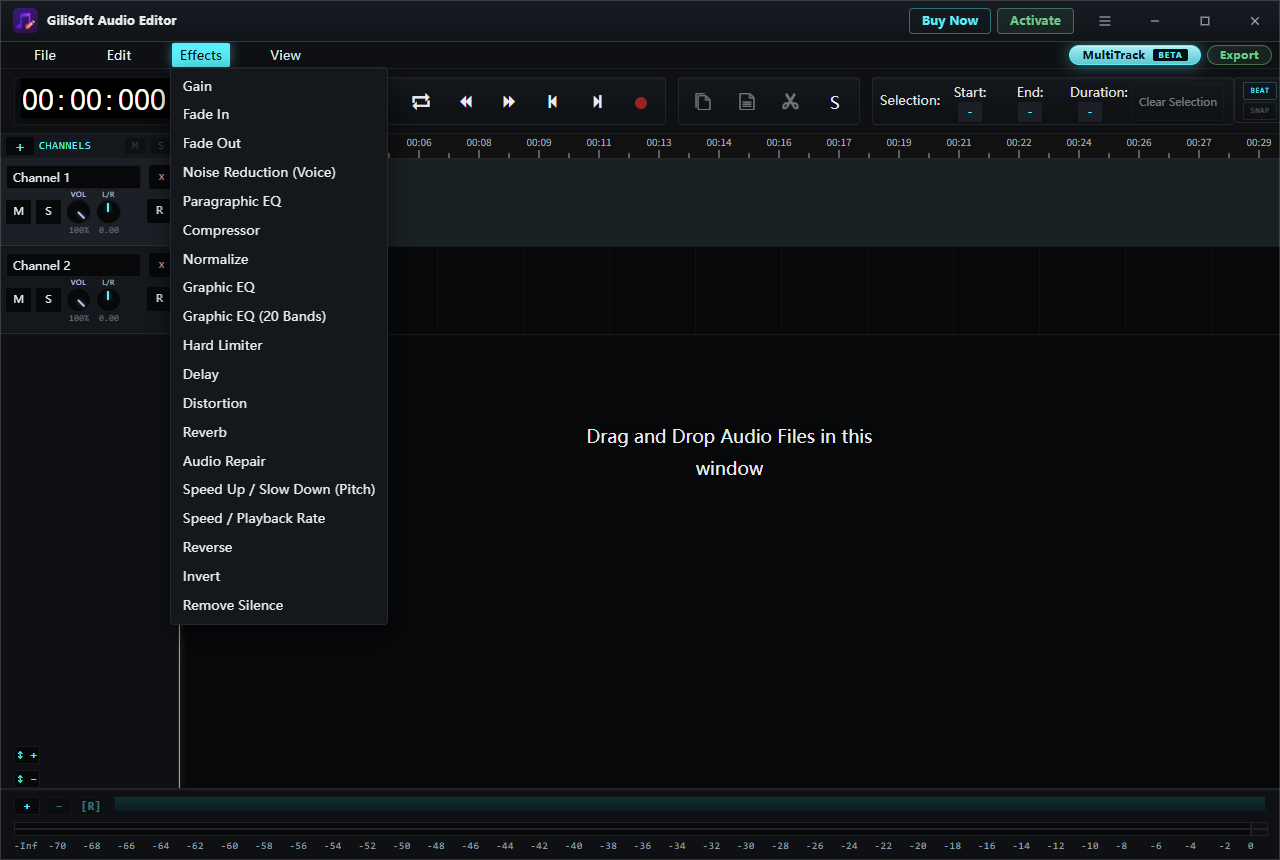
Open the recording in GiliSoft Audio Editor, select the voice passage, then choose Effects > Paragraphic EQ, Graphic EQ, or Graphic EQ (20 Bands). Review the controls shown in your installed version, make one modest adjustment, compare with the original, and use File > Export to save a new copy.
Is EQ the Right Fix?
| What you hear | Try first | Why |
|---|---|---|
| Voice is dull, boomy, thin, or harsh | Review an EQ effect | Adjust tonal balance and compare intelligibility |
| Steady hiss or fan noise | Noise Reduction (Voice) | EQ may change the noise tone but does not isolate the voice |
| Whole recording is too quiet | Normalize | EQ is not an overall volume control |
| Words swing between quiet and loud | Compressor | Dynamics need attention, not just tone |
| Speech is clipped or drowned out | Check the source recording | No EQ setting can reliably recreate missing detail |
For a file that is consistently quiet, use the separate audio normalization guide. Do not judge an EQ change only because the edited version plays louder.
EQ a Voice Recording in GiliSoft Audio Editor
- Keep the source recording
Save an untouched copy so you can compare or start over without accumulating effects.
- Open and listen to the file
From the task hub, open Audio Editing and choose File > Load from computer. Find a representative passage with both quiet and strong words.
- Select the voice to adjust
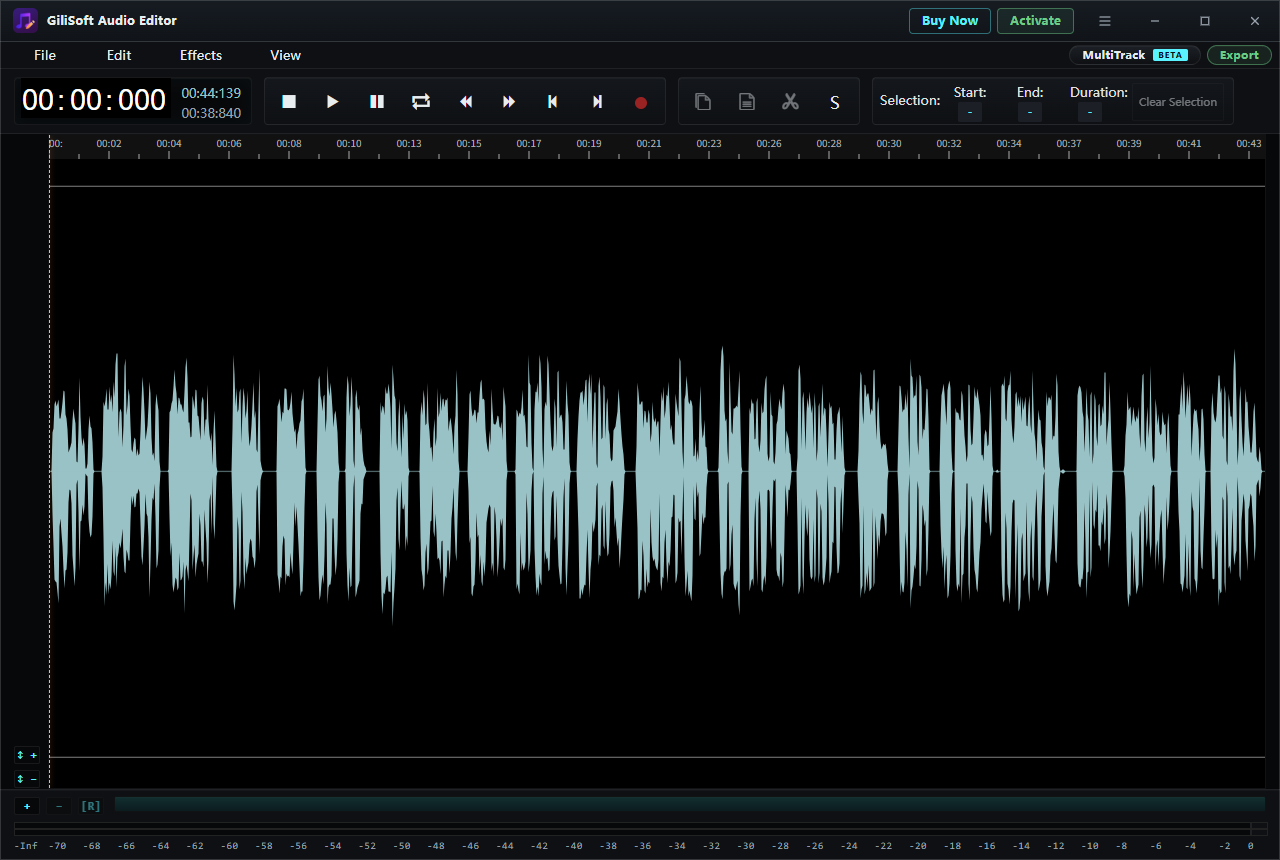
Drag across the waveform to select a passage. If the entire recording has the same tonal problem, choose Edit > Select All. Check the selection's Start, End, and Duration values.
- Choose an EQ effect
Open Effects and choose Paragraphic EQ, Graphic EQ, or Graphic EQ (20 Bands). The current menu confirms these entries; inspect the actual controls in your installed version before changing them.
- Make one small change and compare
Adjust the tonal area that causes the problem, then play the same passage before and after. Undo if consonants become sharp, the voice sounds hollow, or background noise stands out more.
- Export and check the file
Use File > Export or the upper-right Export button. Save under a new name and listen to the exported file on ordinary speakers or headphones.
What to Listen for After EQ
- Does every word remain intelligible, including low-volume syllables and consonants?
- Does the voice sound natural rather than thin, hollow, or overly bright?
- Did the change make hiss, room hum, or breath noise more obvious?
- Are the boundaries of a selected passage noticeably different from the surrounding audio?
Compare at a similar playback level. If a recording contains several different speakers or rooms, review each problem range separately instead of forcing one setting onto the whole file.
Frequently Asked Questions
Which EQ entry should I choose?
The current Effects menu offers Paragraphic EQ, Graphic EQ, and Graphic EQ (20 Bands). Open an option and choose the control layout that makes the change you need easy to review. The available settings may vary by installed version; listen before committing to an entire recording.
Can EQ remove background noise?
EQ changes tonal balance. It may make a particular noise less prominent, but it also changes the voice in that range. For steady background noise, review Noise Reduction (Voice) and compare the result with the source.
Should I EQ before or after normalizing?
First solve the recording's actual problem. If the tone needs correction, make a restrained EQ change and listen. If the completed file is then consistently quiet, review Normalize before final export.
Why does the edited voice sound worse?
The adjustment may be too strong or may affect the wrong passage. Undo, use a smaller change, and compare at matched listening volume. EQ cannot recover clipped or missing speech.