

How to Choose Folder Lock Software for Windows
Folder lock software is for selected folders, not an entire drive. Choose a tool based on whether you need to hide a folder from ordinary browsing, require a password to open it, prevent changes, or create an encrypted copy to share. GiliSoft File Lock Pro provides selected-item controls for Windows; use Windows account permissions for identity-based access and BitLocker or Device Encryption for whole-volume protection.
Quick answer
For a private Windows folder, choose a file-level tool when you need to control only selected content. File Lock Pro can hide or password-lock selected folders, apply protection rules, and create encrypted GFL or EXE packages for delivery. Hiding is not encryption, and a folder lock does not replace account permissions, backups, or full-drive encryption.
Choose the Right Protection Layer
| If your goal is... | Consider... | Check before relying on it |
|---|---|---|
| Keep a selected folder out of ordinary browsing | File Lock Pro hide mode | Hiding is not encryption. Test Windows search, recent items, shortcuts, and the intended user account. |
| Require a password for selected content | File Lock Pro file or folder locking | Close the management app and test access from the users and applications that need the folder. |
| Leave a folder visible but prevent changes | File Lock Pro read-only or file-protection rules | Test writing, renaming, moving, overwriting, and deleting as separate actions. |
| Send a protected copy to someone | File Lock Pro encrypted GFL or EXE package | The recipient needs the password and a supported Windows workflow. This is a protected copy, not a live shared folder. |
| Control access by Windows user or account | Windows account and NTFS permissions | Grant access to the intended identities and test from a separate account or network session. |
| Protect a whole laptop or drive if it is lost | BitLocker or Windows Device Encryption | This protects a volume, not one folder. Store and verify the recovery key separately. |
What to Check Before Choosing Folder Lock Software
-
Match the protection to the task.
Separate hiding, password-based access, read-only rules, encrypted delivery, and whole-drive protection; they are not interchangeable.
-
Check where the folder lives.
Confirm whether the workflow covers a local disk, USB storage, or a LAN shared folder before applying a rule.
-
Test the real users and applications.
List who needs access and which programs open or update the folder, then test with a noncritical copy.
-
Verify backup and recovery.
Keep a restorable backup outside the protected path and confirm the recovery process before protecting important data.
What File Lock Pro Adds for Selected Folders
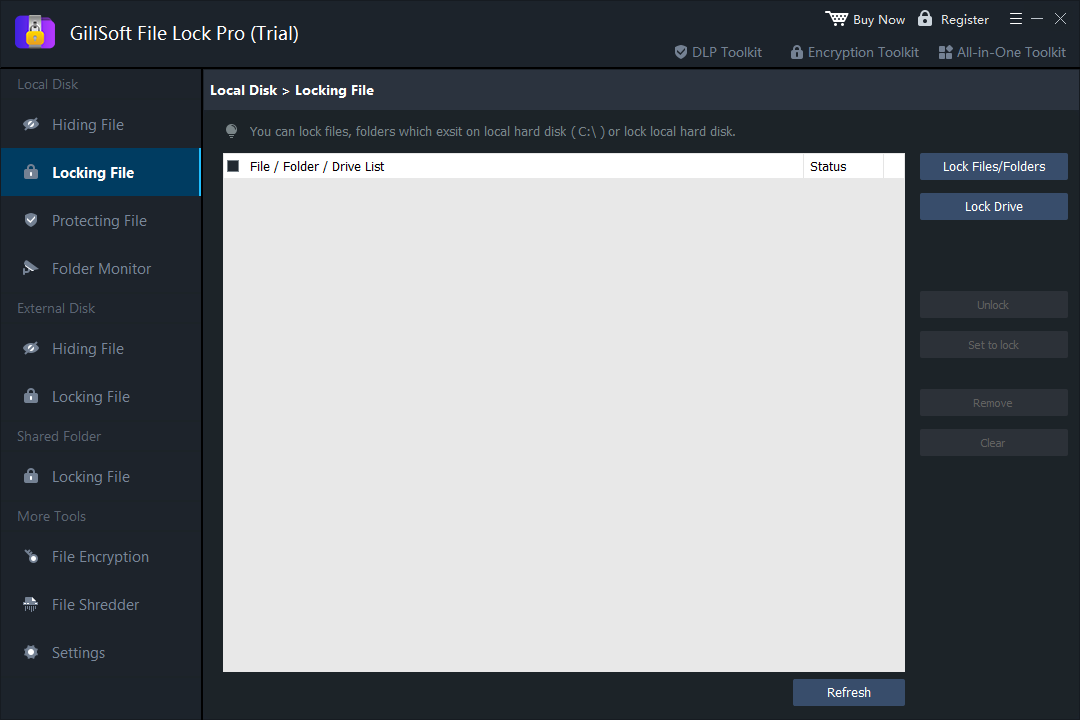
File Lock Pro is a dedicated Windows option for applying different controls to selected content. Choose hiding for casual privacy, folder locking when opening should require the password, read-only protection when the item should stay visible, or an encrypted GFL/EXE package when you need to send a protected copy.
-
Hide selected content.
Use hide mode when a file, folder, or drive should not appear in ordinary browsing.
-
Require password access.
Lock selected files, folders, or supported drives when access should be password-controlled.
-
Keep content visible but controlled.
Use read-only or file-protection rules when the goal is to prevent unwanted changes rather than hide the item.
-
Encrypt a copy for delivery.
Create a password-protected GFL or EXE package when files need to leave the PC; this differs from locking the live folder.
For exact menu steps, see the File Lock Pro user guide.
Evaluate the Trial Safely
-
Start with a disposable copy.
Keep an independent backup and use sample data rather than the only copy of an important folder.
-
Test the expected access.
Close the management window, then check the normal user and application paths plus the specific actions you intend to restrict.
-
Confirm recovery before rollout.
Unlock or decrypt the sample, compare it with the original, and store recovery information separately.
What This Workflow Does Not Replace
File Lock Pro adds focused controls for selected Windows content. It does not replace a tested backup, malware defense, Windows account permissions, centralized endpoint management, or full-volume encryption for a device that may be lost. Account permissions govern access by Windows users; full-volume encryption protects the scope of an entire drive. Neither is the same as applying a separate password to one folder.
For business use, test protection with a standard user account and the actual software workflow before deployment. Do not assume a successful rule blocks every alternate path or administrative recovery method.
Folder Lock Software FAQ
What does folder lock software do?
Depending on the product, it can hide selected folders, require a password for access, limit changes, or encrypt a copy for delivery. These controls have different purposes, so choose and test the one that matches your need.
Is folder lock software the same as full-disk encryption?
No. Folder lock software applies controls to selected content, while full-disk encryption protects a whole volume. Choose the scope that matches whether you need to protect a folder or a device.
Can File Lock Pro encrypt a folder for sharing?
File Lock Pro can create encrypted GFL or EXE packages from files and folders for password-protected delivery. This is a protected copy, not a live shared-folder permission, and the recipient needs a supported Windows workflow.
Is GiliSoft File Lock Pro free?
The download linked on this page is a trial. Review the current license terms to confirm which features and duration apply before deployment.
Should I keep a backup before applying protection?
Yes. Keep a tested backup independent of the protected path and verify the recovery process with noncritical data first.
What happens if the password is lost?
Recovery depends on the configured product and account options. Set and verify recovery information before protecting important data.