Hide folders, files and drives
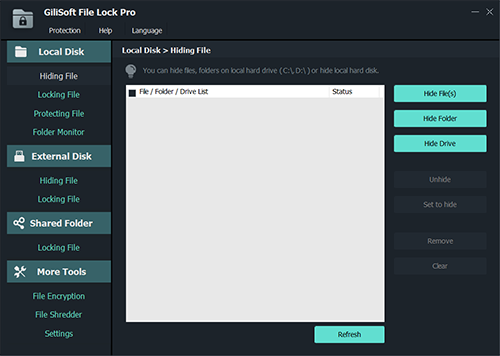
File Lock helps you protect your privacy by hiding your folders, invisible to anyone who has access to your PC even under safe mode, hidden folders visible only if you have access to the program.

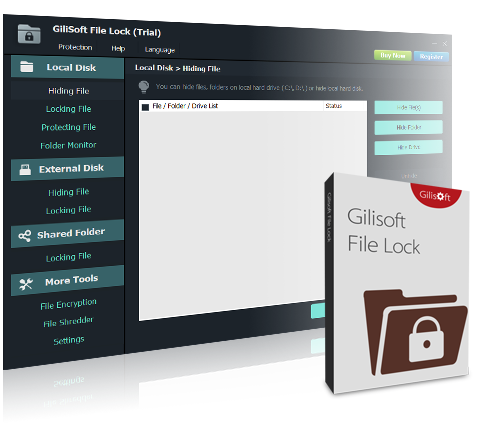
File Lock is a lighter Windows privacy tool for locking, hiding, and password protecting local files, folders, and drives on everyday PCs. It is designed for users who want quick desktop privacy controls without the broader shared-folder and external-drive workflow of File Lock Pro.
It helps protect local files and folders without changing the original content, and supports practical everyday features such as folder monitoring, secure deletion, self-protection, and easy drag-and-drop locking.
For macOS users, please go to File Lock for macOS
For Android users, please go to File Lock for Android
For Windows users, please go to File Lock for Windows


File Lock helps you protect your privacy by hiding your folders, invisible to anyone who has access to your PC even under safe mode, hidden folders visible only if you have access to the program.
File Lock offers a simple way to lock your folders on Windows. Locked files, folders, or drives cannot be opened, modified, renamed, moved, deleted, copied without password.
Protect with a password your sensitive files will be locked and safe from prying eyes, from unauthorized access, hacking and virtual theft. File Lock will automatically lock your folder once you close it. You are NOT required to open and lock it manually every time.
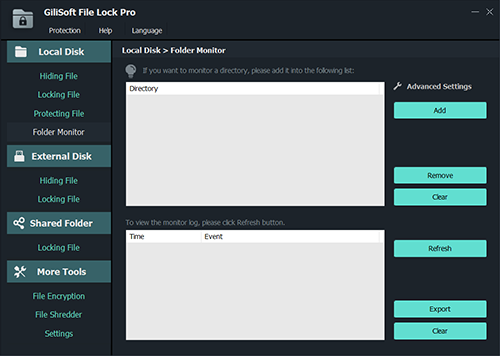
File Lock monitors the folder or disk drive that you choose and lists every filename that is being modified, created, or deleted. You can specify "*." in the include/exclude wildcard fields in order to include or exclude files without extension
File Lock can encrypt selected files for added privacy, but its main value is still lightweight local file and folder locking on Windows PCs.
It's sometimes possible to recover files after you've deleted them. File Lock can permanently securely delete individual files, whole folders, entire disk drives or partitions, and even unused space on a disk.
Another very impressive feature of File Lock is that you cannot uninstall the program without putting in the password. This is extremely beneficial as hackers will often try to attack important programs on your device.
File Lock can hide itself from destop, quick link, start menu or context menu. When someone enters wrong password more than 5 times, it will send alarm notifications to your pre-defined e-mail and the unknown login will be temporarily banned.

Apply repeatable hide and lock rules to sensitive local folders for cleaner privacy management on shared Windows computers.

Protect routine business and personal files from accidental access or changes while keeping day-to-day desktop use simple.

We use File Lock on shared office PCs to keep finance and contract folders hidden from non-authorized staff.
The lock mode is simple for non-technical users, and files stay protected even when people try to rename or move them.
Password-protected folders helped us separate internal HR documents from normal team files with very little training.
Folder monitoring gives us a quick way to track who changed files and when, which is useful during internal audits.
We rely on secure delete when retiring old project files, so confidential data is not left recoverable on disk.
Self-protection and password-required uninstall reduce tampering risk on endpoint machines used by multiple people.
Drag-and-drop locking from Explorer is fast, so teams actually follow the security workflow instead of skipping it.
For our small business, this lite edition covers daily file privacy needs without the complexity of enterprise systems.


$34.95
$39.95

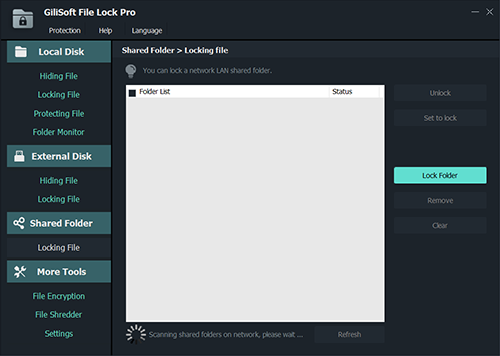
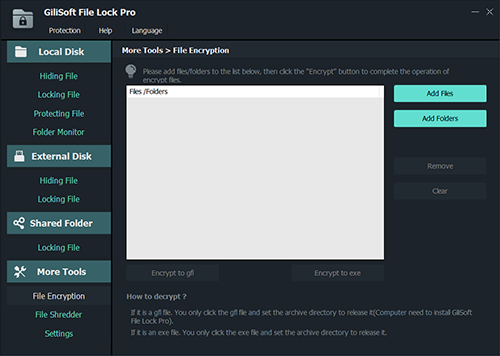



Lock or hide sensitive folders on a Windows PC without moving into a more advanced shared-folder or removable-drive workflow.
Protect personal files, finance folders, HR documents, and work materials from other people who use the same desktop or laptop.
Choose File Lock when local privacy is the main need and you do not need LAN shared-folder protection or more advanced removable-drive controls.
Use drag-and-drop locking, password protection, and self-protection features to keep daily privacy workflows easy for non-technical users.
Use File Lock when you mainly need to lock, hide, and password protect local files and folders on the PC itself.
The product is better suited to users who want a simpler privacy tool rather than a broader file-protection platform.
If you need to protect folders on external USB drives, secure LAN shared folders, or use more advanced file-protection workflows, File Lock Pro is the better fit.
Use USB Encryption for password-protected encryption on removable drives, and use USB Lock for USB port and device-access control.
Protect local finance files, personal folders, HR documents, and project materials from other users on the same computer.
How to password protect a folder | Lock files and folders on Windows
Keep sensitive files invisible to other users when local privacy matters more than advanced network or removable-drive controls.
How to hide a file | Hide files and folders on Windows | Hide private files on a shared PC
Choose File Lock when you need quick desktop privacy and do not need LAN shared-folder protection or external-drive coverage.
Use File Lock for lighter local privacy and File Lock Pro for broader folder, shared-drive, and removable-drive protection scenarios.
View File Lock Pro | File Lock vs File Lock Pro | Best file and folder lock software
Yes. File Lock can password protect local files, folders, and drives on Windows PCs.
Yes. It can hide files, folders, and drives so they stay invisible without the correct access.
Use File Lock for lighter local file privacy. Use File Lock Pro when you need external-drive protection, shared-folder protection, or more advanced controls.
File Lock vs File Lock Pro | Best file and folder lock software
No. Use USB Encryption for encrypted removable drives, and use USB Lock for USB port and device-access control.
Use File Lock when your main need is basic file and folder locking, hide mode, password protection, and secure deletion without the broader shared-folder and advanced-control workflow in File Lock Pro.
Use File Lock Pro when you need stronger folder privacy, shared-folder protection, portable encryption, and more advanced workflow controls than the lighter File Lock edition.
Use USB Lock when the goal is blocking USB storage, restricting removable-device access, and managing trusted-device policy instead of locking local files and folders.
Use USB Encryption when you want to create a password-protected encrypted area on the USB drive itself for portable storage protection end to end.

 Editors highlighted practical file and folder privacy controls for everyday Windows users.
Coverage noted that hide and lock operations are straightforward for home and office workflows.

Reviewers praised password protection, anti-tamper controls, and quick deployment on shared computers.
Test notes described stable behavior when repeatedly locking and unlocking protected folders.

Independent write-ups described File Lock as a dependable privacy utility for routine file access control.
Commentary emphasized simple administration, monitoring visibility, and secure deletion support.


Enter your email address to get our latest newsletter