How to Use GiliSoft File Lock Pro
Choose a task for its controls and illustrated steps: lock or hide local files, manage external storage or shared folders, create encrypted output, monitor directories, or restore normal access.
Lock or Unlock Local Files and Folders
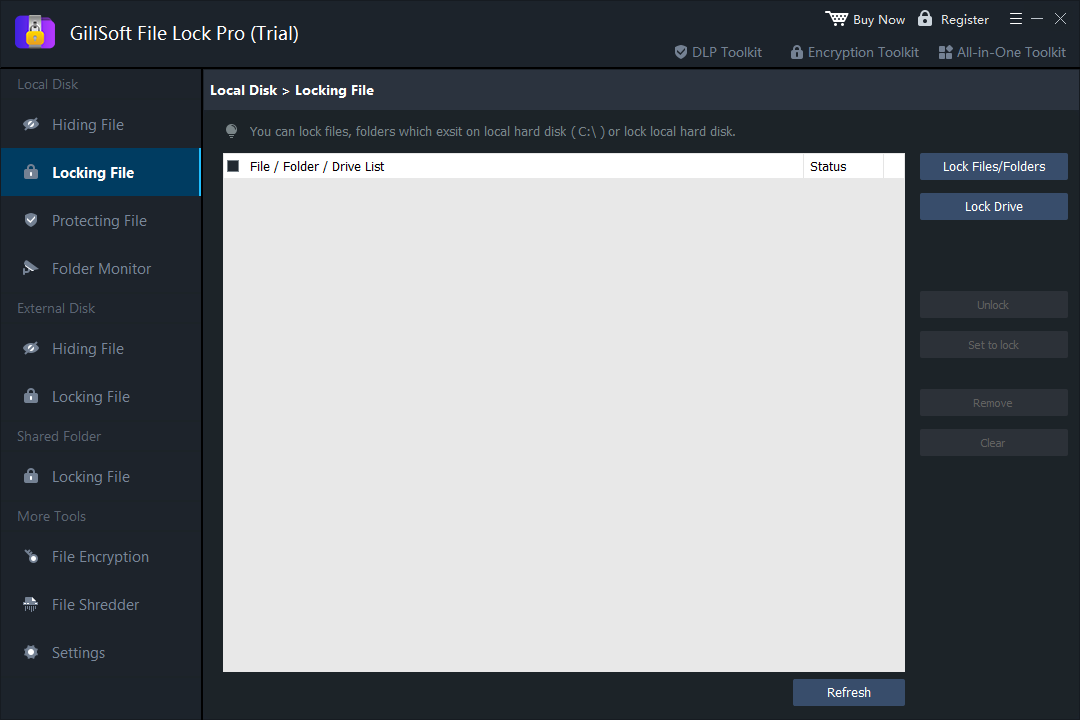
Use Locking File to manage access on the protected Windows PC. The unlock control belongs to the same managed list; use File Encryption when you need a separate protected output.
Open the local Locking File workspace
Open GiliSoft File Lock Pro with the management password, then choose Local Disk > Locking File. Start with a noncritical sample so you can check both locking and unlocking.
Add the file or folder to lock
Select Lock Files/Folders and choose the intended item. Review its path in the File / Folder / Drive List. Lock Drive is a separate choice for a supported local data drive, not a requirement for locking one folder.
Apply the lock and check access
Select the listed item and use Set to lock when needed. Review Status and Refresh, then test opening the item through Windows Explorer. Locking controls local access; it does not create an encrypted transfer file.
Unlock the item and verify normal access
Return to Local Disk > Locking File, select the managed item, and choose Unlock. Refresh the list and confirm the file or folder opens normally. Keep the management password and recovery information available.
Read next: How to password protect a folder.
Choose Lock, Hide, Protect, or Encrypt
- Lock
- Blocks local access to the selected item until its lock is removed in File Lock Pro.
- Hide
- Removes selected items from ordinary browsing; use Unhide in the managed list to restore visibility.
- Protect
- Keeps content readable while restricting modification, deletion, renaming, moving, or writing.
- File Encryption
- Creates a separate GFL or EXE output with its own opening and decryption workflow.
Hide Files, Prevent Changes, or Monitor a Folder
Hide or Unhide Files, Folders, and Drives
- Choose Hiding File and add the target
Open Local Disk > Hiding File. Use Hide Files/Folders for selected content or Hide Drive for a supported local data drive.
- Review and apply the hidden state
Select the listed item, use Set to hide when needed, and review Status. Check ordinary Windows browsing using a sample item first.
- Use Unhide to restore visibility
Return to Hiding File, select the managed item, and choose Unhide. Use Refresh and confirm the original item is visible and opens normally.
Related help: hide files or folders and hide a local drive.
Prevent Editing, Renaming, or Deletion
- Add the target in Protecting File
Open Local Disk > Protecting File. Select Protect Files/Folders or Protect Drive for the intended item.
- Apply protection and test a sample
Select the listed item and use Set to protect. Review Status and test reading, editing, renaming, moving, and deletion using noncritical data. This is local change protection, not encrypted output.
- Use Unprotect before making changes
Select the item in the same workspace and choose Unprotect when changes should be permitted. Refresh and confirm normal editing or deletion is available again.
Read next: Prevent a file or folder from being renamed or deleted.
Monitor Changes in a Folder
- Add the directory to monitor
Open Local Disk > Folder Monitor, select Add, and choose the intended directory. Use Advanced Settings for the options offered by the installed app.
- Make a sample change and refresh the records
Perform a noncritical test action in that directory, return to Folder Monitor, and select Refresh. Inspect the lower Time and Event log.
- Export records or stop monitoring the directory
Use Export for a copy of the event records. Keep the export before clearing a log; use Remove for a selected monitored directory when it should no longer be listed.
Read next: How to view Windows, program, and folder activity logs.
Create and Open Encrypted Files
Create Encrypted GFL or EXE Output
- Add the source files or folders
Open More Tools > File Encryption and select Add Files/Folders. Review the source list and keep an independent backup.
- Choose GFL or EXE and set the password
Select Encrypt to gfl or Encrypt to exe. Complete the password and destination choices offered by the software. GFL is opened with File Lock Pro installed; EXE provides an executable opening route.
- Create and test the protected output
Wait for creation to finish, identify the output file, and test its opening password and decryption. Keep the original source until the result has been checked.
Open and Decrypt a GFL or EXE File
- Identify the encrypted output type
Use the completed .gfl or .exe output, not the original source files. Keep the encryption password and sufficient destination space available.
- Open it through the matching route
For GFL, install GiliSoft File Lock Pro on the Windows computer and open the GFL file. For EXE, run the generated executable. Enter the required password and choose the archive or extraction directory offered by the opening workflow.
- Check the extracted files
Wait for completion, open the extracted documents or media, and check their contents. Decryption produces accessible files in the chosen destination; manage those copies separately from the encrypted output.
The File Encryption screenshot states the installed-app requirement for GFL and the executable route for EXE.
Shred Selected Files and Folders
File Shredder is for disposable data, not temporary hiding or locking. Keep required backups before adding a target.
- Add only the disposable files or folders
Open More Tools > File Shredder and use Add Files/Folders. Review the selected paths and use Remove or Clear to correct the list.
- Review the operation before Safe Delete
Inspect Advanced Setting as needed and confirm the intended targets. Add drive and Disk Wiper are separate drive operations; do not use them when you only mean to delete one file.
- Confirm the intended deletion and wait
Use Safe Delete for the selected files or folders and wait for completion. Check the target result; Unlock and Unhide are not recovery controls for shredded content.
Do not assume overwriting is a complete sanitization method for every SSD or flash device, or that deleting one copy removes backups and synced copies. Read the Windows file-shredding guide for deletion-scope considerations.
Manage Passwords, Reopening, and Program Records
Change the Management Password
- Open Change Password
Choose Settings > Change Password. The pictured trial restricts password changes until registration; use the controls available in the installed version.
- Set and confirm the password
Enter the same new management password in New Password and Confirm Password, then select the password section Change button when available. Store it securely.
- Verify management access
Confirm that you can reopen File Lock Pro and manage a sample protected item. Set the recovery email before relying on hidden or locked content; the management password is separate from an encryption-output password.
Set the Recovery Email
- Find the separate email section
In Settings > Change Password, locate Change Email below the password fields. The settings screenshot shows both areas.
- Enter and confirm an accessible address
Complete New email and Confirm email, then use the email section Change button. Review Notify to email when relevant to the notification setup.
- Keep the access information available
Review the configured address before changing the management password or hiding entry points. For lost access, use the recovery/help route in the installed app or GiliSoft support; a recovery email does not restore shredded files.
Configure Wrong-Password Responses
- Open Self Protect
Choose Settings > Self Protect and locate Security, above the separate stealth controls.
- Review the email and lockout options
Choose the intended alarm-email or temporary-login-ban option. The screenshot describes more than five incorrect attempts and a ten-minute temporary ban; check the installed wording rather than assuming editable thresholds.
- Check the notification and recovery setup
Review the configured email address for alerts and retain a known management password and recovery route.
Configure Stealth and Shortcut Options
- Keep a working launch method
Confirm the management password, recovery email, and a known way to reopen File Lock Pro before hiding any entry points.
- Select the intended visibility options
Open Settings > Self Protect and review the Invisible (Stealth) Mode options for the desktop, Start menu, quick link, and shell menu. The Self Protect screenshot shows these controls.
- Verify reopening and reverse unwanted options
Check that the chosen entry points behave as intended and the retained method still opens the app. Return to Self Protect and clear the relevant option when an entry point should return.
Set Automatic Locking for Restart or Hibernation
- Open General settings
Choose Settings > General settings and review the option to automatically lock listed files or folders when the system hibernates or restarts.
- Review and enable the intended list
Select the automatic-locking option and use Add Files/Folders for the intended items. Review paths; use Remove or Clear to correct the list.
- Test the configured event and unlocking
Save your work and test the intended restart or hibernation event with noncritical data. Confirm the selected content is locked afterward and that you can restore access from Locking File.
View or Export the Program Log
- Open the program event list
Choose Settings > Program Log and review Enable Log Function. This list is distinct from monitored-directory events.
- Refresh and inspect the records
Select Refresh and review the Time and Event columns for the available records. Use Folder Monitor for directory activity instead.
- Export before clearing the list
Use Export when you need a retained copy. Check that export before choosing Clear. Review the Exclude List separately when managing protection scope.
Fix Common File Protection Problems
A hidden item is missing
Open the matching local or external Hiding File list, select the item, and use Unhide. Confirm the original drive is connected.
A file is readable but cannot be changed
Check Protecting File and use Unprotect for the managed item when editing should be allowed again.
An external target is unavailable
Reconnect the intended drive and check its current letter and path. Review the External Disk list rather than a local rule for a different location.
GFL will not open on another PC
Install File Lock Pro on the intended Windows computer and use the encryption password. Confirm the file is the completed encrypted output.
The local lock differs from the intended state
Select the correct item in Locking File, review Status, use Refresh, and test both Set to lock and Unlock on a sample.
A shared-folder result differs between users
Confirm the correct reachable share, client accounts, Windows permissions, and shared-folder rule. Check the actual client machines.
File Lock Pro FAQ
Can File Lock Pro hide a whole drive?
Use Local Disk > Hiding File > Hide Drive for a supported local data drive. Review the selected drive and test a noncritical target first. Use Unhide in the managed list to restore visibility.
Can I lock files on a USB drive?
Connect the USB drive and open External Disk > Locking File to manage selected files or folders. Use its Unlock control to restore access. For a separate encrypted file to transfer, use File Encryption rather than assuming a local access rule works on every other computer.
Does Protect encrypt the file?
No. Protect restricts changes such as editing, deleting, renaming, moving, or writing while keeping the content readable. File Encryption creates a separate encrypted GFL or EXE output.
What is the difference between GFL and EXE output?
GFL requires GiliSoft File Lock Pro installed on the Windows computer that opens it. EXE output runs as an executable. Open the selected output with its encryption password, choose the extraction directory, and verify the recovered contents before distribution.
What should I do before using stealth mode?
Set a recovery email, retain the management password and a working way to reopen the app, and test access before hiding shortcuts or other entry points. Clear the relevant Self Protect option when an entry point should be available again.
How can I prepare for password recovery?
Open Settings > Change Password and set an email you can access before access is lost. Keep management credentials and important source data backed up independently. Use the recovery/help route offered by the installed version or contact GiliSoft support when needed.
How do I make a hidden, locked, or protected file available again?
Select the item in its matching managed list. Use Unhide in Hiding File, Unlock in Locking File, or Unprotect in Protecting File. Check Status and normal access afterward. These controls do not restore deleted or shredded content.
Is Folder Monitor the same as Program Log?
No. Folder Monitor records events for selected monitored directories. Settings > Program Log records the available File Lock Pro program events. Both provide review and export controls, but their scope is different.
Is File Lock Pro free, and which license do these buttons show?
A Windows trial download is available; check the installed trial for its current limitations. The purchase buttons in this guide show the official checkout option at $39.95 for 1 Year / 1 PC. Review the current license choices at checkout; the lifetime option is separate.