How to Use GiliSoft Full Disk Encryption
Choose a task for local data disks, supported system partitions, or removable storage. Each tutorial covers its target, controls, and result checks; system-drive compatibility and recovery requirements are kept with that workflow.
Encrypt a Local Data Disk or Partition
Use this workflow for a supported local data target. A Windows system partition has additional boot-compatibility and recovery requirements.
Identify the data disk and verify the backup
Choose a non-system local data disk or partition and verify an independent backup of its important files. Record the disk password securely and keep reliable power connected. For the Windows system partition, use the separate system-encryption task.
Select the intended Local Disks target
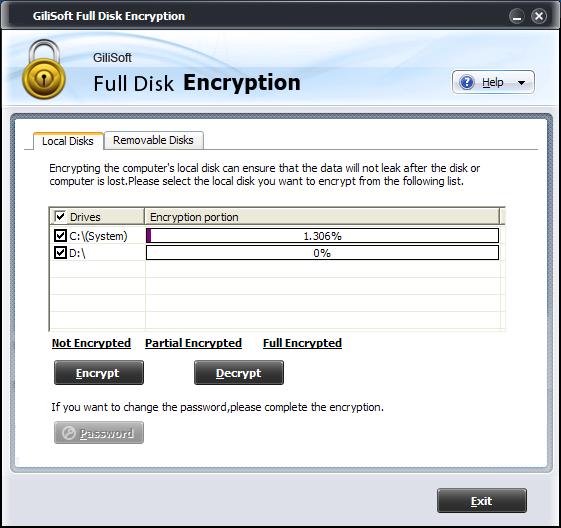
Open GiliSoft Full Disk Encryption and choose Local Disks. Review the drive letters and encryption status, then select only the intended data target. Do not copy the sample screenshot selection or include the system drive by mistake.
The screenshot selects C: (System) and D: as examples. Its C: progress reads 1.306%; this is not a recommendation to select the system partition or a demonstration of completed encryption.
Set the password and begin encryption
Select Encrypt and complete the password and confirmation choices in the installed program. Review the target before starting. Keep the computer powered and avoid forced shutdown, sleep, or storage removal while the operation is active.
Verify completed encryption and normal access
Wait for the selected target to reach full encryption and review its status. Check representative files through the intended Windows access workflow, retain the password and backup, and verify the result before protecting additional disks.
Encrypt a Supported Windows System Partition
- Confirm the exact system target and boot layout
Identify the Windows system partition, partition style, and boot mode. Confirm the intended configuration with the product requirements or GiliSoft Support if uncertain.
- Prepare and test backup and recovery access
Keep a verified backup on separate storage and prepare the GiliSoft recovery LiveCD for the intended machine. Retain the disk password and test the recovery route before enabling startup protection.
- Encrypt the supported system partition
Select the confirmed system target in Local Disks, choose Encrypt, and complete the password setup. Keep power connected and allow the operation to finish without interruption.
- Check startup only after completion
After the product reports completion, test the configured startup password workflow and Windows access. Keep the recovery media and verified backup available before wider deployment.
Encrypt a USB Drive or SD Card
- Connect and select the removable device
Confirm Windows detects the intended USB drive or SD card. Keep a verified backup, open Removable Disks, and use Refresh to review the device list.
- Start encryption for the confirmed target
Select the correct removable disk, choose Encrypt, and complete its password setup. Check the device identity before proceeding and keep it connected while processing.
- Wait for completion and test opening
Wait until the selected drive reaches 100% encryption. Refresh the list as needed, then use the Mount workflow with the correct password to verify file access.
The Removable Disks tab is separate from Local Disks. Select the removable target there rather than following a local-system-drive selection from the illustration.
Open Encrypted Removable Storage
Mount an Encrypted USB Drive
- Connect and refresh the removable-disk list
Insert the existing encrypted USB drive and open Removable Disks. Select Refresh and identify the intended device.
- Mount with the drive password
Choose Mount for the encrypted drive and enter its correct password using the dialog offered by the installed program.
- Check normal file access
Open the mounted storage in Windows Explorer and inspect representative files. Save and close work before removing the drive. Mounting opens access; it does not permanently decrypt the drive.
Remove Disk Encryption
Choose Decrypt only when you intend to remove encryption, not merely view files during a session. Keep a verified backup and the required password available.
Decrypt a Local Disk
- Confirm the encrypted local target
Open Local Disks and inspect the drive letter and encryption status. Select only the local disk or partition that should have encryption removed.
- Choose Decrypt and provide the password
Select Decrypt and enter the correct disk password as requested. Review the selected target before confirming.
- Wait and verify the result
Keep the machine powered until decryption completes. Review status and open representative files afterward; do not interrupt the process or assume clicking Decrypt finishes it immediately.
Decrypt a USB Drive
- Refresh and mount the intended drive
Connect the encrypted device, use Refresh in Removable Disks, then Mount it with its password.
- Select Decrypt for that device
Confirm the mounted target and choose Decrypt. Review the installed confirmation prompt before removing its encryption.
- Complete the operation before removal
Keep the drive connected and the PC powered while decryption runs. Confirm completion and normal file access before safely removing the device.
Change Passwords and Manage Trusted Access
Change the Local-Disk Password
- Wait for local encryption to finish
Review Encryption portion in Local Disks. The illustrated app states that encryption must complete before the Password control becomes available.
- Change the shared local-disk password
Use the enabled Password control and complete the password-change dialog. The product guide describes local disks on one computer as sharing a password; plan the change for the protected local disks, not just one file.
- Retain and verify the updated credential
Keep the new password securely and verify the intended startup or disk-access workflow. For a multi-Windows setup, review each installation and the shared local-password behavior before relying on the change.
Change an Encrypted USB Password
- Open the intended encrypted USB drive
Connect the device, refresh Removable Disks, and Mount it with the existing password. Confirm that you selected the correct drive.
- Check completion and change its password
Wait until the drive encryption portion reaches 100%, then use the enabled Password control and complete the installed password-change workflow.
- Verify the new password on reopening
Close active work and test the normal reconnect-and-mount workflow with the updated credential. Keep the new record separately from the removable drive.
Manage Remembered USB Passwords
- Review the intended trusted access
Open Advanced Settings for the removable-disk password options. Decide which drive passwords, if any, should be remembered on this PC.
- Manage the remembered list and its protection
Use the remembered-password controls offered by the installed version for the intended trusted USB drive. Protect Advanced Settings with its own password when using that configuration.
- Test under the intended Windows account
Reconnect a noncritical test drive and review its opening behavior. Keep access restricted to the intended users and retain an independent password record; remembered access is not a recovery-media replacement.
Prepare Recovery and Check Startup
Prepare the GiliSoft Recovery LiveCD
- Request the image for the installed product
Contact support@gilisoft.com for the appropriate LiveCD image and instructions for the intended Windows and boot setup. Keep the original data backed up.
- Write the recovery image as bootable media
Follow the supplied image-writing instructions for compatible CD/DVD media. Do not merely copy the image file onto an ordinary data disc and assume it is bootable.
- Verify the recovery route before system encryption
Test that the intended machine can start the prepared recovery environment without changing disk layout or erasing data. Retain the media separately from the computer and keep valid disk credentials available.
Start an Encrypted Windows Computer
- Wait for active encryption to complete
Do not restart while encryption or decryption is in progress. After completion, use the configured startup workflow on the supported system.
- Follow the actual startup prompt
When system-drive protection is configured, enter the required disk password and continue. If only data disks are encrypted and the screen explicitly instructs you to press Enter, follow that prompt rather than treating a blank password as a system-drive unlock.
- Check Windows and protected storage
Confirm Windows starts normally and the expected protected disks are available through their intended access workflow. Keep the tested recovery media and password record accessible.
Use Recovery Media When Windows Will Not Start
- Preserve the disk and start the prepared recovery media
Use the PC boot-device selection method to start the previously prepared GiliSoft LiveCD, following its instructions. Preserve the current partition layout and boot mode; do not initialize or format the encrypted drive.
- Open Full Disk Encryption in the recovery environment
Use the recovery environment supplied for this product and identify the correct encrypted target. Provide the valid disk password when mounting or decrypting requires it.
- Choose access or decryption deliberately
Mount or open the drive when the immediate task is accessing backed-up data. Choose decryption only when removing encryption is intended and the target is confirmed. If the recovery route fails, stop and consult GiliSoft Support before further disk changes.
Plan Protection Across Multiple Windows Systems
- Confirm the supported multi-system configuration
Identify every Windows installation, the protected volumes, and the shared boot setup. Confirm compatibility and recovery access with the product instructions or support before deployment.
- Install and configure the product in each intended Windows system
Follow the documented setup in each Windows installation. Review existing encryption status and the intended targets before changing anything; keep the shared local-disk password plan consistent.
- Verify every startup and access path
Test each Windows installation, protected-volume access, and the recovery route on a noncritical setup first. A local-disk password change can affect the other installation; verify the updated credential in each intended environment.
Check the Symptom Before Changing the Disk
Target disk is missing
Confirm Windows recognizes the intended device and review the correct Local Disks or Removable Disks tab. Use Refresh where available; do not format a disk merely to make it appear.
Encryption is only partial
Keep reliable power connected and let the active operation finish. Review the reported percentage rather than treating the first progress update as completion.
An encrypted USB drive is not readable
Check the selected device, refresh the list, and use Mount with the correct password before browsing its files.
The Password control is disabled
Check whether encryption has reached 100%. The sample local screenshot intentionally shows partial encryption and a disabled Password control.
Windows will not start normally
Preserve the disk layout and use the previously tested recovery route. Do not start with repartitioning, formatting, or a boot-mode conversion.
Password or recovery access is uncertain
Keep the drive intact and use the product support route with your version and setup information. Do not rely on renaming, formatting, or recovery media to reset every password.
Full Disk Encryption FAQ
Can I encrypt a GPT Windows boot partition with this product?
No. The current product requirements exclude GPT boot-partition encryption. System-drive pre-boot protection requires a supported MBR/legacy configuration. Confirm the intended layout and product-build support; do not convert a working disk simply to try the product.
What is the difference between Mount and Decrypt?
Mount opens an encrypted removable drive for use with its password. Decrypt removes the encryption from the selected target and requires time to complete. Use Mount for ordinary access and Decrypt only when removing protection is intended.
Why is the Password button unavailable?
The illustrated Local Disks screen states that encryption must complete before changing the password. Check Encryption portion and wait for the intended target to reach full encryption before using the enabled Password control.
Do the local disks on one PC use the same password?
The product guide describes the encrypted local disks on one computer as sharing a password. Treat a local-password change as affecting that protected local-disk setup, and review multi-Windows installations together. Removable-disk password changes use the separate device workflow.
Can I open an encrypted USB drive without permanently decrypting it?
Yes. Connect the drive, refresh Removable Disks, select the intended device, choose Mount, and enter the password. Verify normal file access after mounting. This is different from selecting Decrypt.
When should I prepare the recovery LiveCD?
Prepare and test the recovery route before encrypting a supported Windows system partition. Request the appropriate image and instructions from GiliSoft Support, keep verified backups, and retain the media and disk credentials separately.
Does a LiveCD guarantee recovery of a forgotten disk password?
Do not assume so. Recovery media is a route to the product recovery environment when Windows cannot start; it is not a promise of universal password reset. Keep valid disk credentials and backups, and ask GiliSoft Support for the options available for the specific case.
Does encrypting a data disk mean every system partition is protected?
No. Confirm the actual selected target and encryption status. A local data partition, a Windows system partition, and removable storage have different access and recovery workflows. Do not infer system-drive protection from encryption of another volume.
Is Full Disk Encryption free, and which license do these buttons show?
A Windows trial download is available; check the installed version for its limits. The purchase buttons in this guide show the official lifetime option for 1 PC at $49.95. Review the current license choices at checkout.