

Drive Lock Software for Windows
Drive lock software can mean several different things: restricting access to a selected local drive, hiding a drive from ordinary browsing, blocking removable devices on a PC, or encrypting an entire volume. Choose the control that matches the risk before applying it.
Quick answer
Use GiliSoft File Lock Pro when you need to lock or hide a selected local drive on Windows. Use GiliSoft USB Lock to manage removable-device access on a PC, or Full Disk Encryption when the requirement is whole-volume protection if a device is lost.
Choose the Right Drive Protection
| What you need | Best-fit control | Product direction |
|---|---|---|
| Require controlled access to a selected local drive | Lock that drive | GiliSoft File Lock Pro |
| Remove a selected drive from ordinary browsing | Hide the drive | GiliSoft File Lock Pro |
| Allow or block removable devices connected to a PC | Device access control | GiliSoft USB Lock |
| Protect data across an entire volume at rest | Full-volume encryption | GiliSoft Full Disk Encryption or an appropriate Windows encryption feature |
Prepare Before Locking a Drive
- Back up important files to a separate location and confirm that the backup opens.
- Start with a non-system data drive and noncritical files; do not use the Windows boot volume as the first test.
- List the users and applications that must continue to access the drive.
- Set and verify recovery information before applying access controls.
Lock a Local Drive with GiliSoft File Lock Pro
In File Lock Pro, the drive-locking control is under Local Disk > Locking File. The screenshot shows the actual workspace and the Lock Drive action.
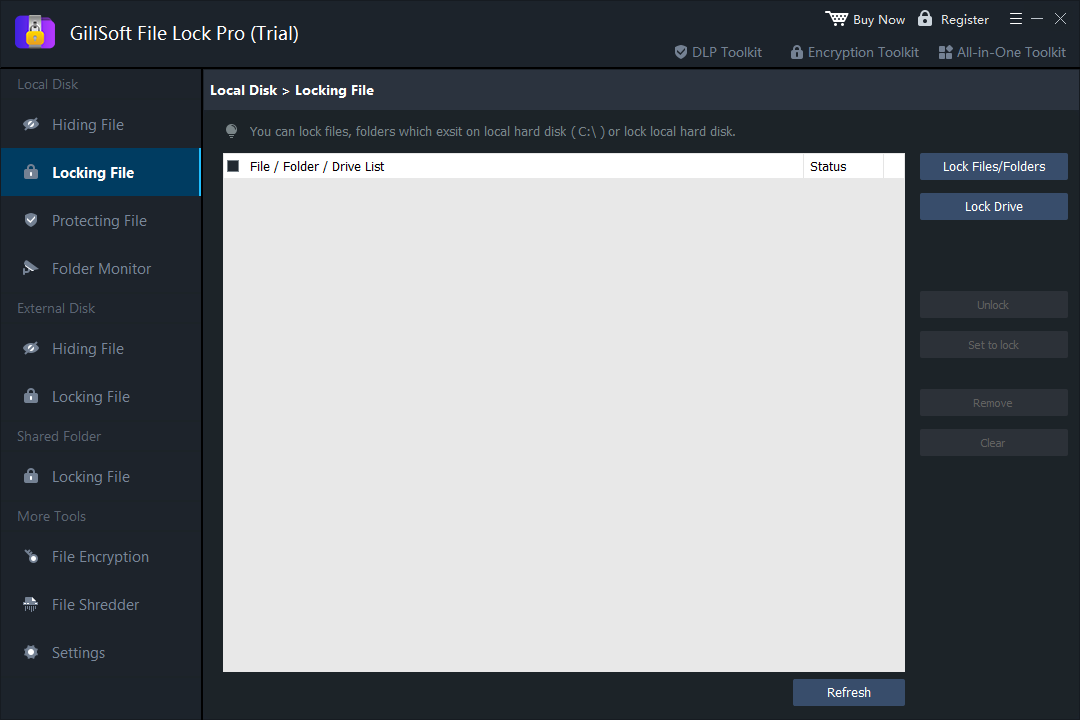
- Open the local drive locking area
Launch GiliSoft File Lock Pro and select Local Disk, then Locking File.
- Choose Lock Drive
Use the Lock Drive action for the intended local data drive and follow the app's confirmation prompts.
- Check the listed drive and status
Confirm the target is correct before relying on the protection. Keep the backup and recovery information available separately.
- Test normal access
Close the management window and verify the expected behavior for the user and applications that need the drive.
- Confirm recovery before wider use
Test how to restore access on noncritical data first. Only apply the workflow to important files after the test succeeds.
Verify the Lock and Recovery Path
- Check that the intended drive, not another volume, is affected.
- Test access from the normal Windows account and any required application.
- Confirm authorized users can restore access when needed.
- Keep a restorable backup independent of the locked drive.
Know What Drive Locking Does Not Replace
Selected-drive locking is an access-control workflow. It is not a substitute for tested backups, Windows account permissions, endpoint device policy, or full-disk encryption against loss or theft. If your requirement is to stop USB storage devices from being used on a shared PC, see GiliSoft USB Lock. If the whole volume must be protected while offline, compare GiliSoft Full Disk Encryption.
Drive Lock Software FAQ
Can GiliSoft File Lock Pro lock a local drive?
Yes. File Lock Pro includes a Lock Drive action for locking a selected local drive. Test the intended drive with noncritical data and keep an independent backup.
Is drive locking the same as full-disk encryption?
No. File Lock Pro provides selected-drive access controls. Full-disk encryption protects data on an entire volume when a device or drive is lost or stolen.
Does drive locking block USB devices from a PC?
No. Locking a selected drive protects access to that drive's contents. Use a device-control product such as GiliSoft USB Lock when the goal is to control removable devices on a PC.
Should I test drive locking before applying it to important data?
Yes. Start with a non-system data drive and noncritical files, verify the expected access behavior, and confirm you can restore access before relying on the rule.
What should I prepare before locking a drive?
Keep a tested backup outside the target drive, know which users and applications need access, and set recovery information before applying protection.