

CD Drive Lock Software for Windows
Optical drives can introduce software or move files even when USB storage is restricted. A useful policy separates reading from burning and applies only the control the workstation actually needs.
Quick answer
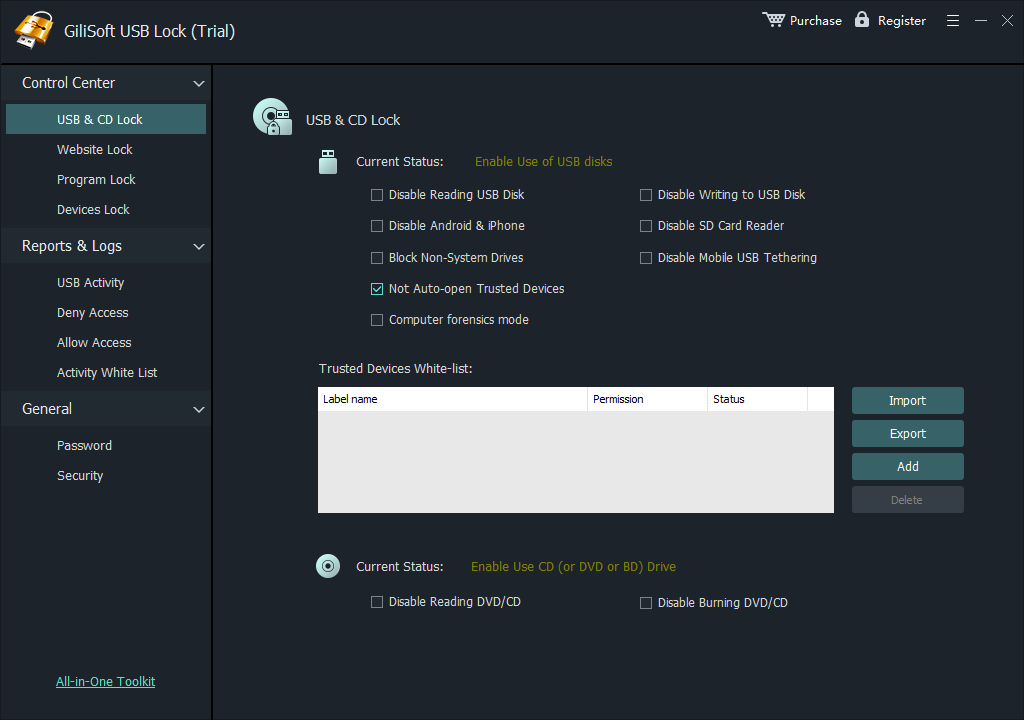
Open USB & CD Lock in GiliSoft USB Lock. Select Disable Reading DVD/CD to block disc access, Disable Burning DVD/CD to prevent writing, or both. Apply the rule and test both an allowed and a blocked action on the actual workstation.
Choose the Optical-Drive Rule
| Situation | Recommended approach | Check carefully |
|---|---|---|
| Stop files entering from discs | Restrict CD/DVD reading | Approved installation and recovery media |
| Stop files leaving on recordable discs | Restrict disc burning | Other transfer routes remain separate |
| Shared or managed workstation | Combine the rule with logs and administrator protection | Support and emergency-access process |
Set a CD/DVD Access Rule
-
Define the business rule
State whether users may read discs, write discs, or use only approved administrative media.
-
Open USB & CD Lock
In GiliSoft USB Lock, choose USB & CD Lock and locate the optical-drive controls near the bottom of the workspace.
-
Choose reading, burning, or both
Select Disable Reading DVD/CD and/or Disable Burning DVD/CD according to the policy, then save and protect the administrative settings.
-
Test both allowed and blocked cases
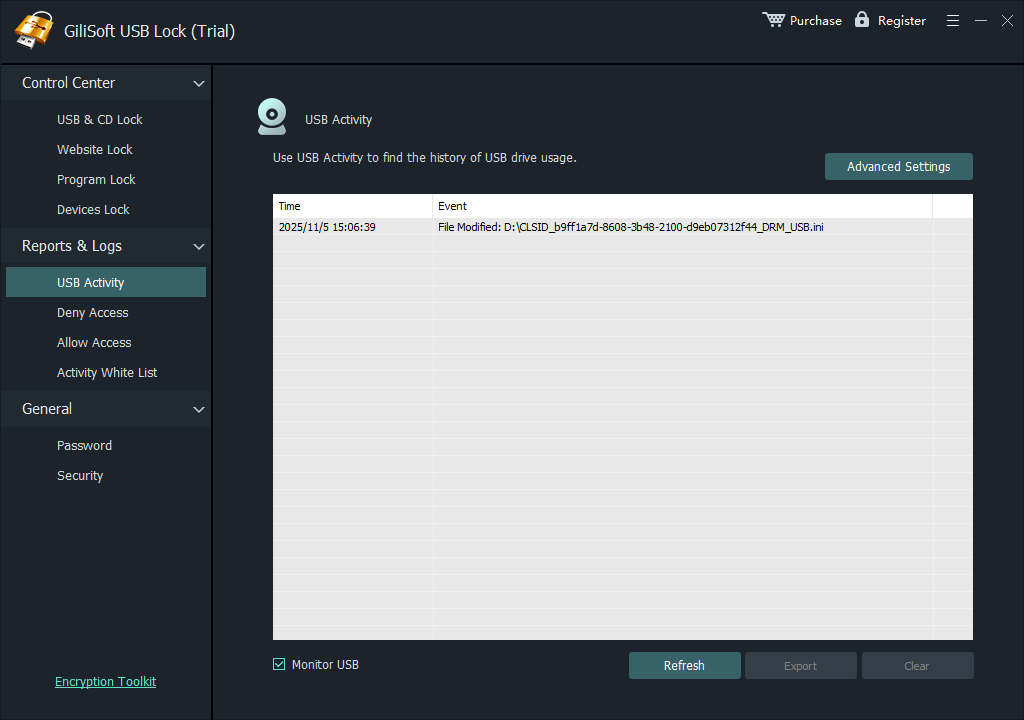
Use a known data disc and, where relevant, a blank recordable disc; review the activity result and document support exceptions.
For every product control and supporting task, see the USB Lock user guide.
GiliSoft USB Lock Interface
These real product screenshots connect the advice above to the Windows workflow.
Verify the Optical-Drive Policy
- Test reading a known data disc when reading should be allowed or blocked.
- Test a compatible blank disc in the actual burning application when writing is restricted.
- Confirm required installation, recovery, and support media remain available through an approved process.
- Review the access log and document how an administrator can change the rule.
Frequently Asked Questions
Can I block burning but still allow reading?
Yes. Select Disable Burning DVD/CD while leaving Disable Reading DVD/CD off, then test both operations on the target PC.
Does this encrypt existing CDs or DVDs?
No. Device access control and disc encryption are different tasks.