
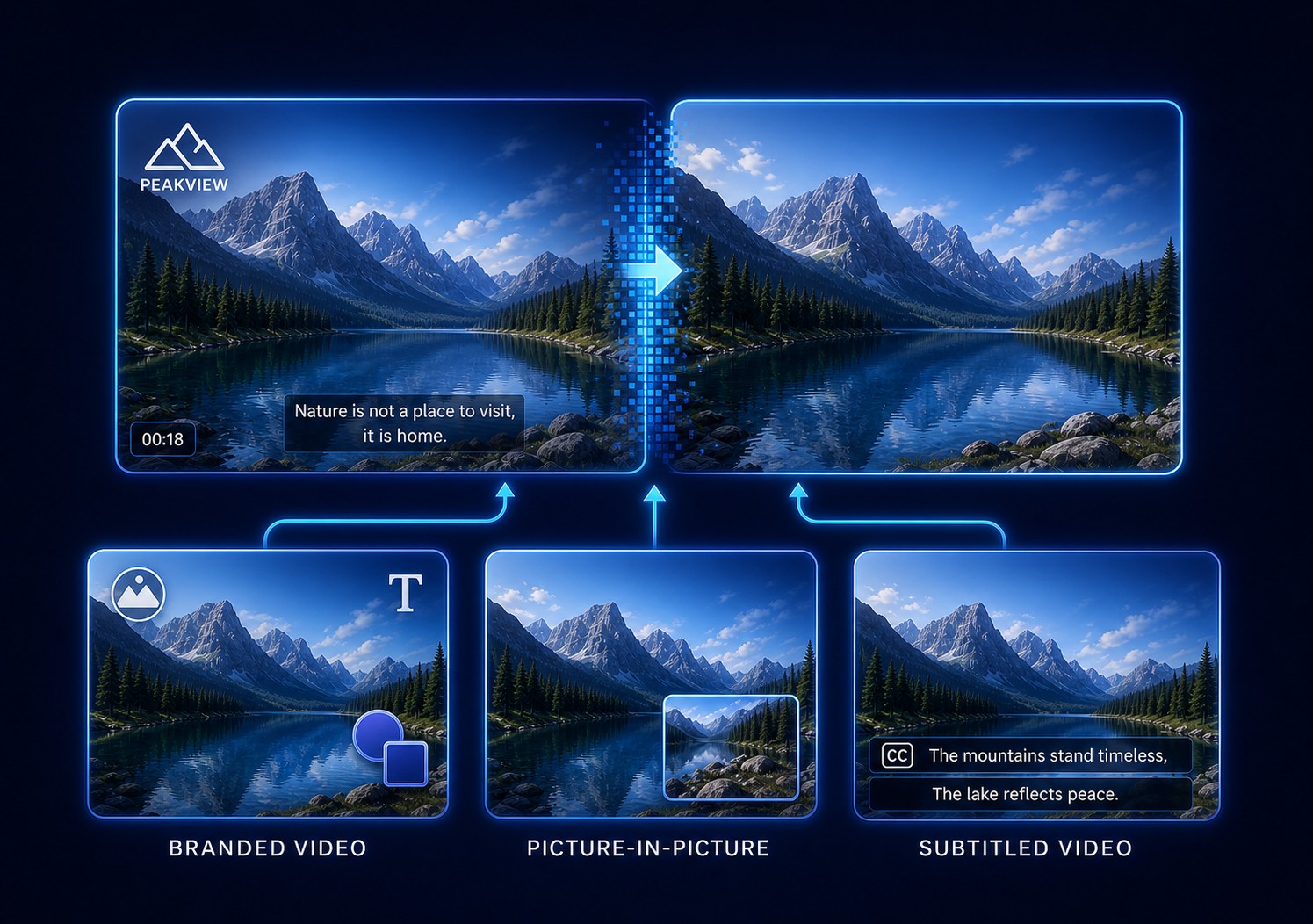
First Identify What Created the Video Overlay
An overlay can be an editable project layer, a platform or player element, a separate subtitle stream, or pixels permanently merged into the video. Only the last type needs image reconstruction.
Deleting an available source layer preserves the real background and avoids another encode. Platform elements should be removed in the platform editor: YouTube, for example, lets a channel owner delete or retime end-screen elements. A separate caption stream should be excluded rather than painted over. A burned-in overlay has replaced underlying pixels, so the realistic options are reconstruction, cropping, covering, or returning to a clean master.
Choose the Right Video Overlay Removal Method
| Overlay type | How to recognize it | Best action | GiliSoft option |
|---|---|---|---|
| Editable graphic layer | Logo, shape, sticker, or picture-in-picture track exists in the project | Hide or delete the layer and re-export | No pixel cleanup needed |
| Platform or player element | Cards, end screens, controls, or captions differ by player | Remove or hide it in the platform/player settings | No re-encoding needed |
| Separate subtitle stream | A CC/Subtitles control can switch it off | Exclude the subtitle stream from the output | Use subtitle-track controls |
| Localized burned-in overlay | Logo, sticker, label, timestamp, or fixed graphic appears in decoded frames | Reconstruct a precise region for its active time | GiliSoft ClipMark |
| Many changing burned-in captions | New subtitle lines repeatedly replace one another | Use a subtitle-focused repeated-area workflow | GiliSoft Subtitle Remover |
| Large or moving graphic | Overlay crosses faces, hands, motion, or detailed scenery | Tracked mask, manual restoration, clean master, or designed cover | Test ClipMark on the hardest short segment first |
Logo or corner badge
A small fixed graphic over sky, wall, desk, or another repeatable surface is a practical candidate for localized cleanup.
Sticker or callout
Include its border, drop shadow, glow, pointer, and antialiased edge rather than selecting only the solid center.
Picture-in-picture panel
A fixed inset may hide a large unique area. Replace it with an authorized layout when reconstruction cannot recover the missing scene.
Animated overlay
Split the task into stable positions or use tracked masks; one oversized rectangle usually damages more of the background.
How to Remove a Burned-In Overlay with GiliSoft ClipMark
Use this workflow only after confirming that the overlay is part of the picture. Start with a short segment containing the busiest background or fastest motion.
- Load the highest-quality authorized sourceUse the original export rather than a social-media download when available, and keep an untouched copy.
- Open the overlay or watermark removal taskMove to a frame where the complete logo, sticker, panel, border, and shadow are easy to see.
- Draw a close region around the full graphicInclude glow, antialiasing, pointer tails, and translucent edges without swallowing nearby faces or detail.
- Set the exact start and end timeDo not reconstruct frames before the overlay appears or after it disappears.
- Split movement, resizing, and scene cutsCreate a new region whenever position, shape, opacity, background, or camera shot changes.
- Compare fast and AI-assisted cleanupFast processing can suit flat, repeatable surfaces; test AI assistance on gradients, texture, or modest motion.
- Export a representative test and inspect at 100%Check edges, repeated patterns, straight lines, faces, motion, flicker, and the selected output quality.
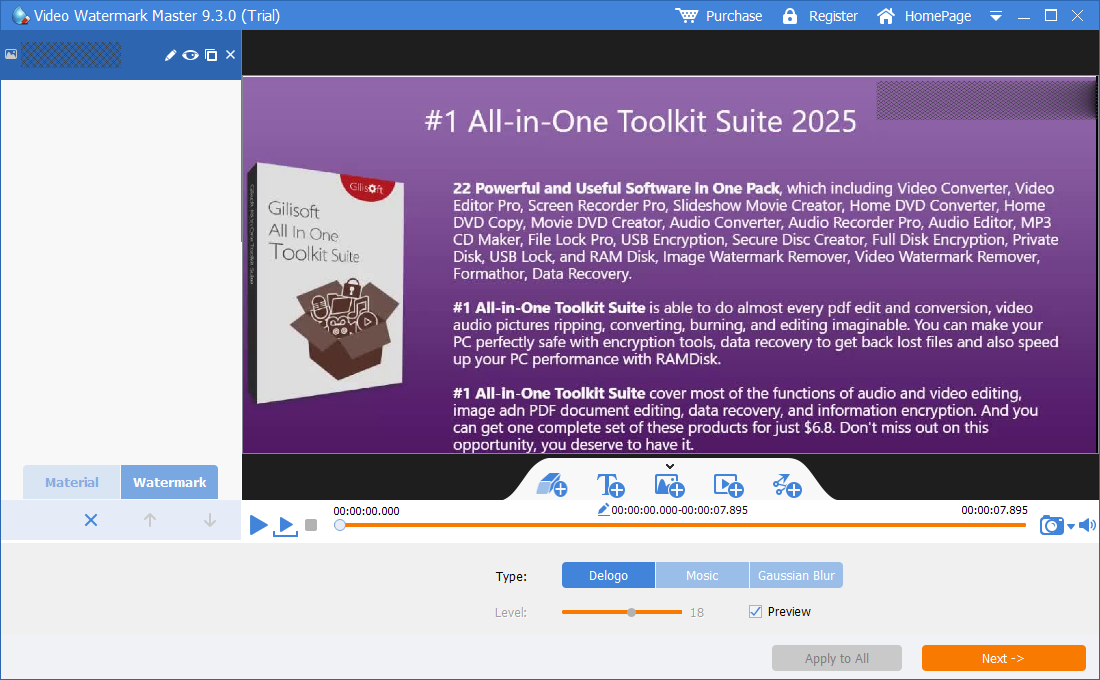
Test one difficult overlay in GiliSoft ClipMark
The Windows trial lets you evaluate a representative logo, sticker, text box, or fixed graphic before committing to the complete authorized video.
Download ClipMark TrialHow to Improve Video Overlay Removal Quality
Why the hidden background determines the result
A burned-in overlay does not sit above recoverable pixels in the final file; it has replaced them. Adobe describes content-aware video repair as a time-aware process that synthesizes pixels from current and surrounding frames. Its guidance also separates object, surface, and edge-blend cases and recommends reference frames for difficult shots. The practical lesson is to keep selections and time ranges precise, then test the hardest section before processing everything.
Special Cases: Player UI, Subtitles, and Picture-in-Picture
YouTube cards and end screens
These are platform elements, not burned-in picture detail. Channel owners can remove, move, or retime end-screen elements in YouTube Studio. Editing the downloaded pixels is unnecessary and may capture an interface rather than the clean source.
Selectable captions or subtitles
If a CC control hides the words, exclude the subtitle stream instead of reconstructing the image. For many changing lines that are genuinely burned into the frames, use GiliSoft Subtitle Remover; for one fixed label or localized text box, use GiliSoft ClipMark.
Picture-in-picture video
If the original project still contains the inset track, delete it there. If the inset is burned in, consider what lies behind it: a large panel over a face, screen demonstration, or moving subject may not contain enough surrounding information for a convincing reconstruction. A clean master or deliberate replacement layout can be better than a blurred repair.
Need to keep the overlay but update it?
Covering an old authorized callout with a new, well-designed label can preserve more visual stability than removing a large area. ClipMark also supports adding updated text, logos, and visible branding after cleanup.
Why a Removed Overlay Leaves Blur, Flicker, or a Visible Patch
| Problem | Likely cause | What to change |
|---|---|---|
| Border or glow remains | The region selected only the solid center | Expand slightly to include every translucent edge and shadow |
| A soft rectangle is obvious | The region is too large or the background lacks matching detail | Tighten the mask, split the overlay, or use a clean/replacement source |
| Repair flickers at a cut | One time range spans unrelated shots | End the range before the cut and create a new task afterward |
| Moving graphic escapes the repair | A fixed region was used for animated motion | Split stable positions or use tracked-mask restoration |
| Faces, hands, or interface lines bend | The overlay hid unique moving detail | Use a clean master, manual reference repair, or authorized cover |
| The overlay appears only in one player | It is probably player or platform UI | Change the player/platform setting instead of editing pixels |
Remove Overlay from Video FAQ
Can GiliSoft ClipMark remove an overlay from MP4?
Yes, when a supported MP4 contains a localized burned-in overlay. The visual background and motion matter more than the file extension.
Can I remove a video overlay without cropping?
Yes. Region reconstruction preserves the full frame dimensions, although hidden pixels still have to be synthesized from surrounding and neighboring frames.
Can it remove a picture-in-picture overlay?
A small fixed inset over a repeatable background may be workable. A large inset covering unique action often needs the original project, a clean source, or a replacement design.
Can moving stickers or graphics be removed?
Use separate time ranges for stable positions. Continuous movement, scaling, or rotation may require tracking and manual restoration.
Should I use ClipMark for burned-in subtitles?
Use ClipMark for one localized label or text overlay. For many changing burned-in caption lines, GiliSoft Subtitle Remover is the more focused workflow.
Can I replace an old overlay with a new one?
Yes. Clean or cover the authorized old graphic, then add an updated text or logo overlay with consistent placement and timing.
Technical References and Related Overlay Guides
This workflow was checked against Adobe's time-aware Content-Aware Fill guidance, Adobe's mask-tracking object-removal tutorial, FFmpeg's official overlay filter documentation, and YouTube's official end-screen controls.