
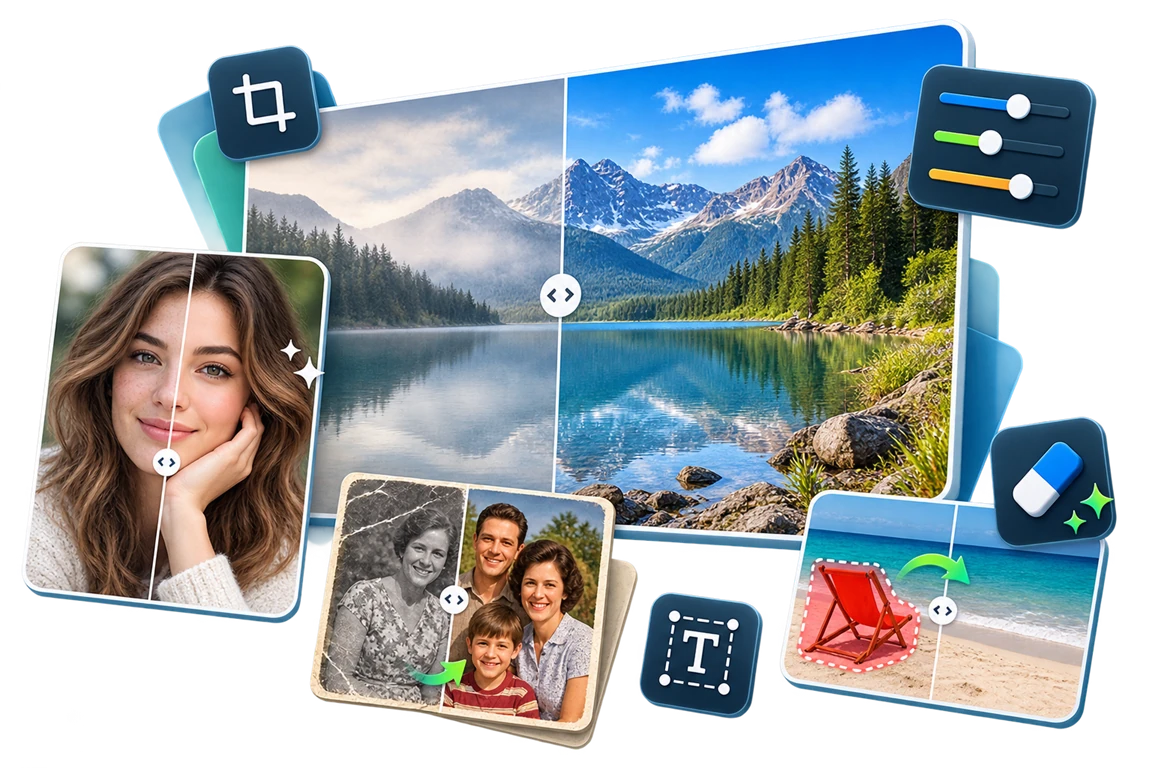
Free Inpaint Software for Windows: Clean Up Photos Locally
Image inpainting can reconstruct a selected area from nearby pixels, but natural results depend on a careful mask, usable surrounding texture, and full-size review.
Quick answer
Inpainting works best when you select a small unwanted object and the surrounding area contains enough texture to reconstruct it. Work locally from a copy, use a tight selection, remove complex objects in several passes, and inspect the result at 100%. GiliSoft Image Editor includes eraser-style object cleanup; its download is a trial.
When inpainting works well
Small distractions
Dust, litter, cables, date marks, and compact background objects.
Simple textures
Sky, walls, grass, water, and other areas with nearby replacement detail.
Controlled selections
Tight masks that avoid important edges, faces, text, or foreground subjects.
Multiple passes
Complex objects removed in smaller sections rather than one oversized selection.
Remove an unwanted object with Image Editor
- Duplicate the original.
Keep the untouched source until the finished image is approved.
- Open the eraser or object-cleanup tool.
Zoom in before marking the unwanted area.
- Use the smallest practical selection.
Include the object without covering nearby edges or useful texture.
- Process one section at a time.
Large or overlapping objects usually improve with several controlled passes.
- Inspect at full size.
Look for repeated texture, blur, seams, halos, or damaged edges.
- Export a new file.
Preserve the original dimensions and format required by the next workflow.

Improve the repaired area before export
- Reduce the selection when nearby edges become soft.
- Undo and split the object into smaller passes when texture repeats.
- Compare the repaired area at fit view and 100% zoom.
- Check color and lighting continuity around the selection.
- Keep the original and export to a new filename.
When inpainting is the wrong tool
Do not expect automatic reconstruction of hidden faces, text, logos, limbs, or detailed objects behind a large obstruction. Use cloning, compositing, a replacement source, or professional retouching when the missing content cannot be inferred from nearby pixels.
Frequently asked questions
What does inpainting do?
Inpainting reconstructs a selected image area from nearby visual information. Results depend on selection accuracy, texture, lighting, and surrounding detail.
Can inpainting remove any object perfectly?
No. Large objects, faces, edges, repeating patterns, and complex backgrounds often need smaller selections and manual refinement.
Is offline inpainting better for private photos?
Local processing avoids uploading routine photos to a remote service, but you should still protect originals, exports, and device access.
Should I edit the original photo?
No. Work from a copy and export to a new filename until the result has been reviewed at full size.
Is GiliSoft Image Editor free?
The download is a trial. Use it to evaluate object cleanup and related editing tools before purchasing.