Remove Watermarks from Video
Clean visible marks such as logos, channel labels, date stamps, and fixed overlays from your own or authorized video files before reuse, publishing, or internal delivery.

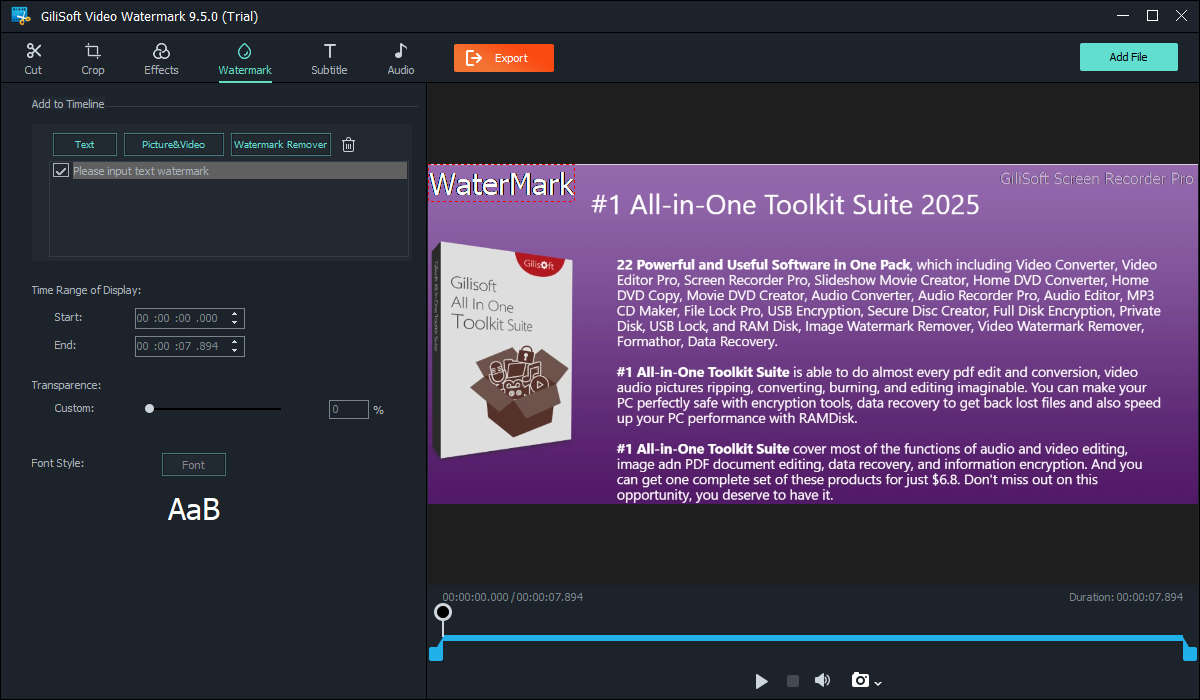
Remove logos, timestamps, subtitles, and unwanted overlays from authorized videos. Add text, image, shape, or video watermarks, create picture-in-picture layouts, and generate subtitles in one focused Windows workflow.
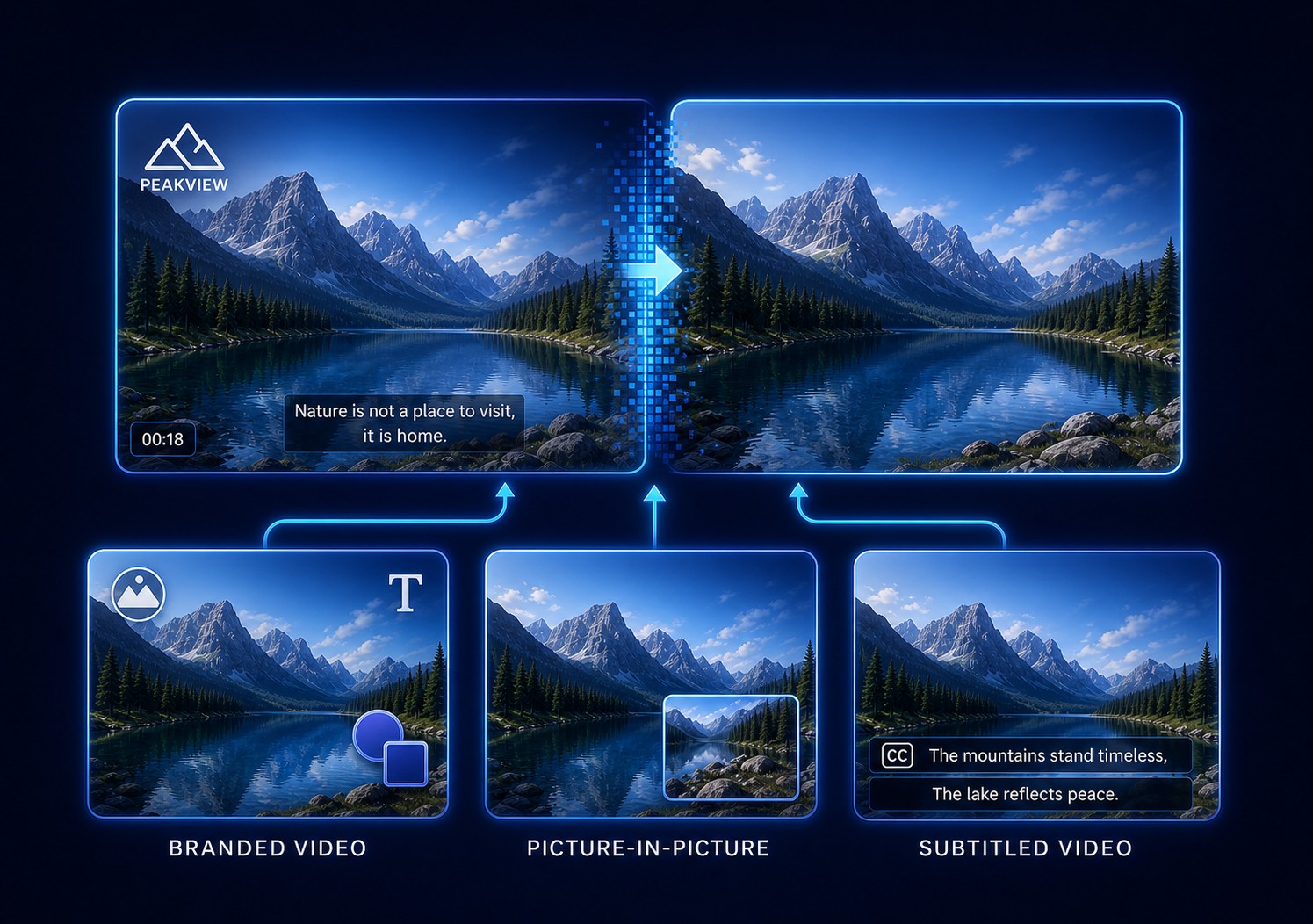
ClipMark is designed for video teams that need more than a simple blur tool. You can add text, image, shape, and video watermarks to protect finished content, create picture-in-picture overlays for demos or commentary, remove unwanted visible marks from reusable clips, and prepare subtitle-ready videos for delivery.
For watermark removal, ClipMark gives you two practical options: fast traditional cleanup for simpler logos, timestamps, and fixed overlays, plus credit-based AI cleanup for harder cases where the mark overlaps motion or detailed backgrounds. Load one video or a folder, mark the area, choose the active time range when needed, preview the result, and export in a practical video format.
Use it only for videos you own, created yourself, licensed, or are authorized to edit. For photo cleanup, see MarkEase. For subtitle-focused cleanup, see Subtitle Remover.

Clean visible marks such as logos, channel labels, date stamps, and fixed overlays from your own or authorized video files before reuse, publishing, or internal delivery.
Use fast cleanup for simple fixed overlays, then switch to credit-based AI cleanup when the mark sits over motion, gradients, faces, or detailed backgrounds.
Target marks that appear only during part of a video by setting the active time range, so cleanup does not affect unrelated scenes.
Process multiple files when a series of videos shares similar overlay positions, output settings, or publishing requirements.
Import mainstream video files used for lessons, social clips, screen recordings, demos, presentations, and archive footage.
Preview the result and export video files for social media, training portals, client previews, internal reuse, or further editing.
Add author names, dates, copyright notices, labels, or short disclaimers when a video needs clear ownership or context before delivery.
Place a brand logo, creator mark, campaign badge, or visual identity layer on finished videos before sharing them outside your editing environment.
Place one video on top of another for commentary clips, demos, reaction-style layouts, branded presentations, and supporting visual explainers.
Use arrows, boxes, and shape marks to draw attention to people, products, interface areas, or important details in tutorial and demo videos.
Generate smart subtitles for video publishing, training delivery, and social distribution when spoken content needs faster caption support.
Balance visual cleanup and output quality with practical controls suitable for day-to-day restoration tasks.

ClipMark helped us remove channel logos and timestamps from archived clips before re-editing for new campaigns.
Batch processing saved a lot of time when we cleaned watermark-heavy footage from older projects.
The timeline range controls are useful when overlays only appear in specific segments of long videos.
Output quality remains stable after cleanup, which makes delivery to social and training platforms easier.
Our team uses it to remove visible logos and timestamps from source videos before republishing.
The interface is simple for non-editors but still gives enough control for practical cleanup jobs.
Preview the main video watermark workflow: add visible marks, remove logos or overlays, prepare text and video watermark assets, and manage repeated cleanup tasks.
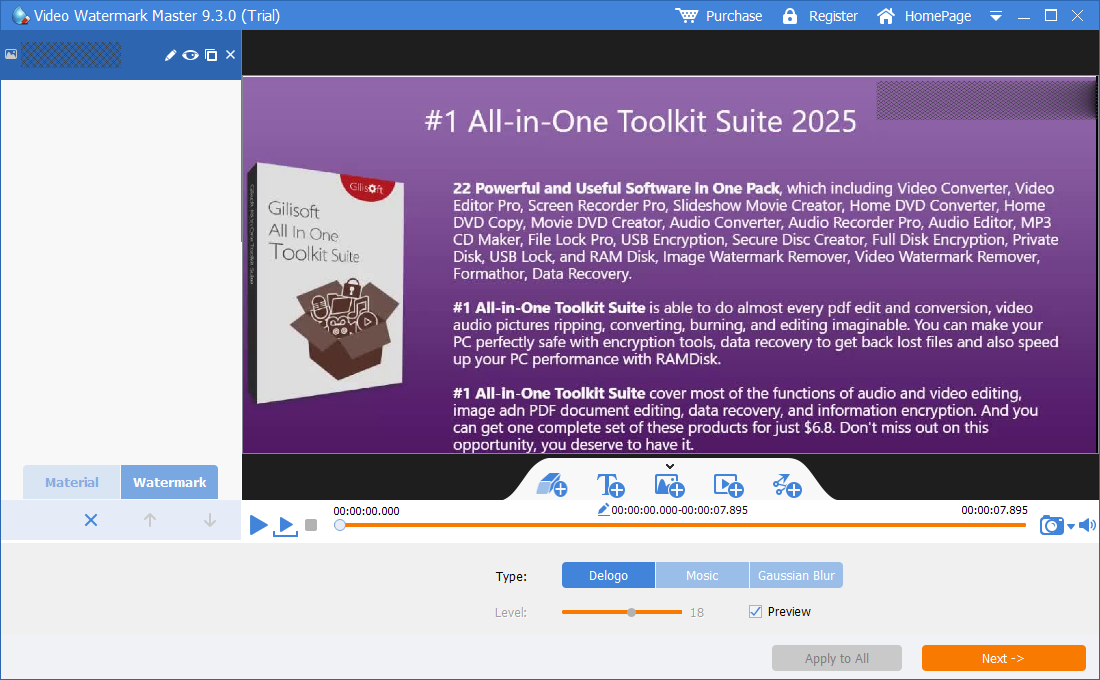
Mark an unwanted logo or overlay, choose the active time range, preview the cleanup, and export the finished video.
Best for editors, media teams, and content operations groups that need to add branded marks, remove distracting overlays, and prepare subtitle-ready output from the same video tool.
Best when the main task is video watermarking, overlay cleanup, batch preparation, and caption support before publishing to social, training, or internal platforms.
Use it when old source videos contain obsolete logos, date stamps, channel marks, or fixed labels that should be cleaned before reuse in a new project.
Add callouts, subtitles, and picture-in-picture windows for lessons, demos, onboarding videos, product walkthroughs, and technical explanations.
Add text, image, logo, or shape watermarks so campaign videos, previews, and partner clips carry visible ownership and context.
Choose ClipMark when the job is mainly video. Use MarkEase for photos and Subtitle Remover when burned-in captions are the main cleanup target.
ClipMark handles the full video process: adding visible watermarks for branding, removing logos and overlays from source clips, and supporting smart subtitle generation for delivery.
Use fast traditional cleanup for simpler removals, then switch to credit-based AI cleanup when the overlay is more complex or harder to clean naturally. Subtitle generation remains a separate built-in tool.
Mark the overlay area, limit cleanup to a specific time range, preview the result, and export without rebuilding the whole project in a complex editing suite.
ClipMark focuses on video watermarking, video cleanup, PiP overlays, and smart subtitles. For photo mark removal, use MarkEase. For subtitle-heavy cleanup, use Subtitle Remover.
Use the task-based guide for watermark removal, visible branding, picture-in-picture video, subtitle generation, export checks, and troubleshooting.
Remove logos and overlays | Add visible watermarks | Create picture-in-picture video | Generate subtitles
Best for removing watermarks, logos, date stamps, and unwanted marks from photos.
Best for adding watermarks to videos, removing logos and overlays, and handling smart subtitles in one video-focused tool.
Best for removing subtitle bars, burned-in captions, and text-heavy overlays from videos.
Best for mixed image cleanup and general video watermark removal in one tool.
ClipMark includes both fast traditional watermark cleanup and credit-based AI video cleanup. Credits apply only to AI cleanup. Most users do not have the GPU hardware needed for practical offline AI video watermark removal, so there is no separate offline AI video cleanup option here. For image cleanup without credit-based video processing, use MarkEase.
ClipMark is best for adding watermarks to videos, removing logos, timestamps, and repeated overlays, and preparing smart subtitle-ready video outputs.
No. ClipMark includes fast traditional watermark cleanup and also provides credit-based AI video cleanup for harder cases.
Use AI cleanup when the logo overlaps motion, gradients, or more complex visual detail that is harder to clean with simple masking.
Choose Subtitle Remover when subtitle bars, burned-in captions, and text-heavy video cleanup are the main task.
Yes. ClipMark also supports smart subtitle generation for video publishing, alongside watermark adding and watermark removal.
Yes. ClipMark can use video watermarking for picture-in-picture video, so one video can appear on top of another for branded or supporting presentation.
Yes. ClipMark can fit repeated branding jobs across a video set and can also support publishing-focused tasks where visible marks, cleanup, and subtitle-ready preparation all matter.
Use MarkEase for photo cleanup. Use Watermark Remover when you want one desktop tool for mixed image cleanup and general video cleanup in the same product family.

 Editors highlighted efficient watermark-region selection and timeline controls for video watermark tasks. Coverage noted a practical balance between quick operation and manual precision.
Review summaries describe ClipMark as a focused video cleanup tool for logos, timestamps, and repeated overlays in reusable footage.

Reviewers praised stable output quality across social, learning, and marketing formats. Lab observations mentioned predictable rendering with common codecs and aspect ratios.
Independent notes framed ClipMark as a practical option when the main need is clean video overlay removal rather than full nonlinear editing.

Independent write-ups described the cleanup process as efficient for repeated editing cycles. Commentary emphasized predictable results across repeated export operations.
Media summaries consistently position ClipMark as a specialist for logo, timestamp, and overlay cleanup in video-first publishing.


Enter your email address to get our latest newsletter
ClipMark
Watermark Remover
Subtitle Remover
MarkEase
AIKit
AI Video Watermark Remover
Fast Video Watermark Removal
Why Can't I Remove Watermark from Video
Why Video Watermark Removal Failed
Why Watermark Comes Back After Export
Why Blurring Watermark Looks Bad
Why Can't I Remove Logo from Video
Add and Remove Video Watermarks
Add Logo to Video
Add Text Watermark to Video
Add Logo Watermark to Video
Video Watermarking Software for Windows
Video Overlay Software for Windows
Remove Video Watermark without Cropping
Video Watermark Cleanup Software
Batch Video Branding Process
Brand Training Videos with Watermarks
Prepare Branded Demos for Delivery
Create Branded Videos for Publishing
Picture-in-Picture Video Overlay
Video Subtitle Generator for Windows
Smart Subtitle Process for Videos