
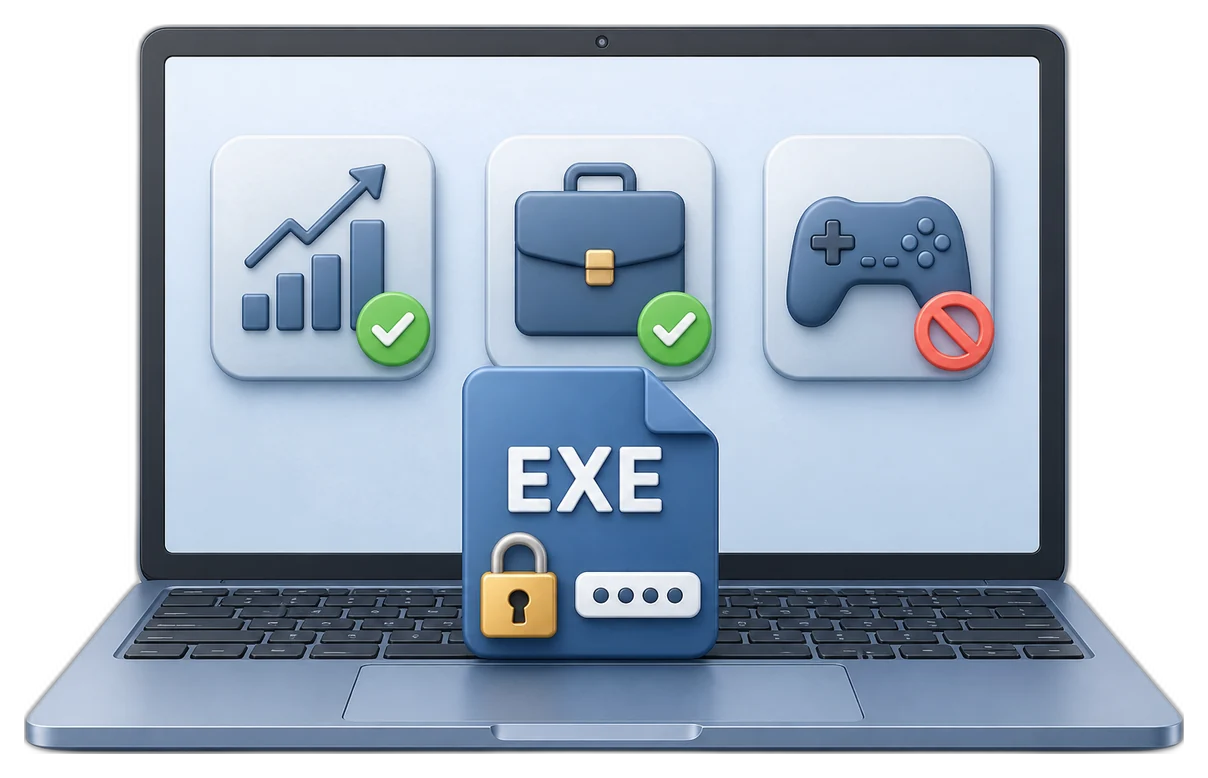
Free EXE Lock for Windows: Built-In Methods and Their Limits
Free Windows controls can restrict accounts or applications, but the right choice depends on whether you need a password prompt, a direct block, or account-based policy.
Quick answer
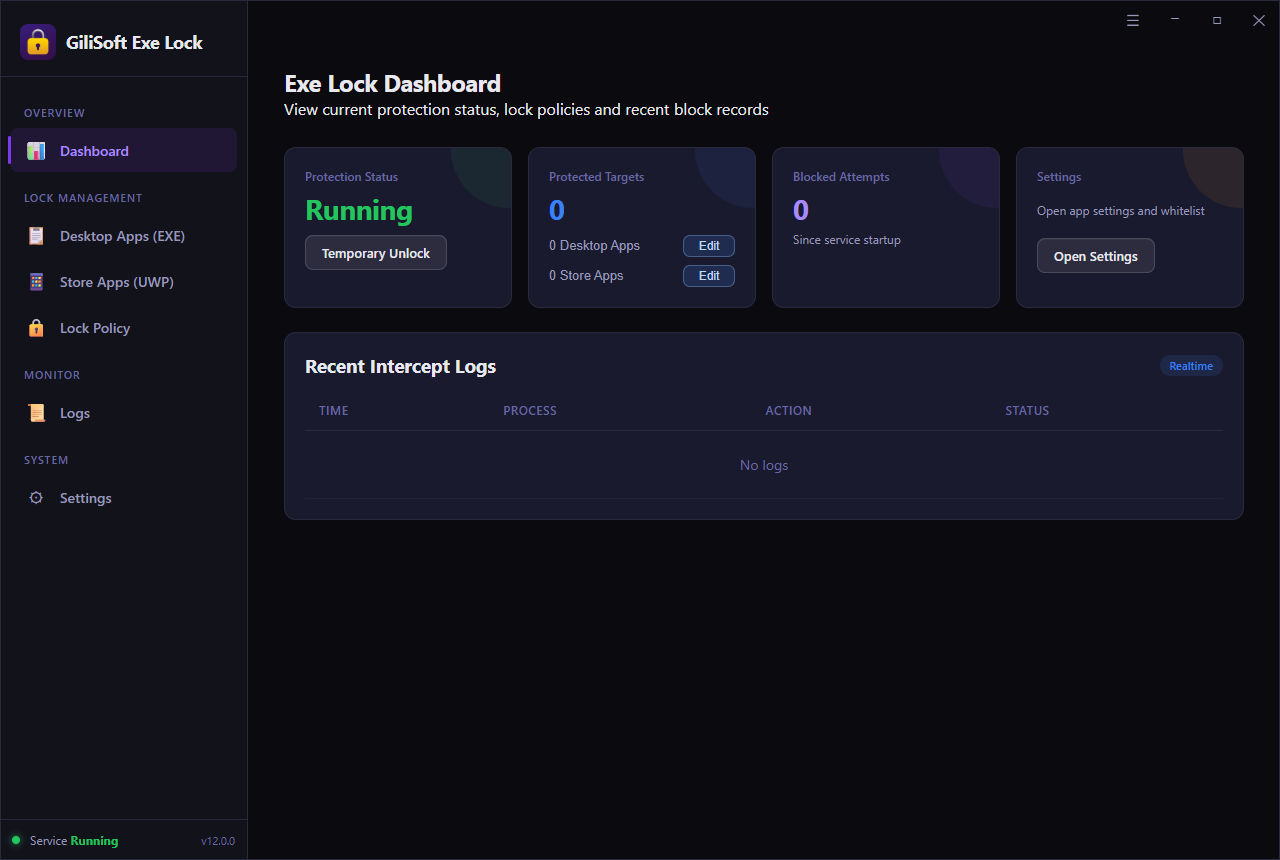
Windows can limit program use through separate accounts, Family Safety, Group Policy, AppLocker on supported editions, or file permissions. These methods are useful but do not provide one simple password prompt for every selected desktop EXE. GiliSoft EXE Lock is designed to password-protect or directly block selected Windows programs without modifying the application file.
Compare free ways to restrict Windows programs
| Method | Best for | Main limit |
|---|---|---|
| Standard Windows account | Separating everyday users | Does not individually password-protect every program |
| Microsoft Family Safety | Family accounts and time limits | Depends on account setup and supported app reporting |
| AppLocker or policy rules | Managed business editions | Edition, administration, and rule-planning requirements |
| NTFS permissions | Technical account-specific control | Easy to misconfigure and administrators may reverse it |
| EXE Lock trial | Selected desktop applications | Trial limits apply; test before purchase |
Choose the result before locking an EXE
Password Verification
Show a password prompt when someone launches the protected application.
Direct Block
Prevent the selected program from opening without presenting a password prompt.
Account restriction
Use Windows accounts or policy when different users need different access.
Data protection
Protect the files opened by the program separately; locking an EXE does not encrypt its documents.
Test EXE Lock on a nonessential program
- Set the administrator password and recovery email.
Confirm recovery details before creating the first rule.
- Add the actual executable file.
Select the program EXE, not only a desktop shortcut.
- Choose Password Verification or Direct Block.
Use the least restrictive mode that meets the requirement.
- Test every launch path.
Try the Start menu, taskbar, desktop shortcut, and direct EXE path.
- Verify recovery and removal.
Confirm an authorized administrator can change or remove the rule.

What an EXE lock does not protect
- It does not encrypt documents created by the application.
- It does not replace separate Windows accounts or least-privilege administration.
- It cannot guarantee control against an untrusted local administrator.
- Do not lock Windows shell, sign-in, security, or recovery components.
- Keep an authorized recovery path before applying rules broadly.
Frequently asked questions
Can I lock an EXE file for free?
Windows includes account, policy, and permission controls. A dedicated EXE locker may be easier for selected programs, but the GiliSoft download is a trial.
Does EXE Lock modify the protected program?
It applies a launch-control rule rather than editing the application code. Test updates and alternate launch paths after protection.
Can I password-protect a desktop shortcut?
Protect the underlying executable, not only the shortcut, because the same program may be launched from other paths.
Should I use Direct Block or Password Verification?
Use Password Verification when authorized users may launch the app. Use Direct Block when the app should not run in that workflow.
Does locking an app protect its files?
No. Protect sensitive files and folders separately with permissions, locking, or encryption.