

Quick Answer: Generate a Draft, Then Review It
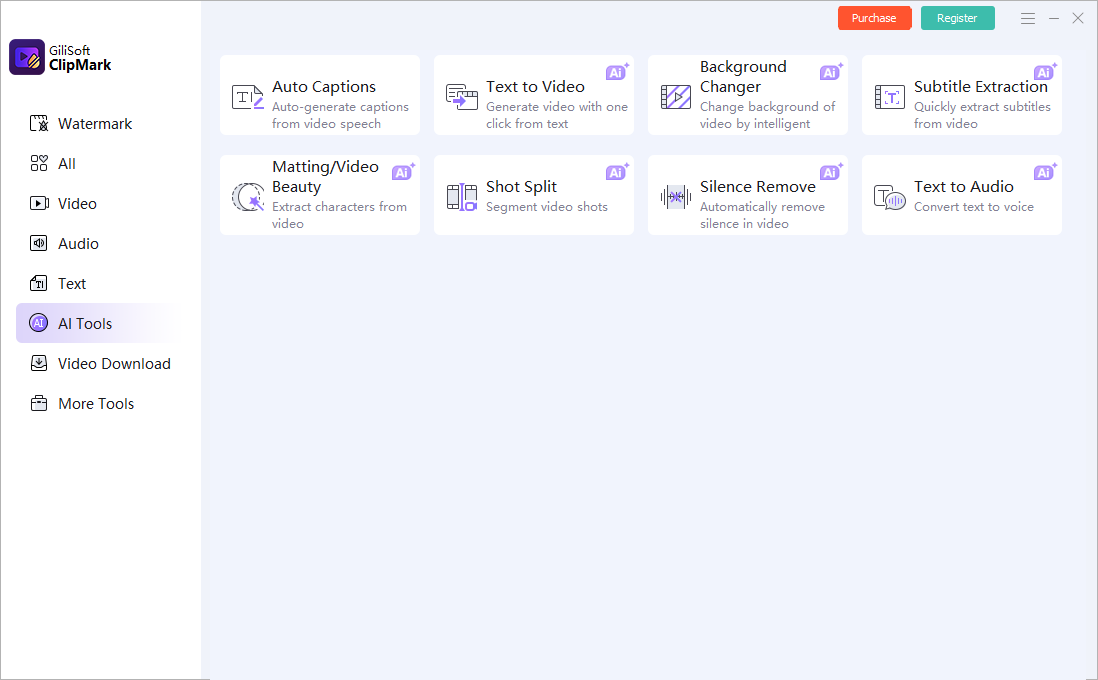
In GiliSoft ClipMark, open AI Tools > Auto Captions, load the final video, choose the language spoken in the recording, and generate a timed subtitle draft. Proofread every caption before publishing.
This workflow is useful for training lessons, software demonstrations, interviews, presentations, and social videos where typing every line by hand would be slow. GiliSoft ClipMark keeps automatic caption generation close to the other publishing tasks used to prepare a finished video.
Prepare the Video for More Accurate Automatic Captions
Caption quality starts with the source. A clean recording and the correct language selection reduce correction work later.
Use the final edit
Complete cuts, speed changes, and narration replacement before generating timed text.
Prioritize clear speech
Use the best available audio. Lower loud music, remove avoidable noise, and prevent speakers from talking over one another.
Choose the spoken language
Select the language actually used in the clip. For mixed-language videos, review each segment carefully or process separate versions.
Prepare difficult terms
Keep a list of names, product terms, abbreviations, dates, measurements, and industry vocabulary for proofreading.
| Source condition | Likely result | Preparation |
|---|---|---|
| Close, clear narration | Fewer word corrections | Use the original recording rather than a heavily compressed repost |
| Music under speech | Possible missed or incorrect words | Lower the music or use a cleaner dialogue mix |
| Several speakers overlap | Words and speaker changes may merge | Edit overlaps where possible and verify speaker labels manually |
| Long silence at the beginning | Slow analysis or an incomplete-looking start | Trim unused silence before caption generation |
| Names and technical vocabulary | Phonetically similar substitutions | Compare the draft with a terminology list |
How to Generate Video Subtitles with GiliSoft ClipMark
Work from a copy of the final master and keep the original video available. Generate the complete draft before making line-by-line corrections.
- Finish the picture and audio editConfirm the final duration, scene order, narration, and playback speed.
- Open Auto CaptionsLaunch GiliSoft ClipMark, choose AI Tools, and select Auto Captions.
- Load the video with spoken audioUse the highest-quality final source available rather than a low-bitrate downloaded copy.
- Select the spoken languageChoose the language used by the narrator or speakers so recognition starts from the correct model.
- Generate the complete caption draftLet ClipMark analyze the spoken content and create timed subtitle segments.
- Proofread text and timingCorrect names, numbers, terminology, punctuation, speakers, line breaks, and the start and end of each caption.
- Preview the finished videoWatch it from beginning to end, including quiet sections, scene changes, fast dialogue, and mobile-size playback.

Generate your first caption draft in GiliSoft ClipMark
Download the Windows trial, use Auto Captions on a representative video, and check how accurately it handles your language, recording quality, names, and technical terms.
Download ClipMark TrialHuman Review Checklist for Accurate Video Subtitles
W3C guidance treats captions as synchronized equivalents of speech and relevant audio information. That means proofreading more than spelling alone.
Choose the Right Subtitle Delivery Method
The best output depends on where the video will play and whether viewers need to turn captions off, switch languages, or revise them later.
| Output | Best for | Trade-off |
|---|---|---|
| Burned-in captions | Social clips, simple file delivery, or players with no subtitle support | Always visible and broadly compatible, but cannot be disabled and require a new export to correct |
| Selectable subtitle track | Players and platforms that support optional captions or multiple languages | Viewer can toggle captions, but compatibility depends on the container, player, and platform |
| Sidecar SRT or VTT file | YouTube, learning platforms, archives, and later text revision | Easy to edit and upload, but the caption file must stay paired with the correct video |
| Plain transcript | Search, reference notes, article reuse, and translation preparation | Useful text, but it does not provide synchronized playback by itself |
Match the GiliSoft tool to the job
Use GiliSoft ClipMark when automatic caption creation belongs inside a broader video publishing, branding, overlay, or cleanup workflow. Use GiliSoft Video Converter when you already have a subtitle file and need to load it during conversion. For transcription-first work, see GiliSoft Speech to Text. For authorized cleanup of captions already burned into pixels, use GiliSoft Subtitle Remover.
Fix Common Automatic Caption Problems
| Problem | Likely cause | What to do |
|---|---|---|
| No captions are generated | No clear speech, long silence, or an incorrect/unsupported language | Confirm audible dialogue, trim empty lead-in, and select the language actually spoken |
| Many words are wrong | Noise, loud music, accent, dialect, low bitrate, or specialist vocabulary | Use cleaner source audio and correct the draft against a terminology list |
| Two speakers become one sentence | Overlapping dialogue | Separate the timing and add speaker identification where needed |
| Captions drift later in the video | The video was edited or its speed changed after generation | Generate captions from the final cut or retime the affected section |
| Lines are too long | Automatic segmentation followed speech pauses rather than readable phrases | Split at natural grammatical boundaries and preview on a small screen |
| Captions cover important content | Placement was checked on only a few scenes | Review demonstrations, faces, slides, and platform controls before final delivery |
| Viewers cannot turn captions off | The text was burned into the picture | Use a selectable track or sidecar file when the destination supports it |
| Characters display as boxes | Encoding or font support is incorrect | Use UTF-8 for subtitle files and a font that covers the required writing system |
Video Subtitle Generator for Windows FAQ
Can GiliSoft ClipMark generate subtitles automatically?
Yes. Open AI Tools, select Auto Captions, load a video containing speech, choose the spoken language, and generate a timed draft for review.
Do automatic subtitles need manual editing?
Yes. Review names, numbers, jargon, punctuation, speaker changes, meaningful sounds, line breaks, and timing. Automatic recognition should not be treated as final copy.
Will background music affect caption accuracy?
It can. Loud music, noise, echo, low-quality audio, and overlapping voices make speech harder to recognize. A cleaner dialogue mix usually needs fewer corrections.
Can viewers turn the subtitles off?
That depends on delivery. Burned-in captions cannot be disabled. A selectable subtitle track or supported sidecar file lets the player control visibility.
Should I caption before or after editing?
Generate captions after cuts, speed changes, and narration edits are complete. Otherwise the timed text can drift away from the final audio.
Can automatic captioning replace professional captioning?
It can greatly reduce typing, but sensitive, regulated, educational, or public-facing material still needs a knowledgeable human reviewer.
Can GiliSoft remove subtitles already burned into a video?
Use GiliSoft Subtitle Remover for authorized removal of hardcoded subtitles. Auto Captions creates text from speech; it does not remove existing pixels.
References and Related Subtitle Guides
This workflow was checked against Microsoft's automatic-caption editing guidance, YouTube's explanation of automatic-caption limitations, W3C guidance for transcribing speech, speakers, and relevant sounds, W3C guidance for synchronized prerecorded captions, and YouTube's supported subtitle-file documentation.