
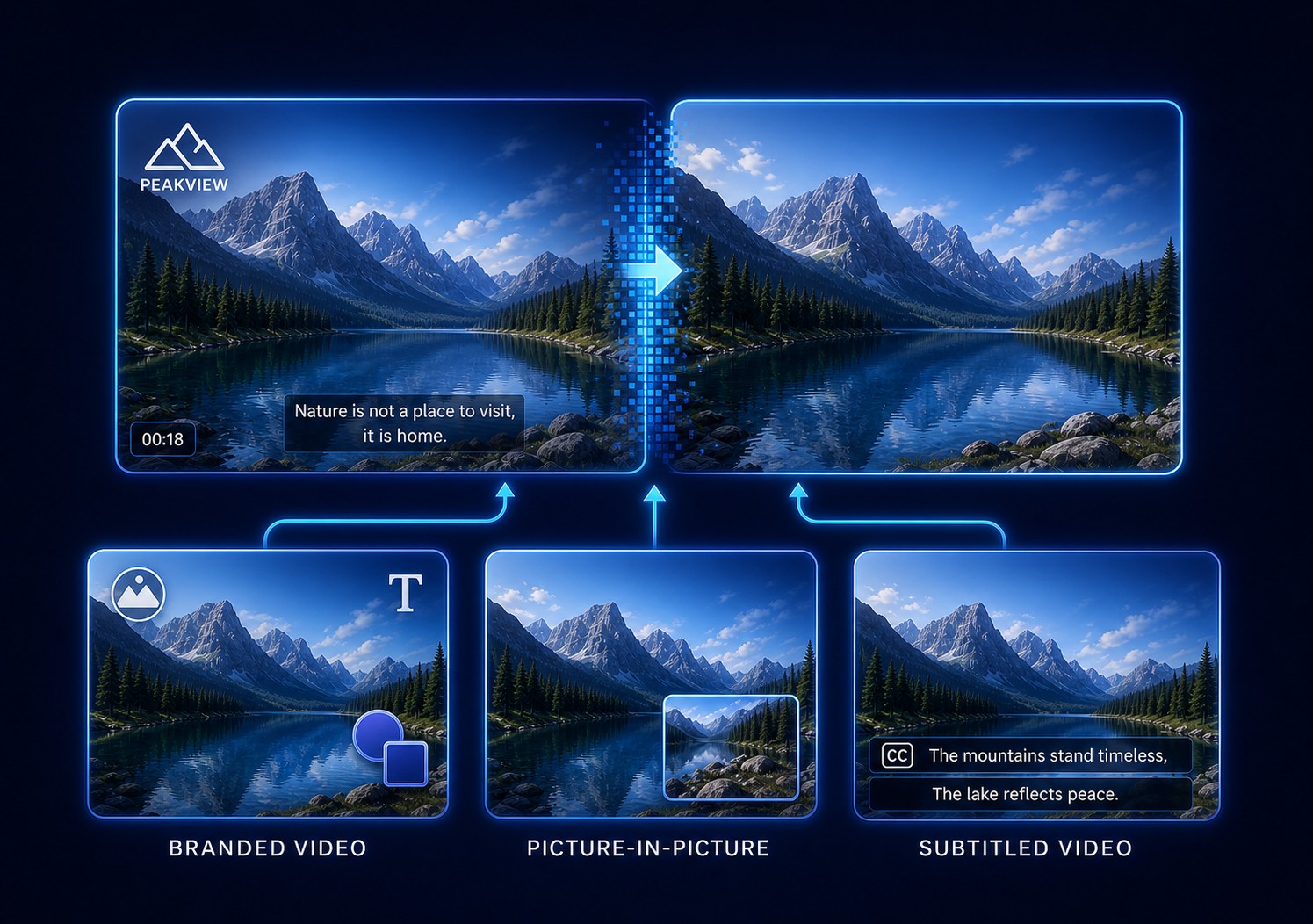
Quick Answer: Clean the Old Brand Layer Before Adding the New One
In GiliSoft ClipMark, preserve the original video, identify every outdated logo, timestamp, text label, subtitle, and overlay, clean only the authorized areas and time ranges, then add the current logo, text, image, shape, or picture-in-picture layer.
This workflow fits archive refreshes, renamed products, updated training libraries, customer demonstrations, campaign reuse, and videos moving to a new organization or channel identity. GiliSoft ClipMark combines fast cleanup, credit-based AI cleanup, visible watermarking, picture-in-picture, and subtitle preparation in one Windows product.
Audit the Complete Video Before You Remove Anything
Watch the full source once and record what changes, where it appears, and when it disappears. This prevents missed marks and avoids selecting an unnecessarily large cleanup area.
| What to inspect | Record before editing | Why it matters |
|---|---|---|
| Old logo or channel mark | Position, size, opacity, background detail, and exact time range | A fixed corner mark is easier than a logo crossing faces, gradients, or camera motion |
| Timestamp or date | Whether digits change and whether the background moves | A changing mark may require a longer or more carefully reviewed reconstruction |
| Text and lower thirds | Wording, entry/exit animation, speaker, and title-safe position | The replacement may need different timing and space |
| Burned-in subtitles | Language, line count, placement, and whether a clean source exists | Removing many changing lines can affect a large part of the image |
| Opening and ending cards | Names, URLs, dates, products, and legal text that must change | Rebuilding a simple card can be cleaner than reconstructing every old element |
| Delivery versions | 16:9, square, vertical, resolution, captions, and target platform | New branding must be checked separately in every composition |
Preserve the source
Keep an unchanged master and work on a duplicate. Do not overwrite the only usable copy.
Collect current brand assets
Use approved logo files, colors, wording, URLs, product names, and legal notices.
Mark every time range
Note when each old element begins, moves, changes, and ends before drawing cleanup regions.
Choose a representative test
Start with a clip containing the hardest background, motion, captions, and new branding placement.
Choose Fast Cleanup or AI-Assisted Video Cleanup
Removal does not reveal hidden original pixels. Cleanup tools estimate the missing area from nearby picture information and surrounding frames, so the right method depends on motion and background complexity.
| Source condition | Recommended starting point | Why |
|---|---|---|
| Small fixed logo over a flat or stable background | Fast cleanup | A tight region can often reconstruct a simple background efficiently |
| Timestamp or text over moderate motion | Fast cleanup, then inspect | Changing characters remain in one area, but every transition still needs review |
| Logo over gradients, water, foliage, faces, or detailed motion | AI-assisted cleanup | More temporal and surrounding information may be needed to synthesize the missing detail |
| Large opaque mark covering the subject | Test before committing | The larger and more important the hidden area, the less evidence exists for a clean reconstruction |
| Old title card with many outdated elements | Rebuild the card | A clean replacement can be more reliable than removing several overlapping text and graphic elements |
How to Clean and Rebrand Video with GiliSoft ClipMark
- Confirm rights and preserve the originalWork only with owned or authorized footage and create a separate working copy.
- Audit every outdated elementRecord each logo, timestamp, text line, subtitle, overlay, opening card, and ending card with its time range.
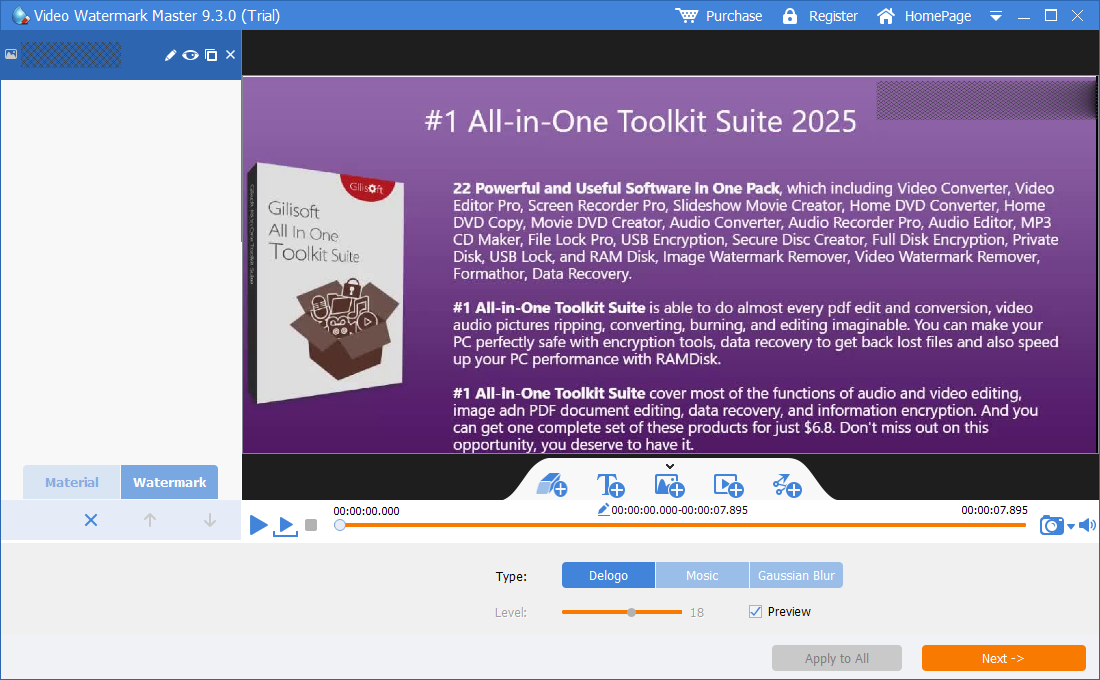
- Open Remove WatermarkLoad the source in ClipMark and move to the first frame where the unwanted mark is visible.
- Draw a tight cleanup regionCover the mark without including more surrounding picture than necessary, then set exact start and end times.
- Preview fast or AI-assisted cleanupInspect motion, edges, textures, gradients, faces, and scene changes; refine the region or method when artifacts remain.
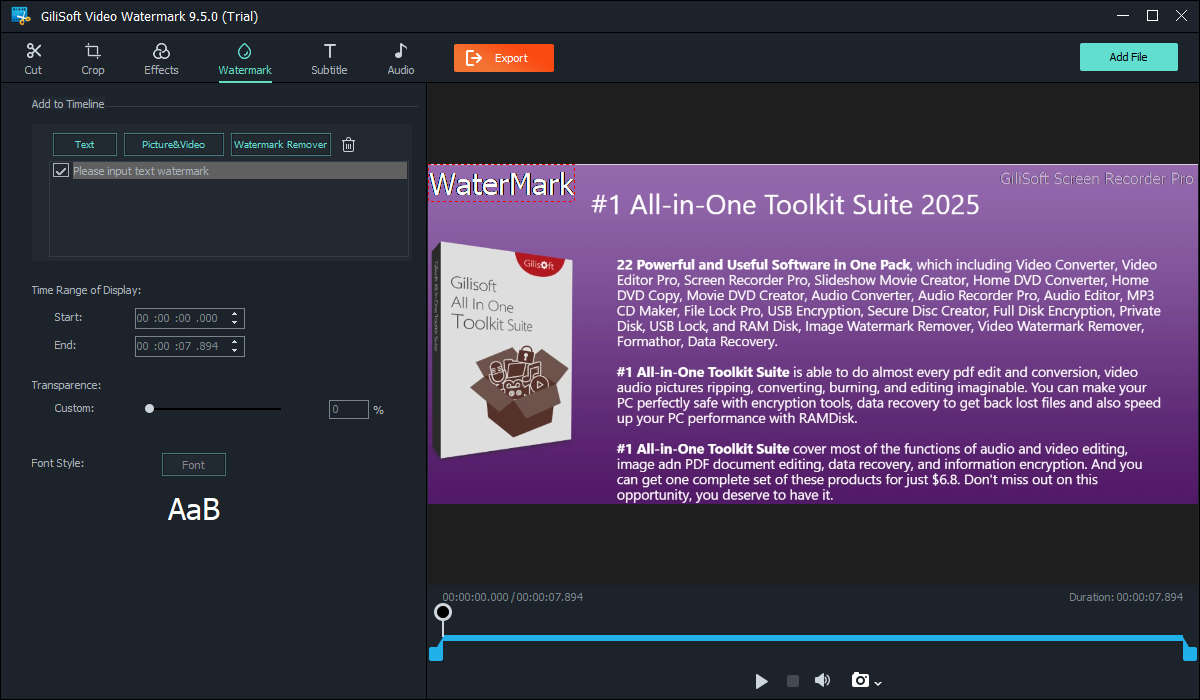
- Add the current brand layerOpen Add Watermark and place the approved text, logo, image, shape, or video overlay with consistent size, margin, transparency, and timing.
- Prepare captions and alternate layoutsCheck subtitles, picture-in-picture, opening and ending cards, and separate 16:9, square, or vertical versions.
- Export one test and review it end to endVerify every cleaned area, new brand element, frame size, picture quality, audio, and delivery requirement before broader processing.
Test the complete cleanup and rebranding workflow
Download GiliSoft ClipMark for Windows and process one representative authorized video before updating an archive, training library, campaign, or customer-delivery set.
Download ClipMark TrialReview Cleanup Quality Before New Branding Hides the Problem
Adobe describes object removal as a time-aware reconstruction process using information from surrounding frames. That explains why a clean result depends on motion, texture, mask size, and what the mark originally covered.
Build a Repeatable Branding Workflow for a Video Library
Microsoft's brand-kit guidance treats logos, fonts, colors, images, and videos as reusable assets. For archive refreshes, pair those assets with a written cleanup and approval record.
| Workflow record | What to specify | Who verifies it |
|---|---|---|
| Source and rights | Owner, license, authorized edits, clean master location, and working-copy name | Content owner or project manager |
| Cleanup map | Mark type, position, time range, selected region, method, and known difficult scenes | Video editor |
| Brand specification | Approved logo version, wording, colors, font, size, anchor, margin, opacity, and duration | Brand or marketing owner |
| Delivery specification | Aspect ratio, resolution, format, captions, audio, filename, destination, and due date | Publishing or training team |
| Quality approval | Cleanup artifacts, branding accuracy, caption conflicts, picture quality, audio, and playback test | A reviewer other than the editor when possible |
Apply one approved result before processing a batch
Use the hardest representative video as the acceptance sample. Once its cleanup regions, logo treatment, captions, output settings, and review checklist are approved, use the same specification for the rest of the library. See the focused batch video branding workflow for repeated publishing work.
Video Branding and Cleanup Software FAQ
Can GiliSoft ClipMark remove an old logo and add a new one?
Yes, for owned or authorized video. Clean the old logo first, inspect the reconstructed background, then add the approved replacement asset with its required size, position, transparency, and timing.
Should I use fast cleanup or AI video cleanup?
Start with fast cleanup for a small fixed mark over a stable background. Use credit-based AI cleanup when authorized marks overlap motion, gradients, faces, water, foliage, or detailed texture.
Why can a cleaned area still look blurred or unstable?
The original pixels behind a burned-in mark no longer exist in the file. A large region, moving background, fine detail, changing light, or an inaccurate time range can leave visible reconstruction artifacts.
Do ClipMark credits apply when I add a logo?
No. Credits apply to AI video cleanup. Ordinary add-watermark tools and fast cleanup remain separate from the credit-based AI process.
Can ClipMark update burned-in subtitles too?
It can support authorized subtitle cleanup and automatic caption preparation, but removing many changing hardcoded lines can be difficult. Use a clean source or separate caption track when available.
Can one branding layout be reused for vertical and horizontal videos?
Use the same approved identity, but verify separate size and placement rules for 16:9, square, and vertical layouts. Captions, faces, demonstrations, and platform controls occupy different areas.
Does new visible branding protect the video from copying?
No. Use GiliSoft Video DRM Protection when the delivery also requires passwords, device binding, expiration, revocation, or viewer-specific dynamic watermarks.
References and Related Branding and Cleanup Guides
The recommendations were checked against Adobe's official explanation of time-aware video object reconstruction, Microsoft's guidance for reusable logos, fonts, colors, transparency, position, and duration, Microsoft's organization-wide brand asset workflow, YouTube's channel-watermark timing and availability documentation, and YouTube's guidance on consistent brand visuals.