
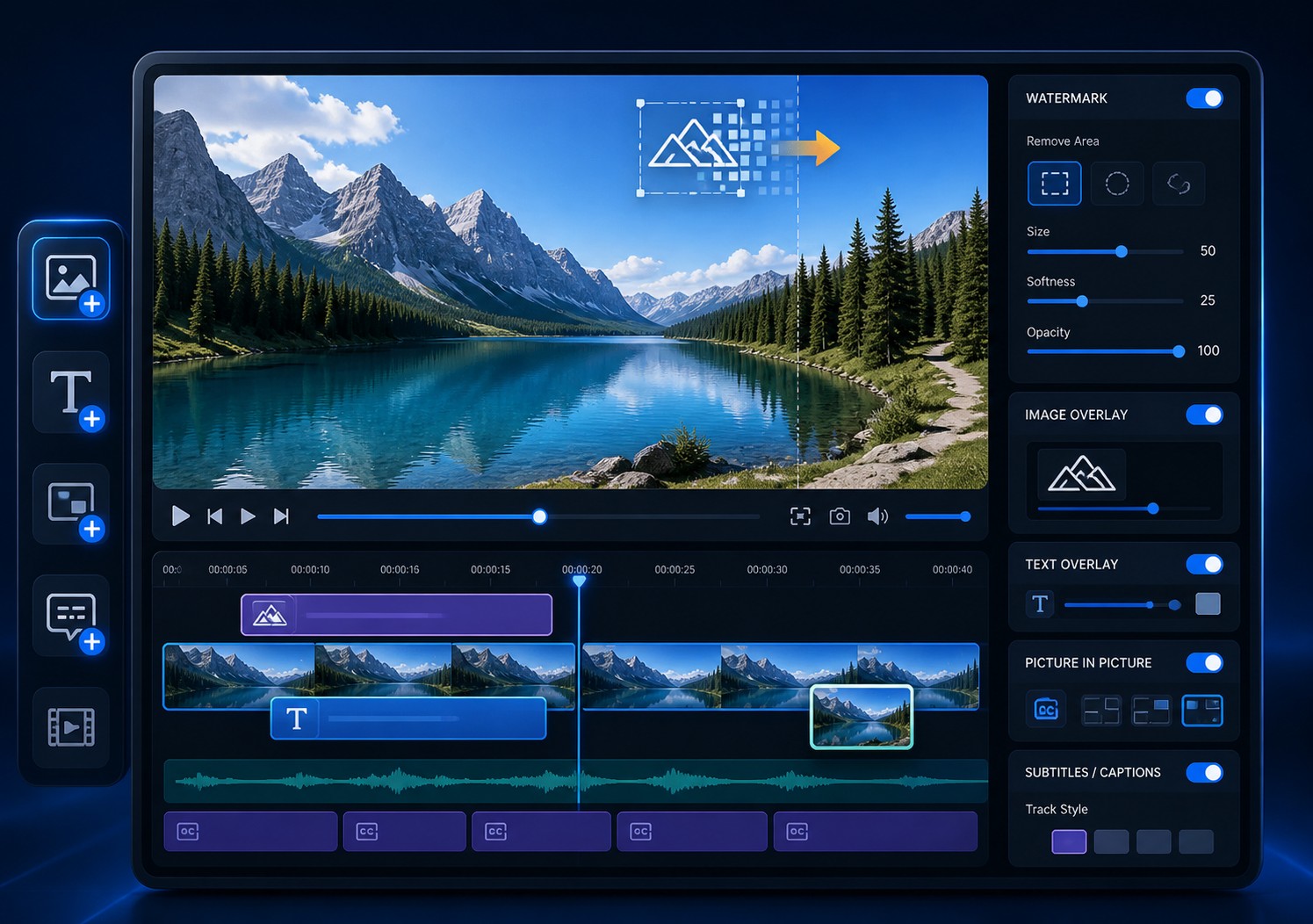
Quick Answer: Add a Visible Watermark to the Final Video
Open Add Watermark in GiliSoft ClipMark, load the final source video, choose Text, Picture & Video, or a supported shape, then set the watermark's size, position, transparency, and display time before exporting.
Visible watermarking is useful for product demos, course videos, review copies, client previews, event footage, and social publishing. GiliSoft ClipMark keeps watermark adding close to authorized logo cleanup, picture-in-picture, and subtitle preparation instead of forcing each task into a separate utility.
Choose the Right Type of Video Watermark
Start with the delivery purpose, not the effect. The best watermark communicates one useful thing without covering the content viewers came to watch.
| Watermark type | Best use | What to prepare | Main risk |
|---|---|---|---|
| Logo or image | Consistent brand ownership across product, training, and social videos | A clean high-resolution logo, preferably with a transparent background | Fine details disappear when the logo is reduced |
| Text | Copyright notice, DRAFT, INTERNAL USE ONLY, client name, project ID, or review status | Short wording and a readable font | Long text becomes small or distracting |
| Shape | Callout, highlight, label background, or controlled visual mask | Color, border, transparency, and exact time range | A large opaque shape hides important content |
| Video overlay | Picture-in-picture presenter, product demonstration, reaction, or supporting clip | A second video with compatible duration and composition | Motion and audio can compete with the main video |
| Viewer-specific dynamic mark | Traceable playback using a viewer email, ID, order, or session value | A protected playback workflow | Requires DRM rather than one ordinary fixed export |
Publishing logo
Use one consistent asset, margin, size, and transparency across a video series.
Review or client copy
Use concise status or recipient text that remains readable in screenshots and short excerpts.
Training presentation
Reserve space for captions, interface demonstrations, slide text, and presenter video.
Paid or restricted delivery
Combine visible branding with GiliSoft Video DRM Protection when access rules and traceability also matter.
How to Watermark a Video on Windows with GiliSoft ClipMark
Complete the main edit first. Add the watermark to the version that already has its final frame size, crop, duration, captions, and audio.
- Define the purpose and recipientChoose branding, ownership, review status, client identification, internal use, callout, or picture-in-picture.
- Prepare the video and watermark assetUse the final high-quality source and a clean logo, concise text, shape, or supporting video layer.
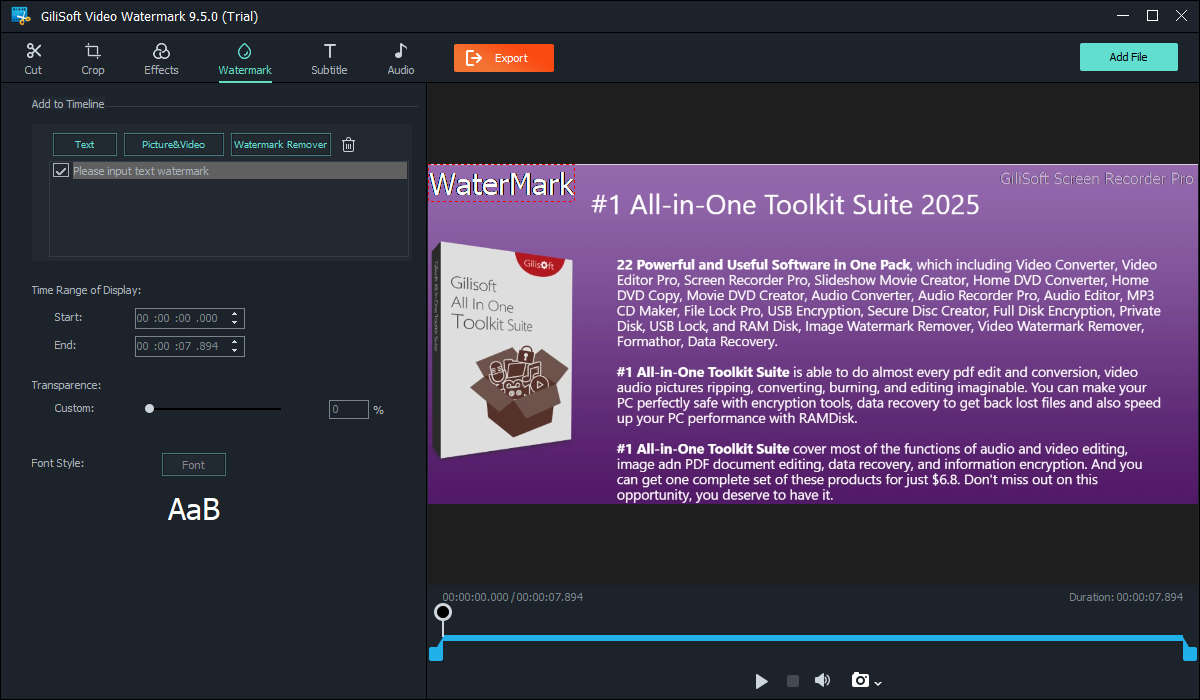
- Open Add WatermarkLaunch GiliSoft ClipMark, select Add Watermark, and load the source video.
- Add the required layerChoose Text or Picture & Video, then enter the wording or import the logo, image, or video asset.
- Set appearance and positionAdjust font, color, size, transparency, and placement while watching the real video preview.
- Set the exact time rangeChoose when the mark begins and ends, or extend it across the full duration for persistent branding.
- Preview and export a testCheck bright and dark scenes, captions, faces, UI details, motion, aspect ratio, audio, and mobile readability before the final export.
Test your watermark on a representative video
Download GiliSoft ClipMark for Windows, apply the intended logo or text to one complete video, and confirm the exported result before processing the rest of a publishing series.
Download ClipMark TrialMake the Watermark Visible Without Hiding the Video
Microsoft's official Clipchamp guidance separates logo transparency, size, position, and duration for good reason: each decision affects whether the mark remains useful after playback, resizing, and compression.
Use one small specification for repeated videos
Record the approved logo file, relative size, corner or anchor, margin, opacity, and display rule. That gives a training library, campaign, or product series consistent treatment and makes later batch work easier to verify.
Burned-In Watermark, Platform Watermark, or DRM?
These methods look similar to viewers but solve different problems. Choose based on where the mark must appear and whether the file itself needs access control.
| Method | What it does | Best use | Limitation |
|---|---|---|---|
| ClipMark visible watermark | Renders text, logo, image, shape, or video overlay into the exported picture | Ordinary file delivery and consistent cross-player branding | Cannot enforce who opens or copies the file |
| YouTube channel watermark | Displays a platform-managed channel mark at the end, from a custom time, or throughout playback | YouTube channel branding and subscription interaction | Does not appear in every player context and is not part of downloaded source pixels |
| GiliSoft Video DRM dynamic watermark | Displays viewer-specific information during protected playback | Paid courses, controlled training, client delivery, and traceability | Requires the protected playback workflow |
| No visible watermark | Preserves a clean picture | Master archives, licensed downstream editing, and final deliverables that prohibit marks | No visible ownership or copy identification |
A watermark is not copy protection
A fixed visible mark can communicate ownership and discourage casual reuse, but it does not provide passwords, device binding, expiration, revocation, or a blacklist. Use GiliSoft Video DRM Protection when the objective is to control playback after delivery. Use both when a protected viewer also needs to see traceable identity information.
Fix Common Video Watermark Problems
| Problem | Likely cause | What to change |
|---|---|---|
| Logo has a white rectangle | The asset contains a solid background | Prepare a transparent logo and trim empty canvas before importing it |
| Watermark disappears on some scenes | Low contrast or excessive transparency | Check bright and dark footage; adjust color, outline, background, weight, or opacity |
| Mark is blurry on a large video | Small source graphic enlarged during export | Use a higher-resolution logo and reduce it in ClipMark instead of enlarging a tiny image |
| Text is unreadable on phones | Too many words or a thin, small font | Shorten the message, increase size and weight, and inspect the actual mobile export |
| Watermark covers subtitles or controls | Placement was checked on only one frame | Review captioned scenes and platform UI, then move the mark or limit its time range |
| Watermark ends too early | The display range does not span the intended section | Set start and end times against the final timeline and preview both boundaries |
| Position changes after vertical export | The composition was designed only for 16:9 | Create and verify a separate placement for each aspect ratio |
| New logo appears beside the old logo | The original mark was already burned into the source | Use authorized logo cleanup first, then add the replacement branding |
Video Watermarking Software for Windows FAQ
What watermark types can GiliSoft ClipMark add?
ClipMark supports text, image or logo, shape, and video-overlay watermarks. A video layer can also be used for picture-in-picture presentation.
Can I add a watermark to only part of a video?
Yes. Set the start and end time for an introduction, sponsor segment, review section, chapter, or ending instead of displaying the mark for the full duration.
What is the best logo format for video watermarking?
Use a clean high-resolution asset with transparency when available. The practical priority is that the logo remains sharp, has no unwanted background, and can be reduced without losing essential detail.
How transparent should a video watermark be?
There is no universal percentage. Use the lowest visibility that still survives bright and dark scenes, motion, compression, and mobile playback without distracting from the subject.
Does a watermark stop viewers from copying the video?
No. A visible watermark identifies or brands the copy. Passwords, device binding, expiration, revocation, and viewer-specific playback rules require GiliSoft Video DRM Protection.
Can ClipMark remove an old logo before adding a new one?
Yes, for video you own or are authorized to edit. Use the removal workflow first, inspect the cleaned region, and then add the replacement logo to the final copy.
Can I use the same watermark across several videos?
Yes. Establish one approved asset, size, margin, opacity, and timing rule, test it on one complete file, and then apply that specification consistently to the remaining videos.
References and Related Video Watermark Guides
The practical recommendations were checked against Microsoft's official guidance for logo transparency, size, position, and duration, Microsoft's logo-overlay workflow, YouTube's channel-watermark timing and availability documentation, FFmpeg's image-over-video overlay example, and Adobe's logo scale, opacity, position, and safe-margin documentation.