
Plan the brand layer before editing
A training watermark should identify the publisher without competing with the lesson. Start by deciding what the viewer must recognize, where the mark can remain visible, and whether it should appear for the whole video or only during selected sections.
Choose the right watermarking workflow
Both ClipMark and Video DRM Protection can place visible watermarks on training videos. The difference is what happens after the video is delivered: ClipMark focuses on preparing the branded video itself, while Video DRM Protection combines watermarking with controlled playback.
| Requirement | Best fit | What the viewer receives |
|---|---|---|
| Place the same company logo on every exported lesson | GiliSoft ClipMark | A normal exported video with the fixed logo or text embedded in the picture |
| Add timed text, image, shape, or video overlays | GiliSoft ClipMark | A finished branded video prepared for a portal, website, presentation, or ordinary delivery |
| Add a watermark while requiring protected playback | GiliSoft Video DRM Protection | A protected video package with watermarking and playback-password control |
| Combine watermarks with device binding, expiry, or blacklist control | GiliSoft Video DRM Protection | Controlled playback with access rules that remain relevant after delivery |
Choose ClipMark for video branding and preparation
Add a fixed company logo, course name, ownership notice, image, shape, or timed overlay. Continue with captions and picture-in-picture when the lesson needs additional presentation work.
Choose Video DRM Protection for watermarking plus access control
Add visible watermarking while also applying playback passwords, PC or USB binding, expiration rules, dynamic viewer information, and password blacklisting.
Design a watermark viewers can live with
Logo in a quiet corner
Use a transparent PNG or a clean image mark. Keep enough margin from the frame edge so the logo remains visible after player scaling or platform cropping.
Short text, not a paragraph
Prefer a company name, course code, department, or status label. Long sentences reduce readability and compete with the lesson.
Consistent opacity
Lower transparency when the mark sits over changing backgrounds. Review both bright and dark scenes before choosing a final value.
Timed display when needed
Use the active time range when a mark is relevant only to an introduction, demonstration, customer segment, or closing screen.
How to add a watermark to a training video with ClipMark
- Prepare the video and brand assetUse an authorized training master and, for a logo, prepare a clean image with a transparent background when available.
- Open Add Watermark in ClipMarkStart the watermark task, add the training video, and confirm that the preview and timeline display correctly.
- Choose the watermark typeAdd text for a course or ownership label, Picture & Video for a logo or overlay, or a shape when the lesson needs a callout.
- Place and resize the markPosition it away from captions, faces, software controls, and demonstration areas. Preview several points in the timeline rather than checking one frame.
- Set transparency and timingAdjust visibility, then set the start and end time if the watermark should not remain on screen for the full lesson.
- Add captions or picture-in-picture if requiredClipMark also provides automatic captions and picture-in-picture tasks for training videos that need supporting text or an instructor window.
- Export and review the finished lessonOpen the exported file, inspect bright and dark scenes, confirm caption clearance, and verify that the logo remains readable at normal playback size.
ClipMark training-video branding screens
These product screens show the actual ClipMark areas used for watermarking and related training-video preparation.
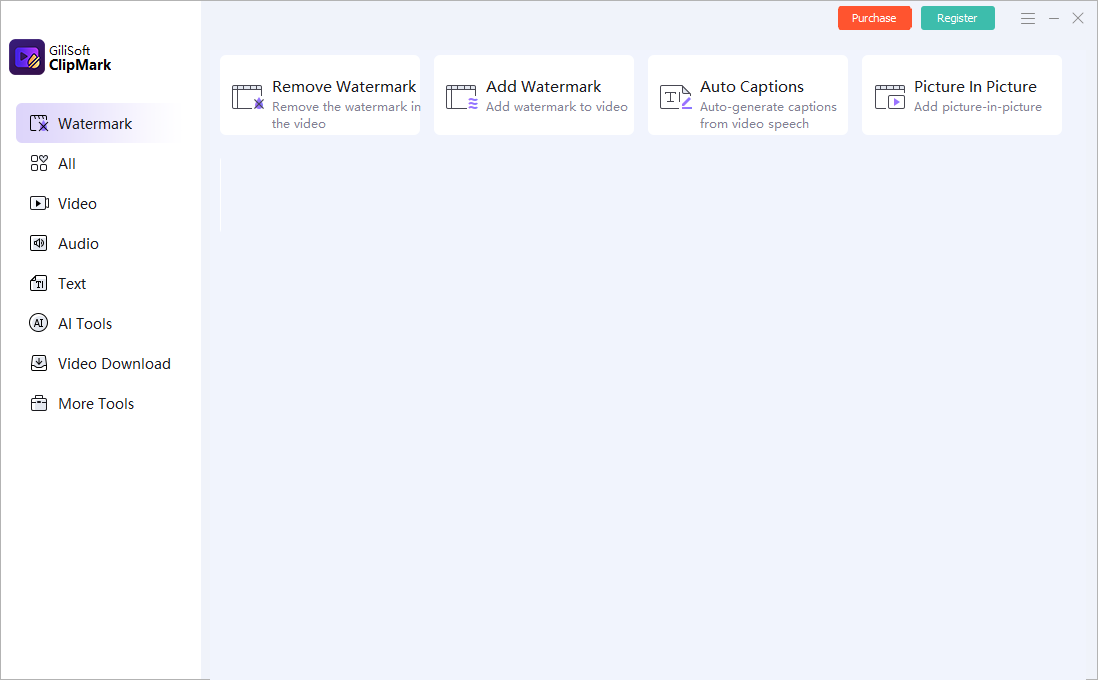 Choose the training-video taskStart with Add Watermark, or continue with captions and picture-in-picture when the lesson needs them.
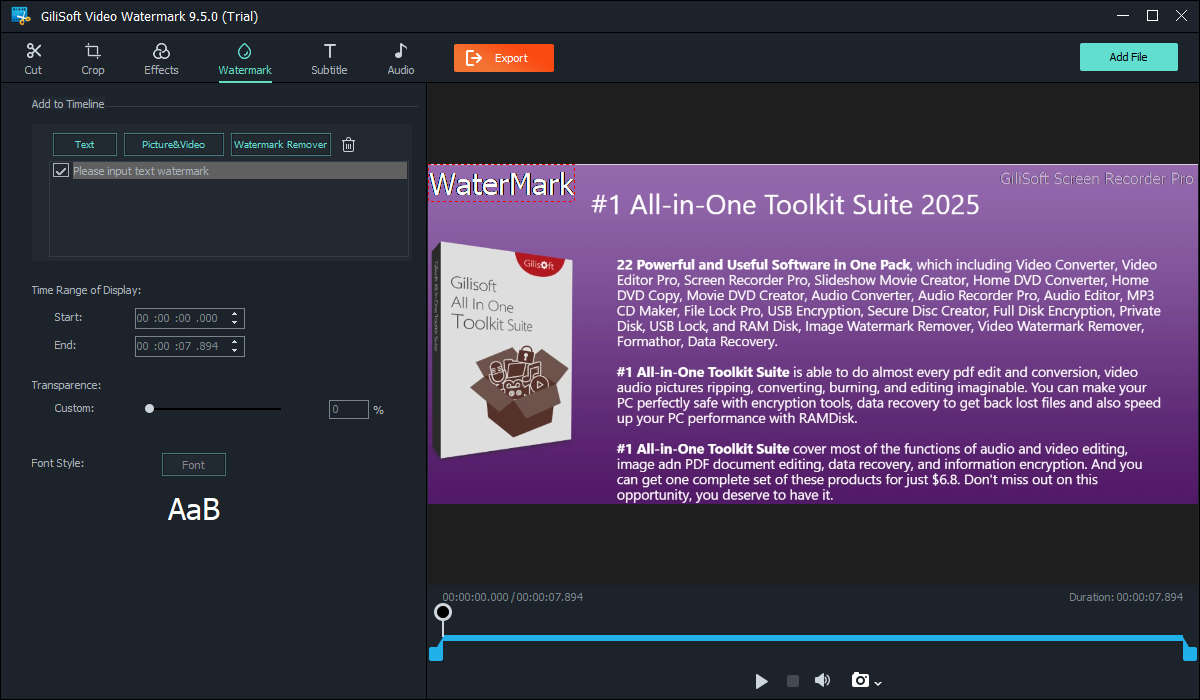 Control the visible watermarkAdd text, image, video, or removal regions, then adjust the active time, transparency, font, size, and placement.
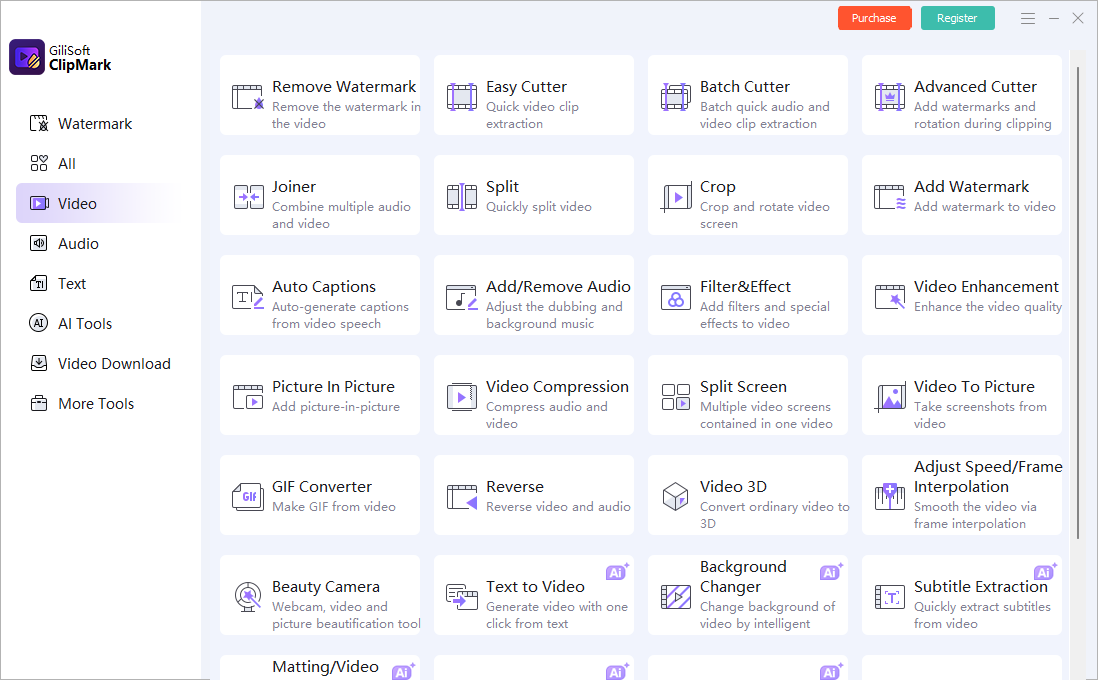 Continue preparing the lessonUse the related video tools for captions, audio, picture-in-picture, effects, compression, and other publishing work.
 Bring authorized source material into the projectUse only videos your organization owns, licenses, or is authorized to edit and republish.
Brand, caption, and prepare training videos in one Windows tool
ClipMark is designed for video teams that need more than a simple corner logo. Add text, image, shape, or video watermarks; set their active range; prepare captions; create picture-in-picture layouts; and export a finished training copy without moving between several small utilities.

Training videos that benefit from fixed branding
Employee onboarding
Keep the company name and course identity visible when orientation lessons are copied into team folders or learning portals.
Customer education
Add a product line, support department, or customer-training label to tutorials delivered outside the organization.
Partner and reseller training
Prepare branded lessons for channel partners while keeping the source presentation visually connected to the publisher.
Compliance and safety lessons
Add a department, revision label, or internal-use notice when viewers must recognize the official training source.
Instructor-led recordings
Place an instructor window, course title, and captions around a screen demonstration without obscuring the key actions.
Repeatable course libraries
Apply the same visual rules across a series so modules look related even when they are watched or shared separately.
Avoid these common watermark problems
A large logo weakens the lesson and may cover controls or demonstrations.
A mark that disappears on bright or dark scenes provides inconsistent branding.
Bottom-positioned logos can overlap subtitles, player controls, and lower-third text.
A position that works on the title screen may cover important content later in the video.
A fixed watermark identifies the publisher but does not create per-viewer access control.
Only brand, modify, or republish video your organization is authorized to use.
Training video branding checklist
Training video watermark FAQ
Should a training watermark stay visible for the whole video?
A small company logo often works throughout the lesson. A course title, status label, or customer-specific notice may be better during the introduction or selected sections. ClipMark lets you set the active time range.
Can ClipMark add both text and logo watermarks?
Yes. The watermark task supports text plus picture or video overlays, along with position, size, transparency, font, and timing controls.
Can Video DRM Protection also add watermarks?
Yes. Use Video DRM Protection when visible watermarking must be combined with protected playback, device binding, expiration, dynamic viewer information, or password blacklisting.
Can I place an instructor video over a screen recording?
Yes. Use the Picture in Picture task to place a secondary video above the main lesson and adjust its composition.
Does ClipMark generate subtitles for training videos?
ClipMark includes an automatic caption task for generating subtitles from video speech. Review names, terminology, punctuation, and timing before export.
Does a fixed watermark stop viewers from copying the video?
No. A fixed watermark keeps ownership or course identity visible, but it does not by itself control playback. For passwords, device binding, expiry, dynamic identity watermarks, and blacklisting, use GiliSoft Video DRM Protection.
How do I keep branding consistent across a training series?
Reuse the same logo asset, corner position, edge margin, opacity, naming rules, and export settings. Review every finished lesson because captions and important on-screen controls may occupy different areas.
Add consistent branding before the lesson leaves your team
Use GiliSoft ClipMark to add visible company identity, course labels, captions, and picture-in-picture elements to authorized training videos.