⌕
See what is installed
Review app source, install date, size, type, and status without jumping between Windows settings pages.

Uninstall unwanted Windows apps and clean up the files and registry entries they leave behind. Manage desktop and Store apps, browser extensions, and available software updates from one place.

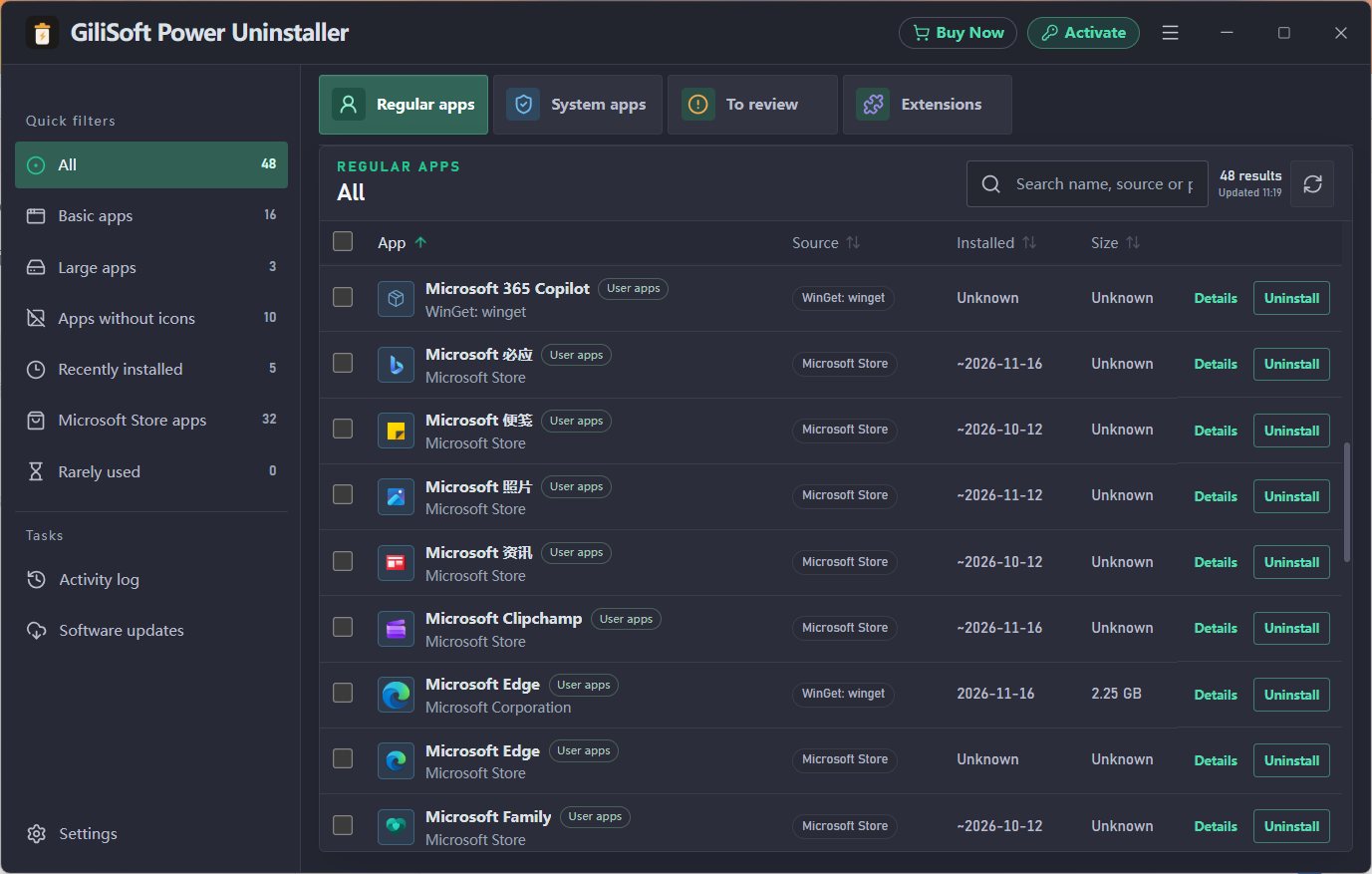
GiliSoft Power Uninstaller helps you understand what is installed, find what needs attention, remove unwanted software, and keep your app library easier to maintain.
Manage regular programs, Windows components, Microsoft Store apps, portable tools, browser extensions, and outdated software from one place.
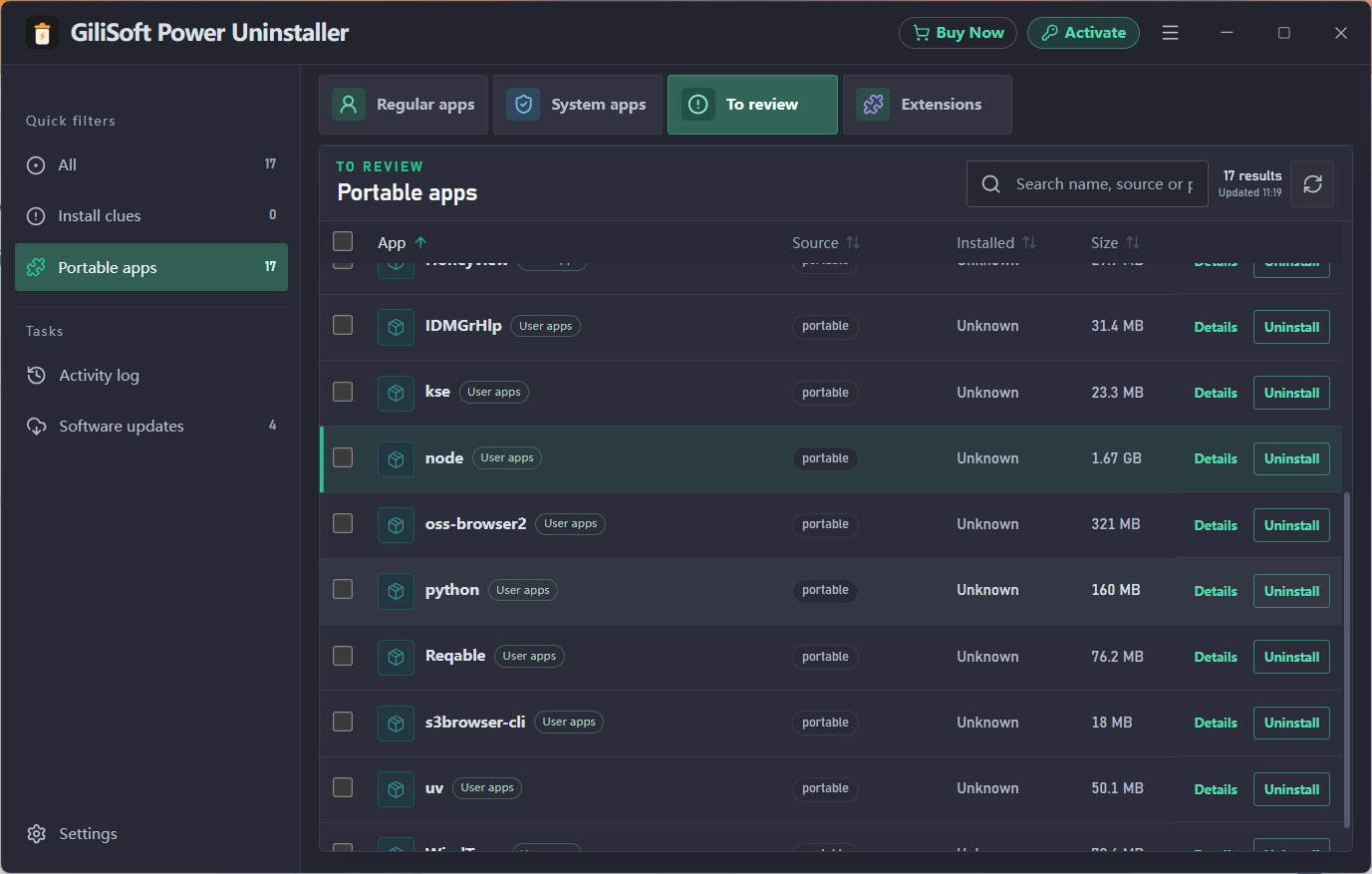
Power Uninstaller brings installed apps, system components, Microsoft Store packages, portable programs, and browser extensions into one searchable workspace.
Review app source, install date, size, type, and status without jumping between Windows settings pages.
Filter large apps, recently installed apps, apps without icons, portable apps, and outdated software.
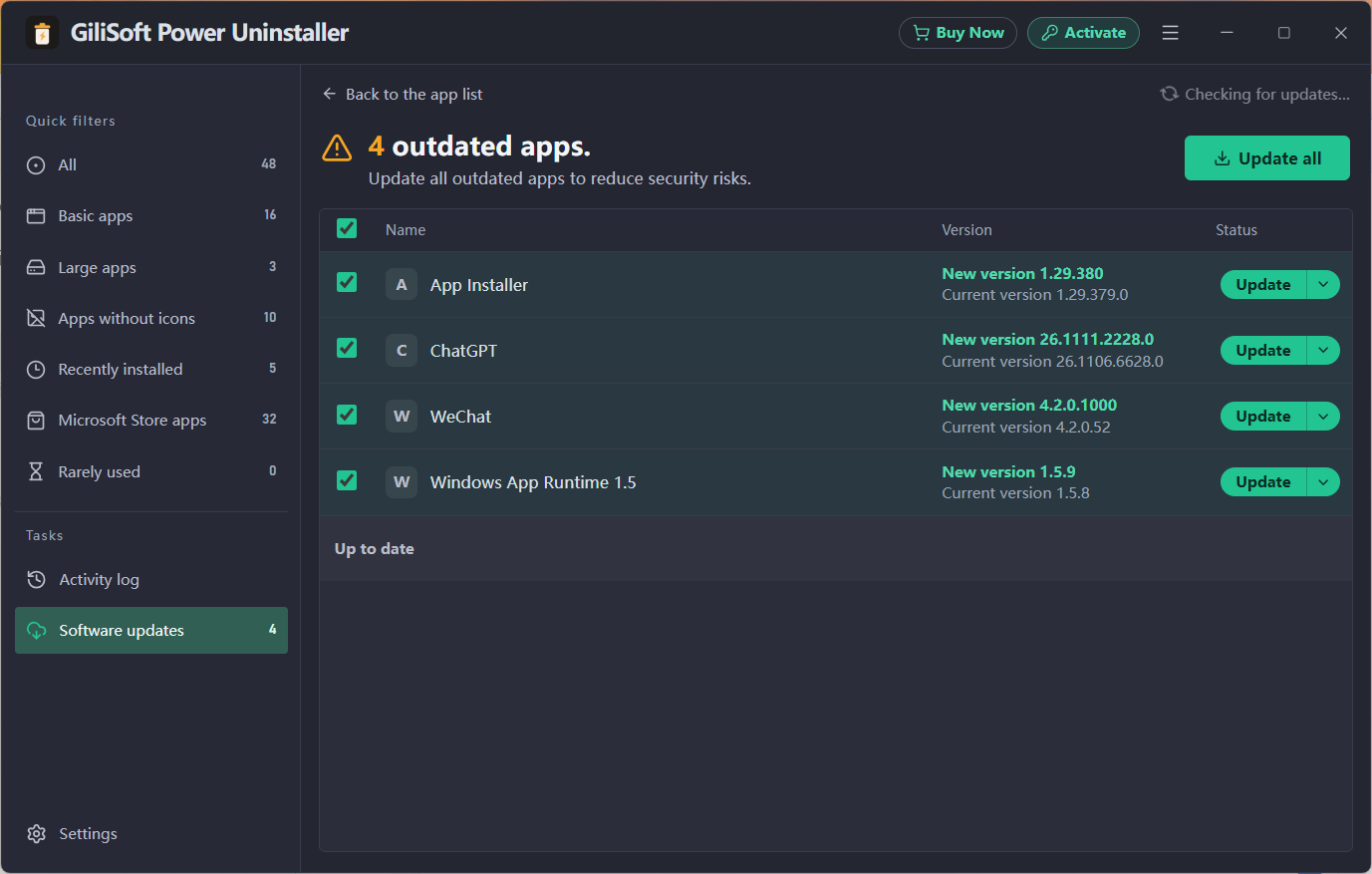
Check for available updates and update selected apps from a dedicated software updates view.
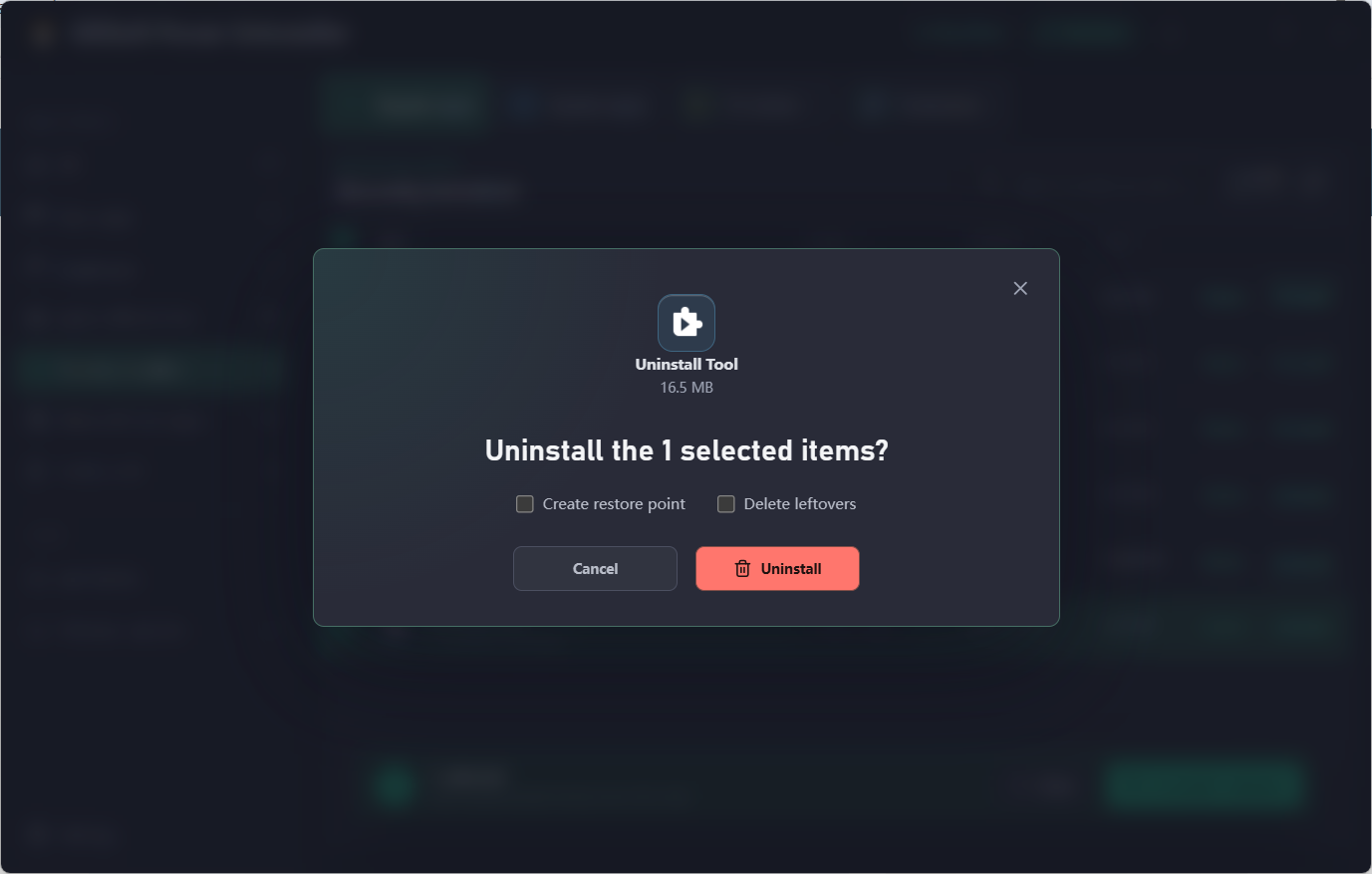
Choose what should happen before the uninstall starts. You can create a restore point for system protection and choose whether to remove detected leftovers after the app is removed.
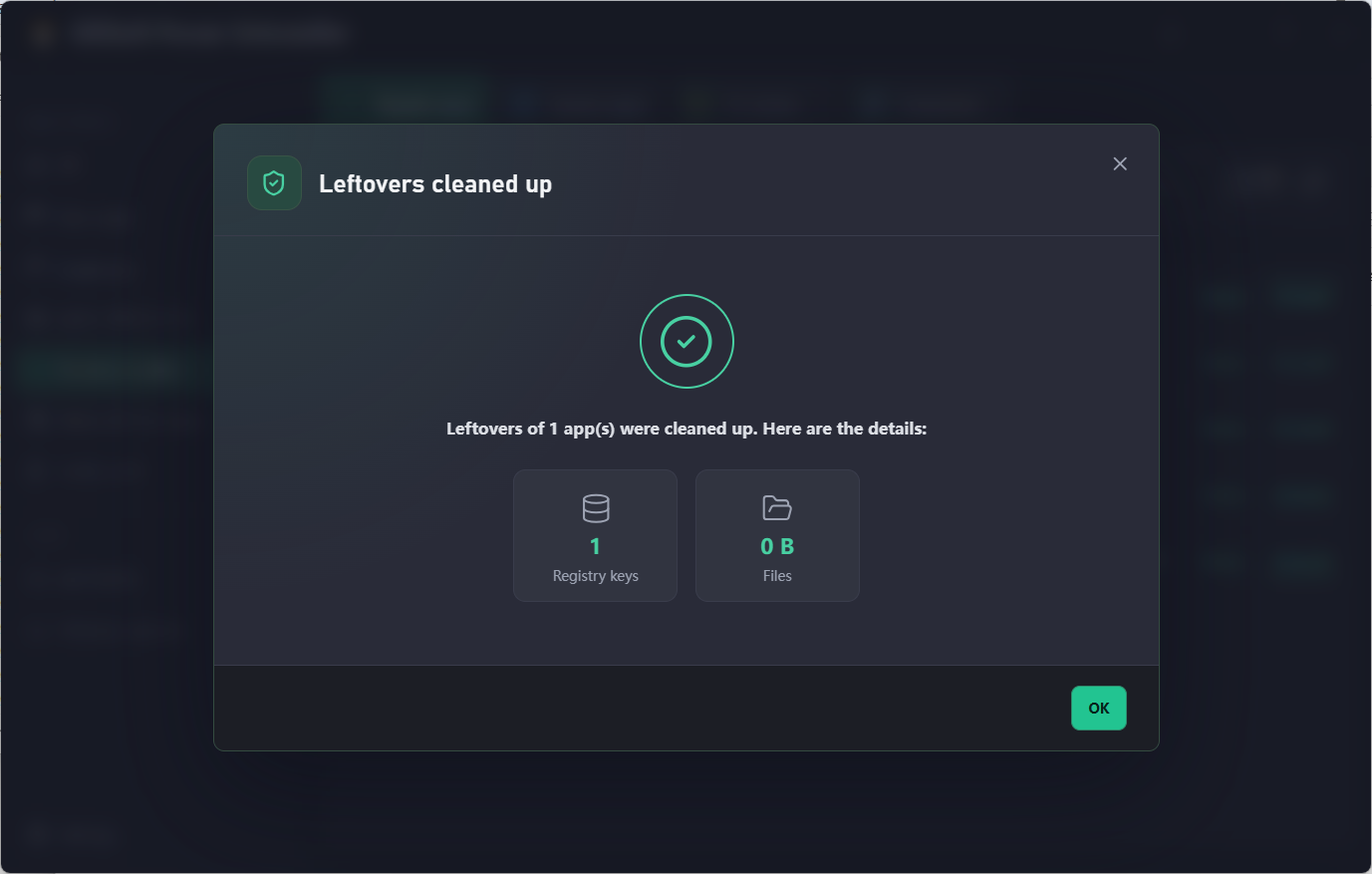
A focused progress view shows which app is being processed. When the operation is complete, Power Uninstaller reports the cleanup result, including registry keys and files.
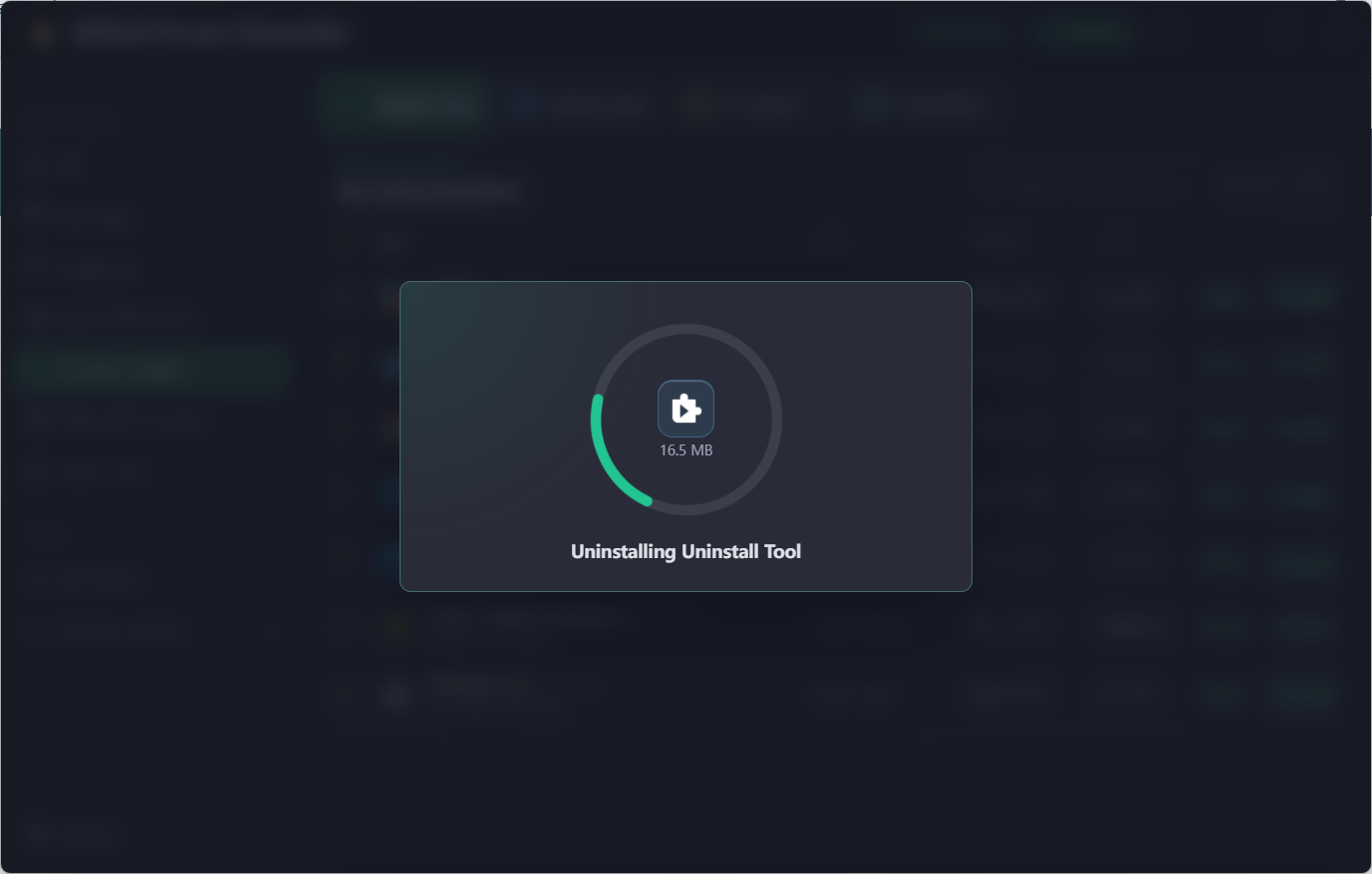
Move from a crowded app list to a verified cleanup in four clear steps.
Refresh the app list and see what is installed.
Use size, source, date, or app type to narrow the list.
Confirm the operation and choose your safety options.
Review the leftover cleanup report when the process finishes.
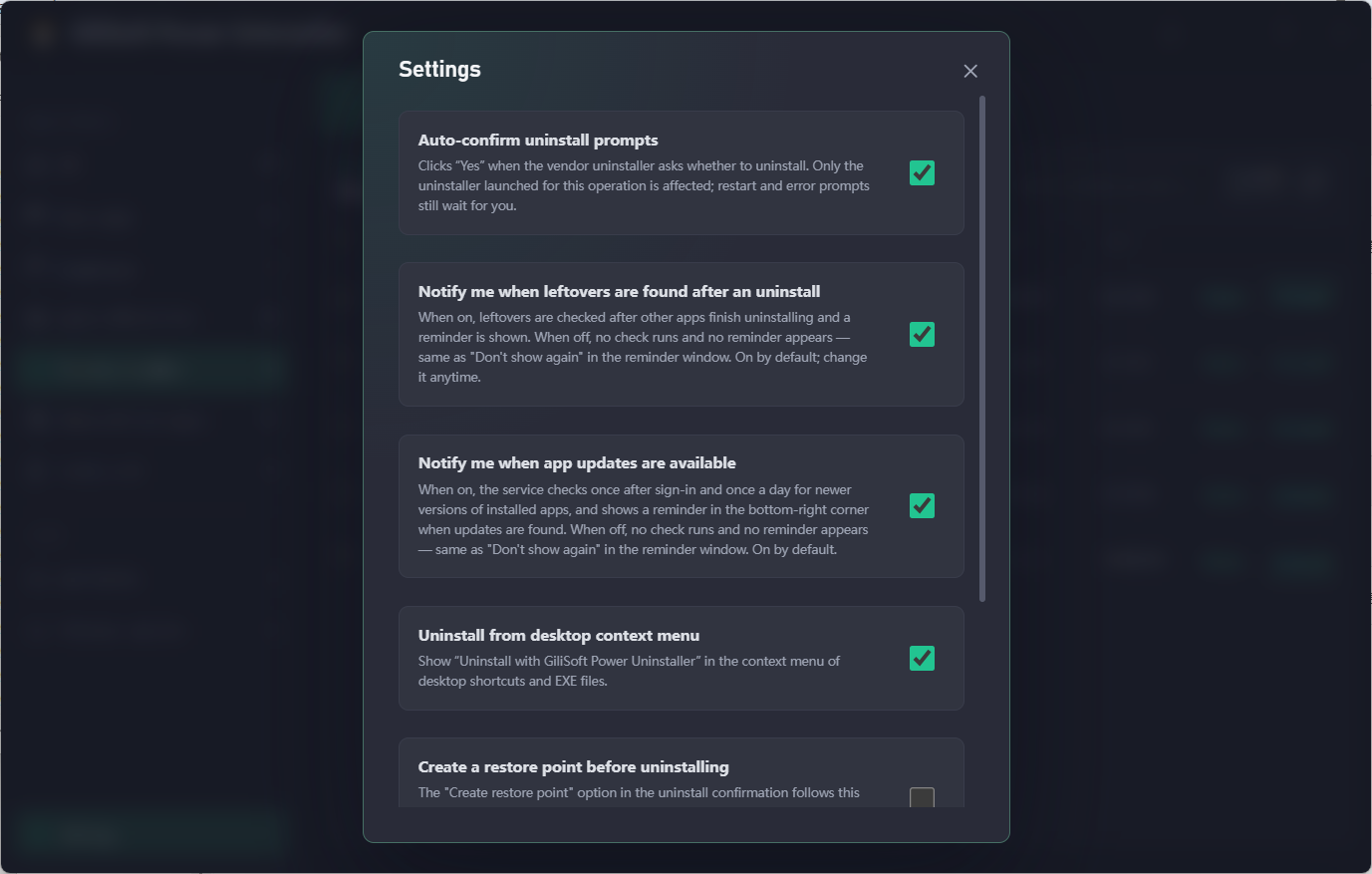
Power Uninstaller settings help reduce repetitive clicks and keep you informed after the main uninstall is finished.

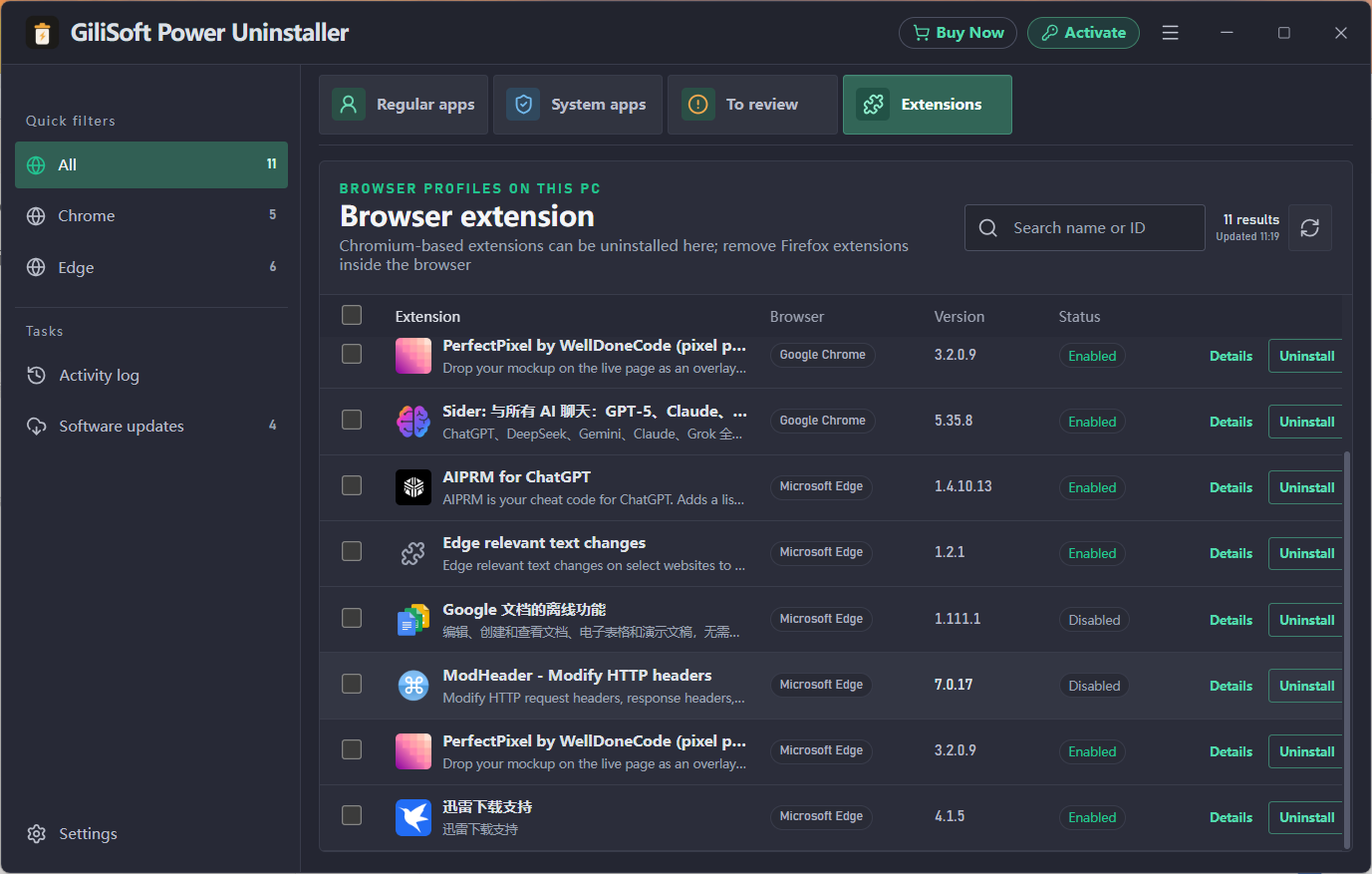
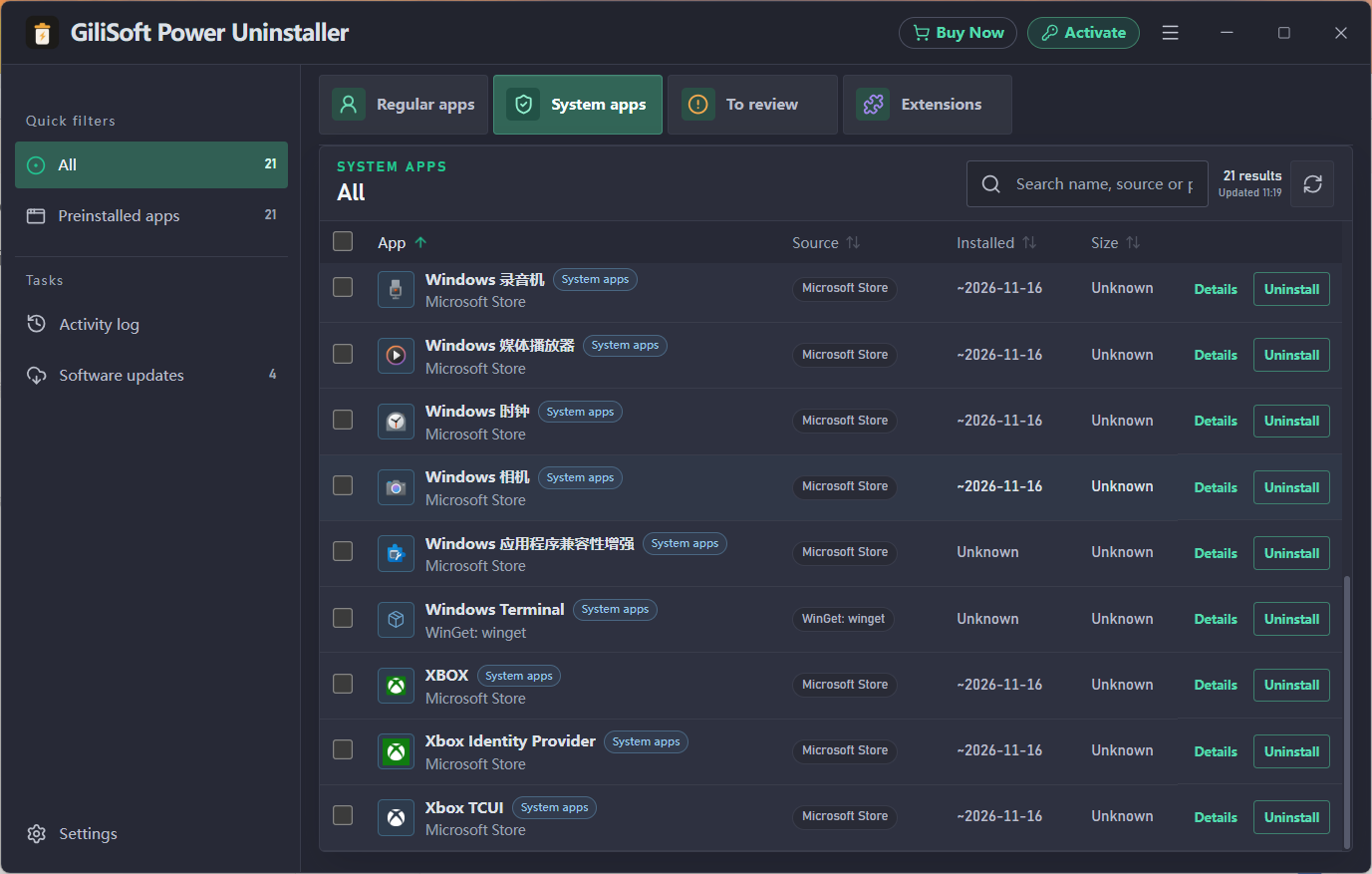
Use dedicated views to manage Windows system apps, preinstalled apps, Microsoft Store apps, portable tools, and Chromium browser extensions.
Yes. Enable leftover cleanup when you start an uninstall. GiliSoft Power Uninstaller checks for files and registry entries associated with the removed app and shows the cleanup result when the operation finishes.
Yes. Use the app views to find Microsoft Store and system apps, and open Extensions to manage Chrome and Edge extensions. Check the selected app or extension before removing it.
Yes. Select Create restore point in the uninstall options, or configure the default behavior in Settings. Windows system protection must be available for restore point creation.
Open Software updates to check the applications listed with available updates. Select the apps to update, then use Update or Update all.
See the Power Uninstaller user guide for screenshot-based instructions.
Find unwanted software faster, uninstall with confidence, and keep your Windows app library easier to maintain.