Hide Files and Folders
Make private files and folders completely invisible to other users. This is ideal for confidential projects, client materials, personal records, and any document you do not want displayed in Finder.


Ready for macOS 10.14 (Mojave)

Gilisoft File Lock helps you protect private files and folders on macOS with a simple and practical workflow. You can hide sensitive items from view, prevent unauthorized access, and keep important documents away from accidental edits or deletion.
Files and folders can be added quickly through a selection dialog or drag-and-drop, making daily protection tasks easy even for non-technical users. For Windows users, go to Gilisoft File Lock for Win
For Pro Version, go to File Lock Pro macOS Version
Whether you use your Mac at home, in a studio, or in a shared office, File Lock provides an extra privacy layer for contracts, financial files, creative assets, and personal records. It is designed for fast setup and consistent protection in day-to-day work.


Make private files and folders completely invisible to other users. This is ideal for confidential projects, client materials, personal records, and any document you do not want displayed in Finder.

Prevent unauthorized users from opening and reading protected files. This helps keep sensitive documents, drafts, and internal information private on shared Macs.

Block unauthorized editing actions such as modifying, renaming, or deleting protected content. Your important files remain intact even when multiple people use the same device.

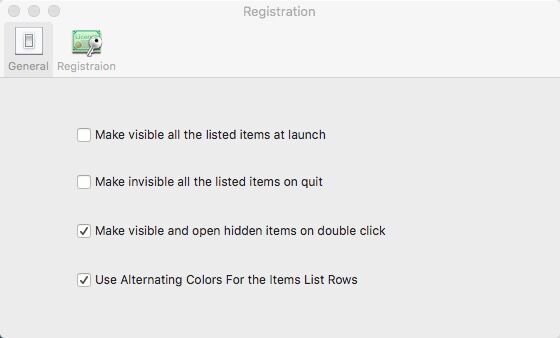
Automatically hide protected items when the app is closed and restore visibility only when needed. This makes privacy protection easier and more consistent in daily use.

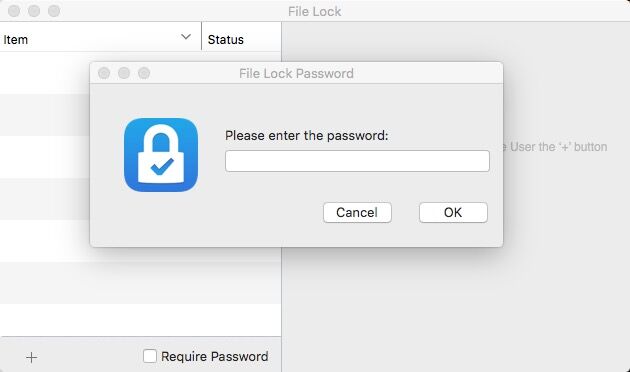
Enable password protection to control access to the app and all protected settings. When enabled, File Lock prompts for the correct password at launch, adding another layer of security.

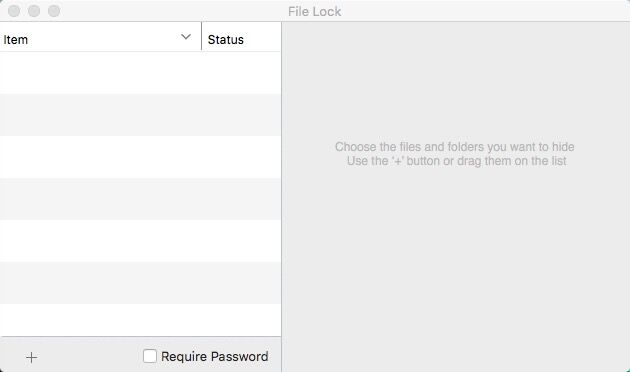
Add files and folders to the protection list instantly with drag-and-drop. This speeds up onboarding for new projects and keeps daily protection tasks efficient.
Protect confidential folders on shared Macs used by teams or families, so private documents stay restricted to authorized users only.
Find protected files and folders quickly in large lists, making daily management more efficient.
Restore your preferred visibility state per session so private content remains protected by default.
Adjust protection settings quickly as projects and folder priorities change.
Reduce privacy risks on shared macOS devices with consistent visibility controls.

File Lock for Mac is practical for our daily encryption and access-control workflow.
We implemented Hide Files and Folders quickly, and protection behavior stayed stable under regular use.
Block Unauthorized Reading helped us enforce policy-based security with less manual overhead.
For sensitive data handling, Block Unauthorized Changes added dependable control without extra complexity.
Auto Hide Files and Folders is practical for our daily encryption and access-control workflow.
We implemented Lock with a password quickly, and protection behavior stayed stable under regular use.






 Editors highlighted strong encryption-centered protection for files, folders, and containers.
Coverage noted straightforward setup for teams needing immediate confidentiality controls.

Reviewers praised password and policy options that align with everyday compliance routines.
Lab observations mentioned stable lock and unlock behavior under repeated operations.

Independent write-ups described the product line as dependable for routine data protection.
Commentary emphasized clear administration and predictable recovery access flows.


Enter your email address to get our latest newsletter