
 How to use Video Converter Discovery Edition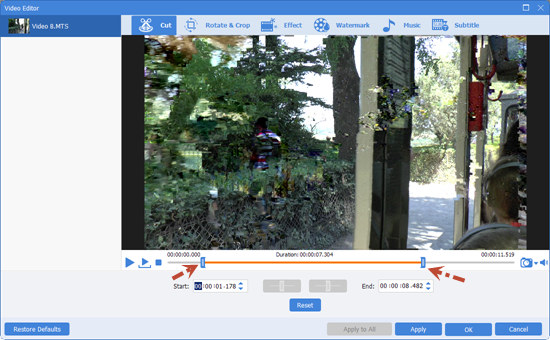
 Drag slider to set the start/end time.
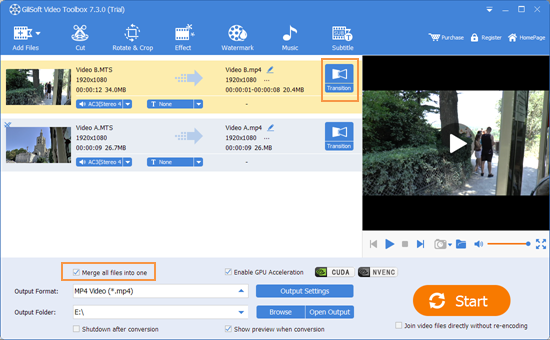 Check 'Merge all files into one' to enable video joining function.
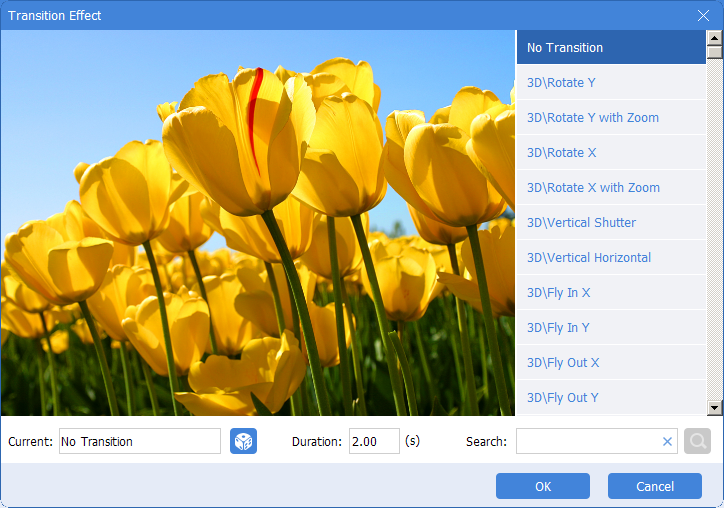 Click 'Transition' to 'Transition Effect' setting dialog, you can choose one effect or set no transition.
 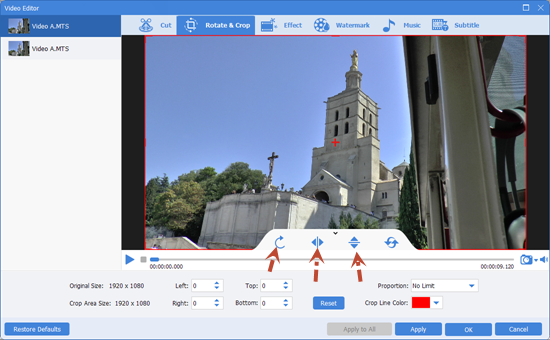 There’re clockwise, flip horizontal and flip vertical 3 options for you to rotate the video.
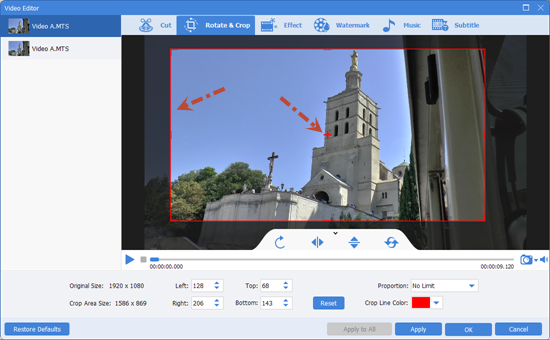 Drag the corner of the video frame or enter the specific width and height to set the crop area size. You can see the output preview simultaneously. .
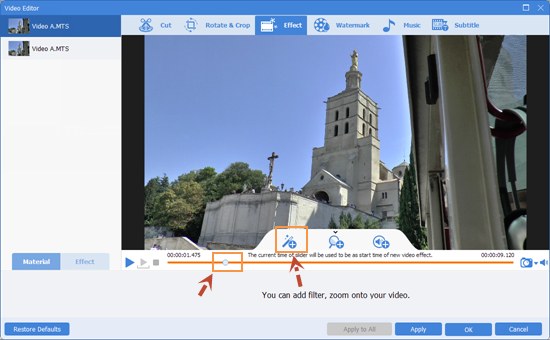 Set the start time you want to add filter effect, then click 'Add Filter Effect'.
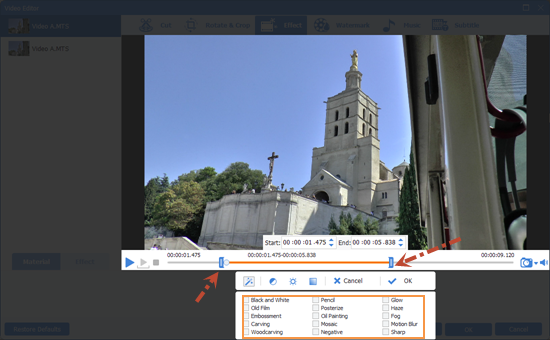 Set the end time of filter effect and here you can also change the begin time, then select the effect and click OK.
 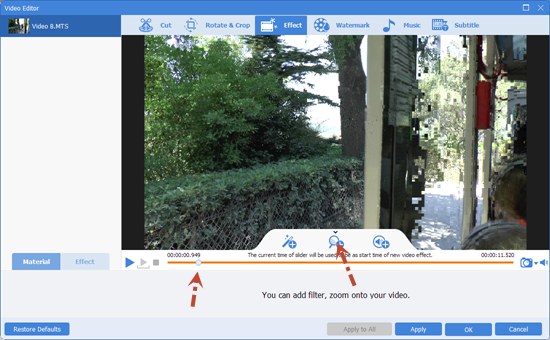 Set the start time you want to add zoom effect, then click 'Add Zoom Effect'.
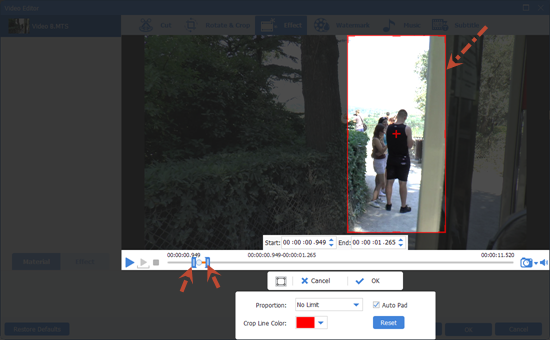 Set the end time of zoom effect and here you can also change it's begin time, then ajust the zoom area and click OK.
 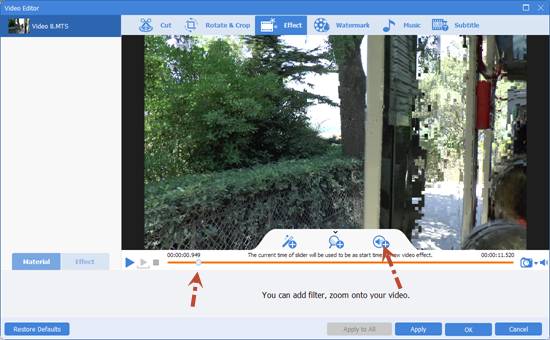 Set the start time you want to add volume effect, then click 'Add Volume Effect'.
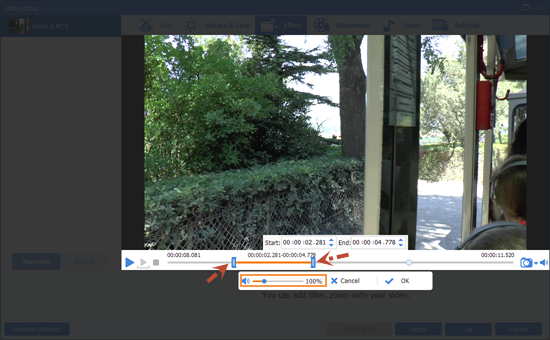 Set the end time of Volume effect and here you can also change it's begin time, then ajust the volume and click OK.
 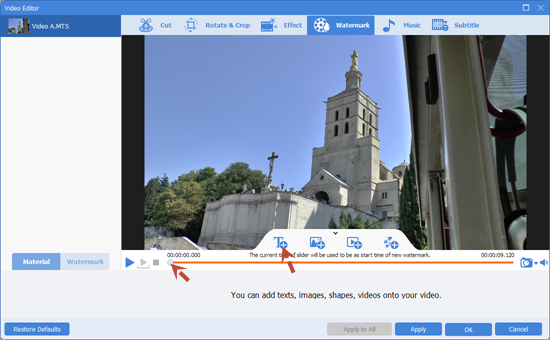 Set the start time you want to add text watermark, then click 'Add Text Watermark'.
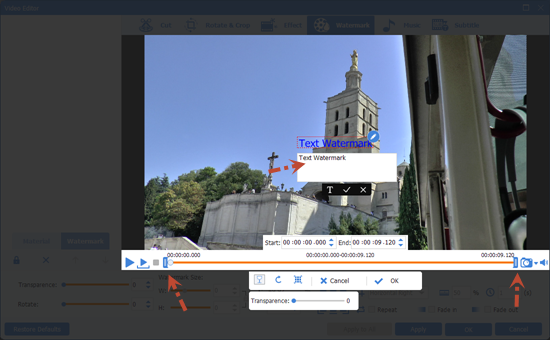 Set the end time of Text Watermark and here you can also change it's begin time, then input the text and click OK.
 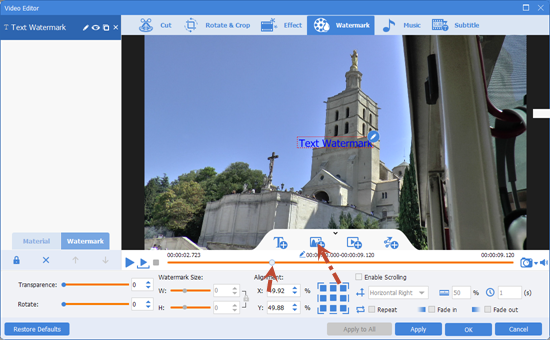 Set the start time you want to add image watermark, then click 'Add Image Watermark'.
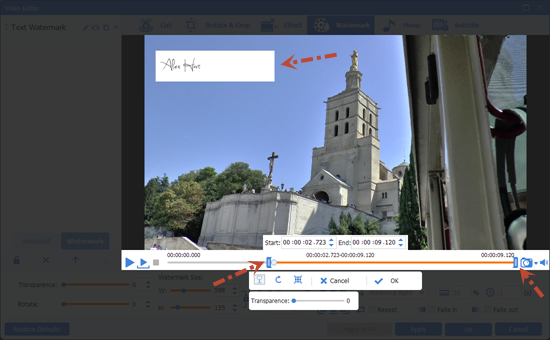 Set the end time of Image Watermark and here you can also change it's begin time, then move the position and adjust size of Image Watermark and click OK.
 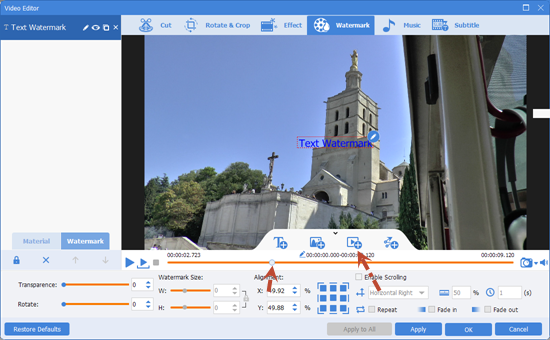 Set the start time you want to add video watermark, then click 'Add Video Watermark'.
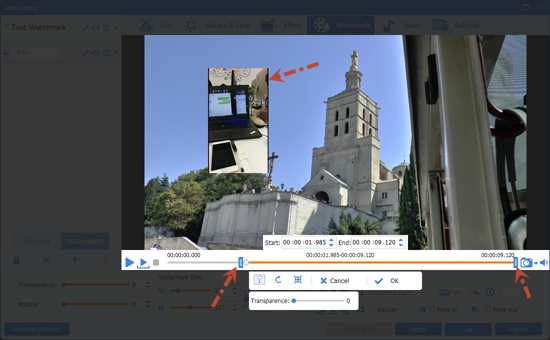 Set the end time of Video Watermark and here you can also change it's begin time, then move the position and adjust size of Video Watermark and click OK.
 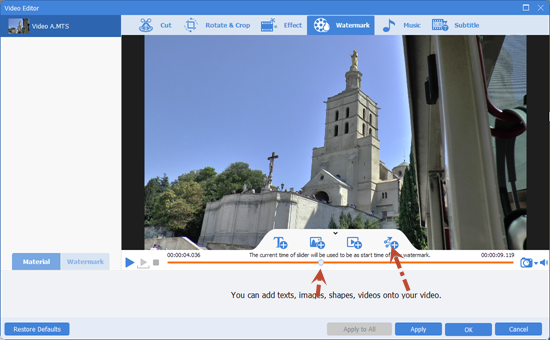 Set the start time you want to add shape watermark, then click 'Add Shape Watermark'.
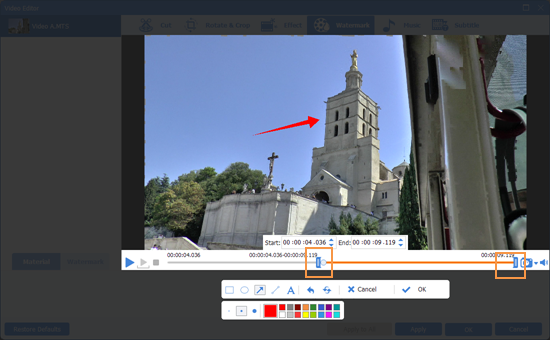 Set the end time of Shape Watermark and here you can also change it's begin time, then draw Shape Watermark and click OK.
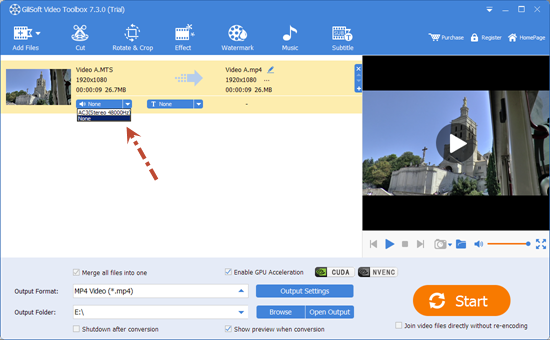 Select None to remove audio from video.
 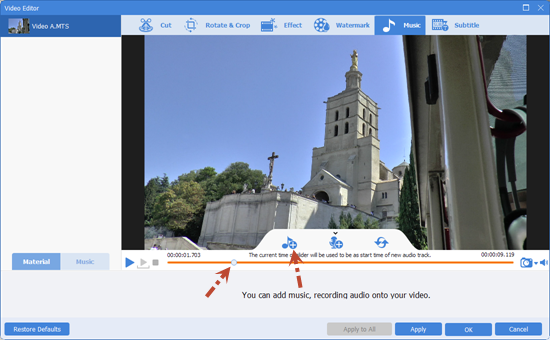 Set the start time you want to add audio to video, then click 'Add Audio to Video'.
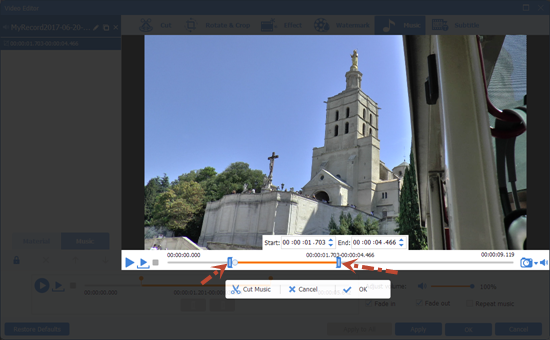 Set the end time of add audio to video and here you can also change it's begin time and click OK.
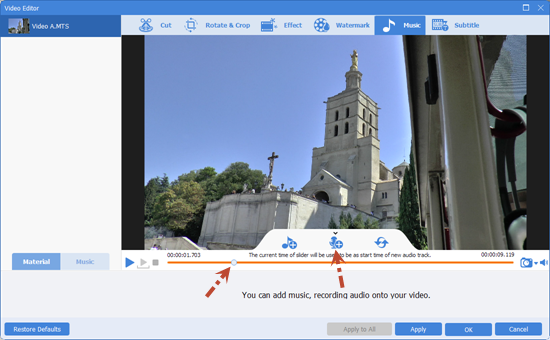 Set the start time you want to add voice to video, then click 'Add Vocie to Video'.
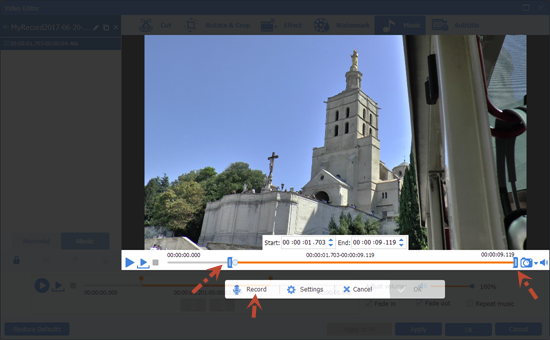 Set the end time of add voice to video and here you can also change it's begin time and click Record to record voice.
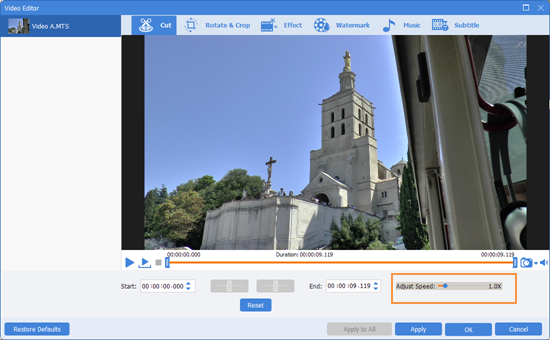 Adjust speed from 0.1~8X
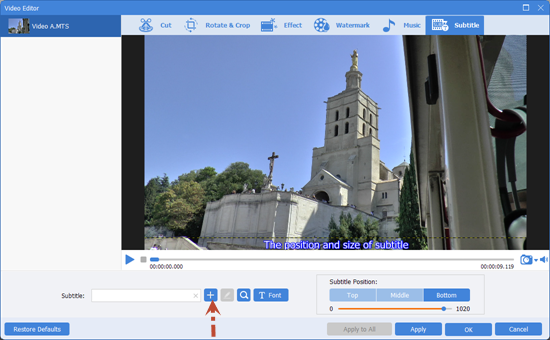 Click '+' button to load subtitle or create subtile.
 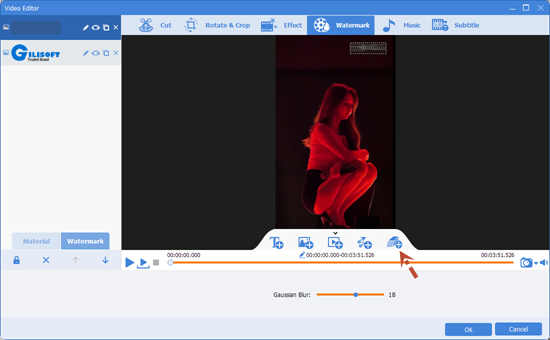 Click 'Add watermark remover' button and adjust position to the watermark you want to get rid of.
  Full screen recording or custom window recording are supported



Enter your email address to get our latest newsletter