
Free Document Converter for Windows: Compare Your Options
Free document converters can help with everyday PDF, Word, Excel, and PowerPoint tasks. The best method depends on the formats you need, whether the document is scanned, how much layout fidelity matters, and whether files can be processed online.
Quick answer
For a simple export, try the save or export options in the app that created the document, or use Windows Print to PDF when you only need a PDF copy. Scanned PDFs usually require OCR to create editable text. Online converters can be convenient, but review upload and retention terms before sending private files. For repeated offline conversion across PDF, Office, image, eBook, and OCR workflows, GiliSoft Formathor is a desktop option to evaluate; its download is a trial.
Choose a free document conversion method
| Task | Free method to consider | What to verify |
|---|---|---|
| Office file to PDF | Export or Save As PDF in the source application | Fonts, page breaks, links, and embedded objects |
| PDF to editable Word or Excel | Desktop conversion or a trusted online service | Tables, columns, reading order, and data accuracy |
| Scanned PDF to editable text | OCR-enabled desktop or online converter | Recognition language, scan quality, and proofreading needs |
| Images or text to PDF | Print to PDF or a document/image utility | Page size, image resolution, and output order |
| eBook format conversion | A converter that supports the source and destination format | Fonts, images, table of contents, and device compatibility |
| Confidential documents | Offline desktop conversion | Local processing, output folder, and temporary-file handling |
What free document converters may not handle well
Complex layouts
Multi-column pages, tables, footnotes, forms, and embedded graphics may shift when converted between formats. Check the output page by page when layout matters.
Scanned pages
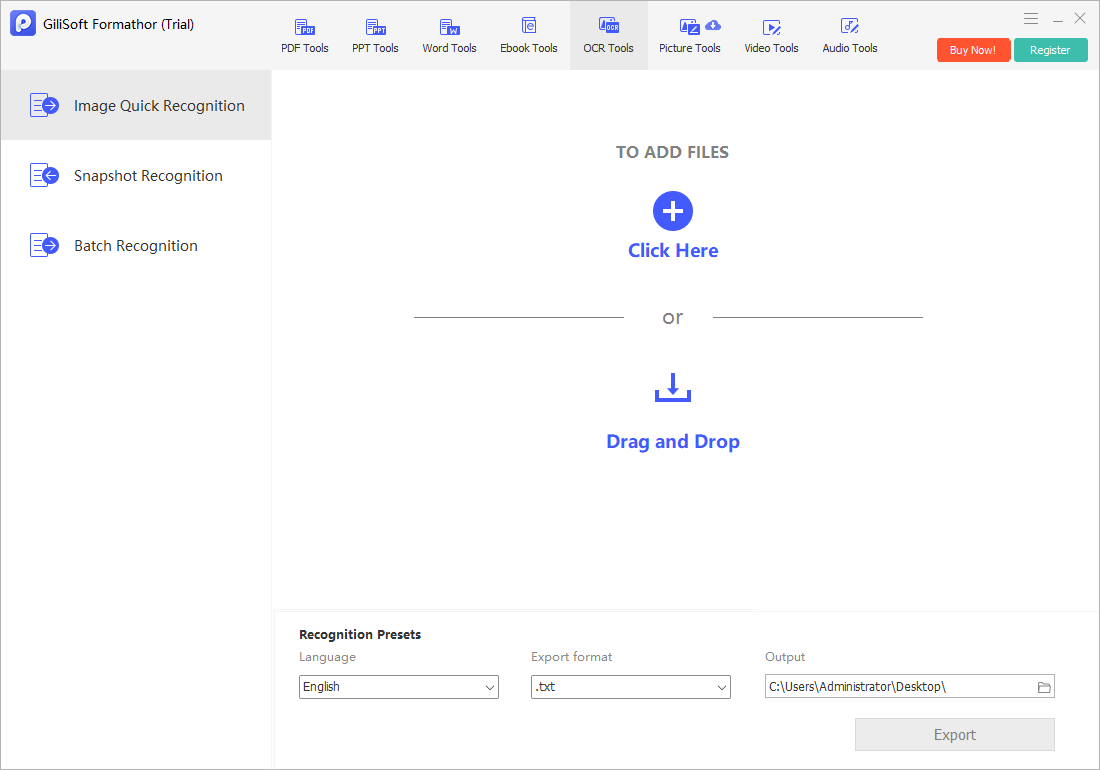
A scan is often an image, not editable text. OCR can recognize the characters, but names, numbers, and low-quality scans need proofreading.
Batch conversion
Free methods may require processing files one at a time or have limits. For a large set, compare batch controls, naming behavior, and error reporting.
Privacy and file handling
Online conversion sends files to a service. Read its privacy and retention terms and avoid uploading confidential material unless your organization permits it.
When GiliSoft Formathor fits
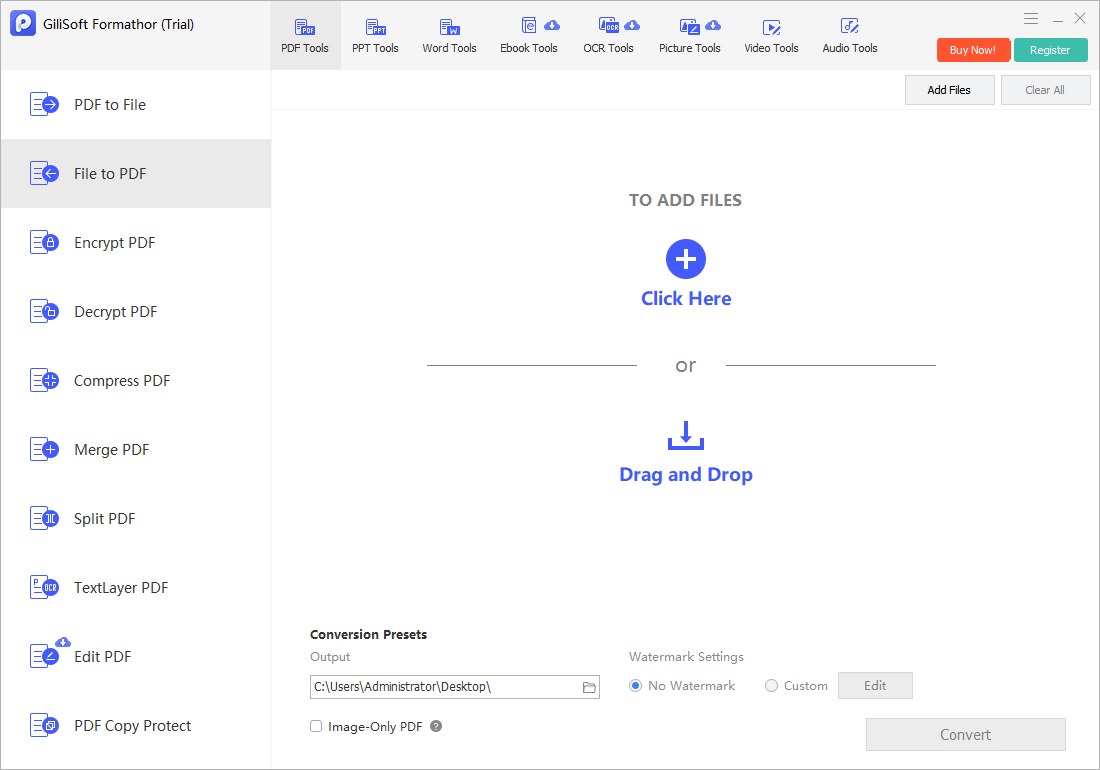
Formathor is the relevant GiliSoft product when you need a broader offline Windows document-conversion workflow. It supports PDF, Office, image, eBook, and OCR-oriented tasks and includes PDF merge, split, compression, editing, encryption, and decryption tools. It is not a free product; use the trial to confirm that the exact source and output formats meet your needs.
- Identify the source and target formats.
Confirm the file type and the exact output your recipient or application needs.
- Check whether the source is scanned.
If text cannot be selected, you may need OCR rather than ordinary PDF conversion.
- Convert a representative sample.
Use one page or one document first, then inspect text, tables, images, and page layout.
- Verify the output before sharing.
Check file names, page count, recognition accuracy, and privacy requirements.
Convert a document with a free desktop method
- Make a working copy.
Keep the original unchanged, especially for contracts, reports, or scanned records.
- Open the source in a compatible app.
Use its export or Save As option when it supports the destination format.
- Set output options.
Review page range, layout, image quality, and whether text should remain editable.
- Open and inspect the converted file.
Check tables, symbols, page breaks, links, and OCR text before relying on the result.
Frequently asked questions
What is the best free document converter?
The right option depends on the source and target formats. Built-in office export or print-to-PDF can handle simple tasks; scanned documents need OCR, and online services require a privacy review.
Can I convert documents for free without uploading them?
Yes. Desktop office applications and offline conversion software can process supported formats locally. Verify the app's supported formats and settings before converting sensitive files.
Can a free converter turn a scanned PDF into editable Word text?
Only if it includes OCR. A scanned PDF may contain page images rather than selectable text, so conversion without OCR may not produce editable content.
Why does formatting change after document conversion?
Fonts, page layout, tables, columns, forms, and unsupported elements can differ between formats. Review converted documents, especially when layout or data accuracy matters.
What does GiliSoft Formathor add beyond basic conversion?
Formathor is an offline Windows file-conversion toolkit for PDF, Office, image, eBook, and OCR-related tasks, with PDF tools such as merge, split, compress, edit, encrypt, and decrypt. Confirm the required formats in the trial.