

Free Website Blocker for Windows: Methods, Limits, and Setup
Website blocking can be browser-based, account-based, DNS-based, or enforced by a local policy tool. Choose the layer according to who controls the PC and network.
Quick answer
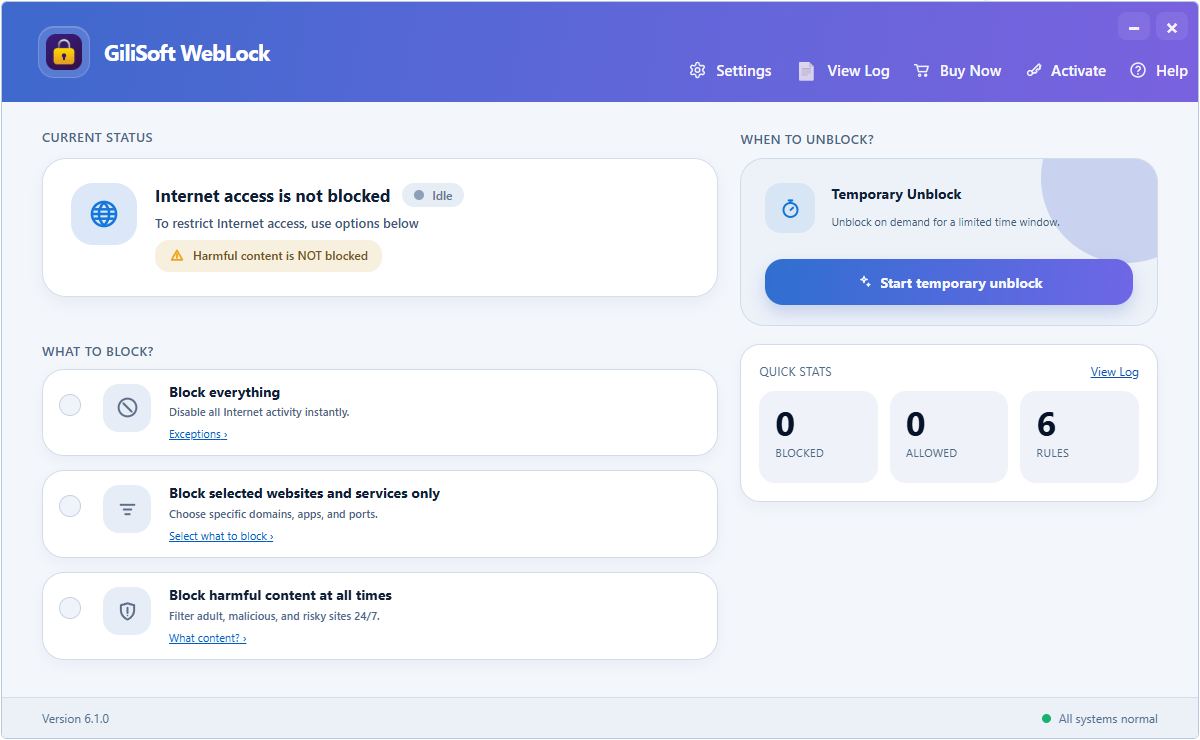
For one Windows PC, a browser extension, Family Safety, the hosts file, DNS filtering, or firewall policy may block selected sites for free. GiliSoft Web Blocker is useful when you need password-protected website, IP, program, and service rules with allow lists and logs on the local PC. No local blocker can promise control against an untrusted administrator or every VPN.
Compare free website-blocking methods
| Method | Best for | Main limitation |
|---|---|---|
| Browser extension | Personal focus in one browser | May be disabled or bypassed in another browser |
| Hosts file | Small static domain list | No schedules, logs, or easy category control |
| Family Safety | Family accounts | Requires supported account and browser workflow |
| DNS filtering | Network or device-wide domain policy | Encrypted DNS, VPN, and roaming-device considerations |
| Web Blocker trial | Password-protected local rules | Trial limits apply; administrators still require trust |
Define the website policy first
- Choose block list or allow-list mode.
- List required work, school, update, sign-in, and support domains.
- Decide whether IP addresses, applications, or network services also need rules.
- Set an administrator password and documented recovery method.
- Test normal browsing, private windows, alternate browsers, and required business apps.
Configure website rules with Web Blocker
- Set the administration password.
Prevent ordinary users from changing the local policy.
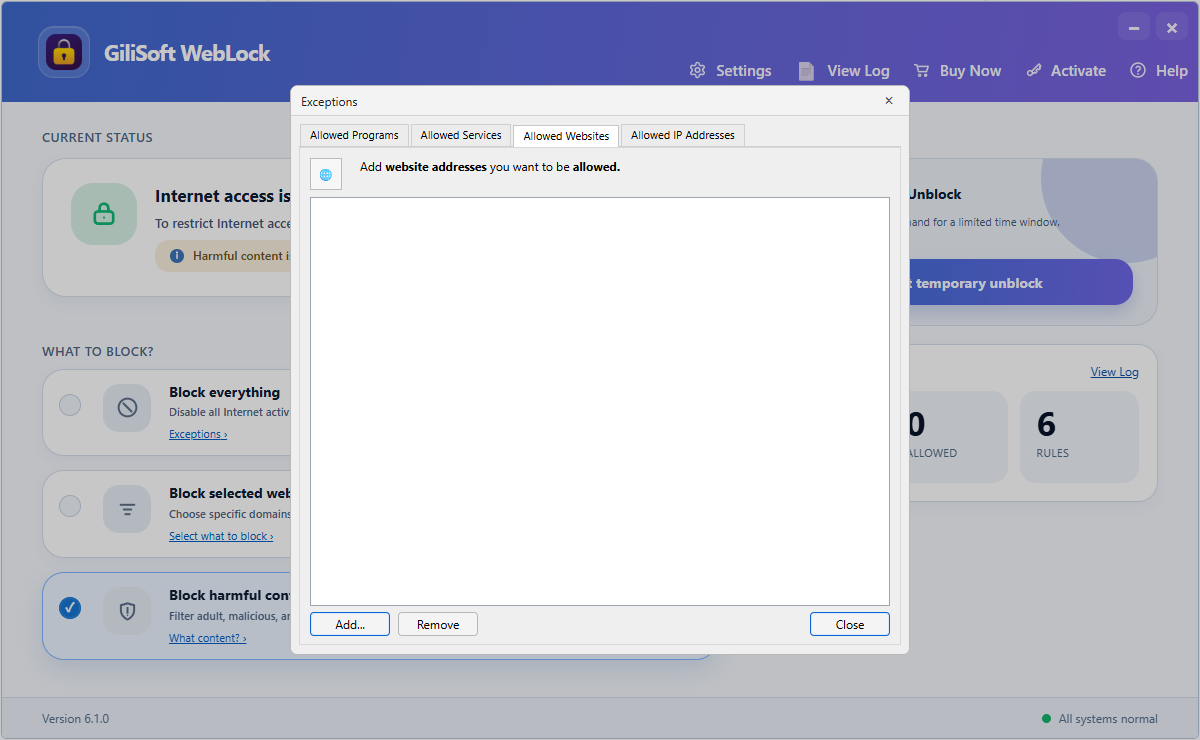
- Choose blocking or allow-list behavior.
Use allow-list mode only when every required destination is known.
- Add websites and supporting domains.
Include sign-in, content, update, and service endpoints the allowed site needs.
- Apply program, IP, or service rules only when required.
Avoid broad rules that break unrelated Windows functions.
- Test with a standard user account.
Review permitted sites, blocked attempts, browsers, and logs.
Understand bypass and administration limits
A user with administrator control may remove software or reverse local rules. VPNs, proxies, encrypted DNS, remote desktops, virtual machines, and personal hotspots can change the network path. Combine technical controls with standard accounts, device policy, and clear acceptable-use rules.
Frequently asked questions
Can I block a website for free on Windows?
Yes. Browser extensions, the hosts file, Family Safety, DNS filtering, or firewall policy may fit basic scenarios.
Is the hosts file enough for website blocking?
It can block a small static domain list, but it lacks scheduling, logs, password administration, and automatic handling of related domains.
Can I allow only selected websites?
Yes, but allow-list mode requires every sign-in, content, update, and service domain the approved workflow needs.
Can a website blocker stop every VPN or private browser?
No single local rule should be assumed to stop every alternate path, especially when the user controls the administrator account.
Is GiliSoft Web Blocker free?
The download is a trial. Test the required browsers, websites, applications, IP rules, and logs before purchasing.