
Write generated files to a separate folder so the original video and its project materials remain unchanged.
GiliSoft Video UniReel User Guide
How to Create Varied Versions of an Authorized Source Video
Learn how to prepare a source video, configure fixed frame parameters and optional visual changes, generate new output versions, and verify the finished files before delivery.
Variation PlanSource preparedParameters selectedOutput reviewed
Before you create video variations
Start with a video you created, own, licensed, or are authorized to edit. A short representative test helps you judge visual changes and output quality before processing a larger source.
Test a section containing normal motion, faces, text, scene changes, and audio before applying the same setup to a long video.
Use fewer options for a subtle refresh and combine more controls only when the source can tolerate stronger visual variation.
Use a clearly named destination with enough free space, especially when preparing several versions from one source.
1Load source2Set fixed parameters3Choose optional controls4Review segments5Generate output6Verify files
1. Load the source and open the variation settings
Begin with the core Video UniReel workspace
- Open GiliSoft Video UniReel.
- Add the authorized source video you want to prepare.
- Select the destination for the generated output.
- Open the video variation or uniquifier settings.
- Review the available fixed and optional parameters before enabling them.
- Use a short source clip for the first test when you are still choosing a parameter combination.
The parameter panel is the defining Video UniReel feature. Cutting, subtitles, music, and other media tools are available later as supporting functions.
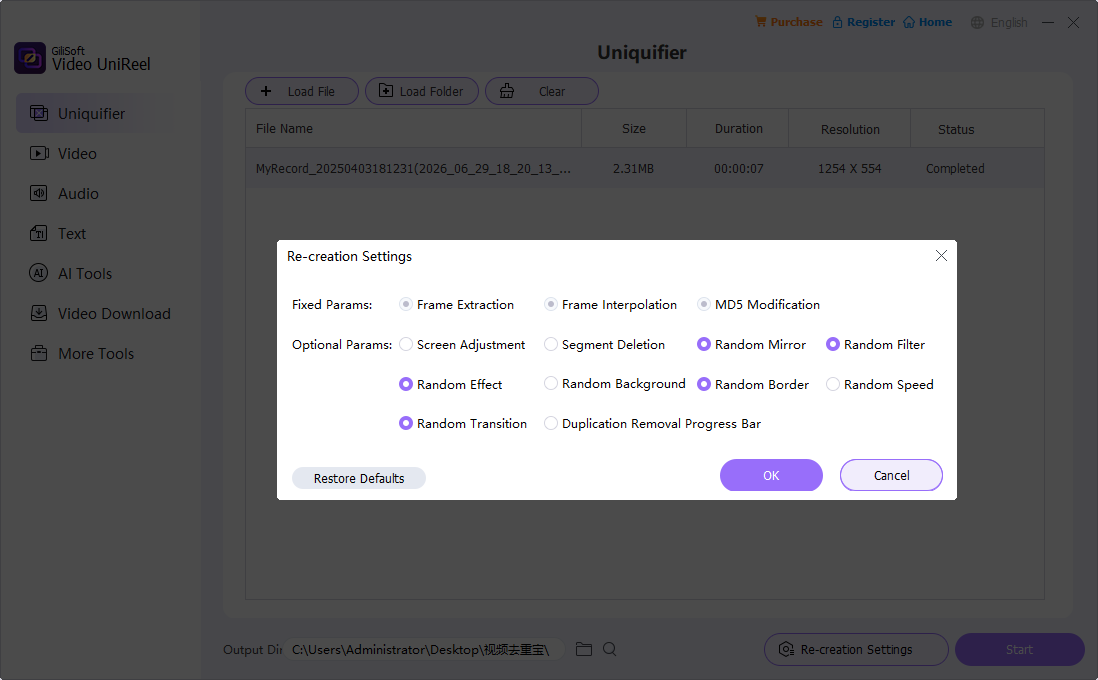
Open the parameter panel and review fixed and optional controls2. Understand fixed and optional parameters
Fixed parameters define the base output process. Optional parameters introduce controlled visual or timing changes and can be combined according to the source material.
Fixed parameters
- Frame Extraction: removes selected frames according to the available setting.
- Frame Interpolation: adds generated in-between frames where the chosen setup calls for them.
- MD5 Modification: writes the result as a newly generated output file with changed file data.
Optional parameters
- Screen Adjustment and Segment Deletion
- Random Mirror, Filter, Effect, and Background
- Random Border, Speed, and Transition
- Duplication Removal Progress Bar display
3. Choose optional controls for the source video
Build a controlled combination instead of enabling everything
- Use Random Mirror only when mirrored framing remains natural for the subject.
- Choose Random Filter or Random Effect at a level that preserves faces, products, text, and important detail.
- Use Random Background or Random Border when the composition can support added framing.
- Check Random Speed against speech, music, and movement before processing the full source.
- Use Random Transition when the video contains suitable scene or segment boundaries.
- Preview a sample after adding each major option so you know which setting caused a visible change.
A smaller, deliberate parameter set normally produces more predictable output than enabling every available option at once.
Choose optional settings that suit the content rather than applying all controls automatically4. Review segment settings, generate, and verify the output
Check screen adjustment
Confirm that framing changes do not crop faces, captions, products, or other important visual information.
Review segment deletion
Make sure any removed interval starts and ends at the intended point and does not interrupt speech or motion.
Confirm output location
Keep generated files separate from the source and use names that make different parameter tests easy to identify.
Generate a short sample
Process a representative section before committing time and storage space to a complete or repeated output job.
Inspect several moments
Check the beginning, scene changes, fast motion, text, faces, and the end instead of judging only one preview frame.
Play outside the software
Open the finished file in a normal media player and verify playback, audio synchronization, duration, and visual quality.
Optional finishing tools after the variation setup
These tools support preparation and delivery, but they are secondary to UniReel's parameter-based variation process.
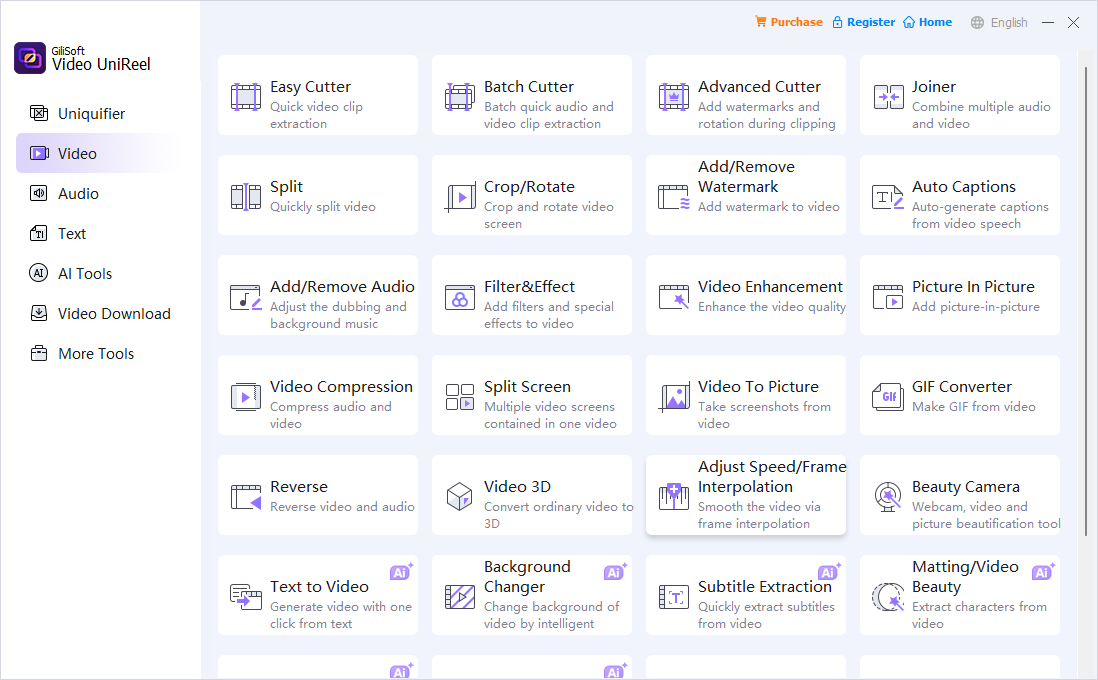
Video tools
Cut, split, join, crop, rotate, add effects or watermarks, and prepare the final video after choosing variation settings.
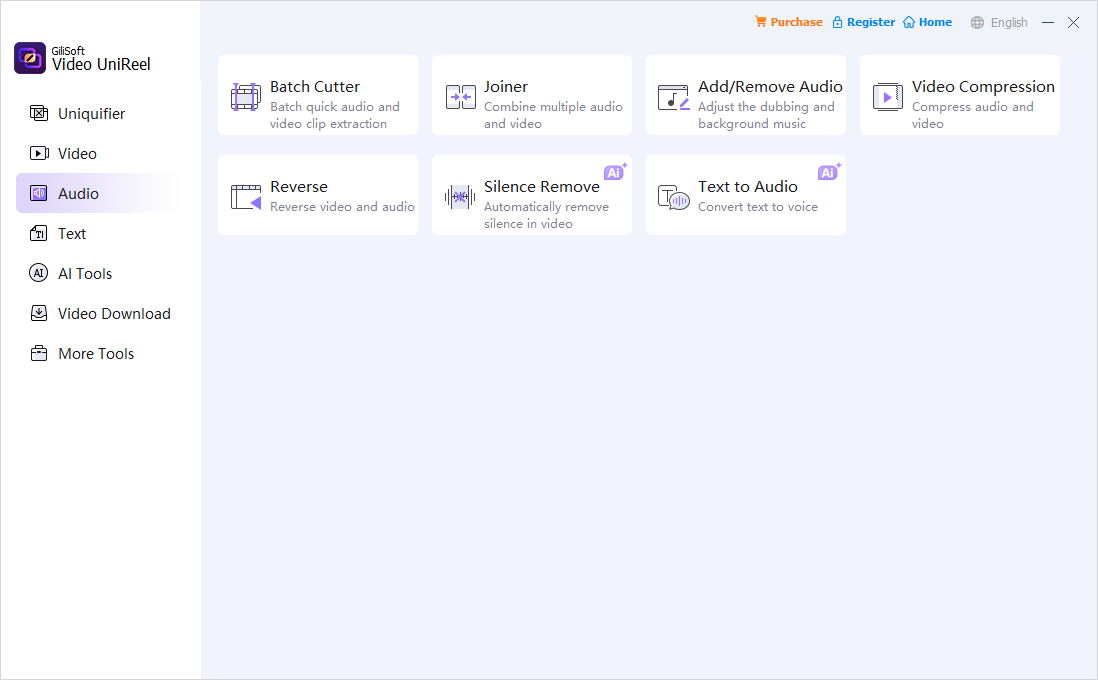
Audio tools
Prepare music and sound changes when the finished video version also needs audio adjustment.
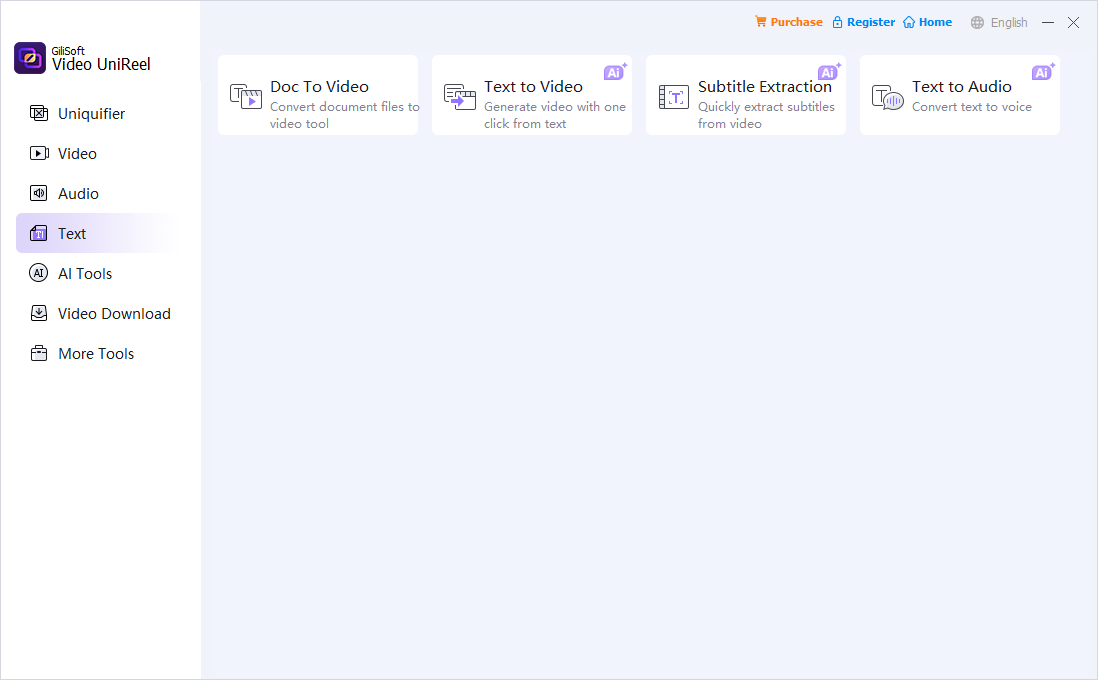
Text and subtitle tools
Add captions, subtitles, labels, or visible context after the core video output has been prepared.
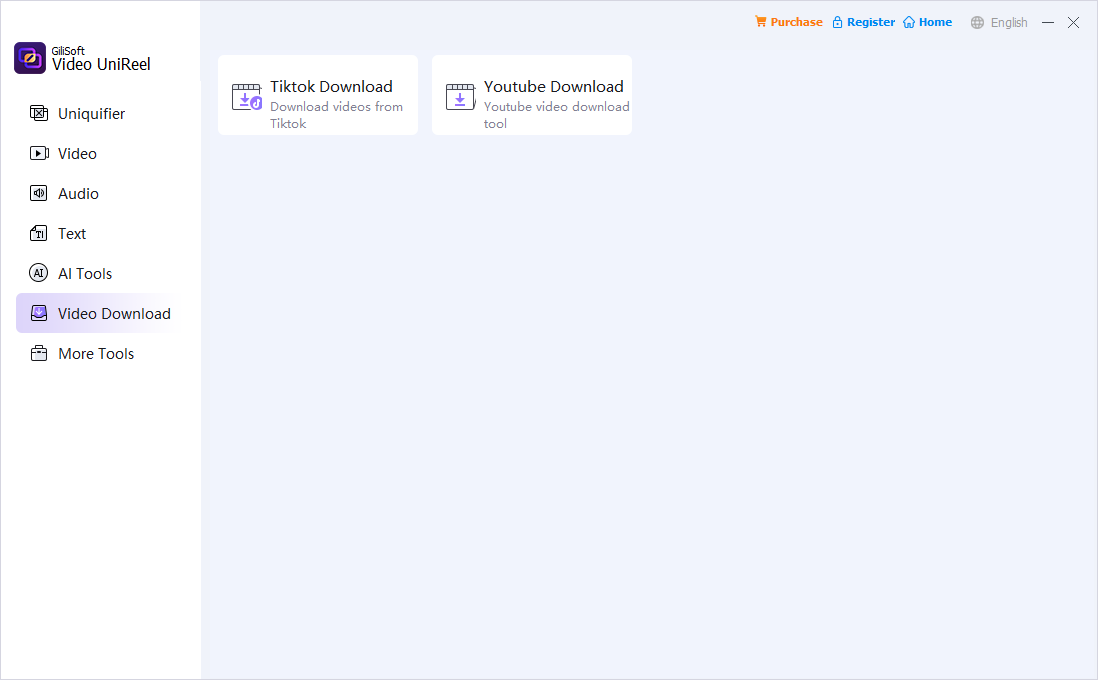
Video downloader
Bring an authorized online source clip into the preparation process before applying variation or editing tools.
Final Video UniReel checklist
Confirm these points before publishing, archiving, or delivering the generated video.
Video UniReel troubleshooting and FAQ
What is the difference between fixed and optional parameters?
Fixed parameters define the base variation process. Optional parameters add selected visual, framing, timing, or transition changes according to the source.
Should I enable every optional parameter?
No. Start with a small combination, generate a short sample, and add more controls only when the result remains natural and useful.
When should I use frame extraction or interpolation?
Use the available frame controls when the motion and duration can tolerate frame-level changes. Always inspect fast action, speaking faces, and text after export.
Why does a generated version look too different?
Too many random options may be active or one effect may be too strong for the source. Disable controls in stages and test again.
Can I continue editing after creating a variation?
Yes. UniReel provides supporting video, audio, text, subtitle, and download tools for preparation and finishing work.
How do I preserve output quality?
Start from the best source available, use moderate parameter combinations, test a representative section, and inspect the final file at normal playback size.
Create controlled variations from authorized source videos
Use GiliSoft Video UniReel to configure frame, mirror, filter, effect, border, speed, transition, and segment settings, then verify each generated output before delivery.


