
How to Join AVI Files on Windows in the Right Order
An AVI joiner can put clips into one file, but the .avi extension alone does not mean their video and audio streams match. This guide shows how to order AVI clips in GiliSoft Video Editor Pro, trim unwanted frames or silence, choose an output, and check the result for gaps or lost audio.
Quick answer
Open Video > Joiner in GiliSoft Video Editor Pro, add the AVI files, and use Up and Down to set their playback order. Trim unwanted starts or ends, preview each join with sound, then export a new file. If the clips have different encoding settings, test the exported result rather than assuming they can be combined without re-encoding.
Choose the Right AVI Joining Method
| Source and goal | Recommended method | What to check |
|---|---|---|
| Matching AVI clips that only need ordering | Use the focused Joiner tool | Clip order, duration, and every join point |
| Different resolution, frame rate, or codecs | Export one normalized output | Framing, motion, quality, and audio sync |
| Boundaries need trimming or a simple transition | Use the Joiner trim and Transition Effect controls | No repeated frames, abrupt cuts, or unwanted gaps |
| Only selected parts should be combined | Trim each clip before joining | Correct in and out points and final duration |
How to Join AVI Files Step by Step
- Inspect every AVI source
Keep the originals unchanged. Play each file and compare resolution, aspect ratio, frame rate, interlacing, video codec, audio format, and synchronization.
- Open the dedicated Video/Audio Joiner
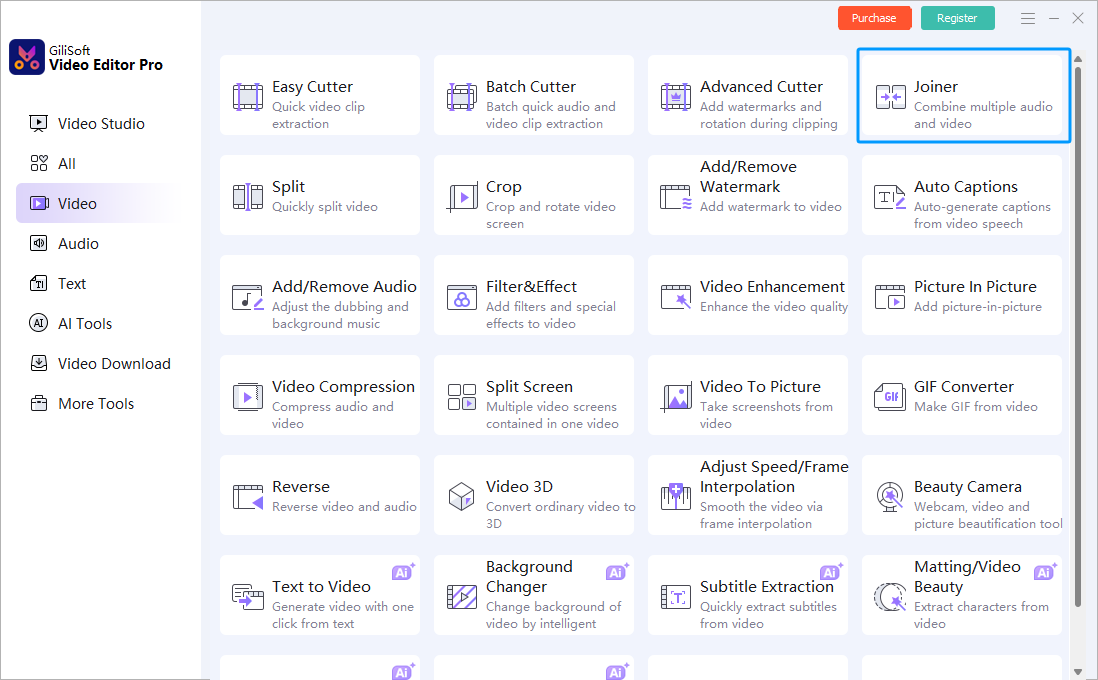
In GiliSoft Video Editor Pro, open Video and select Joiner. This focused tool is the recommended workflow for combining AVI files; use Video Studio only when the project needs layered titles, overlays, or broader timeline editing.
- Add and arrange the AVI clips
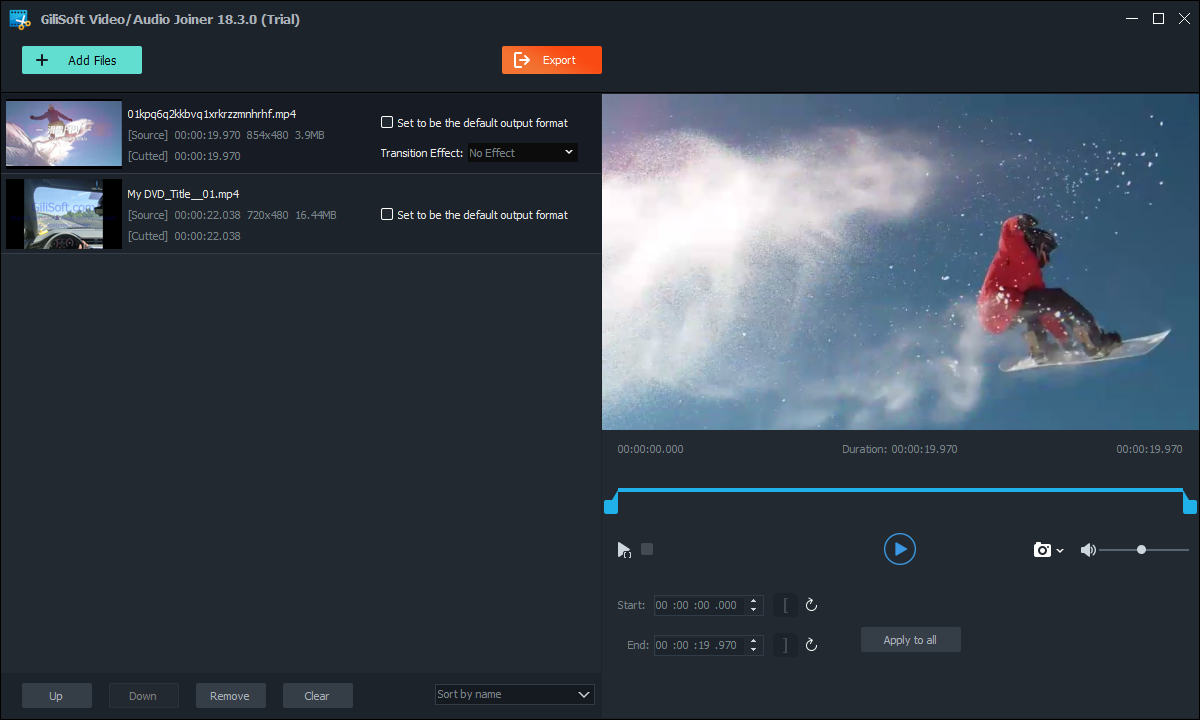
Select Add Files, then use the Up and Down controls to set the exact playback order. Review the source duration and dimensions shown for every clip.
- Trim and preview every join point
Use the Start and End controls to remove repeated frames, black frames, silence, or unwanted tails. Apply a transition only when it improves the cut, then preview several seconds around every boundary with sound enabled.
- Choose the output format
Before export, check the available output settings. Keep AVI if the recipient specifically needs it; otherwise choose a compatible format such as MP4 when offered. If the source clips differ, review the result for changed framing, motion, and audio.
- Export and verify the joined video
Create a separate output file, then check the beginning, every join, the ending, total duration, audio sync, and playback outside GiliSoft Video Editor Pro.
Use the Dedicated Video/Audio Joiner
The recommended AVI workflow is the focused Joiner inside GiliSoft Video Editor Pro. It keeps file order, clip trimming, transition selection, preview, and export in one task-specific workspace.
Use Video Studio Only for Complex Multitrack Editing
Video Studio is the secondary option, not the default AVI joining workflow. Move to the full timeline only when the finished video needs editing that the dedicated Joiner is not designed to handle.
- Layered text or subtitles: place titles, captions, or labels at precise positions and times.
- Picture-in-picture or overlays: combine several visual layers instead of playing clips one after another.
- Multiple audio tracks: mix narration, background music, and source audio independently.
- Complex effects and transitions: use keyframes, filters, color adjustments, or effects across several tracks.
- A broader editing project: combine joining with cropping, speed changes, visual composition, and detailed timeline work.
For a straightforward AVI merge, return to Video > Joiner. It keeps the file list, order controls, clip trimming, transitions, preview, and export together without the extra complexity of a multitrack timeline.

Check Every AVI Join Before Delivery
- Keep each original AVI unchanged and export a separate joined file.
- Play a few seconds before and after every boundary with sound enabled; check for black frames, repeated frames, silence, clicks, and audio drift.
- Check the beginning, middle, ending, total duration, and playback in the app your recipient will use.
Match the Output to the Source and Destination
| Resolution and aspect ratio | Choose one frame size and framing rule. Preview borders, stretching, or cropping when sources differ. |
|---|---|
| Frame rate | Use a consistent output rate and inspect motion carefully when mixing constant and variable frame rate clips. |
| Container and codec | AVI and MP4 are containers, not quality settings. Choose a supported output profile that the recipient can play; verify both picture and sound after export. |
| Audio | Use one sample rate, channel layout, and codec. Listen around each boundary for gaps, clicks, or level jumps. |
| Quality and size | Avoid repeatedly re-encoding the same source. Export once from the preserved originals at settings suited to the final destination. |
AVI Joiner Troubleshooting
| Problem | What to check | Next step |
|---|---|---|
| Clips play in the wrong order | Review the file list before export. | Use Up and Down, then preview the sequence again. |
| A gap or repeated frame appears | Inspect the End point of one clip and Start point of the next. | Trim the unwanted frames and preview that boundary. |
| Audio clicks, disappears, or drifts | Listen at each cut and inspect the source audio formats. | Trim silence or use a suitable transition, then test a new export. |
| The result will not play on the destination | Check the exported container, codecs, and playback app. | Choose another supported output profile and test a short sample first. |
Frequently Asked Questions
Can different formats be joined directly?
A direct join usually needs matching streams. A timeline can combine different sources by decoding and exporting them into one consistent output.
Why is there a gap or click at a join?
The clips may contain silence, mismatched timestamps, or hard audio boundaries. Trim and preview the join, then use a short fade when appropriate.
Should every clip use the same frame rate?
A consistent project and output frame rate is normally safer. Review motion when sources differ.
Can AVI files be joined without re-encoding?
Sometimes. A direct join normally requires compatible video and audio streams, including closely matching codecs, resolution, frame rate, and other properties. Different sources usually need a new encoded output.
How should I verify a long joined file?
Check every join point as well as the beginning, middle, ending, duration, audio sync, and final file size.