
How to Add Text Labels to Video on Mac
Add a step number, product name, speaker label, or short note exactly when it helps the viewer. This guide uses the Text timeline in GiliSoft Video Editor Pro for Mac and shows how to check the finished export.
Quick answer
Import your video, open Text, place a style on the text track, and edit the words. Set when the label starts and ends, check its position in the preview, then export and watch the saved file. For line-by-line dialogue, see the Mac subtitle guide.
Choose a label, subtitle, or watermark
A short on-screen label is useful for a tutorial step, name, location, or callout. It does not need to follow every spoken line. Use the workflow that matches what the viewer must read:
| Need | Best approach |
|---|---|
| Brief step or on-screen note | Add a timed text label using the Text library on this page. |
| Spoken dialogue throughout the video | Follow the subtitle workflow and time each line to speech. |
| Persistent logo or ownership mark | Use the Mac watermark guide. |
Add a timed text label in the Mac editor
- Import the video
Open GiliSoft Video Editor Pro for Mac, import the clip under Material, and place it on the video timeline. Play to the moment the label should first appear.
- Open Text and choose a style
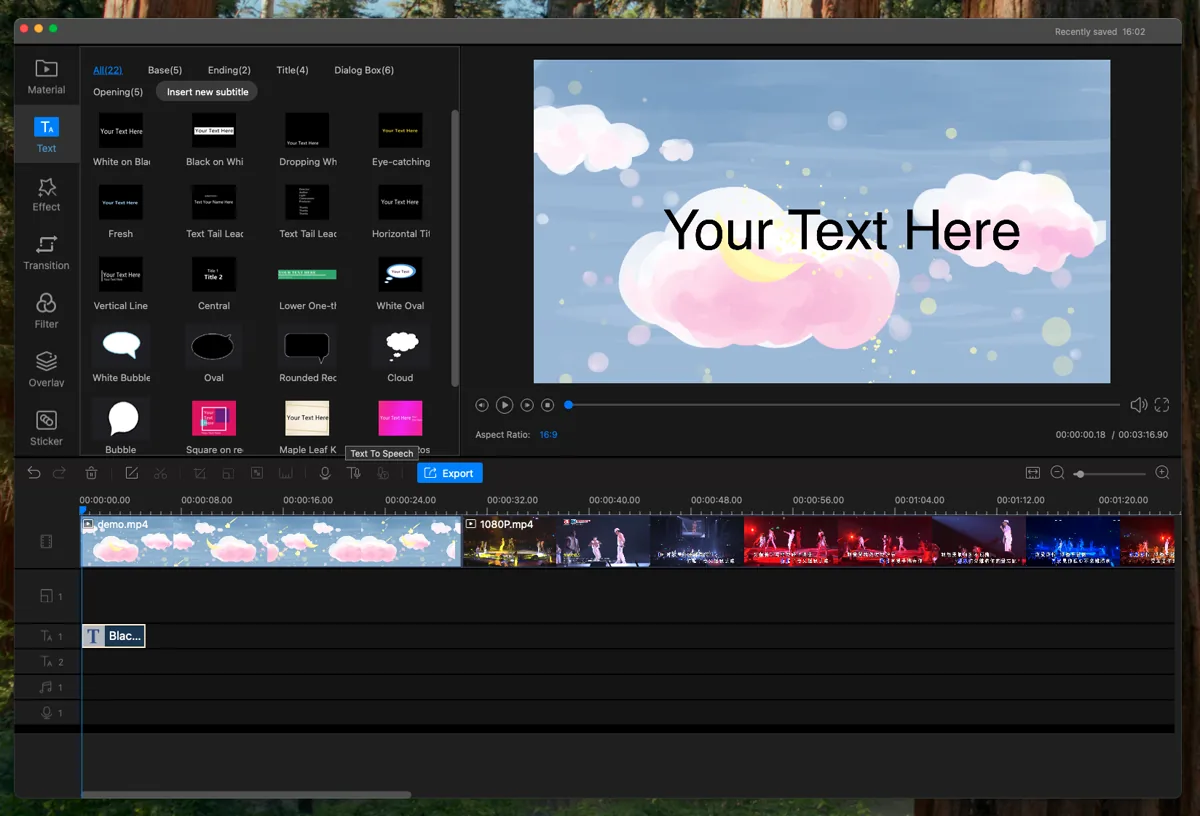
Select Text in the left toolbar. Choose a readable preset and add it to the text track above the clip.
- Write and position the label
Replace the sample text with a brief phrase. Position it in the preview where it will not cover a face, important control, or existing subtitle.
- Set the time on screen
Move the text clip to its start point and adjust its length on the timeline. Check both ends so the label does not flash by or linger into the next scene.
- Preview the full sequence
Play the surrounding footage, including bright and dark frames. Adjust the style or placement if the words become hard to read.
Keep the label readable
Use a short phrase that can be read without pausing. Leave space around faces, buttons, and any subtitles already on screen. Check the preview at a smaller size too, since a label that works on a large monitor may be cramped on a phone.
If the background changes behind the words, try a different text style or move the label to a steadier area of the frame. For several related labels, keep their placement and style consistent.
Export and check the saved video
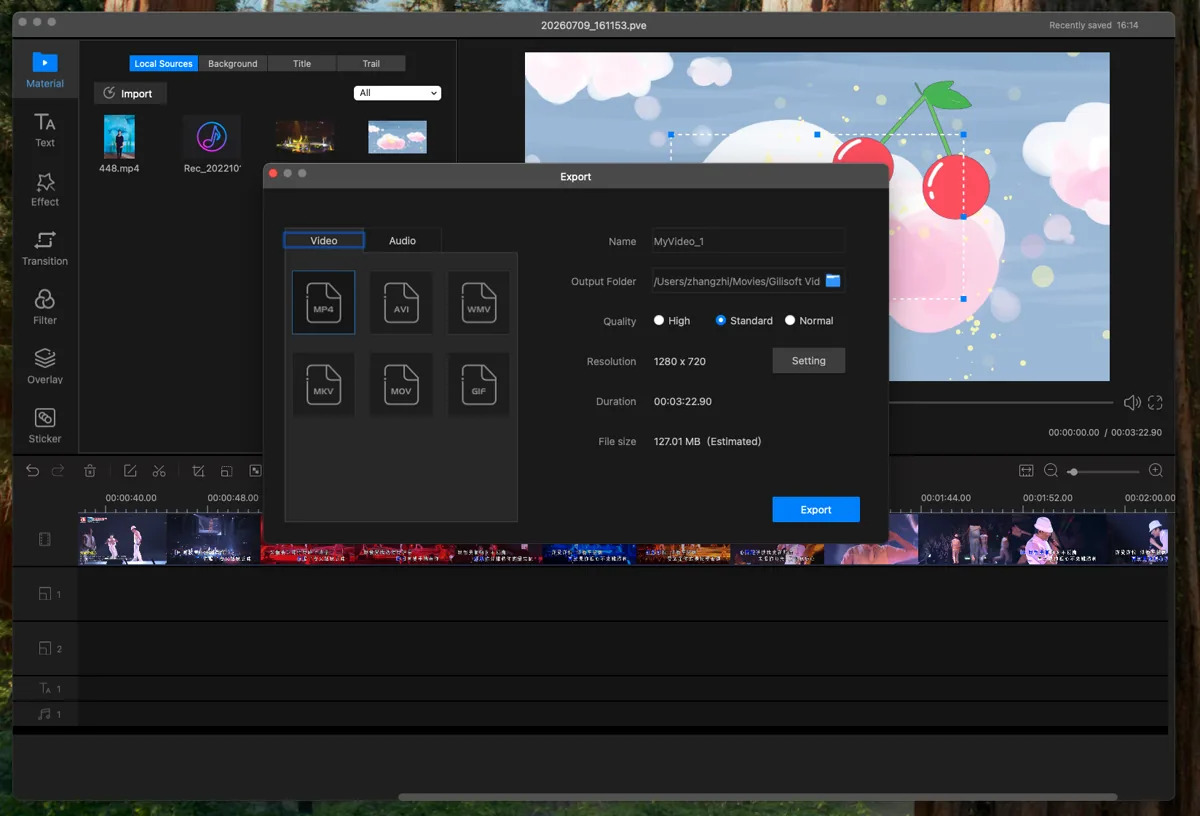
Choose the output format, destination folder, and quality in the editor's Export window. Before sharing, open the exported file and verify that the words are present, readable, and synchronized with the intended scenes. The label is part of this rendered video; this workflow is not an export of a separate subtitle file.
FAQ
Is a text label the same as a subtitle?
No. A label usually appears for a particular step, person, or object. Subtitles follow spoken words across the video. Use the subtitle guide for dialogue.
How long should a label stay visible?
Long enough to read once without pausing. Preview the actual scene and adjust the length of the text clip to the phrase and pace of the video.
Can I add labels when subtitles are already present?
Yes, but keep the label away from the subtitle area and check the combined result in the preview.


