
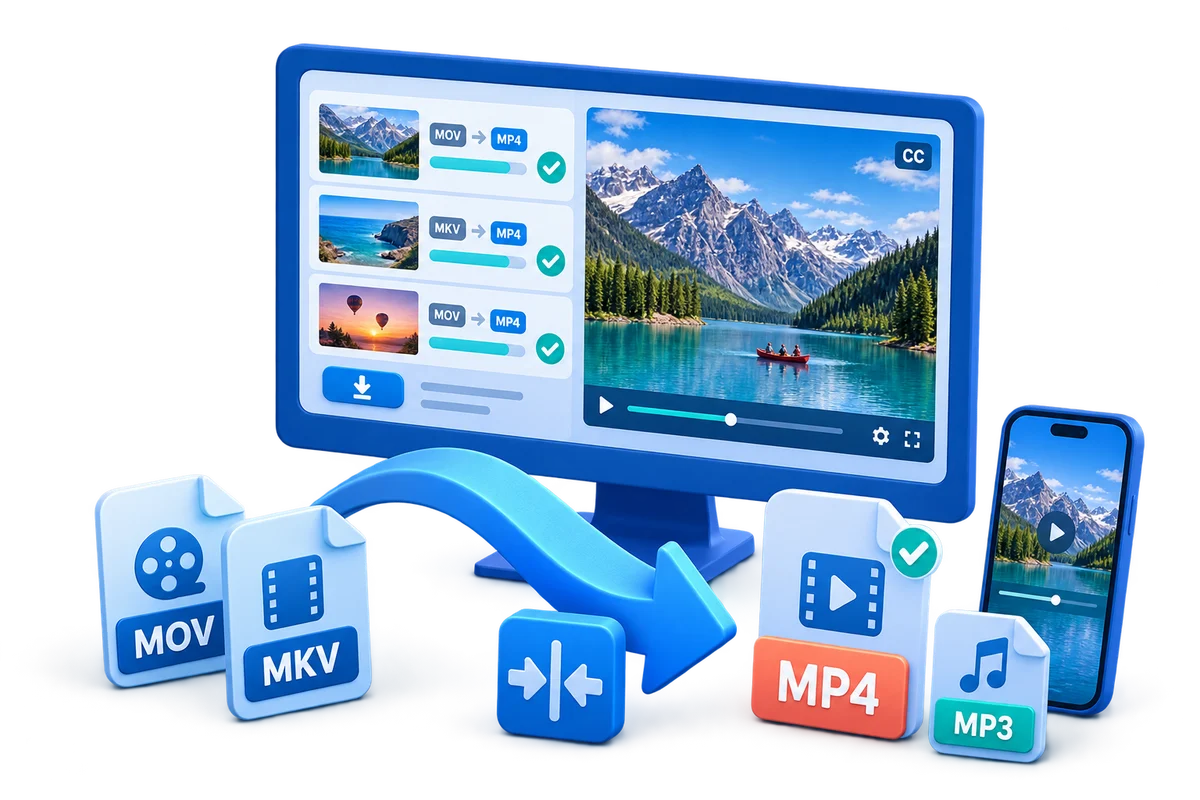
Prepare a video for the target screen, platform, or archive
Start with the delivery goal, then choose only the edits and output settings needed for that goal.
Step-by-step workflow
Define the destination requirement
Check the platform, device, LMS, archive, or client specification for resolution, aspect ratio, format, and file size.
Trim and clean the source first
Remove unwanted lead-in, tail, or sections before choosing the final output settings.
Choose the output settings
Use GiliSoft Video Converter for the target format, resolution, frame rate, and audio settings rather than guessing.
Process a short sample
Review clarity, aspect ratio, captions, audio sync, and file size before converting the full source.
Export and keep the original
Save the converted file with a clear name, retain the high-quality source, and verify playback on the target workflow.
Improve the result before export
Keep the source clean
Use the best available source, approved assets, and a clear file name before editing or converting.
Review a representative sample
Check the beginning, a busy middle section, and the ending before committing to the full export.
Match the destination
Choose dimensions, format, audio, and file size from the target platform or device requirement.
Common export problems to check
- Confirm the source aspect ratio and output dimensions before export.
- Check captions, logos, music, and speech for overlap or timing problems.
- Test audio sync and volume on the target playback device.
- Keep the original source until the final file has been reviewed and backed up.
Frequently Asked Questions
Does lowering resolution always reduce quality?
It reduces detail when the output is smaller than the source, but choosing a suitable resolution can reduce file size without unnecessary loss.
Should I trim before converting?
Yes. Removing unwanted sections first avoids spending time and storage on material that will not be delivered.
Which format should I choose?
Choose the format accepted by the destination. MP4 with a widely supported codec is often practical, but confirm the actual requirement.
Why should I keep the original?
The original gives you a high-quality source for another platform, a later edit, or a different export requirement.