

How to Create an Invisible Secret Folder on Windows 11 Desktop
You can make a Windows 11 desktop folder look invisible by combining a blank-looking name with a transparent icon. You can also mark a folder as Hidden or apply the Hidden and System attributes from Command Prompt. These methods reduce casual visibility, but none of them adds a password.
What Is an Invisible Secret Folder?
An “invisible folder” usually means one of two things: a normal desktop folder whose name and icon are made visually blank, or a folder carrying the Windows Hidden attribute. The first can still be selected by clicking its location. The second can be revealed from File Explorer by choosing View > Show > Hidden items, which Microsoft documents as the standard way to display hidden content.
Method 1: Make a Desktop Folder Look Invisible
This method changes only the way the folder appears. It is quick, reversible, and suitable for low-risk desktop organization.
- Create a folder. Right-click an empty desktop area, then choose New > Folder.
- Give it a blank-looking name. Rename the folder, hold Alt, and type 0160 on the numeric keypad. Press Enter. On keyboards without a numeric keypad, this shortcut may not be practical.
- Choose a transparent icon. Right-click the folder, select Properties > Customize > Change Icon, then choose a blank icon and apply it.
- Remember the location. The folder still occupies space on the desktop and can be selected by dragging a selection box over it or clicking its position.
To reverse the trick, select the folder, rename it normally, and restore a standard icon from Folder Properties.
Method 3: Use the Attrib Command
The Windows attrib command can set or remove Hidden and System attributes. Open Terminal or Command Prompt and replace the example path with the real folder path.
attrib +h +s "C:UsersYourNameDesktopSecret Folder"To make the folder visible again:
attrib -h -s "C:UsersYourNameDesktopSecret Folder"Microsoft documents +h as setting the Hidden attribute and +s as setting the System attribute. This can make the folder less obvious in normal browsing, but a knowledgeable user can reverse the command. It still does not encrypt the contents or require a password.
Method 4: Hide and Lock the Folder with File Lock Pro
When the goal is privacy rather than a visual trick, File Lock Pro lets you choose a local file, folder, or drive and apply a dedicated hide or lock control. The protected item does not need to be moved into a cloud folder or rebuilt as a ZIP archive.

Use the control that matches the job
Hide removes the item from ordinary browsing. Lock keeps it visible but access-controlled. Protect can restrict reading, writing, renaming, moving, or deletion.
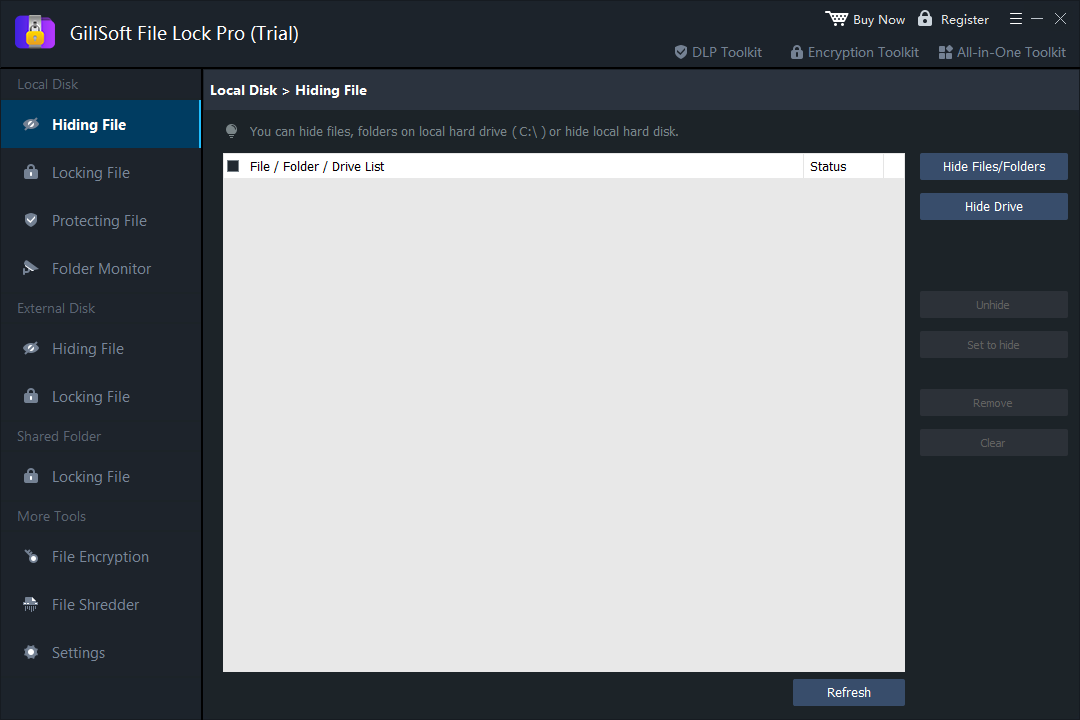
- Open File Lock Pro and enter the master password.
- Choose Local Disk > Hiding File.
- Select Hide Files/Folders or Hide Drive, then add the target item.
- Confirm it no longer appears in normal File Explorer views, then keep the master password and recovery details secure.
Invisible Folder vs Hidden Folder vs Password-Protected Folder
| Method | What it changes | Password | Best use |
|---|---|---|---|
| Blank name + transparent icon | Desktop appearance only | No | Harmless visual cleanup |
| Windows Hidden property | File Explorer visibility | No | Ordinary concealment |
attrib +h +s | Hidden and System attributes | No | Less obvious local storage |
| GiliSoft File Lock Pro | Visibility and access controls | Yes | Private files and folders |
When Should You Use Each Method?
Use the invisible-icon trick for desktop tidiness
It works for an empty folder, a temporary staging folder, or something that contains no sensitive data.
Use Windows Hidden for low-risk concealment
It can keep seldom-used folders out of ordinary views, provided you understand that Hidden items can reveal them immediately.
Use File Lock Pro for personal or business privacy
Choose stronger controls for private photos, journals, scanned IDs, tax files, HR records, client documents, project folders, or shared-computer situations where casual discovery is not the only concern.
Frequently Asked Questions
Can an invisible desktop folder still be found?
Yes. It can be selected from its desktop location, discovered through search or command-line tools, or revealed by changing display and attribute settings.
Does the blank folder name trick work on every keyboard?
The common Alt+0160 method expects numeric keypad input. Compact laptops and some keyboard layouts may require a different input method.
Will the Hidden property password-protect the folder?
No. It changes visibility only. File Explorer can display hidden items again.
Can I hide an entire drive?
File Lock Pro includes a Hide Drive option for supported local drives. Review the selected drive carefully before applying protection.
Hide private folders with an actual Windows privacy tool
Move beyond blank names and transparent icons when the contents matter.
Download TrialBuy File Lock ProSources: Microsoft File Explorer hidden items · Microsoft Learn attrib command · Microsoft desktop icon customization