
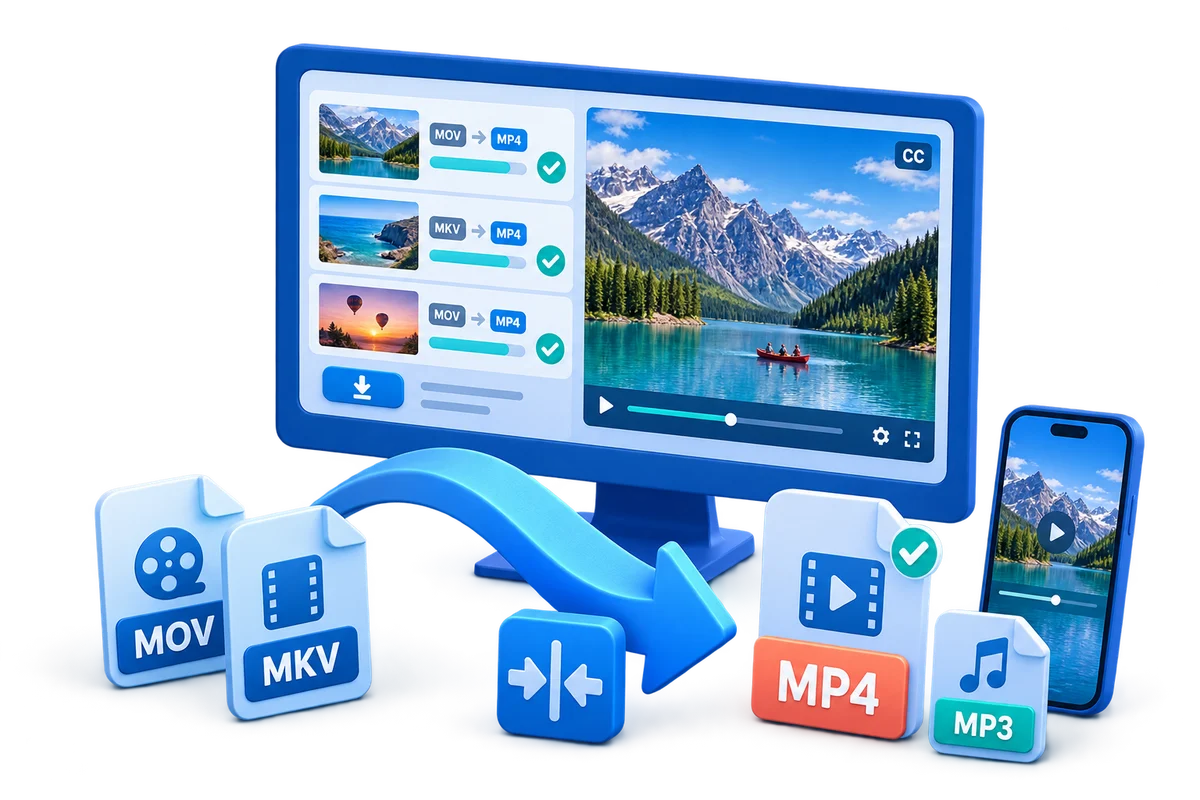
Download an Authorized YouTube Video and Convert It to MP4
Use this workflow to create an MP4 working copy from a permitted YouTube download for a defined playback need. Preserve the best source, choose settings from the destination backward, and verify the complete output.
Quick answer
Start with your own upload or a creator- or platform-provided download you may convert. Preserve that file, choose an MP4 video and audio combination supported by the destination, retain the native frame rate where practical, and verify captions, sync, attribution, and complete playback.
Choose the Right Conversion Approach
| Situation | Recommended approach | What to verify |
|---|---|---|
| Your own upload | Use the creator or platform download | Complete source and metadata |
| Licensed or permitted source | Keep evidence of permission and attribution | Allowed uses and modifications |
| Protected or unauthorized source | Do not bypass access controls | Use an authorized alternative |
Step-by-Step Workflow
- Confirm permission before downloading
Use your own upload or content whose owner and platform allow a local download and the intended conversion.
- Keep the permitted source and record context
Preserve the original download, URL, date, attribution, and permission basis with the project.
- Inspect the media streams
Check container, codecs, resolution, frame rate, audio languages, captions, duration, and protection status.
- Convert a separate working copy
Choose settings for the real destination without renaming the extension or bypassing access controls.
- Verify use as well as playback
Check the complete output, captions, sync, attribution, edits, and whether the planned sharing remains permitted.
Use the GiliSoft Video Converter Workspace
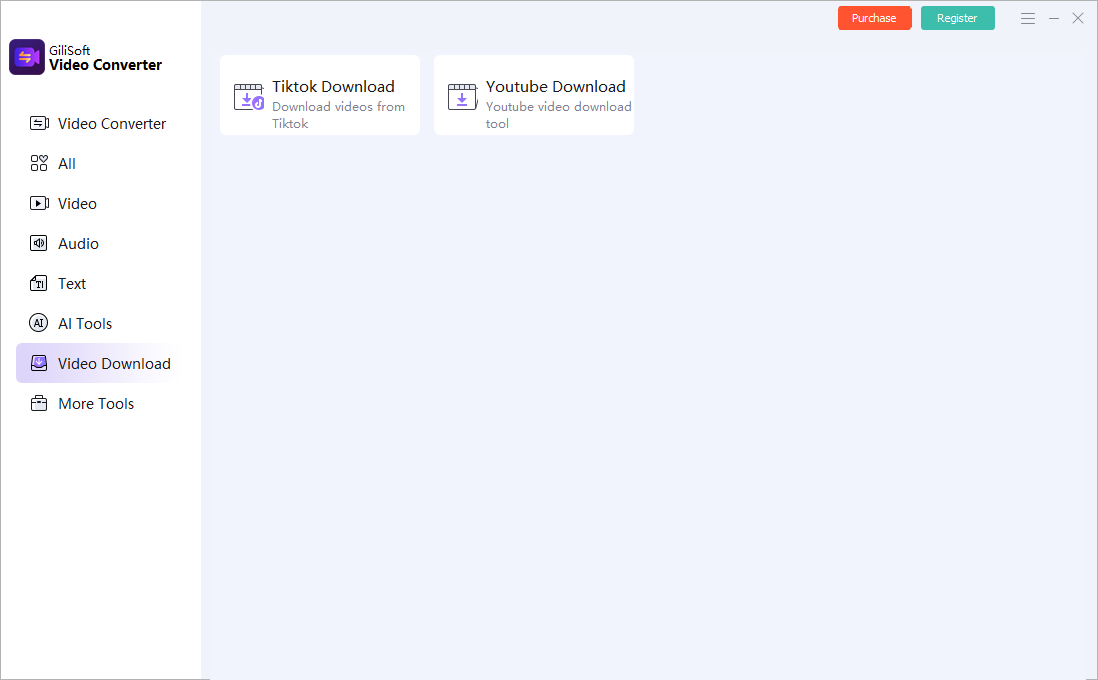
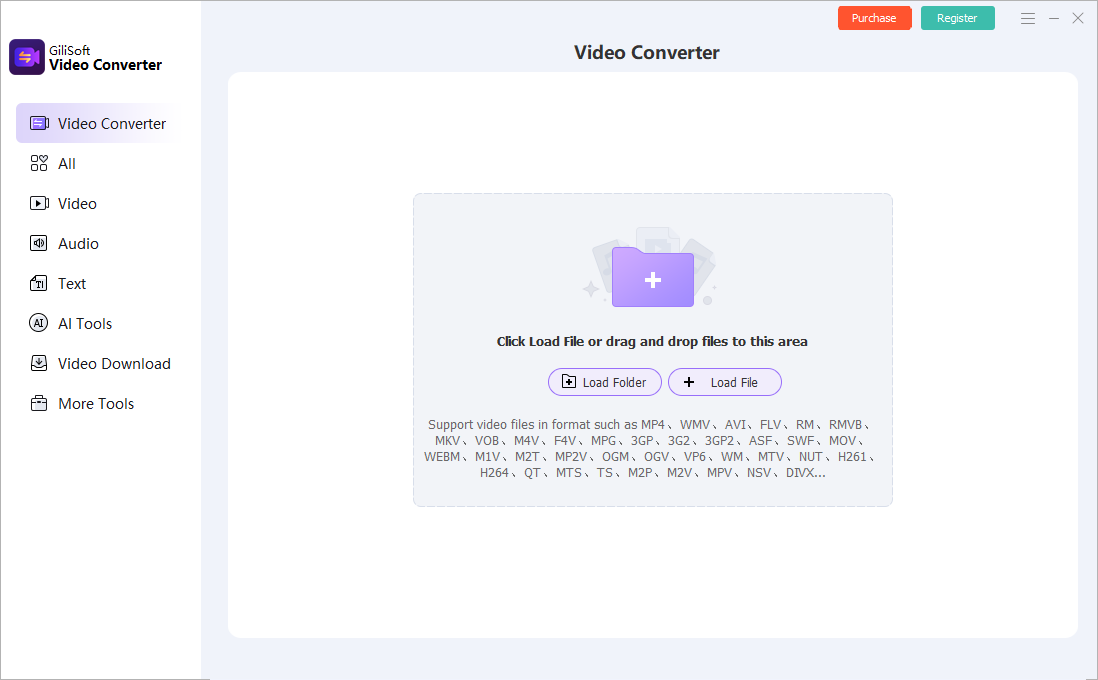
These screenshots show real product workspaces. Presets and controls can change, so inspect the source and test the actual destination instead of treating a preset name as proof of compatibility.
Verify the Output Before Delivery
| Authorized source and MP4 compatibility | Test a representative section and the complete file on the actual destination. |
|---|---|
| Picture and sound | Check aspect ratio, motion, color, audio sync, channels, captions, and readable text. |
| File identity | Confirm the output path, name, size, duration, version, and relationship to the preserved source. |
Frequently Asked Questions
Can I download any video that I can watch?
No. Viewing access does not automatically grant download, conversion, or republication rights. Use your own uploads or explicitly permitted downloads.
Does conversion remove copyright restrictions?
No. Changing container, codec, resolution, or file name does not change ownership, license terms, attribution, or permitted uses.
Can I convert protected video?
Do not bypass DRM, account controls, encryption, or other technical restrictions. Obtain an authorized unprotected source.
Should I overwrite the source?
No. Keep the source or approved master and create a separate converted output.
Why test outside the converter?
The internal preview does not prove that codecs, tracks, captions, seeking, metadata, and destination playback are correct.