
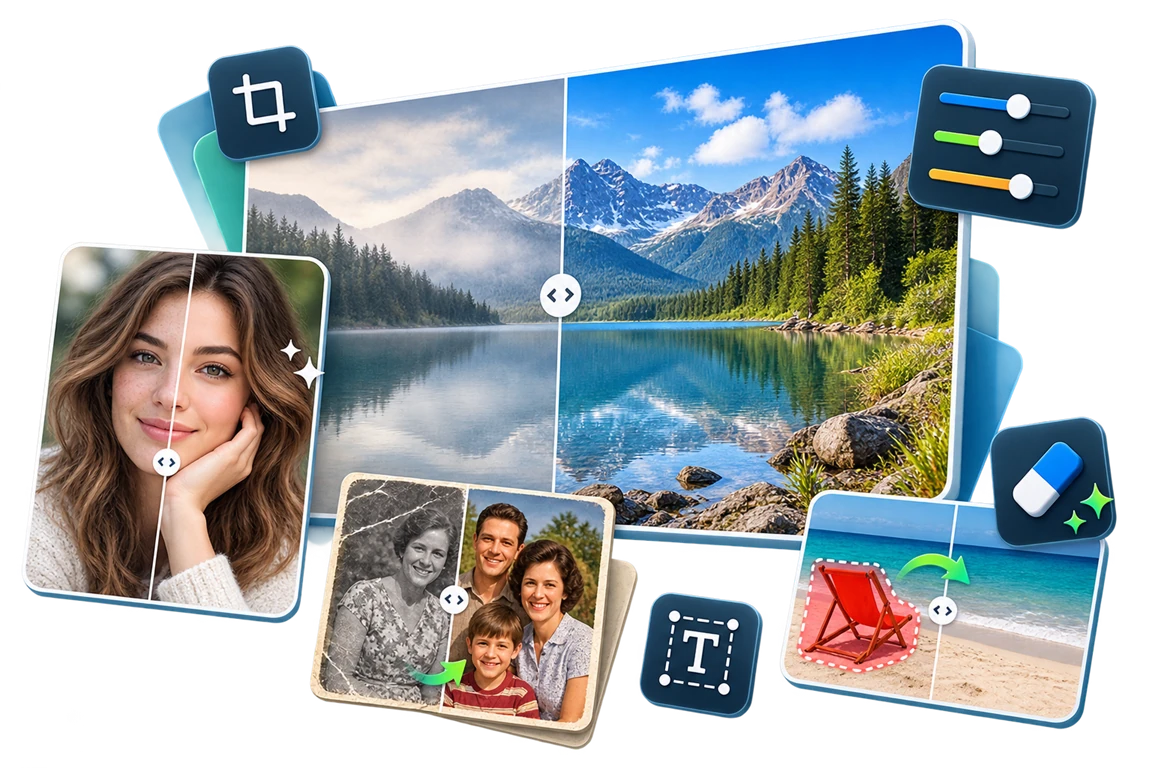
Face Repair Software for Windows Photos
Face repair can help with faded color, small blemishes, and weak detail in an otherwise readable portrait. A tiny or badly damaged source cannot provide detail that was never captured.
Quick answer
Work from the highest-quality original in GiliSoft Image Editor, correct global tone first, apply face repair selectively, then compare eyes, skin texture, hair, and background edges before exporting.
Before You Start
- Scan physical prints at adequate quality if you have the original.
- Keep the untouched scan and note tears, fading, blur, or missing facial regions.
- Decide whether the goal is family restoration, a presentation image, or a historical record.
Choose the Right Approach
| Situation | Approach | Check |
|---|---|---|
| Faded but intact portrait | Adjust tone and color, then face repair lightly | Skin and hair stay natural |
| Small scratch across a cheek | Use focused repair on a copy | No repeated texture or invented feature |
| Severely missing face detail | Treat as interpretive restoration | Output is not presented as an authentic record |
Face Repair Software for Windows Photos: Step by Step
- Inspect the source
Identify whether the face is blurred, low resolution, faded, or physically damaged.
- Correct the whole image
Use Image Editor's exposure or color controls before targeting facial detail.
- Apply face repair carefully
Process a small area or conservative setting and compare against the source.
- Review at two sizes
Check full resolution for artifacts and normal viewing size for a natural overall result.

Review the Result
- Do eyes, mouth, and distinctive features remain recognizable?
- Did smoothing erase age, texture, or important marks?
- Are borders with hair and background free of halos?
Limits and Common Mistakes
Enhancement is not file repair. If the image will not open, use a damaged-file tool such as Total Repair before attempting retouching; restoration may generate an interpretation rather than recover factual detail.
Frequently Asked Questions
Can it fix a corrupted file?
Image Editor improves an image that opens; damaged-file repair is a separate task.
Can I recover a completely missing face?
Not as a verifiable original. Heavy reconstruction should be treated as interpretive.
Should I sharpen first?
Correct tone and source quality first; excessive sharpening emphasizes noise and artifacts.