

For casual hiding on Windows, right-click the item, open Properties, and check Hidden - it vanishes until anyone ticks "Show hidden items". For real invisibility in Explorer, search, and Safe Mode, hide the files with GiliSoft File Lock Pro, where only your master password can reveal them again.
Why Hide Files or Folders
You may have some protected operating system files on your computer that need to be hidden to prevent accidental deletion, which could cause boot problems. Or perhaps you have some personal and private files or folders that are not convenient to expose to others and need to be hidden.
Whatever the reason, on Windows 10 or the new Windows 11, you can quickly hide files or folders in different ways, including using a 1-click file hide tool, File Explorer, or the attrib command lines in CMD. We will also walk you through simple steps to hide files and folders on Mac.
Compare the Ways to Hide Files and Folders
| Method | Hidden from browsing? | Hidden from search? | Survives "Show hidden items"? | Best fit |
|---|---|---|---|---|
| File Lock Pro Hiding File Most private | Yes, even Safe Mode | Yes, completely | Yes - password required | Genuinely private files |
| File Explorer hidden attribute | Yes, by default | Yes, by default | No - one checkbox reveals all | Casual, everyday hiding |
| attrib +s +h command | Yes, deeper level | Yes | Partly - needs two settings off | Power users, stubborn files |
| Mac Cmd+Shift+Period / dot rename | Yes, in Finder | Partially | Same shortcut reveals all | Casual hiding on Mac |
| Mac FileVault | Whole disk encrypted | N/A | Yes - login required | Protecting the entire Mac |
Hide Files or Folders Using a 1-Click File Hide Tool
The graphical, foolproof way - files become completely invisible to anyone or any program, even in Windows Safe Mode.
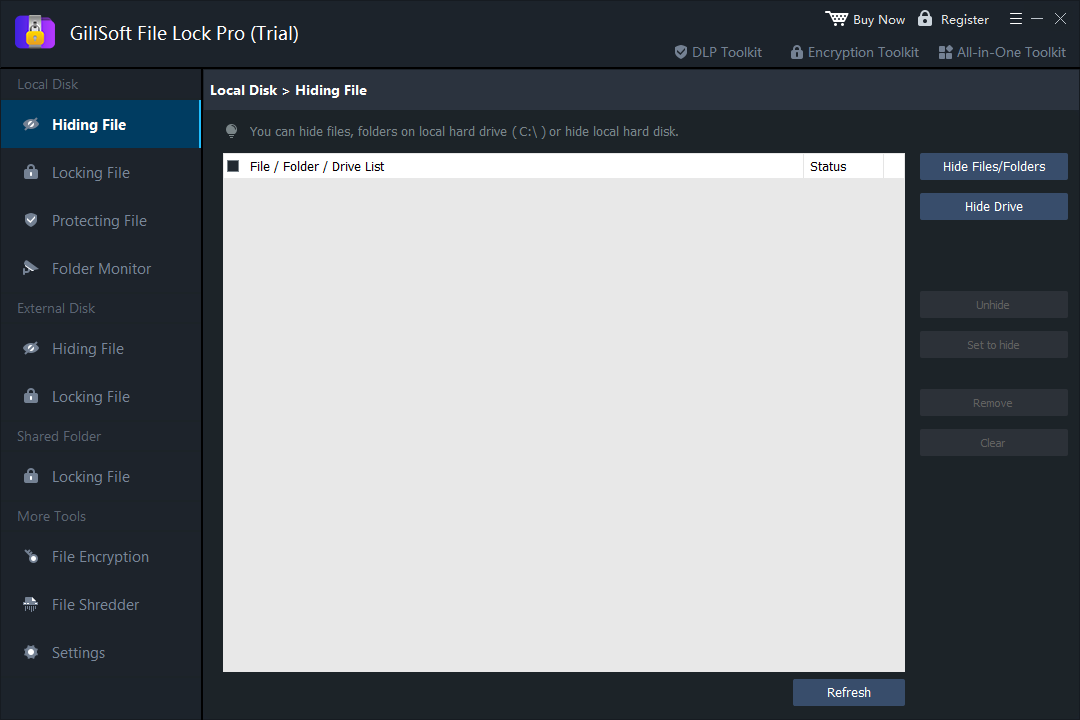
GiliSoft File Lock Pro is a user-friendly file lock tool with a graphical user interface. This software can hide your files or folders from a local disk or an external (USB) disk on Windows 10/11, making the files completely invisible. What's more, this tool can make your private data unsearchable - hidden files will not be displayed in the search results.
Run GiliSoft File Lock Pro, set your master password and recovery email, then select Hiding File under the Local Disk module.
Click Hide Files/Folders or Hide Drive to select the file, folder, or drive you want to hide. They will be added to the list, and you can add as many as you want.
Confirm the list and apply. The hiding process starts immediately - browse the parent folder and search the file name to verify they are gone.
To use the files again, open File Lock Pro, enter the password, and unhide them from the same list.
Hide a File in Windows 10/11 Using File Explorer
The built-in way - free, instant, and fine for everyday clutter, but trivially easy for anyone to reverse.
Press Win+E to open File Explorer.
Find the file or folder you want to hide. Right-click it and choose Properties.
On the General tab, under Attributes, check Hidden.
Click Apply and OK. If you are hiding a folder with files and subfolders, choose Apply changes to this folder, subfolders, and files.

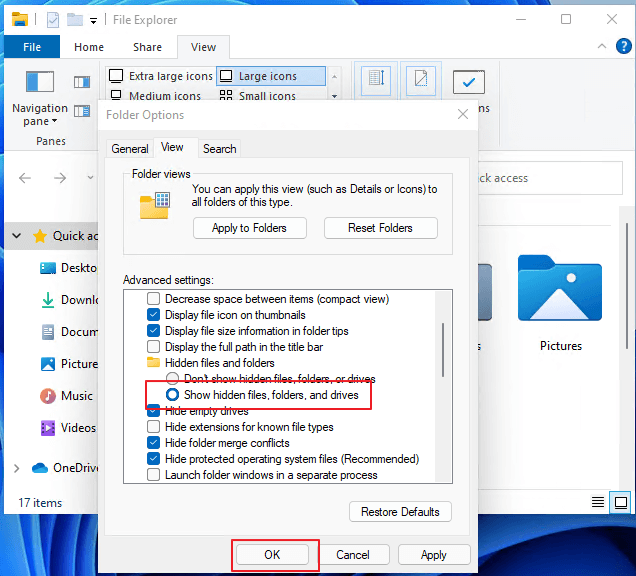
To view hidden files again
Per Microsoft's documentation: on Windows 11, open File Explorer and select View > Show > Hidden items. On Windows 10, select View > Options > Change folder and search options, then on the View tab choose Show hidden files, folders, and drives and OK.
Hide Files or Folders Using the Attrib Command
The command-line way - adding the system attribute on top of hidden makes files survive even the "Show hidden items" setting.
Type cmd in the search bar, right-click Command Prompt from the results, and choose Run as administrator.
Type the following command and press Enter, replacing the path with your own:
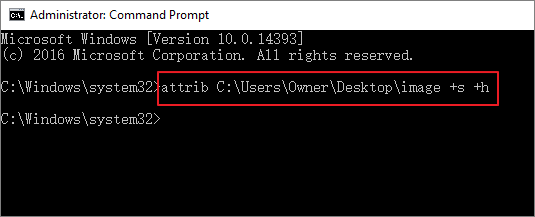
The +s attribute indicates the file is for use by the operating system and is not normally shown in the directory listing. The +h attribute means the file does not show up in the directory list by default.
To recover hidden files using the attrib command
Replace the path with the folder where you hid files. The -h, -r, and -s flags remove the hidden, read-only, and system attributes from the folder and everything inside it.
How to Hide Files or Folders on Mac
Two ways to hide files or folders on Mac are displayed in the following.
1. Use Keyboard Shortcuts to Hide a File on Mac
Go to Finder and open the file or folder you want to hide.
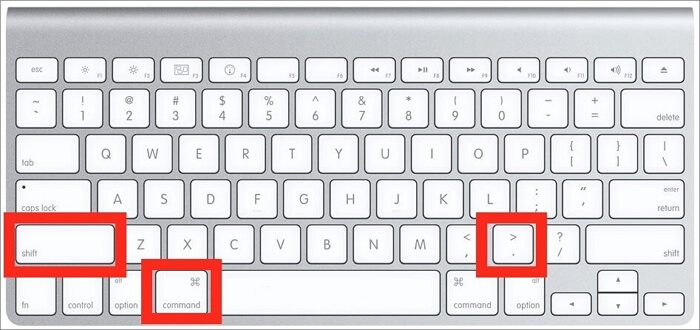
Press Cmd+Shift+Period (".") to show hidden files, and press the same keys again to hide them. To mark your own file as hidden, rename it with a leading dot, such as .private-notes.txt.
2. Enable FileVault to Protect the Whole Mac
FileVault encrypts the entire startup disk, so nothing on it can be read without your login password. Here is how to use it:
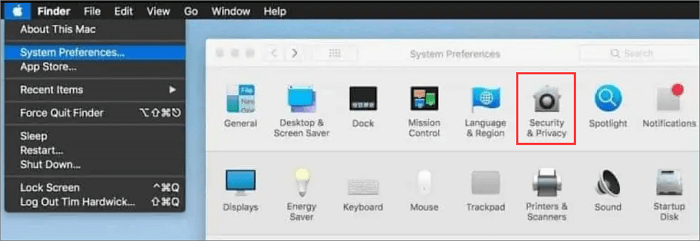
Go to the Apple Menu.
Click System Settings (or System Preferences), then choose Privacy & Security.
Click the FileVault tab, click the padlock to log in with your credentials, and then turn on FileVault.
Choose a recovery method - iCloud account or a generated local recovery key - and click Continue to finish.
Hiding Tricks That Do Not Really Work
Deep folder nesting
Burying a file ten folders deep only slows down browsing. Search and indexing still find it instantly.
Renaming with a dot on Windows
A leading dot hides files on Mac and Linux, but on Windows it means nothing - the file stays fully visible.
Changing the file extension
Renaming photo.jpg to system.dll fools no one who opens it, and Windows still indexes the content by type.
Hiding without locking
A hidden folder can still be opened by anyone who finds it. For sensitive content, hide and password-protect together.
File-Hiding Checklist
Browse the parent folder and search the file name after hiding. Both should return nothing before you trust the method.
With attrib +s +h or a hide tool, note the exact path and keep the recovery command or master password safe.
Hiding controls visibility; locking controls access. Use both on files that would hurt you if opened.
A hidden file can still be lost to drive failure or an over-aggressive attrib command. A separate backup is the last line of defense.
Frequently Asked Questions
How do I hide a file or folder in Windows 10/11?
Right-click it, choose Properties, and check Hidden on the General tab, then Apply. The item disappears as long as File Explorer is set to "Don't show hidden files, folders, or drives".
How do I view hidden files again?
On Windows 11, open File Explorer and select View > Show > Hidden items. On Windows 10, select View > Options > Change folder and search options, then on the View tab choose "Show hidden files, folders, and drives".
What does the attrib +s +h command do?
The +h flag sets the hidden attribute and +s marks the item as a system file, so it stays invisible even when "Show hidden items" is enabled - unless "Hide protected operating system files" is also turned off.
Can hidden files still be found with Windows Search?
With default settings, hidden files do not appear in search results. But anyone who enables "Show hidden items" will see and be able to search them again. More on hiding from Windows Search.
Is hiding a folder the same as locking it?
No. Hiding only controls visibility - anyone who finds the folder can still open it. File Lock Pro can hide and password-protect at the same time.
How do I hide files on a Mac without extra software?
Press Cmd+Shift+Period in Finder to toggle hidden files, or rename the item with a leading dot to mark it as hidden on macOS.
Sources and Further Reading
- Microsoft Support: File Explorer in Windows - show hidden files on Windows 11/10
- GiliSoft guide: Hide a folder from Windows Search
- GiliSoft guide: Hide files and folders on Windows 11
Hidden-items settings paths follow Microsoft's File Explorer documentation above. Product steps refer to GiliSoft File Lock Pro 13.5 on Windows 11/10/8/7.