

A USB flash drive is easy to carry into a meeting, classroom, print shop, or another computer, but that convenience also makes its files easy to change, rename, delete, or overwrite. Write protection helps reduce those unwanted changes.
There is more than one kind of USB write protection. A physical lock switch can make compatible media read-only, DiskPart can apply a Windows disk attribute, and GiliSoft File Lock Pro can protect selected files and folders stored on an external drive. Choose the method that matches what you actually need to protect.
Method 1. Turn On the USB Write-Protect Switch
Some USB drives and many SD-card adapters include a small physical lock switch. This is the clearest option when you want compatible hardware to reject write operations without relying on a Windows application.
- Safely eject the flash drive or memory-card adapter from the computer.
- Inspect the side of the device for a switch marked Lock or a padlock symbol.
- Move the switch to the locked position, reconnect the device, and test whether Windows can create, rename, edit, or delete a file.
 A physical lock switch provides device-level write protection when the hardware supports it.
Method 2. Make a USB Drive Read-Only with DiskPart
DiskPart can set the selected disk's read-only attribute. This method is built into Windows, but an administrator can clear the attribute later, so it should be treated as a reversible Windows setting rather than a hardware security boundary.
- Connect the USB drive and open Windows Terminal or Command Prompt as administrator.
- Run diskpart, then use list disk to identify the USB drive by its capacity.
- Replace N below with the USB drive's disk number, not its drive letter, and apply the read-only attribute.
diskpart
list disk
select disk N
attributes disk set readonly
exit
Method 3. Protect USB Files with GiliSoft File Lock Pro
If the goal is to protect selected files or folders rather than make the whole device read-only, GiliSoft File Lock Pro provides a clearer password-controlled workflow. Its External Disk tools can lock or hide content stored on USB flash drives and external hard drives.
- Connect the USB drive, open GiliSoft File Lock Pro, and enter the master password.
- Choose External Disk > Locking File.
- Select Lock Files/Folders and add the USB files or folders that need protection.
- Apply the lock, then test the protected items from File Explorer.
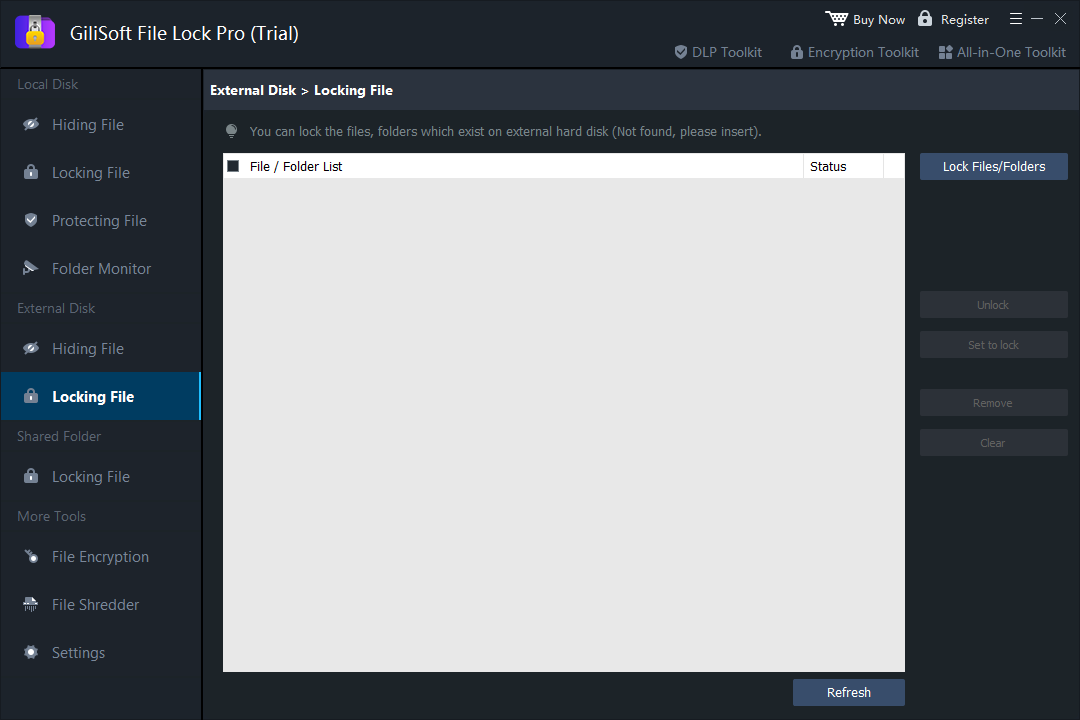 Protect selected content on an external drive without making every file on the device read-only.
Protect the USB data that matters
File Lock Pro can lock or hide files and folders on external drives while also providing local-drive protection, shared-folder locking, file encryption, folder monitoring, and secure deletion.

Need to control USB writes on company computers?
For offices that need rules on the Windows PC itself, GiliSoft USB Lock can control removable-media access and trusted-device policies across managed endpoints. This is different from storing a read-only attribute on one flash drive: the policy follows the protected computer.
How to Remove Write Protection from a USB Drive
Use the matching reversal for the method that created the protection. Back up important files before formatting or making deeper storage changes.
Turn Off the Hardware Lock
- Safely eject the device.
- Move its physical switch from Lock to Unlock.
- Reconnect it and test a small file operation.
Clear the DiskPart Read-Only Attribute
Open Terminal or Command Prompt as administrator, confirm the correct disk number, and run:
diskpart
list disk
select disk N
attributes disk clear readonly
exit
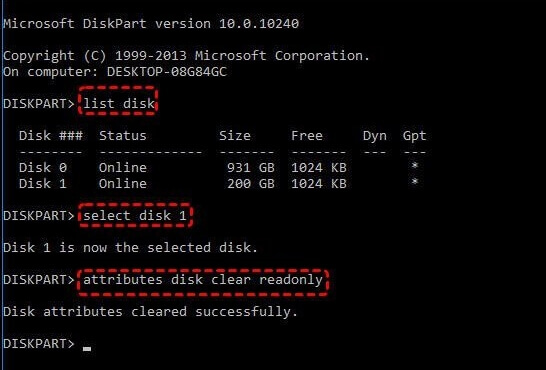 Select the USB by disk number, then clear its read-only attribute.
Check a Windows Storage Policy
If a Windows administrator previously configured removable-storage write protection, review the applicable Group Policy or the Registry value at HKEY_LOCAL_MACHINE\SYSTEM\CurrentControlSet\Control\StorageDevicePolicies. A WriteProtect value of 1 enables the restriction; setting it to 0 disables that policy after the device or computer is restarted.
Format Only After Protection Is Removed
Formatting is not a shortcut around an active hardware lock or enforced write policy, and it erases the files on the drive. Remove the protection first, copy any recoverable data elsewhere, and format only when a fresh file system is genuinely required.
Final Words
Use a hardware switch when you need the strongest portable read-only behavior supported by the device. Use DiskPart when you need a reversible Windows attribute. Use GiliSoft File Lock Pro when the real job is protecting selected USB files and folders with a password-controlled interface. For company-wide removable-media rules, use GiliSoft USB Lock on the Windows endpoints that need enforcement.
Frequently Asked Questions
Does write protection stop malware?
Write protection can reduce unwanted changes to the protected device, but it does not make an untrusted computer safe. Avoid opening unknown files and keep the computer's security controls active.
Does the Read-only checkbox in File Explorer write-protect a USB drive?
No. The folder Read-only checkbox is not a reliable device-level write-protection control. Use a hardware lock, a disk attribute, or dedicated file protection instead.
Can I protect only one folder on a USB drive?
Yes. File Lock Pro can lock or hide selected folders on an external drive without applying read-only behavior to every other file on the USB device.
Keep important USB files under your control
Use GiliSoft File Lock Pro to lock or hide selected files and folders stored on external drives.
View GiliSoft File Lock Pro