

USB flash drives make it easy to carry work files, school materials, photos, financial records, and client documents. That convenience also creates a privacy problem: an unprotected drive can be opened immediately if it is lost, borrowed, or connected to another computer.
This guide compares four practical Windows methods. The right choice depends on whether you want to encrypt individual files, protect the entire drive, lock selected folders, or create a separate secure area without giving up ordinary public storage.
Choose the Right Way to Lock a Flash Drive
| Method | What it protects | Best for | Password access |
|---|---|---|---|
| GiliSoft USB Encryption | Encrypted secure area on the USB drive | Private and public files on one flash drive | Yes |
| BitLocker To Go | The entire removable drive | Windows environments with BitLocker support | Yes |
| GiliSoft File Lock Pro | Selected files and folders on an external drive | Granular locking and hiding | Yes |
| Windows EFS | Selected files or folders on NTFS storage | Windows account-based file encryption | Uses the Windows account and certificate |
Method 1. Encrypt Selected USB Files with Windows EFS
Windows Encrypting File System can encrypt selected files and folders instead of the whole flash drive. It is tied to the Windows account and encryption certificate, so the certificate backup matters just as much as the encrypted data.
- Connect the flash drive, open it in File Explorer, and right-click the target file or folder.
- Select Properties, then choose Advanced on the General tab.
- Enable Encrypt contents to secure data, choose OK, and apply the change.
- Back up the encryption certificate and key when Windows prompts you.
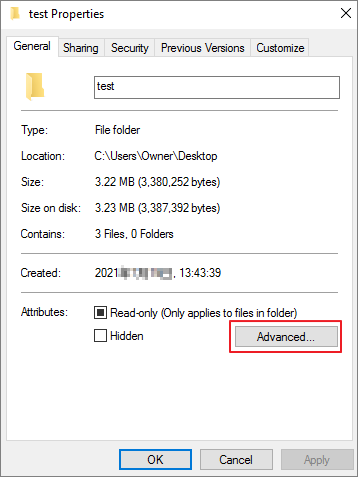 Open Advanced Attributes from the file or folder properties.
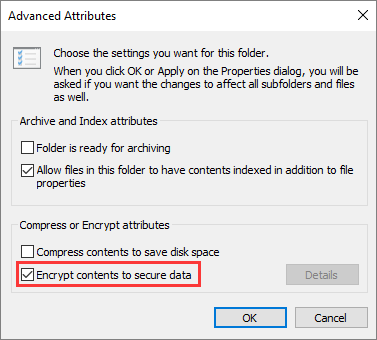 Enable Windows file encryption for the selected content.
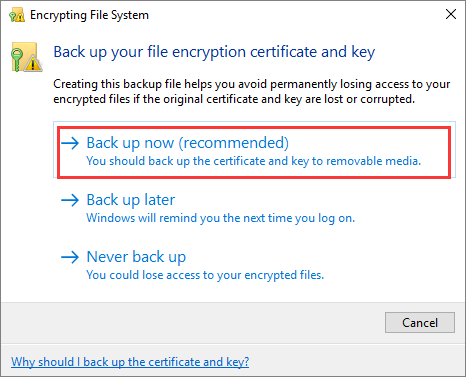 Keep the encryption certificate backup separate from the flash drive.
Method 2. Lock the Whole USB Flash Drive with BitLocker
BitLocker To Go encrypts the removable drive and asks for a password before its contents can be opened. It is the built-in choice when the whole drive should be protected as one unit.
- Connect the flash drive, open This PC, right-click the drive, and choose Turn on BitLocker.
- Select Use a password to unlock the drive and enter the password twice.
- Save the recovery key somewhere other than the flash drive.
- Choose how much of the drive to encrypt, select the compatible mode for removable media, and start encryption.
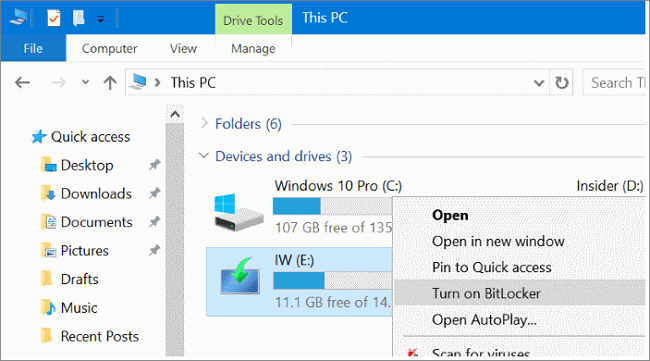 Start BitLocker from the drive menu in This PC.
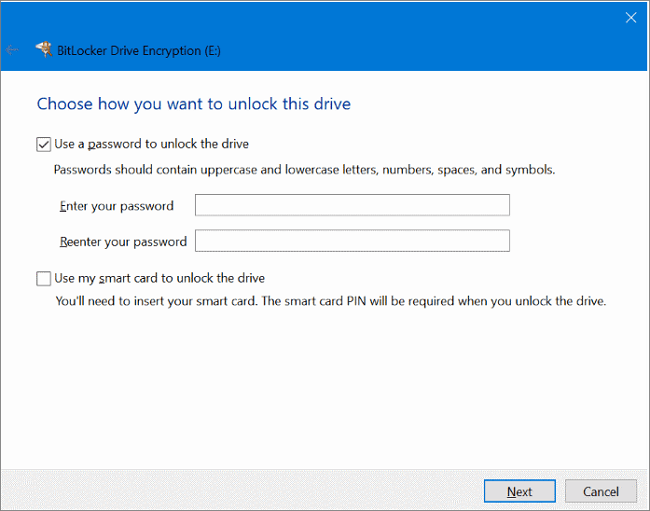 Set the password that will unlock the removable drive.
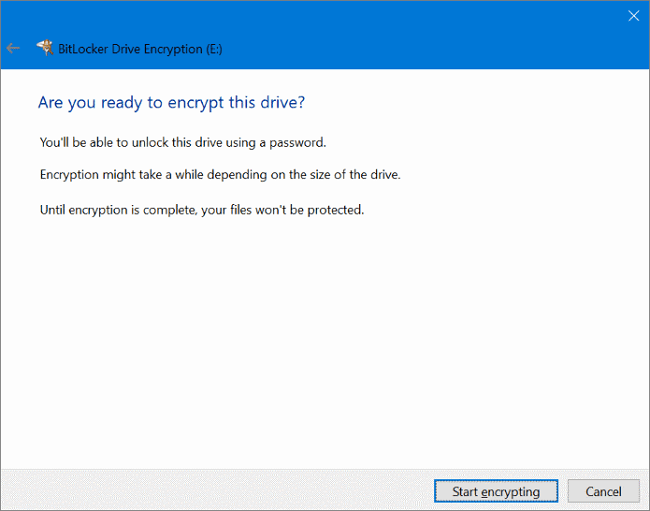 Review the final settings before starting full-drive encryption.
Method 3. Lock Selected Files and Folders on a USB Drive
GiliSoft File Lock Pro is useful when the whole flash drive does not need to be encrypted. Its External Disk tools let you lock or hide selected files and folders while leaving unrelated content available.
- Open File Lock Pro and enter the master password.
- Select External Disk > Locking File.
- Choose Lock Files/Folders, then select the items stored on the flash drive.
- Test access from File Explorer and unlock the items from File Lock Pro when authorized access is needed.
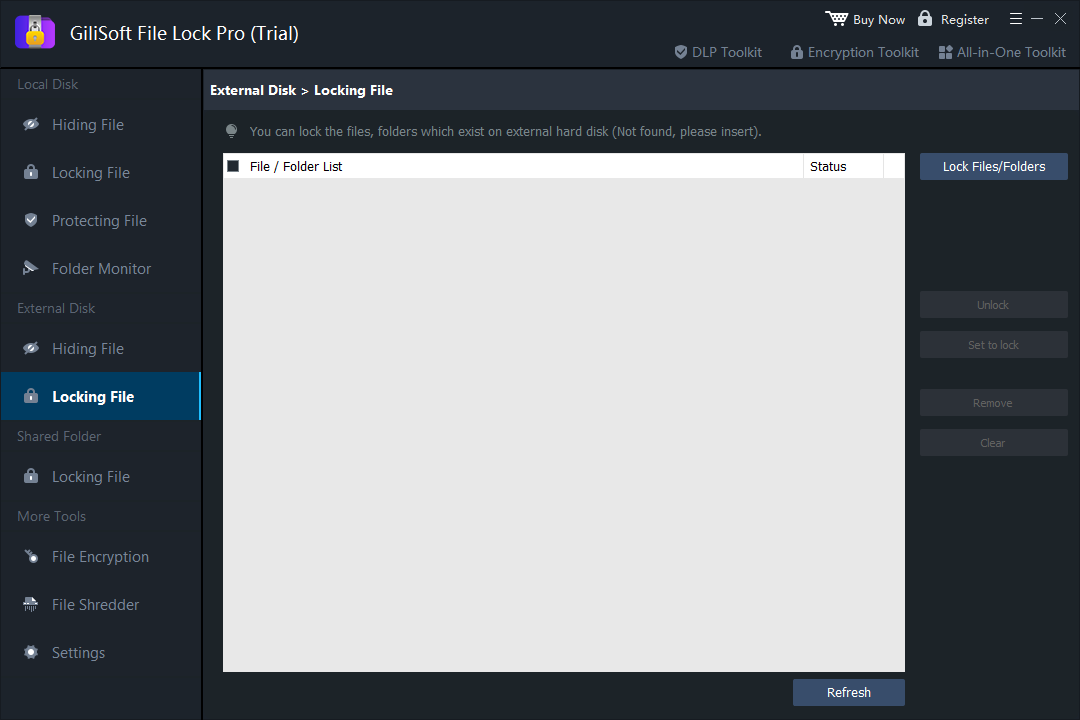 Manage selected USB files and folders without locking every item on the drive.
Lock only the private part of a flash drive
Choose File Lock Pro when private documents, folders, or media should be controlled individually while the rest of the USB drive stays available.

Method 4. Create a Password-Protected Secure Area
GiliSoft USB Encryption divides the flash drive into a public area and an encrypted secure area. Ordinary files can remain available in the public area, while private files are opened through a password-controlled virtual drive.
- Connect the USB flash drive, open GiliSoft USB Encryption, and select the correct drive.
- Set the secure-area size while leaving enough public space for ordinary files.
- Install the secure area and create its password.
- Open the protected area with the password and choose a virtual drive letter.
- Use the USB Toolbox when you need password, backup, recovery, or secure-area management tools.
 Choose the flash drive and balance secure and public capacity.
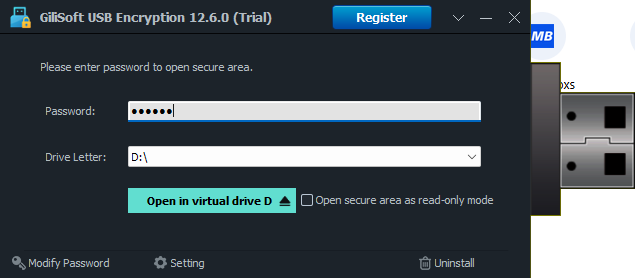 Mount the encrypted area as a password-controlled virtual drive.
One flash drive, two clearly separated storage areas
Keep shareable files in the public area and place confidential documents, photos, or work files in the encrypted secure area.
Frequently Asked Questions
Can I lock only one folder on a flash drive?
Yes. File Lock Pro can lock or hide selected files and folders on an external drive without applying the same rule to every item.
Can a flash drive have both public and private files?
Yes. GiliSoft USB Encryption creates a public area for ordinary access and an encrypted secure area for password-protected files.
Should I store the recovery key on the same USB drive?
No. Keep recovery information and backup keys in a separate protected location so loss or damage to the flash drive does not remove the only recovery path.
Does locking a flash drive replace a backup?
No. Encryption and locking protect access. Keep another protected copy of important files in case the flash drive is lost, damaged, or corrupted.
Lock private files on your USB flash drive
Choose GiliSoft USB Encryption for a public-and-secure-area design, or File Lock Pro for selective file and folder control.
View GiliSoft USB Encryption