

MP4 Joiner for Windows: How to Merge MP4 Videos
An MP4 joiner combines two or more clips into one continuous video. Reliable results depend on clip order, compatible video and audio properties, clean boundary points, and output settings that match where the finished file will be played or shared.
Quick answer
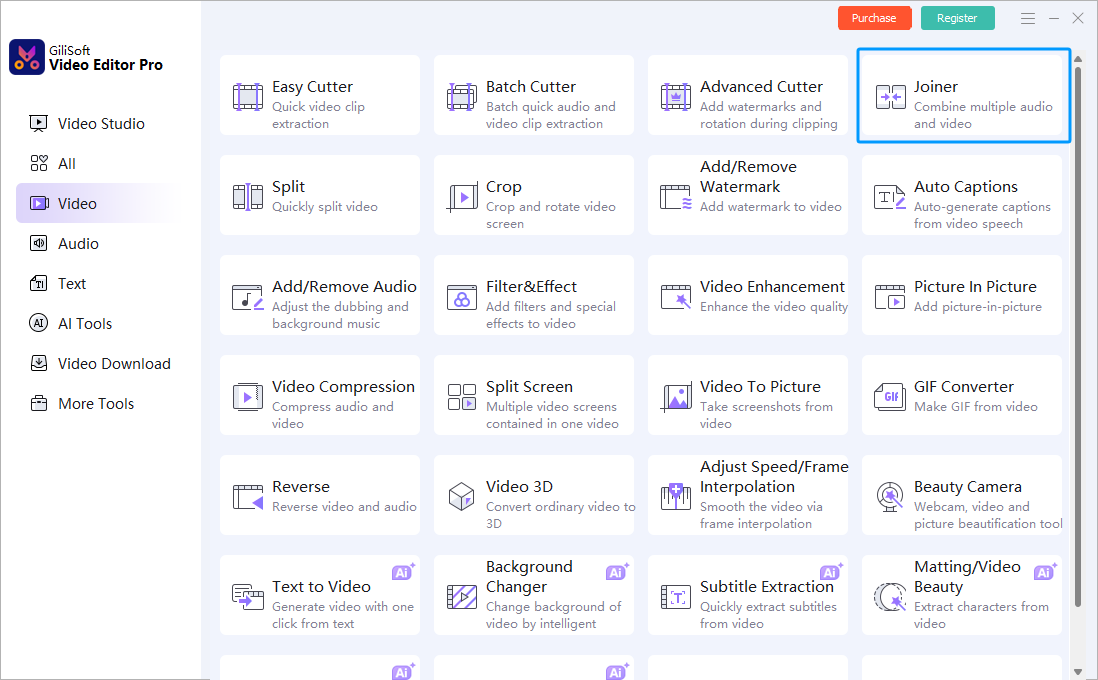
Open GiliSoft Video Editor Pro, choose Video > Joiner, add the MP4 files, move them into playback order, preview the start and end of each clip, and export one finished video. Use this dedicated Joiner for straightforward sequencing. Move to Video Studio only when the project needs multiple tracks, titles, overlays, picture-in-picture, or detailed transitions.
Use Joiner first, not a full timeline
| Task | Recommended workspace | Why |
|---|---|---|
| Place several MP4 clips in sequence | Joiner | Focused controls for adding, ordering, checking, and exporting files |
| Trim the beginning or ending around a join | Joiner | Start and end controls are available without creating a full project |
| Add layered audio, titles, overlays, or picture-in-picture | Video Studio | These tasks need a multi-track timeline |
| Build complex transitions or scene timing | Video Studio | A timeline provides more detailed control between clips |
How to join MP4 files with GiliSoft Video Editor Pro
- Open the dedicated Joiner
Launch GiliSoft Video Editor Pro, select the Video category, and choose Joiner.
- Add the MP4 clips
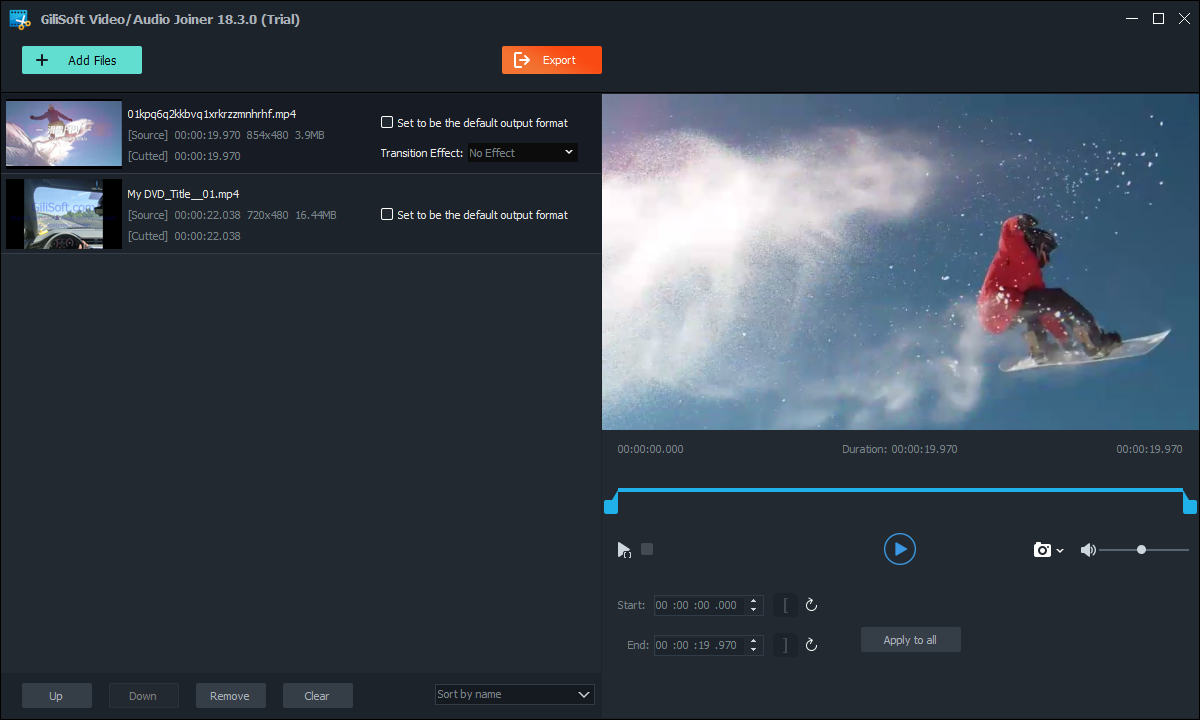
Select every clip that belongs in the final video. Keep the original files unchanged until the exported result has been checked.
- Arrange the playback order
Use the Up and Down controls to place the files from first to last. Remove duplicates or unrelated clips before export.
- Review trim points and transitions
Preview the end of one clip and the beginning of the next. Adjust start or end points when an unwanted frame, pause, or audio click appears.
- Choose the output behavior
Review the format and output choices. Clips recorded with different properties may need a new, normalized export.
- Export and verify the joined MP4
Check the beginning, every join point, audio sync, total duration, ending, and playback in a second media player.
Why some MP4 files cannot be joined directly
MP4 is a container. Two files can both use the .mp4 extension while containing different video codecs, codec profiles, dimensions, frame rates, audio codecs, sample rates, channel layouts, subtitles, or timestamp structures.
| Difference | Possible symptom | Practical fix |
|---|---|---|
| Video codec or profile | Export error or unplayable section | Convert the source clips to one common codec and profile |
| Resolution or orientation | Borders, stretching, or abrupt frame-size changes | Choose one output resolution and normalize orientation |
| Frame rate or time base | Stutter, timing errors, or audio drift | Create a consistent frame-rate export |
| Audio format or sample rate | Silence, clicks, or sync problems | Normalize the audio tracks before joining |
| Damaged timestamps | Wrong duration or failed seek behavior | Re-export the affected clip before combining it |
Keep the joined MP4 clean and consistent
- Preserve the originals: export to a new file and do not overwrite the source clips.
- Remove accidental gaps: inspect every boundary with both picture and sound.
- Use restrained transitions: simple cuts are often clearer than an effect between every clip.
- Match the destination: choose resolution, frame rate, codec, bitrate, and audio settings for the device or platform that will receive the video.
- Verify outside the editor: play the finished MP4 in another application before deleting temporary files.
Troubleshoot MP4 joining problems
The joined video has no sound
Check whether every source clip contains an enabled audio track and whether the selected output supports that audio codec. Normalize mismatched tracks when only part of the video is silent.
Audio gradually moves out of sync
Phone footage and screen recordings may use variable frame rates or inconsistent timestamps. Re-export the affected sources using one frame rate and shared audio settings before joining.
A pause or black frame appears at the boundary
Trim empty frames from the end of the first clip and the beginning of the next. Preview the boundary at normal speed before exporting again.
The output file is too large
Review the output resolution, frame rate, codec, and bitrate. Joining clips does not automatically require settings higher than the source or final delivery target.
MP4 joiner FAQ
How do I join MP4 files on Windows?
Open GiliSoft Video Editor Pro, choose Video and then Joiner, add the MP4 files, arrange them in playback order, preview the boundaries, and export one finished file.
Can MP4 files be joined without losing quality?
Compatible streams can sometimes be joined without re-encoding, but files with different codecs, resolutions, frame rates, audio settings, or timestamps usually need a normalized export.
Why will two MP4 files not join correctly?
The MP4 extension describes a container, not one fixed format. Different codecs, dimensions, frame rates, audio parameters, or time bases can cause errors, gaps, or sync problems.
Should I use Joiner or the Video Studio timeline?
Use Joiner when the main task is arranging and combining clips. Use Video Studio when the project needs multiple tracks, overlays, titles, picture-in-picture, or detailed transitions.
Can I combine MP4 and other video formats?
A timeline export can combine different source formats by decoding them and creating one consistent output. Review the selected resolution, frame rate, codec, and audio settings before exporting.