
What Is an Offline PDF Converter?
An offline PDF converter is Windows desktop software that processes documents locally instead of asking you to upload them to a web service. It is a practical choice for confidential contracts, financial reports, customer files, scans, and recurring conversion work.
Local processing does not remove the need to check output quality. It does give you a clearer workflow for large documents, repeated batches, and files that should stay under your own control.
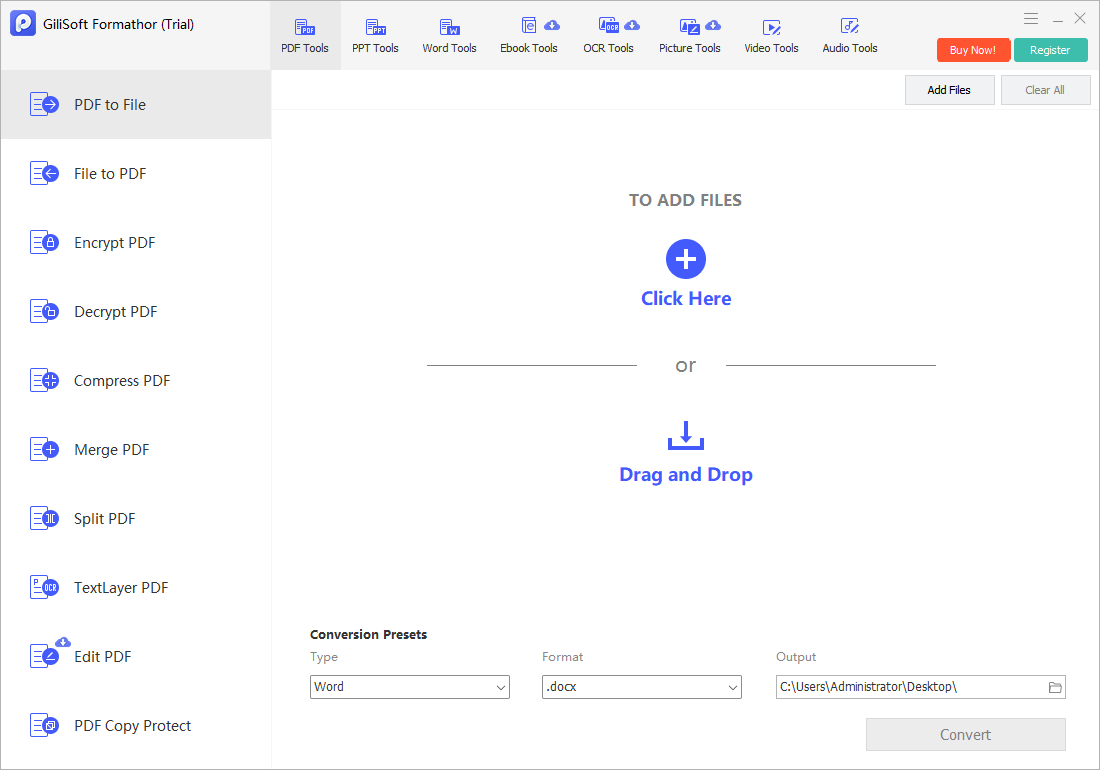
Convert Files Locally with GiliSoft Formathor
GiliSoft Formathor is an all-in-one Windows converter for PDF, Word, Excel, PowerPoint, images, eBooks, text, HTML, and OCR-oriented documents. It also includes PDF editing, merge, split, compression, encryption, and decryption tools for the work that often follows conversion.
- Add the source file.
Open the local conversion workspace and choose the PDF, Office document, image, eBook, or other supported source. - Select the required output.
Choose PDF, Word, Excel, PowerPoint, image, text, HTML, or another appropriate format for the next task. - Use OCR for scans.
Recognize text in image-based pages before reuse, then compare important content with the original. - Prepare the final document.
Merge, split, compress, edit, or protect the final PDF without moving to another browser tool.
When Local PDF Conversion Matters
Confidential documents
Keep contracts, invoices, financial records, HR documents, and customer files on the Windows PC while they are processed.
Large or repeated jobs
Use a desktop workflow when browser limits, unstable uploads, or repeatable document batches slow down the work.
Mixed file formats
Move between PDF, Office, images, eBooks, text, and HTML without changing tools for each file family.
Final PDF delivery
Compress, merge, split, edit, or apply authorized protection after the conversion is complete.
Offline PDF Conversion Paths
| Goal | Local conversion path | Check before delivery |
|---|---|---|
| Reuse PDF content | PDF to Word, Excel, PowerPoint, image, text, HTML, or eBook | Text flow, tables, page breaks, images, and editable values. |
| Create a stable PDF | Word, Excel, PowerPoint, images, text, HTML, or eBook to PDF | Page size, margins, fonts, order, and final appearance. |
| Process a scanned file | OCR-oriented workflow before reuse | Names, dates, numbers, and small text against the original scan. |
| Prepare a delivery packet | Merge, split, compress, edit, or protect PDF files | Page order, file size, access rules, and recipient compatibility. |
Common Offline Conversion Questions
| Situation | What to do |
|---|---|
| PDF is a scan | Use OCR first and review recognized text before making decisions from the output. |
| Converted Word file changes layout | Review fonts, text flow, columns, tables, and page breaks; PDF and Word use different layout models. |
| PDF is too large to send | Compress a delivery copy and keep the source or archive master separately. |
| Need only a few pages | Split or extract the required pages before conversion or delivery. |
| Need a protected final PDF | Use the PDF protection tools after final review, and test authorized access before sending. |
Offline PDF Converter FAQ
Does offline conversion mean I never need the internet?
Conversion runs locally on Windows. You may still need internet access for downloading, updates, purchase, or activation depending on your setup.
Why choose offline conversion over an online PDF tool?
It is useful when documents are private, large, repeated, or part of a multi-format workflow that is easier to manage on one computer.
Can Formathor convert both to and from PDF?
Yes. It supports PDF-to-file reuse and file-to-PDF creation alongside related PDF preparation tools.
What should I do with a scanned PDF?
Use OCR-oriented handling first, then compare the output with the original for important names, dates, figures, and table values.
Related Offline PDF Guides
- Online PDF converter alternative
- Free PDF converter without uploading
- PDF to Excel converter
- PDF to Word converter
- PDF converter for business documents
Convert and Prepare PDFs Locally with Formathor
Keep document conversion on your Windows PC, then continue with OCR, PDF editing, merge, split, compression, encryption, and decryption tools in the same product.